> ## Documentation Index
> Fetch the complete documentation index at: https://docs.flashcat.cloud/llms.txt
> Use this file to discover all available pages before exploring further.
# Escalation Rules
> Configure alert escalation rules to ensure incidents are promptly notified to the right responders
Escalation rules determine **when**, **through which channels**, **to whom**, and **how to escalate on timeout** when an incident occurs. Through direct messaging, group chat, and multi-level escalation mechanisms, they ensure important incidents always get a response.
## Configuration Elements
An escalation rule contains six core elements. The system matches rules from top to bottom, **stopping after the first successful match**.
You can enable or disable individual escalation rules. Disabled rules are skipped during matching and will not trigger notifications. You can also copy an escalation rule to the current channel or another channel to quickly reuse existing configurations.
### 1. Trigger Conditions
Determines which incidents trigger the current rule.
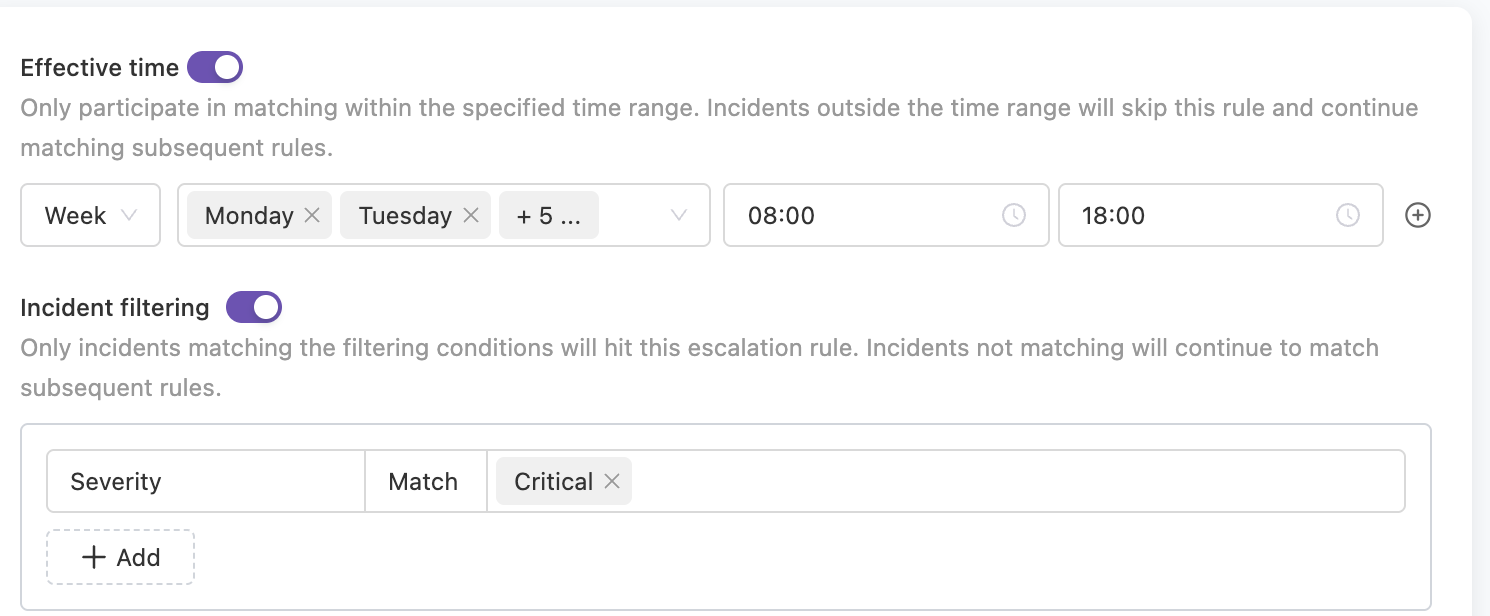
**Effective Time**: Controls when the rule participates in matching.
* **Off (Default)**: Active 24/7
* **On**: Only participates in matching within specified time ranges; incidents outside this time will skip this rule. Two modes supported:
* **Specific Time Period**: e.g., only active on weekdays (Monday-Friday 9:00-18:00)
* **Service Calendar**: Reference a predefined [Service Calendar](/en/on-call/configuration/service-calendar), e.g., only active on "Trading Days", automatically excluding holidays
**Incident Filter**: Controls which incidents the rule matches.
* **Off (Default)**: All incidents may match this rule
* **On**: Precisely filter by incident attributes, supports matching by **title**, **severity** (e.g., Critical only), **labels** (e.g., `service=payment`), etc.
### 2. Notification Recipients
Determines who receives notifications.
| Recipient Type | Description |
| :------------------------- | :------------------------------------------- |
| **Schedule (Recommended)** | Assign to currently on-call personnel |
| **Team** | Assign to all members of a team |
| **Individual** | Assign to specific personnel |
| **Combination Mode** | You can select multiple types simultaneously |
For dynamic routing to owners based on alert content (e.g., auto-assign based on `owner` label), refer to [Dynamic Assignment](/en/on-call/advanced/dynamic-notifications).
### 3. Notification Methods
Determines how users are reached.
Point-to-point messaging to specific assignees, supports phone calls, SMS, email, app push, IM direct messages (Feishu/Lark, Dingtalk, WeCom).
* **Follow Personal Preferences (Recommended)**: Notification methods configured by members in [Personal Settings](/en/on-call/configuration/personal-settings)
* **Follow Unified Settings**: Enforce notification methods (e.g., must send SMS), overriding member personal preferences
Send to instant messaging groups, with support for @ mentioning relevant personnel.
* **IM App Groups**: Supports Feishu/Lark, Dingtalk, WeCom, Slack, and Microsoft Teams groups, requires completing [IM Integration](/en/on-call/integration/instant-messaging/lark) first
* **Group Bots**: Supports Feishu/Lark, Dingtalk, WeCom, Telegram, Zoom, and other Webhook bots. Telegram requires configuring a Webhook notification address and Chat IDs, Zoom requires configuring a Webhook address and Verify Token, and supports enabling @ mention functionality. See [Notification Channel Configuration](/en/on-call/configuration/notifications)
**Don't use any of the above IM platforms?** You can select any bot type and set the webhook URL to your own server endpoint (the system does not validate domains), then implement the corresponding message protocol on your server. See [FAQ](/en/on-call/quickstart/faq#i-dont-use-feishudingtalkwecomtelegram--how-can-i-receive-bot-notifications).
### 4. Delay Window
Reserve a waiting period before the first notification is sent, to filter out incidents caused by transient flapping.
* Range: 0 – 3600 seconds, default `0` (disabled, notify immediately)
* During the delay window, if the incident is **auto-closed** or **manually closed**, the system does not send a notification
For easily self-healing monitors (such as transient flaps or brief network timeouts), setting a reasonable delay window can significantly reduce unnecessary interruptions.
### 5. Notification Template
Every escalation rule **must** select a notification template, which determines the message format delivered to each channel.
* Templates must be created and enabled in advance under [Notification Templates](/en/on-call/configuration/templates)
* You can pick different templates for different escalation rules to format messages for specific scenarios
### 6. Escalation Rules
This is the key mechanism for ensuring incident closure. When first-level responders don't respond or complete handling, the system automatically escalates to the next level.
**Loop Notification**:
In each escalation level, you can enable the **Loop Notification** feature. When enabled, if the incident is not resolved at the current level, the system sends repeated notifications at the configured interval (minimum 0.5 minutes, in 0.5-minute increments) up to the specified maximum number of times.
**Escalation Conditions**:
* **Not closed**: Incident not closed within N minutes after trigger
* **Not closed and not acknowledged**: Incident neither closed nor acknowledged within N minutes after trigger
The minimum escalation timeout is 1 minute.
**Typical Scenarios**:
| Scenario | Escalation Path |
| :------------------------ | :------------------------------------------------------------------------------------- |
| Level 1 → Level 2 | Level 1 on-call (SRE) no response for 15 min → Escalate to Level 2 development experts |
| Primary/Backup Escalation | Primary on-call no response for 10 min → Escalate to backup on-call |
| Tiered Reporting | Technical staff unresolved for 30 min → Escalate to Tech Lead → Escalate to CTO |
**Level management**:
* **Default first level**: when you create a rule, the first level is generated automatically, with a default **30-minute timeout** before escalation, **no repeated notifications**, and notification methods that **follow personal preferences**
* **Add or remove levels**: you can add or remove levels freely; a rule must keep at least 1 level
* **Reorder**: you can move a level up or down, or insert a new level between any two existing levels
## Best Practices
Recommend keeping a default policy **without filter conditions** at the bottom of the list, assigned to the SRE team or administrators, to prevent incidents from being missed due to filter rule misconfigurations.
* For low-priority `Info` / `Warning` level alerts, recommend using only IM messages, not phone calls or SMS
* Use the **Loop Notification** feature cautiously to avoid alert bombardment
Don't try to manage all company alerts in one channel. Splitting channels by functional module or team, with each channel maintaining independent and simple escalation rules, is key to reducing maintenance costs.
## FAQ
Go to Incident Details → **Timeline** to check if notification status is normal for each channel. If there are failure messages, use them for troubleshooting. Contact technical support for more issues.
Flashduty On-call direct messaging supports two modes: "Follow Personal Preferences" and "Follow Unified Settings". Only in "Follow Personal Preferences" mode will the system send notifications according to your personal settings.
Go to Channel Details → **Escalation Rules** to check current settings.
These are two different features — do not confuse them:
* **Webhook integrations** ([Alert Webhook](/en/on-call/integration/webhooks/alert-webhook), [Incident Webhook](/en/on-call/integration/webhooks/incident-webhook)): When alerts or incidents change, Flashduty pushes event data to your configured URL for integration with external systems (e.g., ticketing systems, automation platforms)
* **Group bot webhooks** (this page, "Notification Methods → Group Chat"): Configure an IM group bot's webhook URL in escalation rules so Flashduty sends incident notification messages to the group chat
In short: webhook integrations are for **data export**, group bots are for **notification delivery**.
## Related Topics
Set rotation rules for automatic assignment
Customize notification time periods and channels
Customize notification content format