> ## Documentation Index
> Fetch the complete documentation index at: https://docs.flashcat.cloud/llms.txt
> Use this file to discover all available pages before exploring further.
# Notification
> Comprehensive guide to Flashduty On-call supported notification channels, including App push, voice, SMS, email, and various IM tools
## Overview
***
### Supported Channel Matrix
Flashduty On-call provides a comprehensive notification matrix covering mobile App, traditional communication, and mainstream instant messaging (IM) tools.
| Channel Type | Notification Form | Interactive | Rating | Description |
| ---------------------- | ----------------- | ------------------ | ------ | --------------------------------------------------------------------------------- |
| **Flashduty App** | Direct Message | ✅ Native | ⭐⭐⭐⭐⭐ | Top choice for mobile work, supports incident handling, full-featured |
| **Voice Call** | Direct Message | ✅ Keypad | ⭐⭐⭐⭐ | High availability, used for major incident escalation, forced delivery |
| **SMS** | Direct Message | ❌ Text only | ⭐⭐ | High availability, covers no network signal scenarios |
| **Email** | Direct Message | ❌ Text only | ⭐⭐ | Fallback notification channel, suitable for detailed incident reports |
| **IM App Integration** | Direct/Group Chat | ✅ Card interaction | ⭐⭐⭐⭐⭐ | Top choice for team collaboration, supports handling incidents directly in groups |
| **IM Bot** | Direct/Group Chat | ❌ Link redirect | ⭐⭐ | Quick integration alternative, simple configuration, no admin permissions needed |
***
## Core Notification Channel Configuration
***
### Flashduty App
The Flashduty App is the most efficient mobile work tool for On-call engineers. Wherever you are, you can fully control the incident handling process just like at your computer.
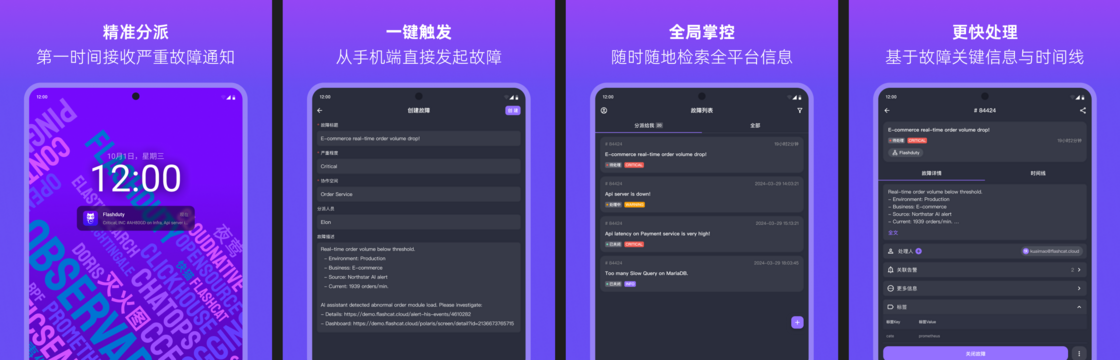
**Critical Notifications, Must Reach Users**: iOS critical alerts are based on Apple's official Critical Alerts protocol, penetrating silent and Do Not Disturb modes; Android supports system-level push channels from mainstream manufacturers, ensuring App receives notifications even in background.
**Efficient Mobile Handling**: Complete all core operations on your phone including searching, viewing details, acknowledging, closing, and escalating incidents.
**Smart Voice Notification Recognition**: App can automatically sync Flashduty On-call voice notification numbers to phone contacts, avoiding misinterception.
Search "Flashduty" in App Store or major Android markets, or scan QR code in console personal center
Open App and login with your Flashduty account, or scan to login from console. After login, current device automatically links to your account
* **iOS Users**: In phone System Settings → Notifications → Flashduty On-call, enable **Critical Alerts** toggle
* **All Users**: Recommend enabling **Sync Contacts** permission in App Settings → Voice Notifications
**Why am I not receiving App push notifications?**
1. Check if notification permissions are enabled for Flashduty App in phone system settings
2. Confirm App push is set as one of the notification channels in your escalation rules
3. If "Follow Personal Preferences" is set, check if Flashduty App is selected in personal notification settings
### Voice, SMS, Email
* **Incident Escalation**: Use voice calls for forced delivery in the final stage of escalation rules
* **IM Fallback**: When IM app message delivery fails, system automatically sends supplementary reminders via SMS or email
* **Offline Coverage**: Cover team members in poor network environments or without smartphones
Go to **Personal Center** → **Basic Information**, bind and verify your phone number and email
Add voice, SMS, or email as notification methods in **escalation rules**
**Mainland China Numbers**:
* +86 (010)21364727, (021)32017538, (010)21364713
* (010)21364708, (0571)23675454, (0571)23675496
**Outside Mainland China**: Use unified number `16465861127`, covering 200+ countries and regions globally.
For the complete list of supported regions, refer to [FAQ](/en/on-call/quickstart/faq).
1. **Check phone blocking settings**: Check phone's blacklist or spam interception records. Flashduty On-call uses fixed numbers for voice push; you can download Flashduty App to sync number whitelist
2. **Check carrier services**: Some users may have carrier-level high-frequency spam call blocking enabled; check and configure through your carrier's official account
3. **Ported number users**: Check blocking status across multiple carriers
1. Check "Spam" or "Junk" folders, mark Flashduty On-call emails as "Not Spam"
2. Add Flashduty On-call's sending domain or address to your email whitelist
3. Contact company email administrator to set Flashduty email whitelist at domain level (`no-reply@notice.flashcat.cloud`)
***
## Instant Messaging (IM) Integration
***
Integrating Flashduty On-call with your team's daily IM tools (like Feishu/Lark, Dingtalk) allows receiving and handling incidents in familiar collaboration environments, greatly improving On-call efficiency.
### App Integration (Recommended)
App integration provides the most complete interactive experience. We strongly recommend teams with the capability to use this method.
Acknowledge, close, escalate directly on IM message cards without redirecting
After linking member accounts with IM accounts, no need to re-login to Flashduty when operating
Supports getting complete incident details, viewing timeline, adding comments, etc.
One-time configuration, long-term effectiveness
#### Configuration Guide
Feishu/Lark app integration
DingTalk app integration
WeCom app integration
Slack app integration
Microsoft Teams integration
### Bot Integration
If your team cannot do app integration temporarily, using bots is a simple, quick, and effective alternative.
**Use Cases**:
* Cannot obtain IM platform admin permissions to install apps
* Only need basic incident notification push functionality, no complex online interaction needed
* Need to quickly establish notifications in temporary project groups or cross-department groups
Enter Feishu/Lark group chat → **Group Settings** → **Group Bots** → **Add Bot** → Select **Custom Bot**
Set bot name and description, configure custom keyword: `#`, click **Add** to generate Webhook URL
Copy Webhook URL, add Feishu/Lark bot in Flashduty On-call's **Channel** → **Escalation Rules**
Enter Dingtalk group chat → **Group Settings** → **Group Management** → **Smart Assistant** → **Add Robot** → Select **Custom** type
Set bot name, add keyword: `#`, agree to related agreements
Copy Webhook URL, configure Dingtalk bot in Flashduty On-call's **Channel** → **Escalation Rules**
Dingtalk uses member phone numbers for @ mentions by default, no extra configuration needed.
Enter WeCom group chat → **Top right settings** → **Add Group Bot** → **Create a new bot**
Set bot name, click **Add Bot**, copy generated Webhook URL
Select **WeCom Bot** in Flashduty On-call's **Channel** → **Escalation Rules**, paste Webhook URL
Telegram services may not be directly accessible in some regions. Ensure the Webhook URL you use is accessible in your current network environment.
Search `BotFather` in Telegram and send `/newbot` command, enter bot name, record the returned Token
Click top left settings → **New Channel**, create Channel and add bot as member
Visit `https://api.telegram.org/bot{Token}/getUpdates`, find `chat.id` in returned JSON. You can also use tools like [@userinfobot](https://t.me/userinfobot)
Configure Telegram bot in **Channel** → **Escalation Rules**:
* **Webhook URL**: Enter the Bot Token or an accessible Telegram service proxy address
* **Chat IDs**: Enter group Chat IDs that should receive notifications. Multiple Chat IDs are supported — press Enter after each to confirm
* **Alias** (optional): Set an alias to distinguish different notification channels
Visit `https://api.slack.com/apps?new_app=1`, select app name and workspace, click **Create App**
On app settings page select **Incoming Webhook**, enable **Activate Incoming Webhooks** toggle
Click **Add New Webhook to Workspace**, select target channel, copy generated Webhook URL
Configure Slack bot in **Channel** → **Escalation Rules**, paste Webhook URL
If the IM tool you use is not listed above, or you want to forward alerts to your own in-house message gateway, you can choose any bot type (we recommend the DingTalk / Feishu / WeCom bot, whose message body structures are the most general) and set the webhook URL to your own HTTP service endpoint. Flashduty does not validate the webhook domain — as long as your server can receive and parse the JSON payload Flashduty pushes, the integration works.
Expose a publicly reachable HTTPS endpoint on your server that accepts `POST` requests and parses a JSON body. If you need to deliver to an internal network, use a reverse proxy or Flashduty's edge node to forward the traffic.
In **Channel** → **Escalation Rules**, choose any bot type (e.g., **DingTalk Bot**) and set the **Webhook URL or Token** to your own service URL.
You can set an **alias**, **severity filter**, and **notification event types** for the channel. If your service needs to identify specific responders, you can read the responder information that Flashduty injects into the message body.
For detailed message-body schemas and integration examples, see [FAQ: How do I integrate an in-house notification system](/en/on-call/quickstart/faq#i-dont-use-feishudingtalkwecomtelegram--how-can-i-receive-bot-notifications).
Zoom Incoming Webhook connections are tied to the Zoom account that created them. When that user leaves the organization or their account is deactivated, all Webhook connections they created are automatically invalidated. **We strongly recommend using a shared team service account** (rather than a personal account) to create Webhook connections, preventing notification disruptions due to personnel changes.
Open Zoom app, go to **Apps** → **Add Apps**, search and add the `Incoming Webhook` app. Return to the chat interface and confirm the `Incoming Webhook` app has been added successfully. In any channel or the `Incoming Webhook` app, enter the command: `/inc connect flashduty`. The system will return the app's connection information
Configure Zoom bot in **Channel** → **Escalation Rules**:
* **Webhook URL**: Copy the `Endpoint` URL from the returned information
* **Verify Token**: Copy the `Verification Token` from the returned information, used to verify request authenticity
* **Alias** (optional): Set an alias to distinguish different notification channels
When enabled, the system uses the user mapping table to @ mention corresponding responders:
1. Admin obtains user `user_id` from the Zoom console
2. Create a Zoom-type mapping table in Flashduty **Platform Management** → **Mapping Table Management**, mapping Flashduty member emails to Zoom `user_id`
3. Associate the corresponding Zoom bot and mapping table in **Escalation Rules**
**Don't use any of the above IM platforms? You can still use bot notifications.** Flashduty does not validate the domain of bot webhook URLs, so you can select any bot type (e.g., Dingtalk Bot) and set the webhook URL to your own server endpoint. Simply implement the corresponding IM platform's message push protocol on your server to receive Flashduty alert notifications. This approach is ideal for custom notification systems or integrating with non-standard IM tools. For step-by-step instructions, see the [FAQ](/en/on-call/quickstart/faq#i-dont-use-feishudingtalkwecomtelegram--how-can-i-receive-bot-notifications).
#### Advanced settings
All bot types support the following advanced options, accessible by expanding **Advanced Settings** during configuration:
| Setting | Supported Bot Types | Description |
| :--------------------------- | :---------------------------------------- | :------------------------------------------------------------------------------------------------------------------------------------------------------------------------------------------------------------- |
| **Alias** | All | Set an alias for the bot to help remember and distinguish different notification channels |
| **Severity filter** | All | Select which alert severity levels trigger notifications. Incidents with unselected severity levels will not be pushed |
| **Notification event types** | Feishu/Lark, Dingtalk, WeCom, Slack, Zoom | Select which event types trigger notification pushes (e.g., triggered, acknowledged, closed). All selected by default |
| **@ Mentions** | Feishu/Lark, Dingtalk, WeCom, Slack, Zoom | When enabled, @ mentions corresponding responders. Feishu/Lark and Zoom require a user mapping table; WeCom optionally supports one; Dingtalk matches by phone number by default. Dingtalk also supports @ all |
The user mapping table defines the correspondence between Flashduty users and IM platform users. You can create and maintain mapping tables on the **Platform Management** → **Mapping Table Management** page.
#### FAQ
Check whether the Webhook URL is accessible in your current network environment. Telegram services may be restricted in some regions. Consider using a reliable proxy service address.
After adding the Bot to the target group, you can call the Telegram Bot API `getUpdates` method to obtain the group Chat ID. You can also use tools like [@userinfobot](https://t.me/userinfobot).
This error means Zoom cannot send messages through the Webhook. Possible causes include: the Webhook connection has been invalidated, the creator's account was deactivated or removed, or the Webhook was manually deleted.
**Troubleshooting steps:**
1. Create a new Incoming Webhook connection in Zoom
2. Test the new Webhook URL in your Flashduty escalation rule
3. If the new Webhook works, the original connection has been invalidated (commonly caused by the creator leaving the organization) — replace it with the new Webhook
4. If the new Webhook also fails, check the message content format or contact Zoom support
**Prevention:** Use a shared team service account (rather than a personal account) to create Webhook connections, preventing notification disruptions due to personnel changes.
After adding the Incoming Webhook app in Zoom, use the `/inc connect flashduty` command. The returned connection information includes the `Verification Token`.
Verify the following:
* The **@ mentions** toggle is enabled
* Feishu/Lark, Zoom: a **user mapping table** is correctly selected with complete mappings
* WeCom: if using a mapping table, verify the mappings are correct
* Dingtalk: verify member phone numbers are correct
* Slack: verify member account associations are correct
***
## General Configuration
***
Flashduty On-call allows you to customize personalized notification messages for different channels.
**Configuration Path**: Console → Template Management
Here you can select different notification types (like incident trigger, acknowledgment, closure, etc.) and edit message formats for each channel. Templates support variable references to dynamically display incident information.
For more details, see [Notification Template Configuration](/en/on-call/configuration/templates).
You can design refined notification workflows based on any dimension like alert severity, source, labels. This is mainly achieved through **routing rules** and **escalation rules**.
* **Routing Rules**: Integration Center → Specific Integration → Routing Rules. Determines which alerts should be routed to which channel
* **Escalation Rules**: Channel → Escalation Rules. Determines who incidents should notify, through which channels, and how to escalate when no one responds
For example, you can configure: P1 level incidents first notify primary on-call via Flashduty App and Feishu/Lark app; if no one acknowledges within 5 minutes, notify their supervisor via voice call.
## Related Topics
***
Configure alert notification rules and escalation paths
Customize notification content format for each channel