> ## Documentation Index
> Fetch the complete documentation index at: https://docs.flashcat.cloud/llms.txt
> Use this file to discover all available pages before exploring further.
# Tencent BlueKing Integration
> Sync Tencent BlueKing monitoring events to Flashduty via webhook for automated alert noise reduction
Sync Tencent BlueKing monitoring events to Flashduty via webhook for automated alert noise reduction.
## In Flashduty
***
You can obtain an integration push URL through either of these two methods:
### Using Private Integration
Choose this simpler option when you don't need to route alerts to different channels.
Expand
1. Go to Flashduty console, select **Channel**, and enter a channel's details page
2. Select the **Integrations** tab, click **Add Integration** to enter the integration page
3. Choose **Tencent BlueKing** integration and click **Save** to generate a card
4. Click the generated card to view the **push URL**, copy it for later use, and you're Done
### Using Shared Integration
Choose this option when you need to route alerts to different channels based on the alert payload information.
Expand
1. Go to Flashduty console, select **Integration Center=>Alerts** to enter the integration selection page
2. Select **Tencent BlueKing** integration:
* **Integration Name**: Define a name for this integration
3. Configure the default route and select the corresponding channel (after the integration is created, you can go to `Route` to configure more routing rules)
4. Click **Save** and copy the newly generated **push URL** for later use
5. Done
## In Tencent BlueKing
***
The following content has been verified on `BlueKing V6/7 versions`. V5 and below versions are no longer officially supported, and upgrading is recommended.
BlueKing alert policies can trigger `Action Plans`, which can integrate with external systems for complex functionalities. First, create an Action Plan and configure the Flashduty callback URL, then edit the alert policy to associate actions with this plan, enabling automatic alert changes to be pushed to Flashduty. Here are the specific steps:
#### Step 1: Create Action Plan
1. Log in to your BlueKing desktop and enter the `Monitor Platform`;
2. Go to `Configuration-Action Plans` page, click the `Add Plan` button to start creating an action plan;
3. Enter the name as `Send To Flashduty`, select `HTTP Callback` as the plan type, choose `POST` as the push method, and fill in the integration push URL (obtained after saving the integration), as shown below:
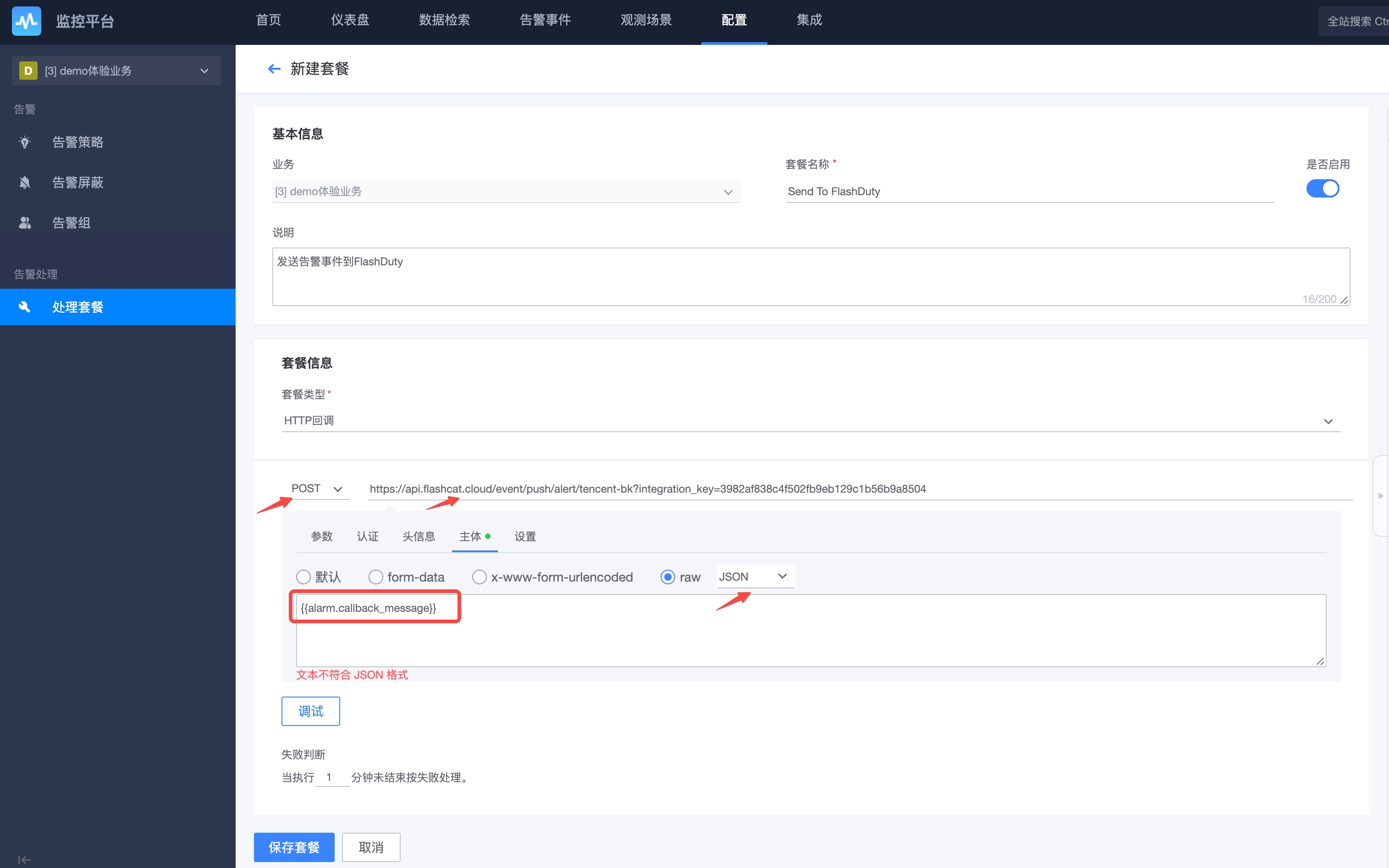
4. Switch to `Body`, select `JSON` type, copy and paste the following information (when an actual alert occurs, BlueKing will render the variable content as the payload to push to the target callback URL):
```
{{alarm.callback_message}}
```
5. Save the plan to complete creation.
1. Go to `Configuration-Alert Policies` page, select an existing policy to edit or create a new one;
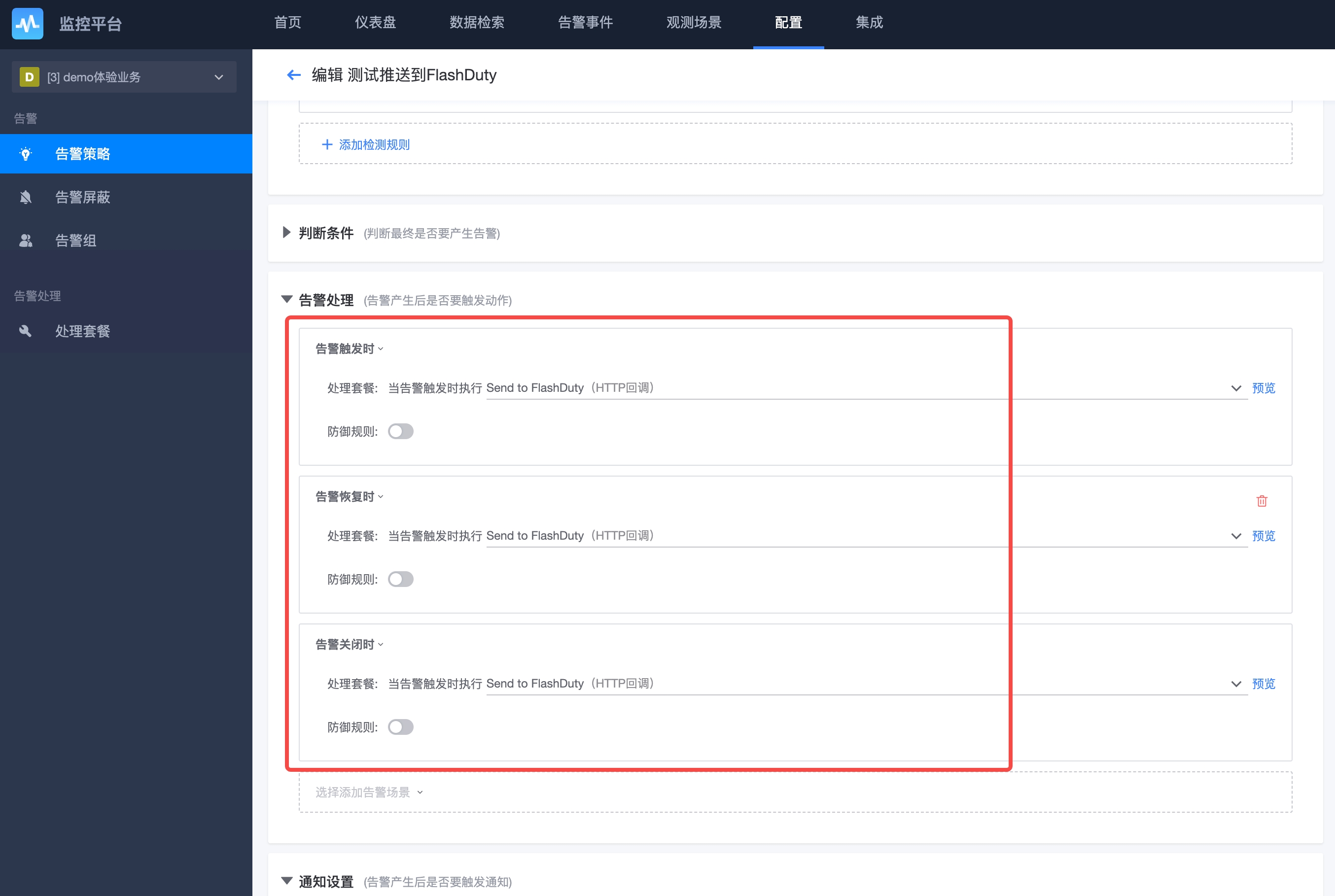
2. Scroll down to the `Alert Processing` section, select the `Send To Flashduty` action plan for all three scenarios, and disable `Defense Rules`, as shown below:
3. Submit and save to complete;
4. Repeat these steps for other alerts you want to push to Flashduty.
Alert severity mapping between BlueKing and Flashduty:
| BlueKing | Flashduty | Status |
| -------- | --------- | -------- |
| Fatal | Critical | critical |
| Warning | Warning | warning |
| Notice | Info | info |