## In Flashduty
***
You can obtain an integration push URL through either of these two methods:
### Using Private Integration
Choose this simpler option when you don't need to route alert events to different channels.
Expand
1. Go to the Flashduty console, select **Channel**, and enter a specific channel's details page
2. Select the **Integrations** tab, click **Add Integration** to enter the integration page
3. Select **Sentry** integration and click **Save** to generate a card
4. Click the generated card to view the **push URL**, copy it for later use, and you're done
### Using Shared Integration
Choose this option when you need to route alerts to different channels based on the alert event's payload information.
Expand
1. Go to the Flashduty console, select **Integration Center=>Alert Events** to enter the integration selection page
2. Select **Sentry** integration:
* **Integration Name**: Define a name for this integration
3. Configure the default route and select the corresponding channel (after the integration is created, you can go to `Route` to configure more routing rules)
4. Click **Save** and copy the newly generated **push URL** for later use
5. Done
## In Sentry
***
## I. Prerequisites
Sentry provides two types of alert mechanisms: Issue Alerts and Metric Alerts. While Issue Alerts support notifications through WebHooks in Integrations, Metric Alerts are limited to using Internal Integration for alert notifications. Notably, Internal Integration works with both Metric Alerts and Issue Alerts. Given the versatility of Internal Integration, we've chosen to standardize on this approach rather than relying on WebHooks separately, thus simplifying alert notification configuration.
## II. Sentry Alert Push Configuration
### Step 1: Add Flashduty Custom Integrations
1. Log in to the Sentry management console
2. In the left navigation bar, locate **Settings => Custom Integrations**
3. Click Create New Integration and select **Internal Integration**
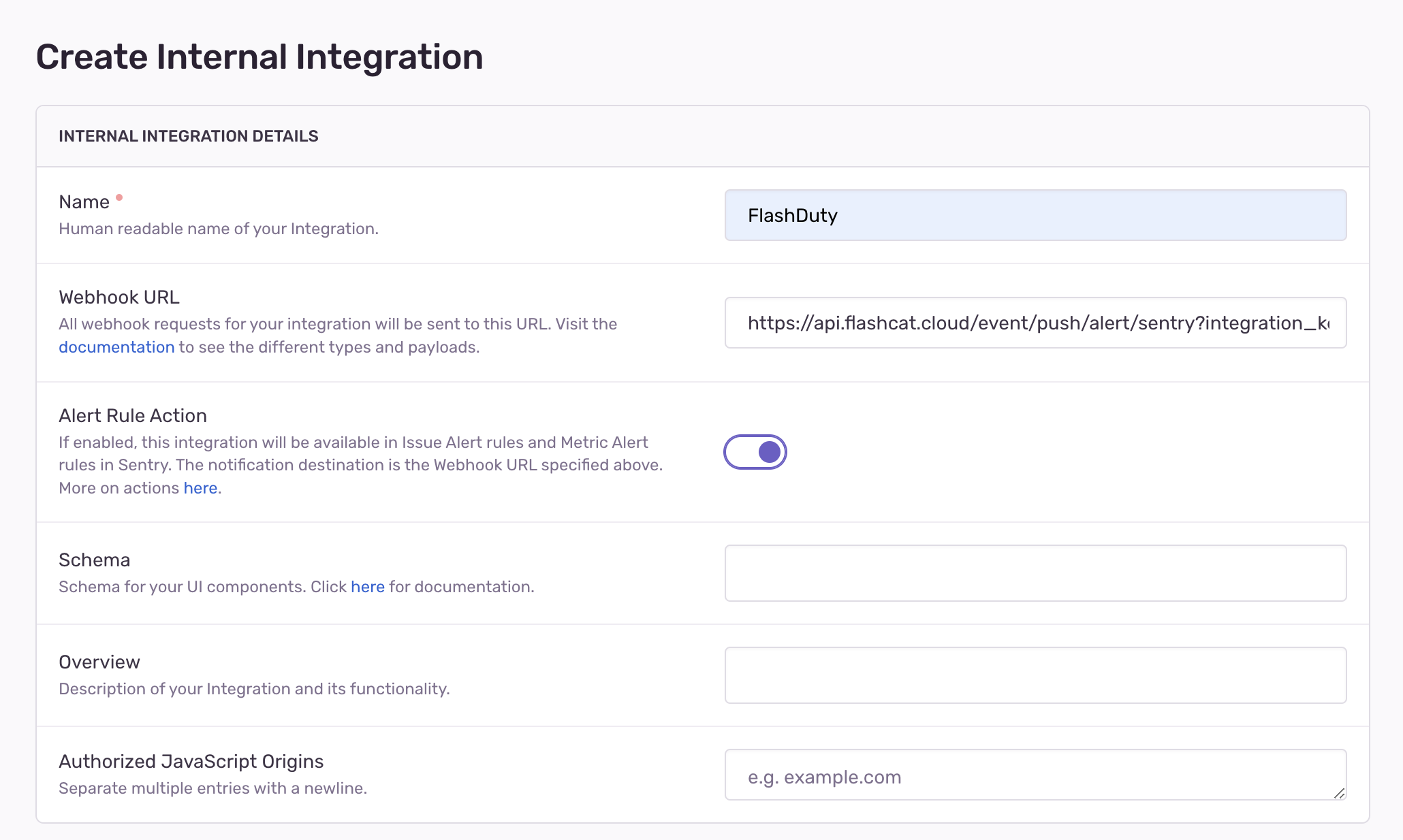
4. On the editing page, **enter Flashduty for Name and paste the integration push URL into WebhookURL**
5. Enable **Alert Rule Action**, configure as shown below:
5. In PERMISSIONS configuration, set **Read permission for Issue & Event**
6. In WEBHOOKS configuration, check **issue**, **do not check error and comment**
7. After configuration, click Save Changes to complete the setup
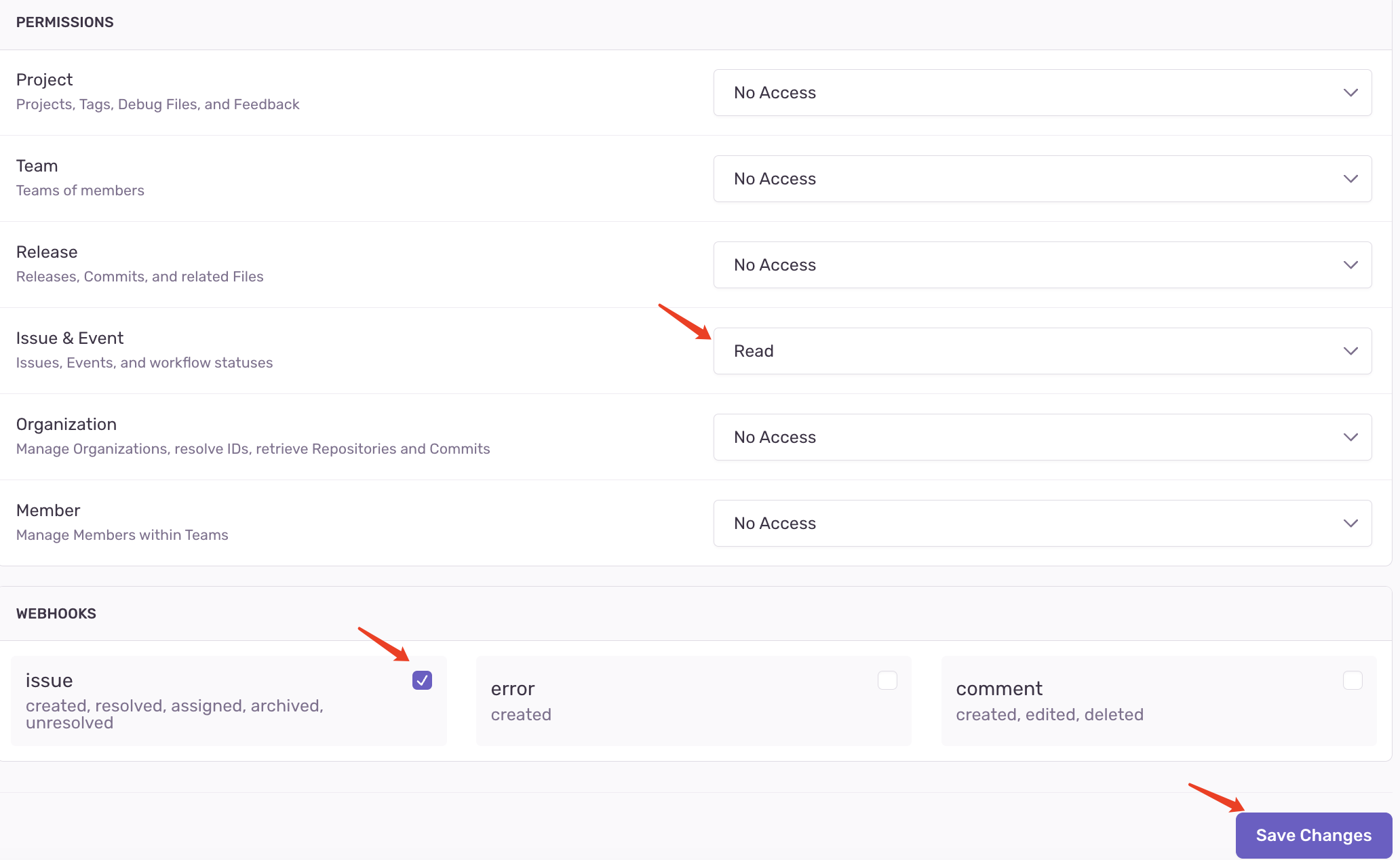
**Special notes about WEBHOOKS configuration:**
1. After checking **issue**, Flashduty can receive resolved events for issues, meaning when manually triggering resolved for an issue in the issue list, we will automatically recover the associated incident in Flashduty
2. Other issue events such as create, assigned, archived, and unresolved are not supported
3. If error and comment are also checked, Flashduty will not receive or process these types of events
### Step 2: Use Flashduty Integration in Alerts
1. In the left navigation bar, locate **Alerts => Create Alert**
2. Select the type of Alert to create, such as Issue
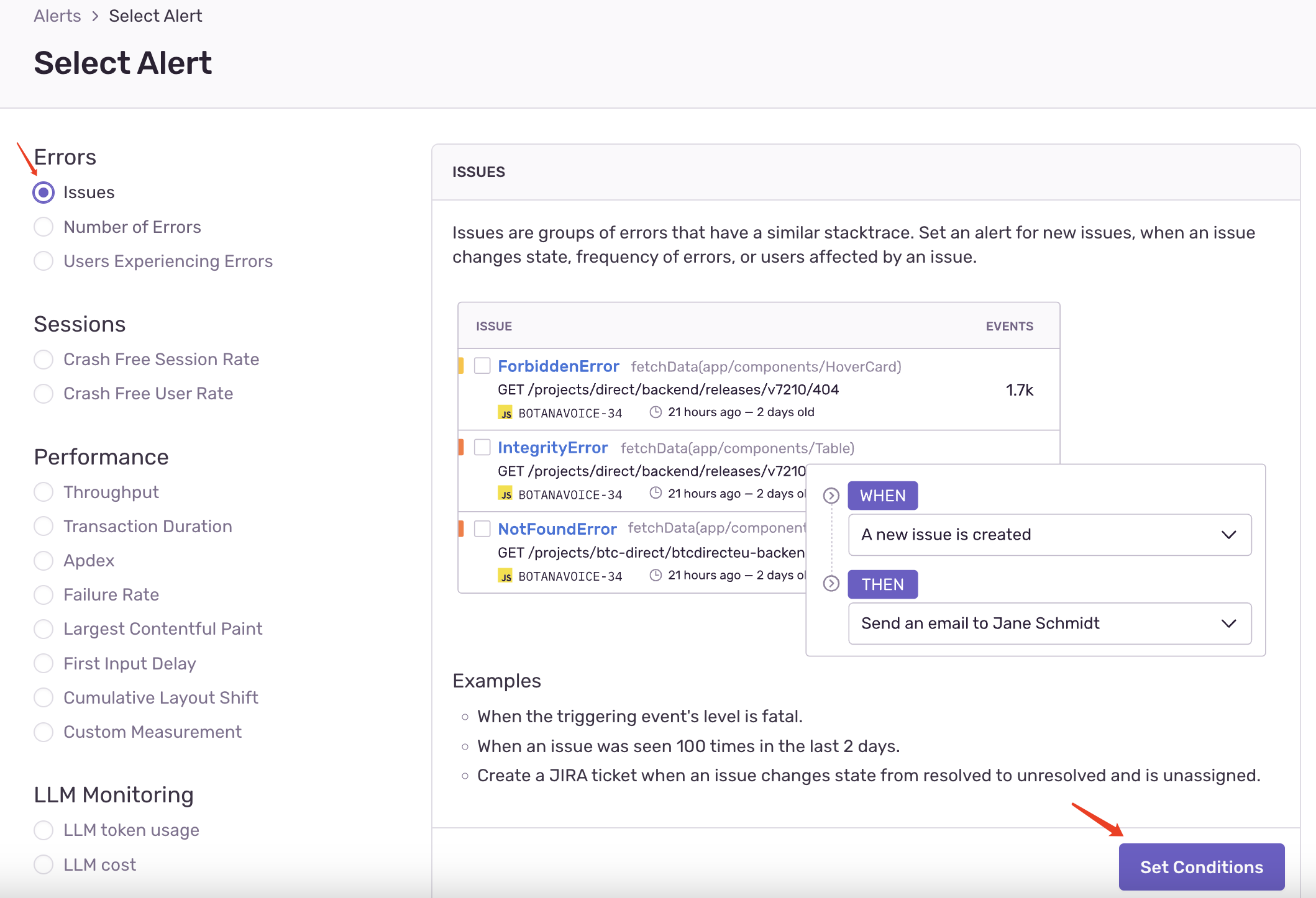
3. Configure trigger conditions as needed
4. Under **THEN perform these actions**, **Add action** and select **Send a notification via**
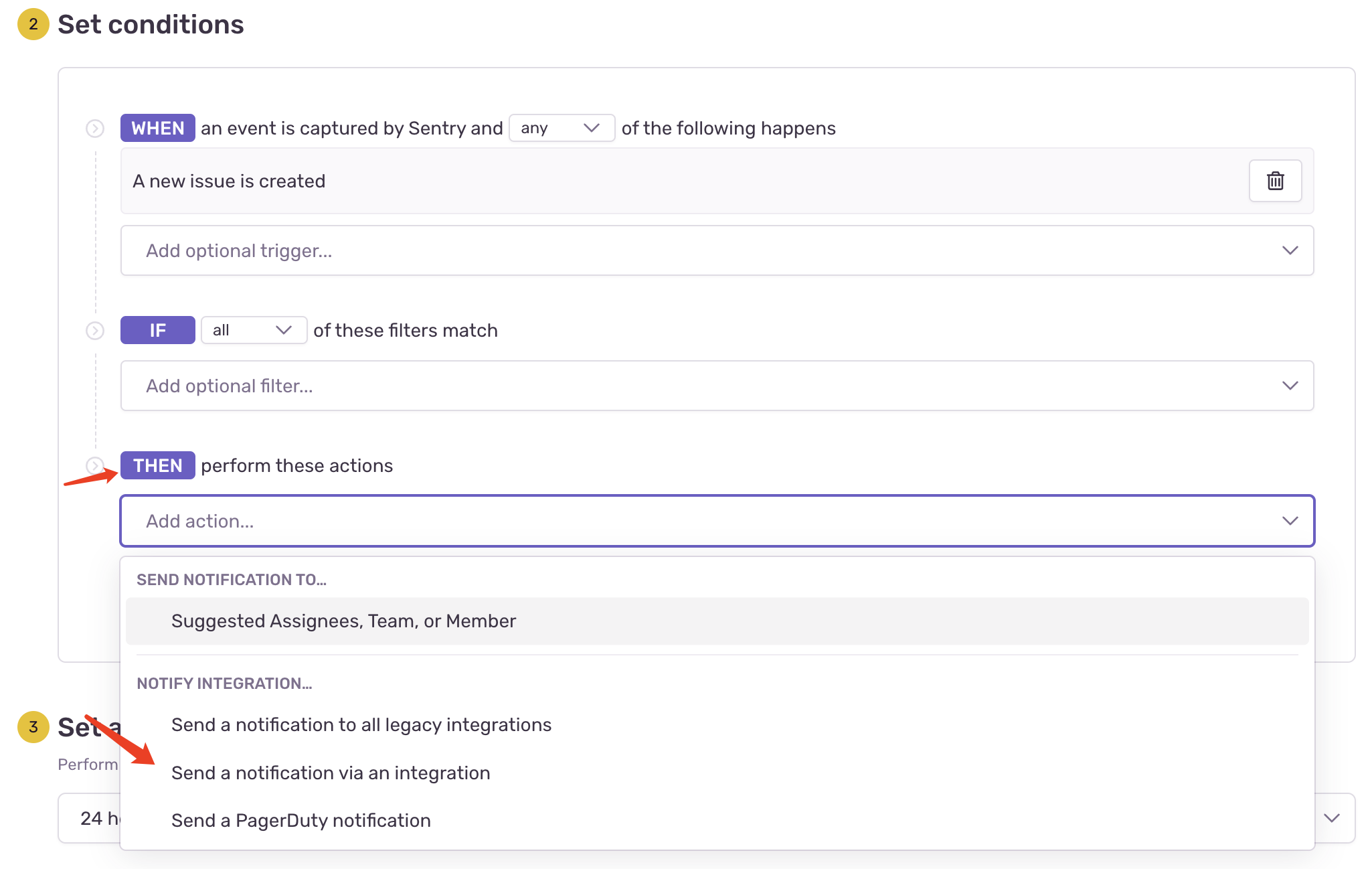
5. Select **Flashduty** added above as the notification channel
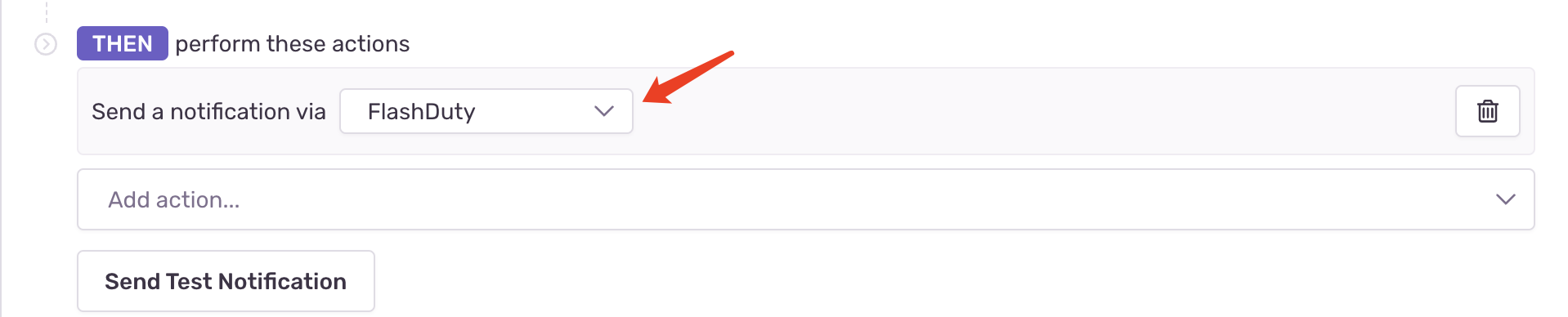
6. Configure other options as needed and click **Save Rule** to complete
| Sentry | Flashduty | Status |
| --------- | --------- | -------- |
| critical | Critical | Critical |
| warning | Warning | Warning |
| triggered | Warning | Warning |
| resolved | Ok | Resolved |