> ## Documentation Index
> Fetch the complete documentation index at: https://docs.flashcat.cloud/llms.txt
> Use this file to discover all available pages before exploring further.
# Tencent Cloud CLS Integration
> Sync Tencent Cloud Log Service (CLS) monitoring alerts to Flashduty via webhook for automated alert noise reduction
Sync Tencent Cloud Log Service (CLS) monitoring alerts to Flashduty via webhook for automated alert noise reduction.
## In Flashduty
***
You can obtain an integration push URL through either of these two methods:
### Using Private Integration
Choose this simpler option when you don't need to route alerts to different channels.
Expand
1. Go to the Flashduty console, select **channel**, and enter a specific channel's details page
2. Select the **Integrations** tab, click **Add Integration** to enter the integration page
3. Choose **Tencent Cloud CLS** integration and click **Save** to generate a card
4. Click the generated card to view the **push URL**, copy it for later use, and you're done
### Using Shared Integration
Choose this option when you need to route alerts to different channels based on the alert payload information.
Expand
1. Go to the Flashduty console, select **Integration Center=>Alerts** to enter the integration selection page
2. Select **Tencent Cloud CLS** integration:
* **Integration Name**: Define a name for this integration
3. Configure the default route and select the corresponding channel (after the integration is created, you can go to `Route` to configure more routing rules)
4. Click **Save** and copy the newly generated **push URL** for later use
5. Done
## In Tencent Cloud CLS
***
**Step 1: Configure Notification Channel Group**
1. Log in to your Tencent Cloud Console, select CLS service, and go to Monitoring Alerts - Notification Channel Groups
2. Click `Create` to start
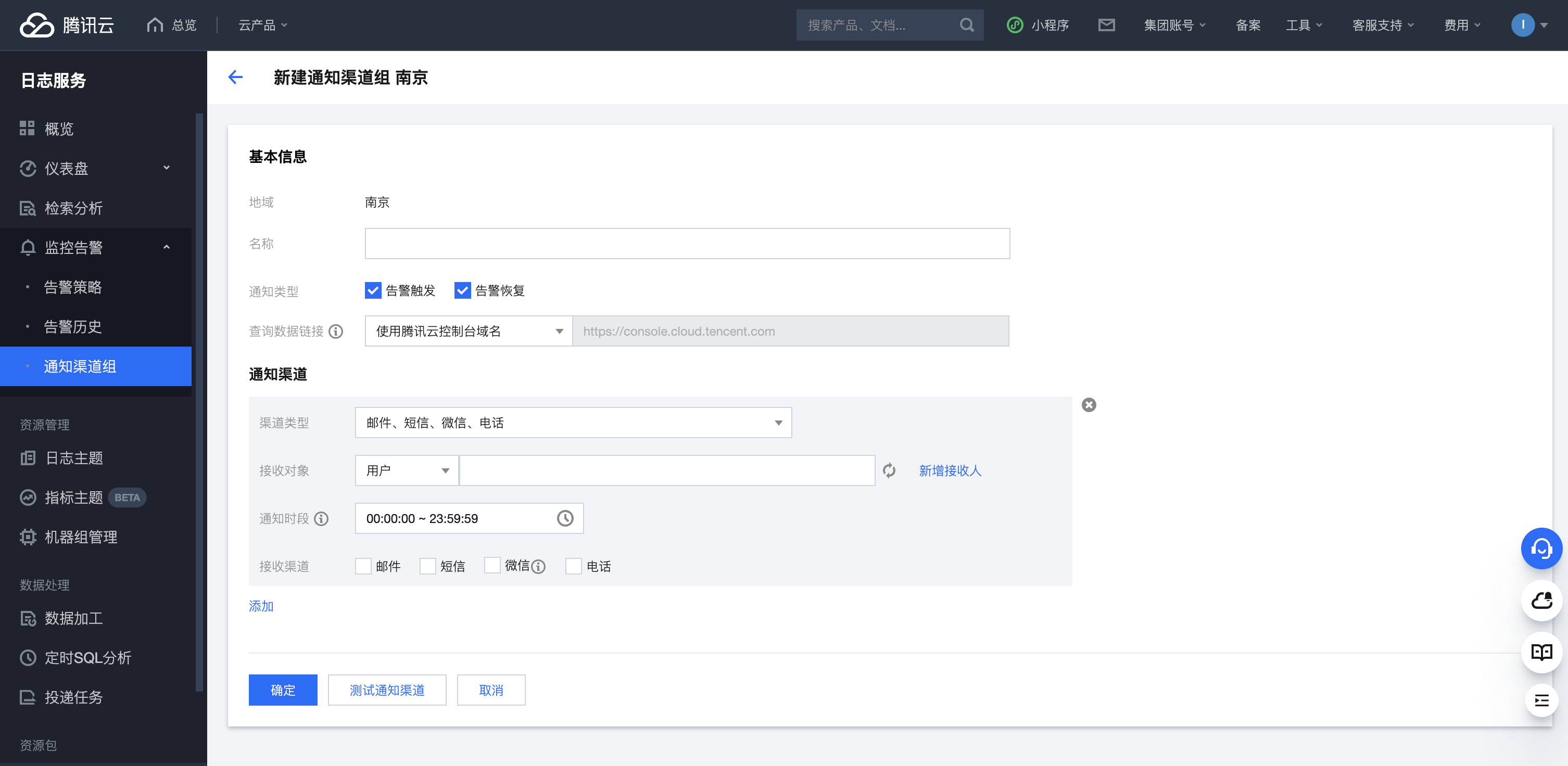
3. As shown, enter a specific channel group name in `Name`, select "Custom API Callback" for `Channel Type`, fill in the integration push URL in `Callback URL`, and select POST for `Request Method`
4. Click `OK` to save, `Add` to add multiple channels
1. Log in to your Tencent Cloud Console, select CLS service, and go to Monitoring Alerts - Alert Policies
2. Click `Create` to start
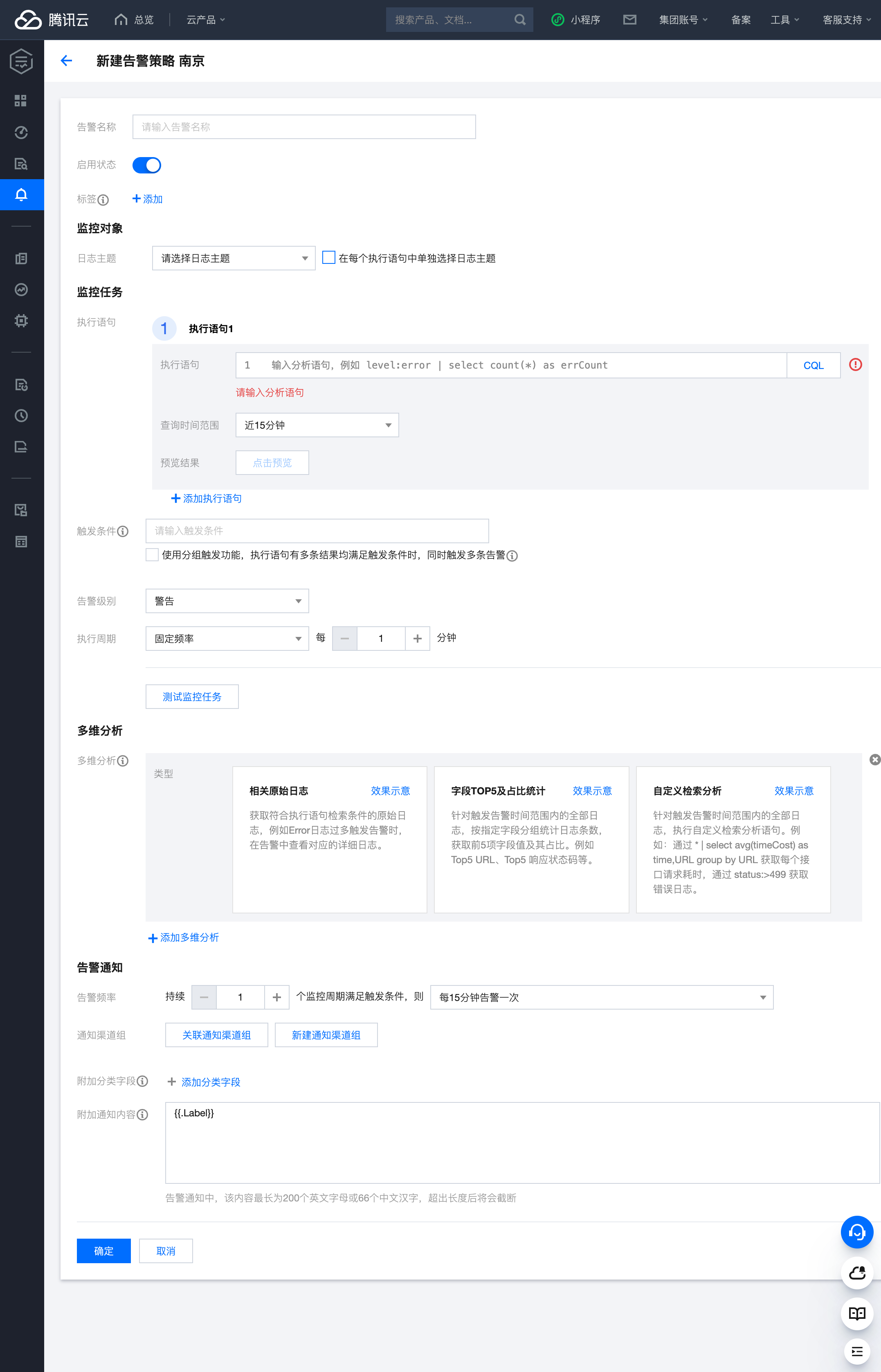
3. As shown, enter a specific alert name in `Alert Name`, select the specific log topic
4. Fill in specific query statements in `Execution Statement`, select time range for query period, click Preview to check execution results, enter specific trigger conditions
5. For `Alert Level`, choose between Critical, Warning, and Info based on alert severity, select execution cycle as needed
6. `Multi-dimensional Analysis` allows additional log analysis when alerts trigger, attaching results to notifications to help identify alert causes. This analysis doesn't affect alert trigger conditions.
7. For alert notifications, `Notification Channel Group` can be linked to specific channel groups
1. After linking the channel group, you can see callback content configuration
2. Request headers can be added as needed
3. Request content format reference:
```json theme={null}
{
"uin": "{{escape .UIN}}",
"nickname": "{{escape .Nickname}}",
"region": "{{escape .Region}}",
"alarm": "{{escape .Alarm}}",
"alarm_id": "{{escape .AlarmID}}",
"condition": "{{escape .Condition}}",
"happen_threshold": "{{escape .HappenThreshold}}",
"alert_threshold": "{{escape .AlertThreshold}}",
"topic": "{{escape .Topic}}",
"topic_id": "{{escape .TopicId}}",
"level": "{{escape .Level}}",
"label": {{.Label}},
"start_time": "{{escape .StartTime}}",
"start_time_unix": "{{escape .StartTimeUnix}}",
"notify_time": "{{escape .NotifyTime}}",
"notify_time_unix": "{{escape .NotifyTimeUnix}}",
"notify_type": "{{escape .NotifyType}}",
"consecutive_alert_nums": "{{escape .ConsecutiveAlertNums}}",
"duration": "{{escape .Duration}}",
"trigger_params": "{{escape .TriggerParams}}",
"record_group_id": "{{escape .RecordGroupId}}",
"detail_url": "{{escape .DetailUrl}}",
"query_url": "{{escape .QueryUrl}}",
"message": "{{.Message}}",
"query_result": {{.QueryResult}},
"query_log": {{.QueryLog}},
"analysis_result": {{.AnalysisResult}}
}
```
## Status Mapping
***
Tencent Cloud CLS monitoring alert level mapping to Flashduty:
| Tencent Cloud CLS | Flashduty | Status |
| ----------------- | --------- | -------- |
| Info | Info | Info |
| Warn | Warning | Warning |
| Critical | Critical | Critical |