> ## Documentation Index
> Fetch the complete documentation index at: https://docs.flashcat.cloud/llms.txt
> Use this file to discover all available pages before exploring further.
# UCloud CloudWatch Alert Integration
> Sync UCloud CloudWatch alert events to Flashduty via webhook for automated alert noise reduction
Sync Ucloud CloudWatch alert events to Flashduty via webhook for automated alert noise reduction.
## In Flashduty
***
You can obtain an integration push URL through either of these two methods:
### Using Private Integration
Choose this method when you don't need to route alert events to different channels - it's simpler.
Expand
1. Go to the Flashduty console, select **Channel**, and enter a channel's details page
2. Select the **Integrations** tab, click **Add Integration** to enter the integration page
3. Choose **Ucloud CloudWatch** integration and click **Save** to generate a card
4. Click the generated card to view the **Push URL**, copy it for later use, and you're done
### Using Shared Integration
Choose this method when you need to route alerts to different channels based on the alert event payload.
Expand
1. Go to the Flashduty console, select **Integration Center=>Alert Events** to enter the integration selection page
2. Select **Ucloud CloudWatch** integration:
* **Integration Name**: Define a name for this integration
3. Configure the default route and select the corresponding channel (after the integration is created, you can go to `Route` to configure more routing rules)
4. Click **Save** and copy the newly generated **push URL** for later use
5. Done
## In Ucloud
***
### Step 1: Configure Notice Template
1. Login to your Ucloud console, search for `CloudWatch` product, and enter the corresponding product console.
2. In the menu, select `Notice Management`, and go to the `Contact Template` page.
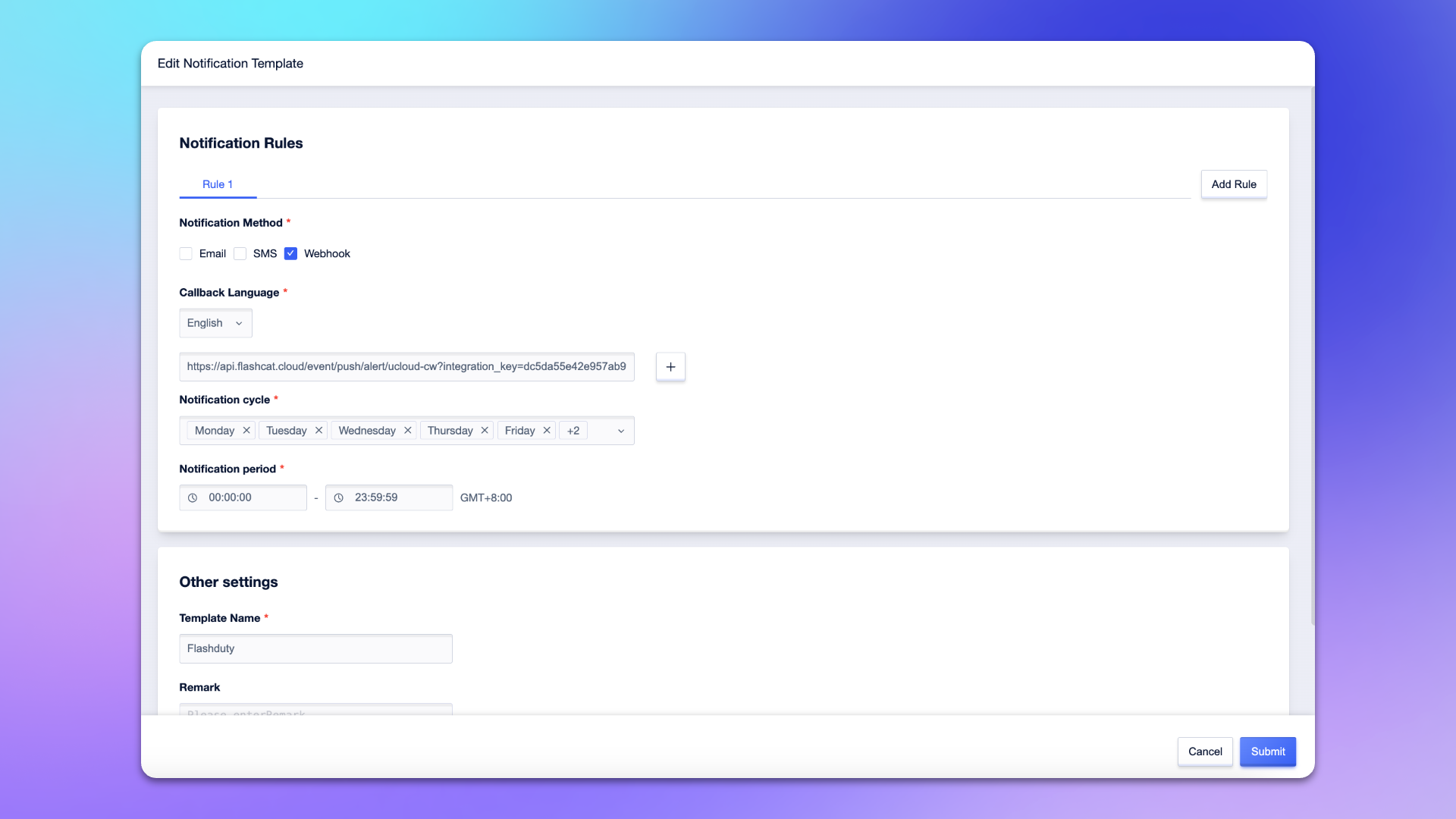
3. Create or edit a notification template, check `Webhook` on the template page.
4. Select `English` for **Callback Language**, and enter the push URL for the alert integration in the input box.
5. Enter `Flashduty` or another name for the template name.
6. Configure other options as needed.
7. Click `Submit` to complete the configuration.
### Step 2: Configure Alert Policy
1. Login to your Ucloud console, search for `CloudWatch` product, and enter the corresponding product console.
2. In the menu, select `Alarm Management`, and go to the `Alarm Policy` page.
3. Create or edit an alert policy, find the **Notification Settings** on the policy configuration page, and select the notification template created in **Step 1**.
4. Configure other options as needed.
5. Click `Submit` to complete the configuration.
## Severity Mapping
***
Currently, all Ucloud CloudWatch alert events pushed to Flashduty have a severity of Warning. You can customize the severity through [Alert Processing Pipeline](https://docs.flashcat.cloud/en/on-call/integration/alert-integration/alert-pipelines).