> ## Documentation Index
> Fetch the complete documentation index at: https://docs.flashcat.cloud/llms.txt
> Use this file to discover all available pages before exploring further.
# Routing Rules
> Routing rules are used for shared integrations to distribute events to corresponding channels based on alert attributes for classified alert handling
## Configure Routing Rules
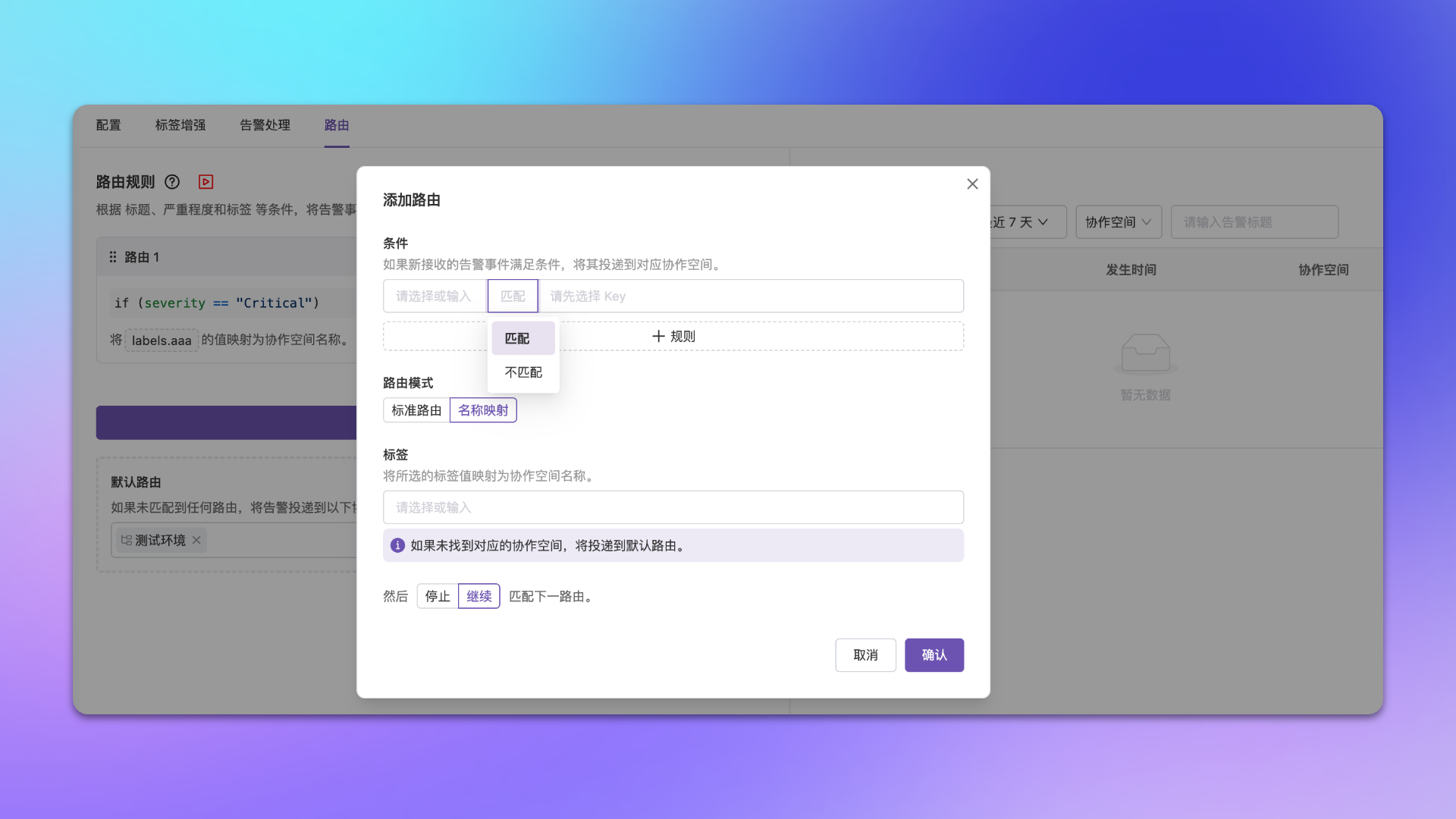
Go to Integration Center → Alert Events → Integration Details → **Routing** → **Add Route**.
### Configuration
| Config Item | Description |
| :------------------ | :------------------------------------------------------------------------------------------------------------------------------ |
| **Match Condition** | Filter alerts by labels, attributes, etc.; supports exact, wildcard, regex matching |
| **Routing Mode** | See detailed description below |
| **Flow Control** | **Continue Matching** (default): Continue matching subsequent rules after hit; **Stop Matching**: Don't match further after hit |
| **Default Route** | Fallback rule that takes effect when no rules match |
### Routing Modes
| Mode | Description | Use Case |
| :------------------- | :------------------------------------------------------ | :---------------------------------------------------------------------------- |
| **Standard Routing** | Manually select target channel | Alert-to-channel mapping is fixed |
| **Name Mapping** | Map specified label value to channel name, auto-deliver | Alerts already carry business identifier and channel name matches label value |
When using name mapping mode, if corresponding channel doesn't exist, delivers to default route or discards.
 ### Operation Tips
| Feature | Description |
| :------------ | :------------------------------------------------------------------------------------------------------------------------------------------------------------------------------------------------------------------------------------------------------------------------------------------- |
| Adjust Order | Use up/down arrows or drag rules to adjust match priority; also supports grouping and sorting by channel for easier management of large rule sets |
| Insert Rule | Quickly insert new rules before or after a specified rule without manually dragging to adjust position |
| Filter Rules | Filter by channel to quickly locate all rules delivering to a specific channel, ideal for scenarios with many rules |
| Edit History | View historical configuration versions, compare differences, and quickly restore (see details below) |
| Route Preview | After editing routing rules, click the preview button and select up to 20 real alerts to see how the modified rules would route each alert. The system displays routing differences between old and new rules, including added, removed, and unchanged channels |
| Copy Rules | Click the copy button to copy routing rules from another integration to the current one. Three modes are supported: **Prepend** (insert copied rules before existing ones), **Append** (add copied rules after existing ones), and **Replace** (replace all existing rules with copied ones) |
### Edit History
Routing rules support viewing edit history, helping you track configuration changes and quickly roll back when needed.
Click the **Edit History** button on the routing configuration page to open the sidebar panel. History records are grouped by date, and each record includes the version number, operator, and modification time. The currently active version is labeled **Current Version**.
You can perform the following actions:
| Action | Description |
| :---------- | :-------------------------------------------------------------------------------------------------------------------------- |
| **Compare** | Click any historical version to view the configuration differences between that version and the current version (Diff view) |
| **Restore** | In the comparison view, choose to restore routing rules to the selected historical version |
Edit history supports infinite scroll loading, fetching 50 records at a time.
## Configuration Examples
**Scenario**: Deliver alerts from the same business group in monitoring platform to corresponding channel.
| Config Item | Value |
| :------------------ | :------------------------------------- |
| **Match Condition** | `Labels.group_name` equals `Flashduty` |
| **Routing Mode** | Standard Routing |
| **Deliver To** | Flashduty |
### Operation Tips
| Feature | Description |
| :------------ | :------------------------------------------------------------------------------------------------------------------------------------------------------------------------------------------------------------------------------------------------------------------------------------------- |
| Adjust Order | Use up/down arrows or drag rules to adjust match priority; also supports grouping and sorting by channel for easier management of large rule sets |
| Insert Rule | Quickly insert new rules before or after a specified rule without manually dragging to adjust position |
| Filter Rules | Filter by channel to quickly locate all rules delivering to a specific channel, ideal for scenarios with many rules |
| Edit History | View historical configuration versions, compare differences, and quickly restore (see details below) |
| Route Preview | After editing routing rules, click the preview button and select up to 20 real alerts to see how the modified rules would route each alert. The system displays routing differences between old and new rules, including added, removed, and unchanged channels |
| Copy Rules | Click the copy button to copy routing rules from another integration to the current one. Three modes are supported: **Prepend** (insert copied rules before existing ones), **Append** (add copied rules after existing ones), and **Replace** (replace all existing rules with copied ones) |
### Edit History
Routing rules support viewing edit history, helping you track configuration changes and quickly roll back when needed.
Click the **Edit History** button on the routing configuration page to open the sidebar panel. History records are grouped by date, and each record includes the version number, operator, and modification time. The currently active version is labeled **Current Version**.
You can perform the following actions:
| Action | Description |
| :---------- | :-------------------------------------------------------------------------------------------------------------------------- |
| **Compare** | Click any historical version to view the configuration differences between that version and the current version (Diff view) |
| **Restore** | In the comparison view, choose to restore routing rules to the selected historical version |
Edit history supports infinite scroll loading, fetching 50 records at a time.
## Configuration Examples
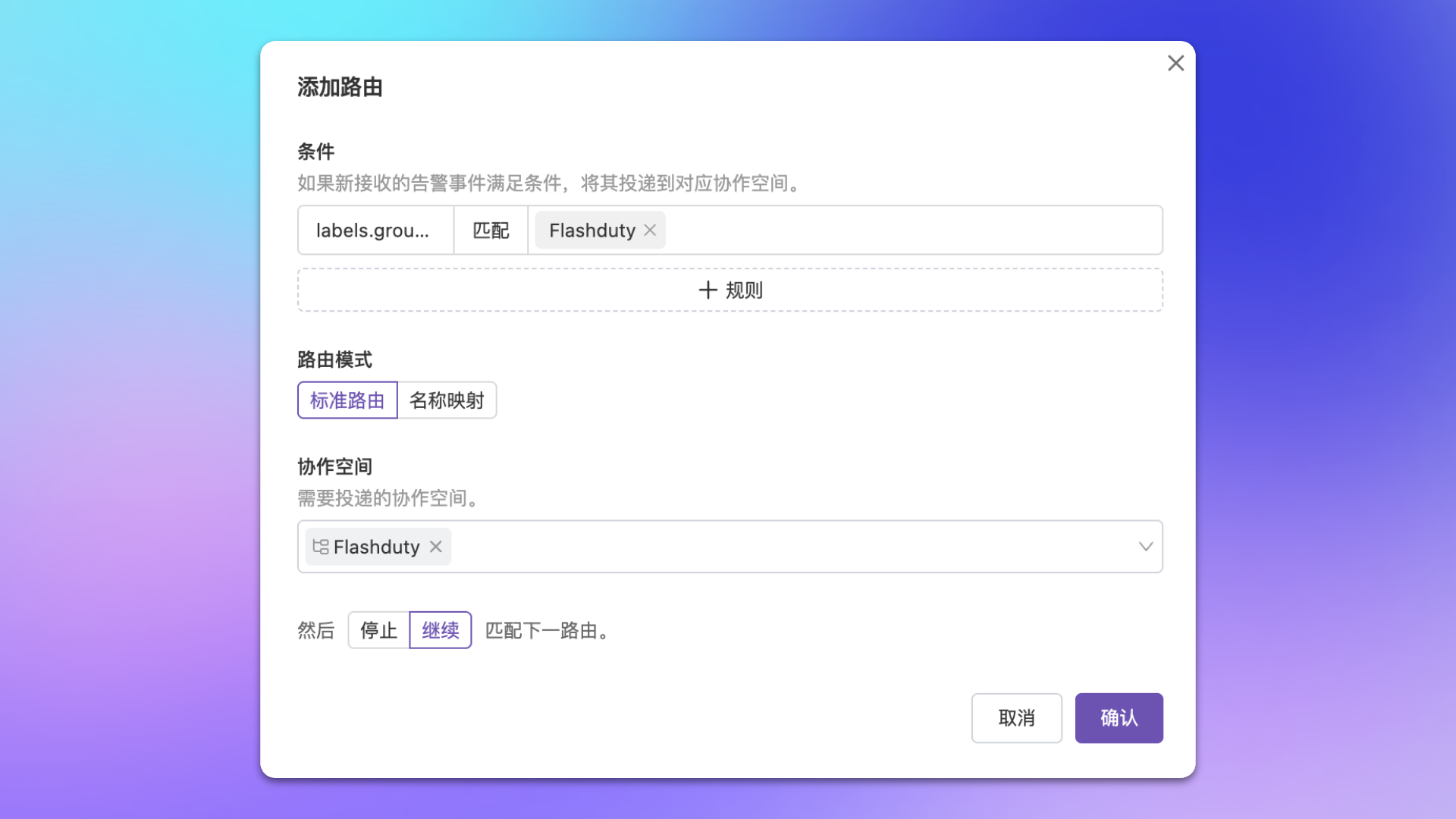
**Scenario**: Deliver alerts from the same business group in monitoring platform to corresponding channel.
| Config Item | Value |
| :------------------ | :------------------------------------- |
| **Match Condition** | `Labels.group_name` equals `Flashduty` |
| **Routing Mode** | Standard Routing |
| **Deliver To** | Flashduty |
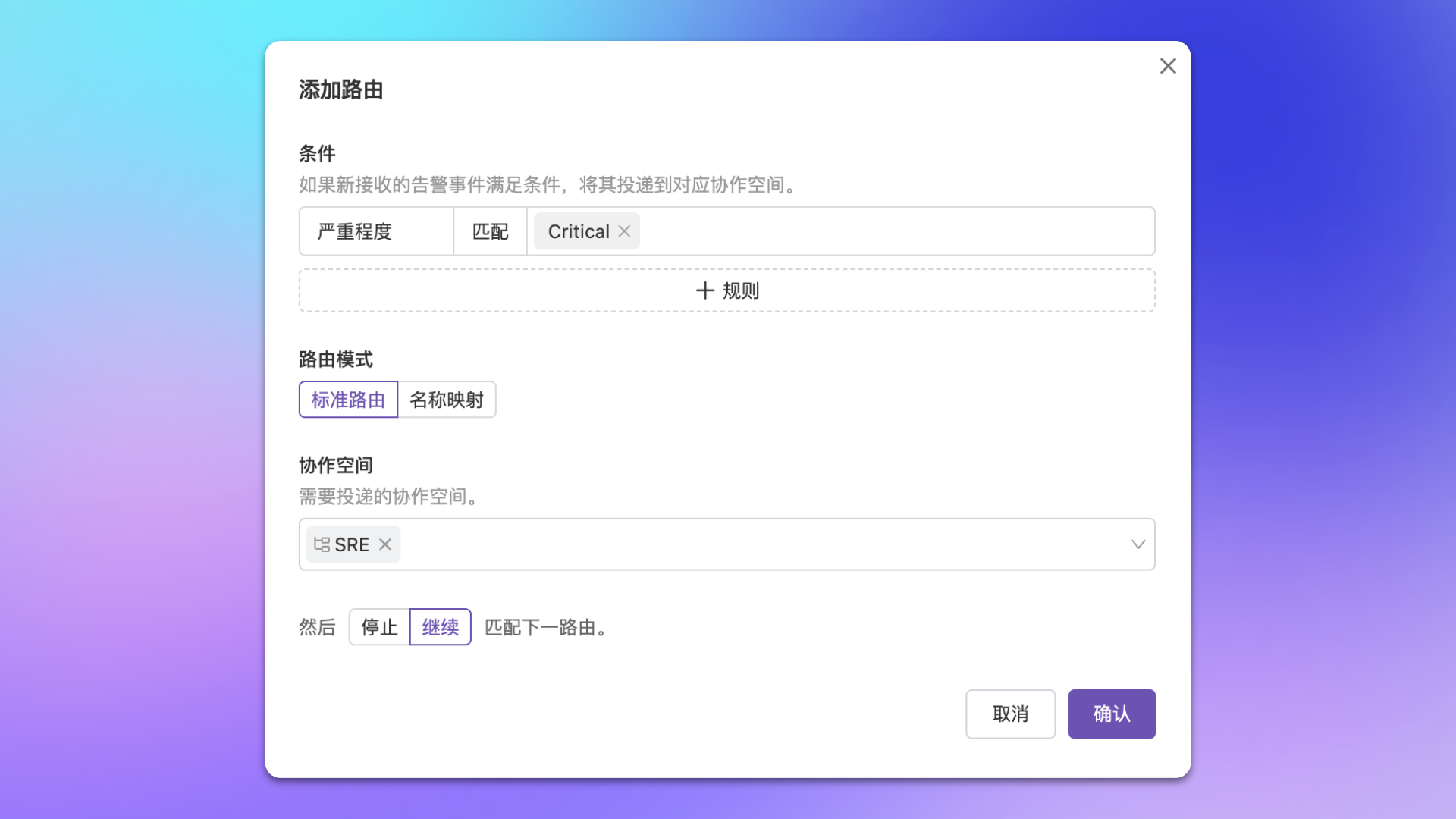
 **Scenario**: Deliver Critical level alerts to core business channel, other levels to regular channel.
| Rule Order | Match Condition | Deliver To | Flow Control |
| :--------- | :--------------------------- | :-------------------- | :------------ |
| 1 | `severity` equals `Critical` | SRE Channel | Stop Matching |
| 2 | Default Route | Regular Alert Channel | - |
**Scenario**: Deliver Critical level alerts to core business channel, other levels to regular channel.
| Rule Order | Match Condition | Deliver To | Flow Control |
| :--------- | :--------------------------- | :-------------------- | :------------ |
| 1 | `severity` equals `Critical` | SRE Channel | Stop Matching |
| 2 | Default Route | Regular Alert Channel | - |
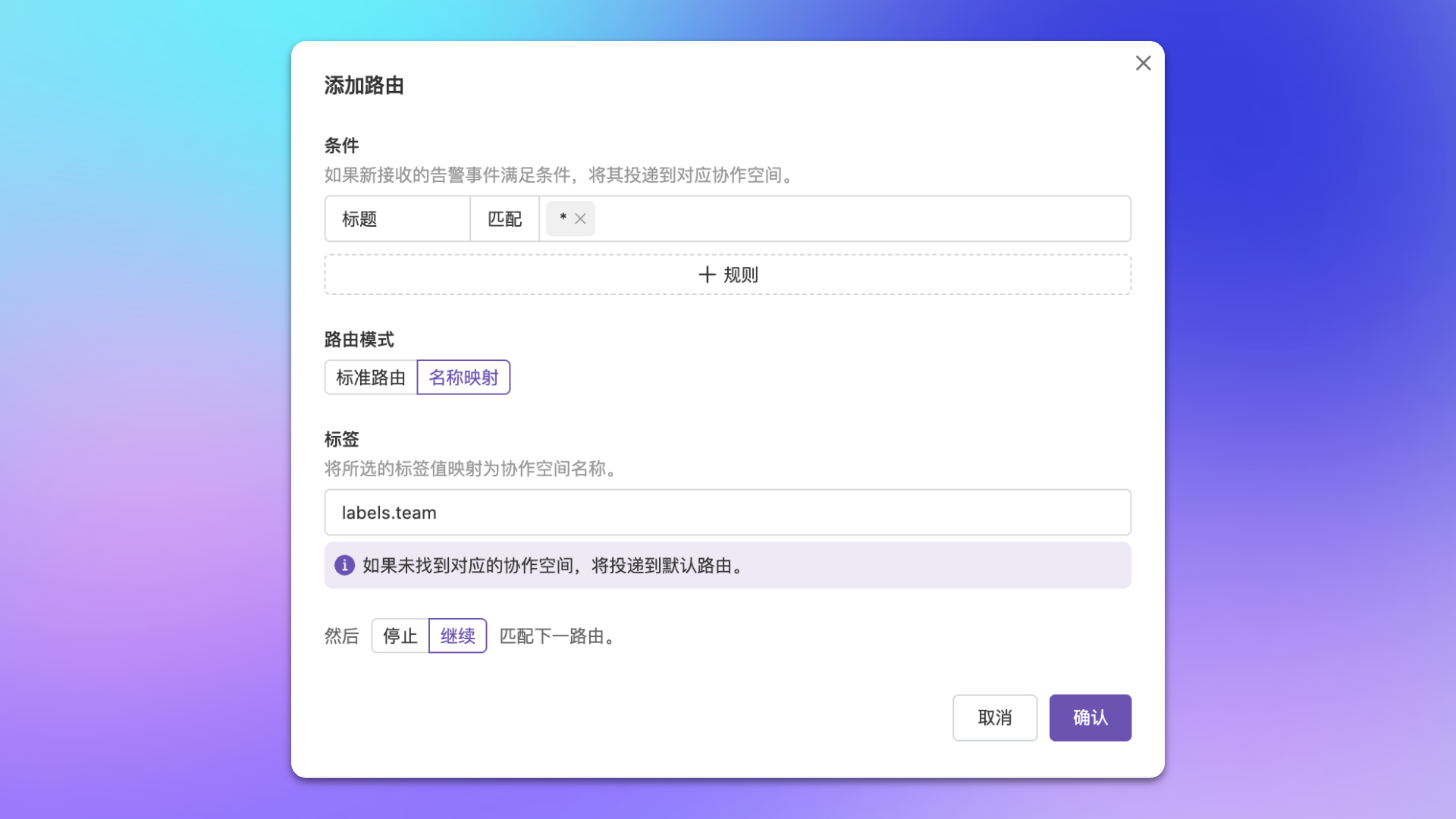
 **Scenario**: Alert labels already contain business line identifier (like `Labels.team=payment`), and channel name matches label value.
| Config Item | Value |
| :------------------ | :------------ |
| **Match Condition** | All alerts |
| **Routing Mode** | Name Mapping |
| **Mapping Label** | `Labels.team` |
**Result**: Alerts with `Labels.team=payment` auto-deliver to channel named `payment`.
**Scenario**: Alert labels already contain business line identifier (like `Labels.team=payment`), and channel name matches label value.
| Config Item | Value |
| :------------------ | :------------ |
| **Match Condition** | All alerts |
| **Routing Mode** | Name Mapping |
| **Mapping Label** | `Labels.team` |
**Result**: Alerts with `Labels.team=payment` auto-deliver to channel named `payment`.
 Before using name mapping mode, ensure channel names exactly match label values, otherwise alerts will deliver to default route.
## FAQ
Check if alert event attributes/labels match the rule, and if rule configuration is correct.
Each channel will generate a corresponding incident. We recommend selecting multiple channels in the same rule to avoid duplication.
Confirm reported alerts can hit configured routing rules. We recommend configuring a default fallback route to receive unmatched alerts.
No. The default route only takes effect when no routing rules match the alert. If any rule has already matched (regardless of whether flow control is set to 'continue' or 'stop'), the default route will not be triggered.
## Further Reading
Learn the difference between dedicated and shared integrations
Learn condition matching syntax
Dynamically generate or modify alert labels
Cleanse and transform alert data at source
Before using name mapping mode, ensure channel names exactly match label values, otherwise alerts will deliver to default route.
## FAQ
Check if alert event attributes/labels match the rule, and if rule configuration is correct.
Each channel will generate a corresponding incident. We recommend selecting multiple channels in the same rule to avoid duplication.
Confirm reported alerts can hit configured routing rules. We recommend configuring a default fallback route to receive unmatched alerts.
No. The default route only takes effect when no routing rules match the alert. If any rule has already matched (regardless of whether flow control is set to 'continue' or 'stop'), the default route will not be triggered.
## Further Reading
Learn the difference between dedicated and shared integrations
Learn condition matching syntax
Dynamically generate or modify alert labels
Cleanse and transform alert data at source