> ## Documentation Index
> Fetch the complete documentation index at: https://docs.flashcat.cloud/llms.txt
> Use this file to discover all available pages before exploring further.
# ServiceNow Sync
> Associate incidents with ServiceNow Incidents through ServiceNow Sync Webhook.
**Plan requirement**: This feature requires an On-call Pro or higher subscription. [Learn more](https://flashcat.cloud/flashduty/price/)
Through ServiceNow Sync Webhook, synchronize Flashduty incidents with ServiceNow Incidents for linkage between Flashduty and ServiceNow.
## In ServiceNow
### Create User
Create a user to connect to the ServiceNow instance for Incident synchronization and updates. Skip this step if you already have an available user.
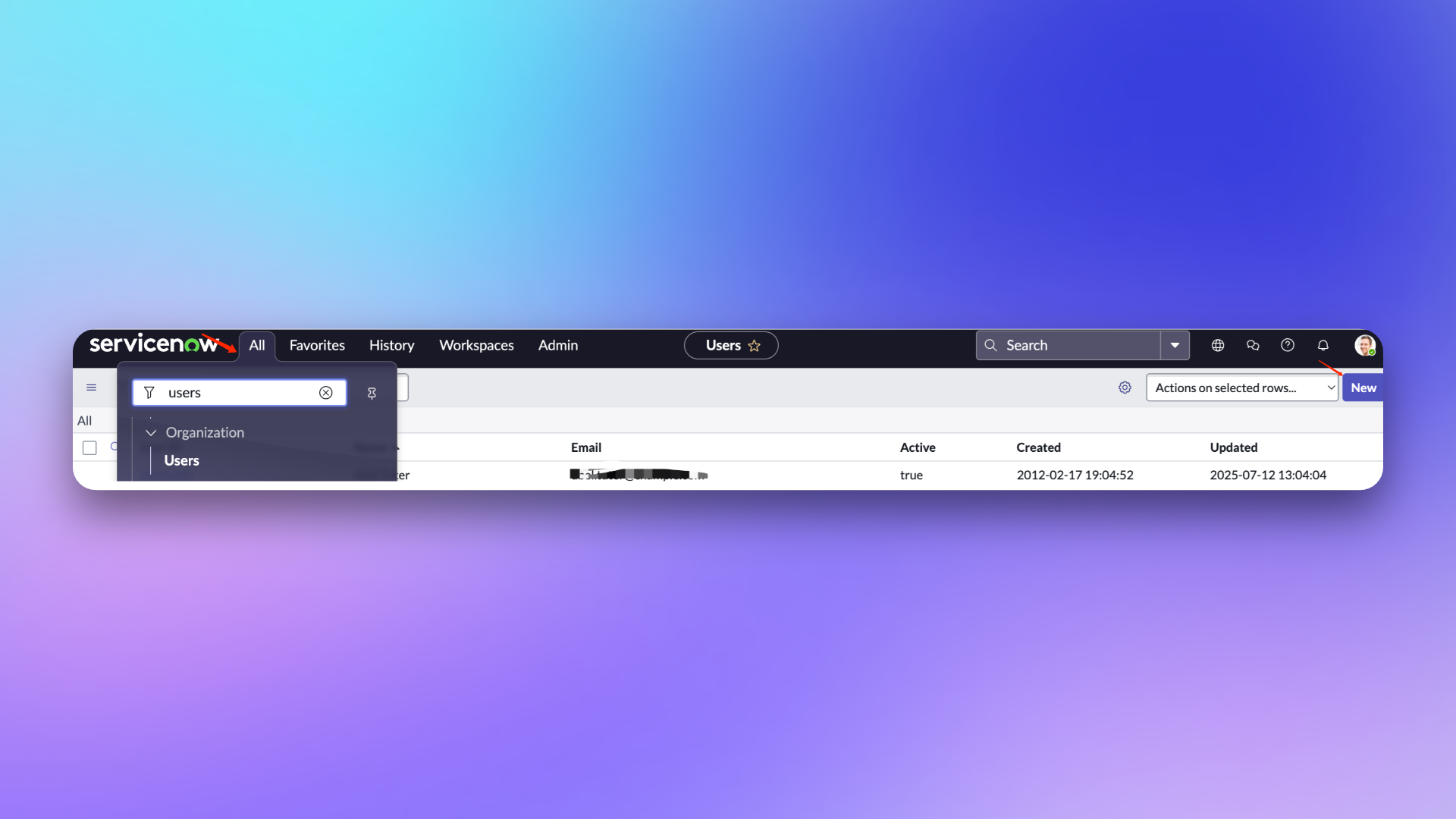
1. Login to ServiceNow instance console, select `ALL`, enter `USERS` and select `Organization`-`Users`.
2. Click `New` to create a new user.
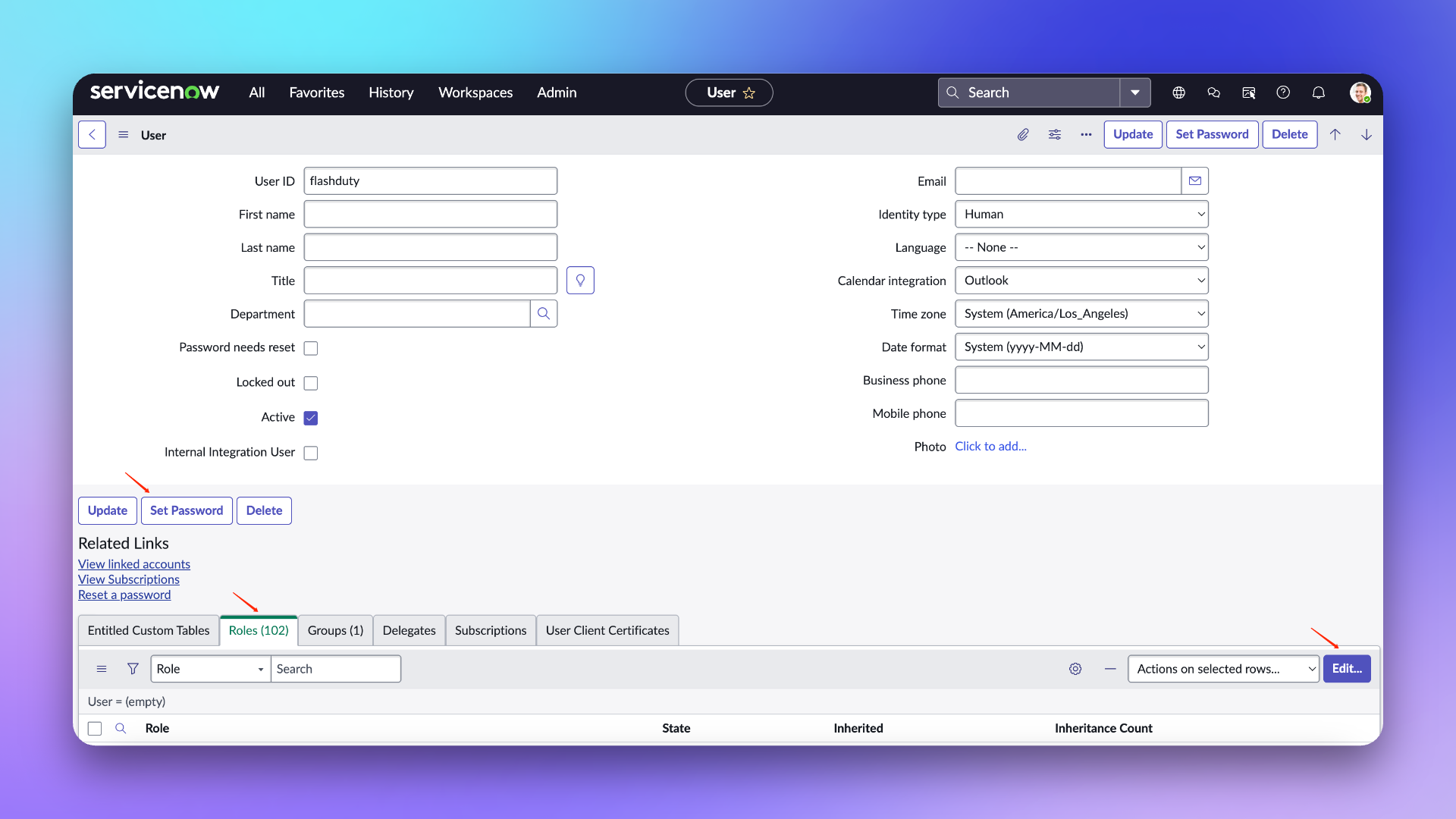
3. On the edit page, enter: flashduty for `User ID`.
4. Keep `Password needs reset`, `Web service access only`, and `Internal Integration User` unchecked.
5. Submit to save.
### Configure User
> **User Role Description**
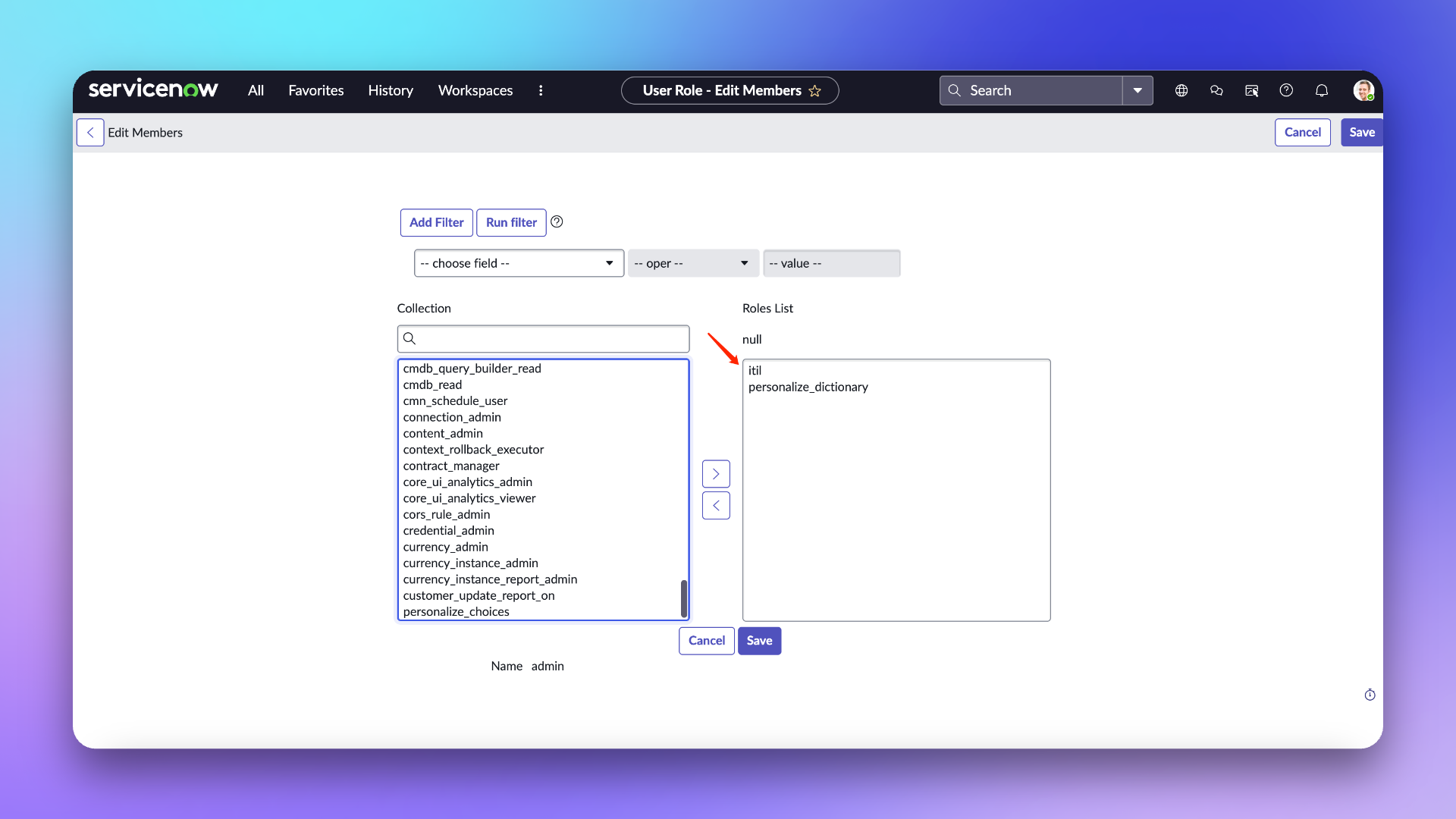
> **itil:** This role's primary use in Flashduty is limited to getting, creating, and updating ServiceNow Incidents when syncing—no other operations are involved.
>
> **personalize\_dictionary:** This role's primary use in Flashduty is limited to getting fields from the ServiceNow Incident Table—no other operations are involved.
>
> For more information about these two roles' permission scope, refer to ServiceNow [official documentation](https://www.servicenow.com/docs/bundle/washingtondc-platform-administration/page/administer/roles/reference/r_BaseSystemRoles.html#d130465e3182)
1. On the user list page, find the newly created `flashduty` user and enter the configuration page.
2. On the edit page, click `Set Password` to set a password.
3. Click `Roles` to add **personalize\_dictionary and itil** roles (personalize\_dictionary permission is not needed if you don't need to configure custom field mapping).
4. Click `Update` to save configuration.
## In Flashduty On-call
### Configure Integration
Enter the username/password and instance name configured above into the integration information on the left and click Next to configure.
1. **Integration Name:** Define a name for the current integration.
2. **Management Team:** When a management team is selected, only team members and tenant administrators can edit this integration.
3. **Channel**: Select channels where this integration takes effect.
4. **Sync Direction:**
* To\_ServiceNow: Sync Flashduty incidents to ServiceNow.
* From\_ServiceNow: Sync ServiceNow Incidents to Flashduty.
* Two-way: Flashduty and ServiceNow sync mutually.
5. **Trigger Mode**:
* Auto Trigger: Configure conditions; Flashduty On-call will automatically sync incidents matching the conditions to ServiceNow.
* Manual Trigger: Manually trigger ServiceNow sync from More Actions in incident details (the integration configuration name is the trigger name).
6. **Severity Mapping**:
* ServiceNow's Priority is jointly determined by Impact and Urgency values, so refer to ServiceNow's `Priority Lookup Rules` for configuration.
* Flashduty incident severity only updates when ServiceNow Incident's Urgency changes.
* Due to Flashduty following minimum permissions, it cannot get ServiceNow's Impact and Urgency lists, so only default values are provided. Contact technical support for custom mapping.
7. **Custom Field Mapping**: Map labels or custom fields from incidents to corresponding text fields in ServiceNow tickets for automatic information filling. This feature supports syncing common context information (like service name, instance address, metric name) to ServiceNow for subsequent investigation and tracking.
* Only supports target fields of single-line or multi-line text type.
* Supports extracting values from incident labels (like service, instance) or custom properties.
* If source field is empty, target field remains empty and won't overwrite existing content.
* Mapping configuration is managed uniformly in integration settings—no need to fill in manually each time.
## In ServiceNow
When sync direction is From\_ServiceNow or Two-way, additional configuration is needed in ServiceNow to sync ServiceNow Incidents to Flashduty. There are two methods for syncing to Flashduty—choose based on actual needs.
### Manual Sync
This method relies on ServiceNow's UI Action and Script Include configuration. After completing the following steps: when creating or updating an Incident, you'll see a button in the function area to send sync requests. Clicking this button syncs the current Incident content to Flashduty. Note: if the request fails, retry (retry interval must be greater than 10 seconds).
#### Configure UI Action
1. Login to ServiceNow instance console, select `ALL`, enter `UI Actions` and select `System Definition`-`UI Actions`.
2. Click `New` to create a new Action.
3. Enter: **Send To Flashduty** for `Name`, select **Incident** for `Table`.
4. Keep `Form button`, `Active`, `Show insert`, `Show update`, `Client`, `List v2/3 Compatible` checked.
5. Enter: **onClick();** for `Onclick`.
6. Enter for `Script`:
```js theme={null}
function onClick() {
g_form.save();
var ga = new GlideAjax("IncidentWebhookHelperAjax");
ga.addParam("sysparm_name", "sendWebhook");
ga.addParam("sysparm_sys_id", g_form.getUniqueValue());
ga.getXMLAnswer(function (response) {
alert("Webhook Triggered: " + response);
});
}
```
7. Submit to save.
#### Configure Script Include
1. Login to ServiceNow instance console, select `ALL`, enter `Script Includes` and select `System Definition`-`Script Includes`.
2. Click `New` to create a new Script Include.
3. Enter: **IncidentWebhookHelper** for `Name`, select **All application scopes** for `Accessible from`.
4. Keep `Client callable` and `Active` checked.
5. Enter the following for `Script`, replacing **request.setEndpoint** with the integration's push URL:
Note: The body contains default receiving fields. If you have custom fields to sync to Flashduty, manually add content to body. For example, to add a field named test\_001 (get field name when adding custom fields in integration configuration—don't use the field name shown in ServiceNow Incident form), add to body: test\_001: current.getDisplayValue("test\_001").
```js theme={null}
var IncidentWebhookHelper = Class.create();
IncidentWebhookHelper.prototype = {
initialize: function() {},
sendIncidentWebhook: function(current) {
function getLastComment(sysId) {
var journalGR = new GlideRecord('sys_journal_field');
journalGR.addQuery('element_id', sysId);
journalGR.addQuery('element', 'comments');
journalGR.orderByDesc('sys_created_on');
journalGR.setLimit(1);
journalGR.query();
if (journalGR.next()) {
return journalGR.getValue('value');
}
return '';
}
var body = {
action_type: current.isNewRecord() ? 'insert' : 'update',
number: current.getValue("number"),
sys_id: current.getUniqueValue(),
short_description: current.getValue("short_description"),
description: current.getValue("description"),
impact: current.getDisplayValue("impact"),
urgency: current.getDisplayValue("urgency"),
comments: getLastComment(current.getUniqueValue()),
};
try {
var request = new sn_ws.RESTMessageV2();
request.setHttpMethod("POST");
request.setEndpoint("PUSH URL");
request.setRequestHeader("Content-Type", "application/json");
request.setRequestBody(JSON.stringify(body));
request.executeAsync();
} catch (ex) {
gs.error("Webhook Call failed: " + ex.message);
}
},
type: 'IncidentWebhookHelper'
};
```
6. Submit to save.
7. Return to Script Includes list and continue creating.
8. Click `New` to create a new Script Include.
9. Enter: **IncidentWebhookHelperAjax** for `Name`, select **All application scopes** for `Accessible from`.
10. Keep `Client callable` and `Active` checked.
11. Enter the following for `Script`:
```js theme={null}
var IncidentWebhookHelperAjax = Class.create();
IncidentWebhookHelperAjax.prototype = Object.extendsObject(
global.AbstractAjaxProcessor,
{
sendWebhook: function () {
var sysId = this.getParameter("sysparm_sys_id");
var gr = new GlideRecord("incident");
if (gr.get(sysId)) {
var helper = new IncidentWebhookHelper();
helper.sendIncidentWebhook(gr);
return "Success";
}
return "Request failed";
},
}
);
```
12. Submit to save.
### Auto Sync
This method relies on ServiceNow's Business Rules configuration. Using this method enables automatic Incident sync to Flashduty when new or update events occur.
#### Configure Business Rules
1. Login to ServiceNow instance console, select `ALL`, enter `Business Rules` and select `System Definition`-`Business Rules`.
2. Click `New` to create a new Business Rule.
3. Enter: **Send To Flashduty** for `Name`, select **Incident** for `Table`.
4. Keep `Advanced` and `Active` checked.
5. In the `When to run` area, select **async** for `When`, keep `Insert` and `Upsert` checked, configure others as needed.
6. In the `Advanced` area, enter the following for `Script`, replacing **endpoint** with the integration's push URL
Note: The body contains default receiving fields. If you have custom fields to sync to Flashduty, manually add content to body. For example, to add a field named test\_001 (get field name when adding custom fields in integration configuration—don't use the field name shown in ServiceNow Incident form), add to body: test\_001: current.getDisplayValue("test\_001").
```js theme={null}
(function executeRule(current, previous) {
function getLastComment(recordSysId) {
var journalGR = new GlideRecord("sys_journal_field");
journalGR.addQuery("element_id", recordSysId);
journalGR.addQuery("element", "comments");
journalGR.orderByDesc("sys_created_on");
journalGR.setLimit(1);
journalGR.query();
if (journalGR.next()) {
var comment = journalGR.getValue("value");
return comment;
}
return "";
}
var operation = current.operation() || "unknown";
var isPreviousNull = previous === null;
var createdOn = current.getValue("sys_created_on");
var updatedOn = current.getValue("sys_updated_on");
var isNewRecord = createdOn === updatedOn;
var action = "update";
if (isPreviousNull && isNewRecord) {
action = "insert";
}
var body = {
action_type: action,
number: current.getValue("number"),
sys_id: current.getUniqueValue(),
short_description: current.getValue("short_description"),
description: current.getValue("description"),
state: current.getDisplayValue("state"),
impact: current.getDisplayValue("impact"),
urgency: current.getDisplayValue("urgency"),
comments: getLastComment(current.getUniqueValue()),
};
try {
var endpoint = "";
var request = new sn_ws.RESTMessageV2();
request.setHttpMethod("POST");
request.setEndpoint(endpoint);
request.setRequestHeader("Content-Type", "application/json");
request.setRequestBody(JSON.stringify(body));
request.executeAsync();
} catch (ex) {
gs.error("Error sending webhook: " + ex.message);
}
})(current, previous);
```
7. Submit to save.
## Sync Information
### Form Fields
| ServiceNow | Flashduty | Notes |
| ------------------- | ------------- | ------------- |
| Short\_description | Title | Title |
| Description | Description | Description |
| Additional comments | Comments | Comments |
| State | Progress | Status |
| Urgency | Severity | Severity |
| Others | Custom Fields | Custom fields |
### Status Mapping
| ServiceNow | Flashduty | Notes |
| ----------- | ---------- | ---------------------- |
| New | Triggered | Triggered |
| In Progress | Processing | Processing |
| On Hold | Snoozed | Default snooze 2 hours |
| Resolved | Closed | Closed |
| Closed | Closed | Closed |
| Canceled | Closed | Closed |
### Priority Mapping
Flashduty Severity only changes when ServiceNow Urgency value changes
| ServiceNow | Flashduty | Notes |
| ---------- | --------- | -------- |
| Low | Info | Info |
| Medium | Warning | Warning |
| High | Critical | Critical |
## FAQ
Can the ServiceNow User ID be customized when creating a new user?
Yes, it can be customized. The documentation uses flashduty as the User ID to better identify this user for Incident sync.
401 error when configuring integration
A 401 error is usually caused by an incorrect password. Please check if the password is correct or set a new password (when configuring the password, do not check the Password needs reset option).