> ## Documentation Index
> Fetch the complete documentation index at: https://docs.flashcat.cloud/llms.txt
> Use this file to discover all available pages before exploring further.
# Source Mapping and Error Tracking
> This document details how to use RUM for source map management, and how to perform error tracking and debugging through source mapping.
Flashduty supports multi-platform symbol file uploading and source mapping, helping developers restore obfuscated or minified error stacks back to readable original source code.
* **Web (JavaScript)**: Upload `sourcemap` files via [Flashduty CLI](https://github.com/flashcatcloud/flashcat-cli)
* **WeChat Mini Program**: Upload the `sourcemap.zip` generated by `miniprogram-ci get-dev-source-map` via Flashduty CLI
* **HarmonyOS**: Upload the ArkTS `sourceMaps.map`, optional `nameCache.json`, and native `.so` symbol files through `@flashcatcloud/hvigor-plugin`
* **Android**: Automatically upload ProGuard/R8 mapping files and NDK symbol files via a Gradle plugin
* **iOS**: Upload dSYM symbol files via Flashduty CLI
Users can view uploaded symbol files in the "Application Management" - "Source Code Management" menu, and generate scripts through the upload panel to execute uploads locally.
## Why Do You Need Source Mapping?
In modern application development, code is typically minified, obfuscated, or compiled to optimize loading speed and performance. Whether it's JavaScript minification on the Web, WeChat Mini Program package transformation, HarmonyOS ArkTS build output, ProGuard/R8 obfuscation on Android, or compilation optimization on iOS, these processes cause code location information in error stacks to not directly map to the original source code, increasing debugging difficulty.
`SourceMap` records the mapping relationship between minified code and original code, allowing developers to view unminified source code during debugging
Through `SourceMap`, you can directly locate the specific position in the original source code in error tracking
Developers don't need to manually decode minified files, saving time troubleshooting issues
## Generate SourceMap
Most modern build tools (such as Webpack, Rollup, or Vite) support generating `SourceMap`.
Enable `SourceMap` generation in `webpack.config.js`:
```javascript theme={null}
module.exports = {
mode: "production",
devtool: "source-map", // Generate separate .map files
output: {
filename: "bundle.js",
path: path.resolve(__dirname, "dist"),
},
};
```
After building, the `dist` directory will contain `bundle.js` and the corresponding `bundle.js.map` file.
Configure in `vite.config.js`:
```javascript theme={null}
export default {
build: {
sourcemap: true, // Generate sourcemap
},
};
```
Configure in `rollup.config.js`:
```javascript theme={null}
export default {
output: {
sourcemap: true,
},
};
```
## Upload SourceMap
Use Flashduty CLI to upload `sourcemap` files to the Flashduty server.
Ensure Node.js is installed, then install via npm:
```bash theme={null}
npm install -g @flashcatcloud/flashcat-cli
```
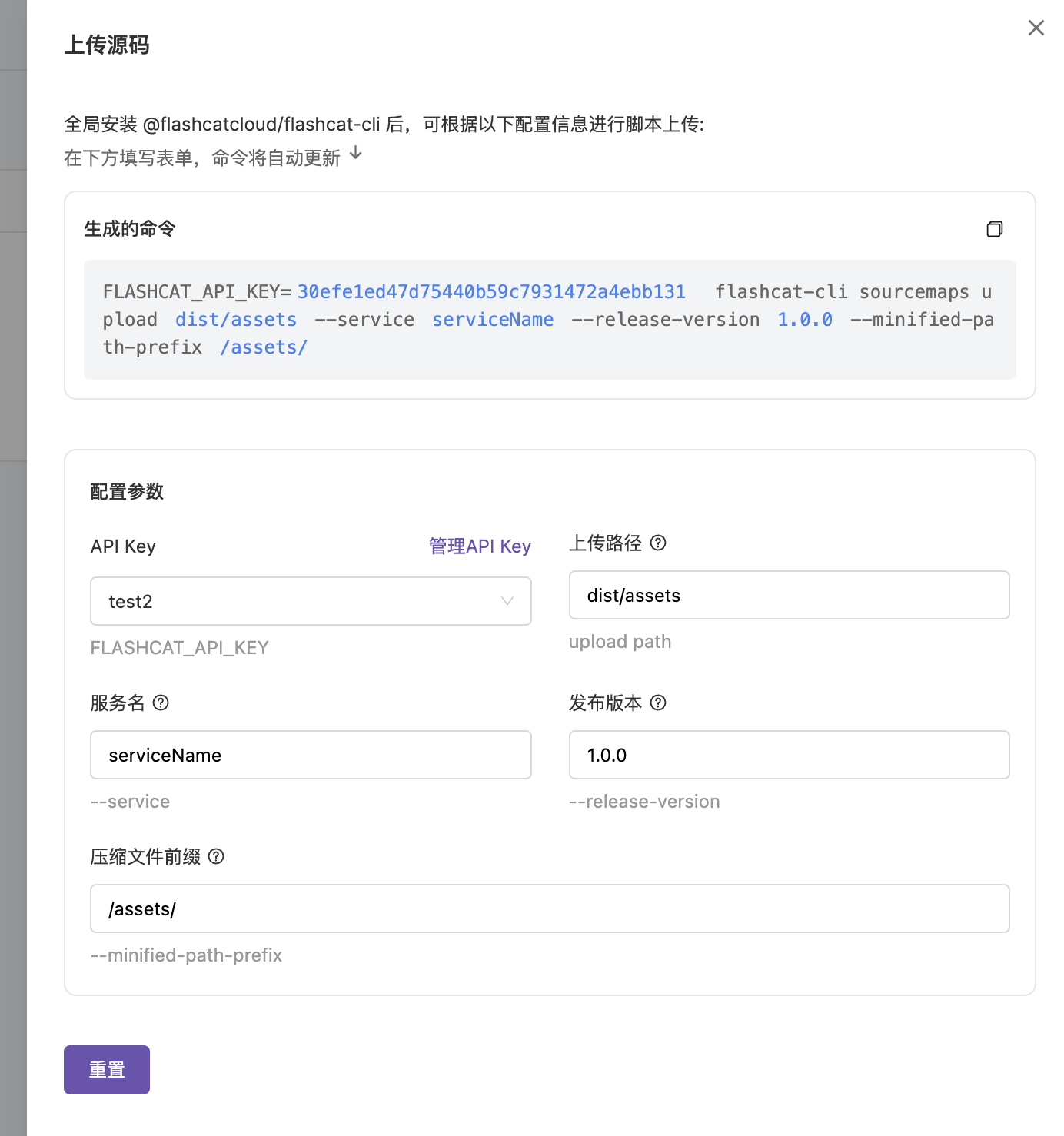 In the "Application Management" - "Source Code Management" menu, click the "Upload Source Code" panel and fill in the following information:
Used to authenticate your identity
Application service name (e.g., `my-service`)
Application release version (e.g., `1.0.0`)
Path prefix for minified files (e.g., `/assets`)
Run the generated script in the project root directory:
```bash theme={null}
flashcat-cli sourcemaps upload \
--service my-service \
--release-version 1.0.0 \
--minified-path-prefix /assets \
--api-key your-api-key \
./dist
```
* Ensure `minified-path-prefix` matches the actual deployed minified file path
* After successful upload, you can view uploaded `sourcemap` files in "Application Management" - "Source Code Management"
## Upload WeChat Mini Program SourceMap
After a WeChat Mini Program is released, production error stacks usually contain only transformed file paths and line and column numbers. You can first use `miniprogram-ci get-dev-source-map` to generate `sourcemap.zip`, then upload it through Flashduty CLI. After upload, Flashduty matches Mini Program error stacks by service name, version, and file path, then shows restored source code locations in error details.
Run `miniprogram-ci get-dev-source-map` in the Mini Program project to generate an uploadable `sourcemap.zip` file. This file path is used as the `--sourcemap-zip` parameter in the upload command.
The default zip layout produced by `miniprogram-ci get-dev-source-map` already satisfies the following requirements, so you usually do not need to repackage it:
* Main-package `.js.map` entries are placed under the `__FULL__/` directory, e.g. `__FULL__/app-service.js.map`
* Subpackage `.js.map` entries are placed under a directory named after the subpackage, e.g. `subpkg-a/chunk_0.appservice.js.map`, and the directory name is recorded as the subpackage tag in metadata
* Only entries with the `.js.map` suffix are processed; other files (README, source files, etc.) are silently ignored
* If the zip contains no `.js.map` entries, the upload fails with `No .js.map entries found in the sourcemap archive`
Each `.js.map` may not exceed 50 MB decompressed; the aggregate decompressed size of the whole archive may not exceed 500 MB; the zip may not contain more than 5000 entries. Exceeding any of these limits returns HTTP 413.
In "Application Management" - "Source Code Management", switch to the "WeChat Mini Program" tab and click "Upload Source Code". The upload panel generates the command from the form values.
Authenticates the upload request. The page prioritizes API Keys that the current account can access.
Mini Program service name, such as `my-mp`. Error parsing uses this value to match the `service` in error events.
Mini Program release version, such as `1.2.3`. Error parsing uses this value to match the version in error events.
Path to the archive generated by `miniprogram-ci get-dev-source-map`, such as `./sourcemap.zip`.
WeChat Mini Program appid, e.g. `wxbad3e0a65782821c`. Used to disambiguate uploads when multiple Mini Programs share the same service + version. Optional when only one Mini Program is involved.
Run the generated command in the project root. `--appid` is optional and is omitted from the generated command when the field is empty:
```bash theme={null}
FLASHCAT_API_KEY=your-api-key flashcat-cli sourcemaps upload-miniprogram \
--service my-mp \
--release-version 1.2.3 \
--sourcemap-zip ./sourcemap.zip \
--appid wxbad3e0a65782821c
```
## Upload HarmonyOS symbols
HarmonyOS crash stacks can contain both **ArkTS / JS frames** and **native `.so` frames**. To restore both kinds in the console, upload these build artifacts:
* `sourceMaps.map`: the primary ArkTS sourcemap bundle
* `nameCache.json`: optional, used to restore obfuscated identifier names
* Unstripped native `.so` files: used to symbolicate C/C++ crash stacks
In **Application Management → Source Code Management → HarmonyOS**, the upload panel asks for **Service**, **Version**, and **API Key**, then generates the matching `hvigor` configuration and upload command. `service` and `version` must exactly match what the application reports at runtime, otherwise the server cannot match the uploaded symbols to incoming crash events.
Install the upload plugin in your HarmonyOS project:
```bash theme={null}
npm install -D @flashcatcloud/hvigor-plugin
```
Write the panel-generated `service`, `version`, and `apiKey` settings into `hvigorfile.ts`:
```ts hvigorfile.ts theme={null}
import { hapTasks } from '@ohos/hvigor-ohos-plugin';
import { flashcatSymbolUploadPlugin } from '@flashcatcloud/hvigor-plugin';
export default {
system: hapTasks,
plugins: [
flashcatSymbolUploadPlugin({
apiKey: process.env.FLASHCAT_API_KEY ?? '',
service: 'my-app',
version: '1.0.0',
enabled: process.env.FLASHCAT_UPLOAD === '1'
})
]
};
```
After the build artifacts are ready, run the upload task:
```bash theme={null}
FLASHCAT_UPLOAD=1 FLASHCAT_API_KEY=your-api-key \
hvigorw uploadFlashcatSymbols --mode module -p module=entry@default -p product=default
```
* Native `.so` symbolication depends on the GNU build-id. The HarmonyOS NDK enables it by default; if your build pipeline disables it, add `-Wl,--build-id` explicitly
* For the full HarmonyOS integration, symbol-upload, and compatibility details, continue with [HarmonyOS SDK advanced configuration](/en/rum/sdk/harmony/advanced-config)
## Upload Android Symbol Files
After Android apps use ProGuard/R8 for code obfuscation, class names and method names in error stacks are replaced with meaningless short names. By uploading mapping files, Flashduty can restore obfuscated stacks to original code.
For apps containing NDK native code, NDK symbol files also need to be uploaded to restore C/C++ layer stacks.
Add the Flashcat Android Gradle plugin to your app module's `build.gradle`:
```groovy theme={null}
plugins {
id("cloud.flashcat.android-gradle-plugin") version "1.2.0"
}
```
Kotlin DSL uses the same plugin ID:
```kotlin theme={null}
plugins {
id("cloud.flashcat.android-gradle-plugin") version "1.2.0"
}
```
Provide the API key via Gradle properties, environment variables, or a project configuration file. CI pipelines commonly use environment variables:
```bash theme={null}
# Choose one
export FC_API_KEY=your-api-key
export FLASHCAT_API_KEY=your-api-key
# Optional: custom intake endpoint for private deployments
export FLASHCAT_SOURCEMAP_INTAKE_URL=https://rum.example.com
```
You can also create a `flashcat-ci.json` file in the project root:
```json theme={null}
{
"apiKey": "your-api-key",
"flashcatSite": "ci.flashcat.cloud",
"sourcemapEndpoint": "https://rum.example.com"
}
```
API Keys can be created and managed in the console's "API Key Management" page.
Add the `flashcat` block to your app module's `build.gradle`. When fields are not set explicitly, the plugin reads `versionName`, `versionCode`, and the application ID from the Android build configuration.
```groovy theme={null}
flashcat {
versionName = "1.3.0" // Optional, defaults to Android versionName
serviceName = "my-service" // Optional, defaults to the application ID
site = "CN" // Optional values: CN, STAGING. Default: CN
sourcemapEndpoint = "https://rum.example.com" // Optional custom intake endpoint for private deployments; /sourcemap/upload is appended if omitted
checkProjectDependencies = "none" // Optional: none, warn, fail. Default: no check
mappingFilePath = "path/to/mapping.txt" // Optional custom mapping file path
nonDefaultObfuscation = false // Optional, set true for DexGuard or other non-default obfuscators
ignoreFlashcatCiFileConfig = false // Optional, ignore flashcat-ci.json
additionalSymbolFilesLocations = ["/path/to/location/obj"] // Optional extra NDK symbol directories
}
```
By default the plugin selects the upload endpoint from `site`: `CN` uses `ci.flashcat.cloud`, and `STAGING` uses `ci-dev.flashcat.cloud`. For private deployments, set `sourcemapEndpoint` to a custom intake endpoint (supported since `1.2.0`); if the value omits the `/sourcemap/upload` path it is appended automatically. The three configuration sources are resolved in this order of precedence: `flashcat {}` extension config > `flashcat-ci.json` > the `FLASHCAT_SOURCEMAP_INTAKE_URL` environment variable. Once a custom endpoint is set, `site` is only used as a fallback and no longer affects the actual upload URL.
After the build completes, run the Gradle tasks to upload symbol files:
```bash theme={null}
# Upload ProGuard/R8 mapping file
./gradlew uploadMappingRelease
# If your project contains NDK native code, upload NDK symbol files
./gradlew uploadNdkSymbolFilesRelease
```
The plugin creates `uploadMapping` tasks for variants with obfuscation enabled. NDK symbol upload tasks are created when the project has a native build or when `additionalSymbolFilesLocations` is configured. If your project uses multiple flavors, run the upload task for each release variant.
**NDK symbol files must be unstripped ELF files that contain a GNU build-id section.**
The upload server reads the `.note.gnu.build-id` ELF section from each `.so` file to extract the build-id, which is used as the unique addressing key for symbolication. If the section is absent, the upload immediately returns HTTP 400 with the message:
```
libfoo.so: .note.gnu.build-id section not found. Build the .so with -Wl,--build-id and upload the unstripped file
```
**Common causes and fixes:**
* **CMake Release builds strip symbols by default**: CMake runs `strip` after linking when `CMAKE_BUILD_TYPE=Release`, which removes the `.note.gnu.build-id` section. Add the linker flag explicitly in `CMakeLists.txt`:
```cmake theme={null}
target_link_options(mylib PRIVATE -Wl,--build-id)
```
Or apply it to the whole project:
```cmake theme={null}
add_link_options(-Wl,--build-id)
```
* **Manual strip scripts**: If your CI pipeline runs `strip` on `.so` files before uploading, make sure to upload the original unstripped files from the `obj/` directory rather than the stripped release artifacts from `libs/`. Use the `additionalSymbolFilesLocations` setting to point to that path.
NDK native symbol files are identified in the API by `event.type=ndk_symbol_file`, distinct from ProGuard mapping files which use `event.type=jvm_mapping_file`. Custom upload integrations that do not use the Gradle plugin must pass the correct type field.
## Upload iOS dSYM Files
iOS apps generate dSYM (Debug Symbol) files during compilation, containing the debug symbol information needed to map memory addresses back to source code locations. After uploading dSYM files, Flashduty can restore addresses in crash stacks to readable function names, file names, and line numbers.
Ensure Node.js is installed, then install via npm:
```bash theme={null}
npm install -g @flashcatcloud/flashcat-cli
```
dSYM files can be obtained from the following locations:
* **Xcode Local Build**: Find `.dSYM` files in the Xcode Build Products directory
* **Xcode Archive**: Export dSYMs through the Organizer window
* **App Store Connect**: Download dSYMs from App Store Connect (requires enabling symbol upload in build settings)
Upload dSYM files using Flashduty CLI:
```bash theme={null}
FLASHCAT_API_KEY=your-api-key flashcat-cli dsyms upload ./app.dSYM
```
You can also fill in parameters in the "Source Code Management" panel in the console to automatically generate the upload command.
## Symbol File Management
On the Flashduty platform, symbol file management is done through the "Application Management" - "Source Code Management" menu:
| Feature | Description |
| -------------------------- | ------------------------------------------------------------------------------------------------------------------------------------------------------------------------------------------------------------------------------------------------------------------------------------------------------------------------------- |
| View Uploaded Symbol Files | List all uploaded files (SourceMaps, Mini Program SourceMaps, ProGuard mapping files, dSYMs, and NDK native symbol files), including path, service name, version, size, and upload time. The Android tab shows both ProGuard mapping files and NDK native symbol files; NDK rows display build\_id, arch, and lib\_name columns |
| Filter by Platform | Switch between Web, WeChat Mini Program, iOS, and Android tabs to view symbol files for each platform |
| Version Management | Manage different application versions separately through `service` and `release-version` parameters |
| Mini Program Dimensions | The WeChat Mini Program list shows the AppID column (from `metadata.appid`) and the Subpackage column (from `metadata.subpackage`); the main package without a subpackage tag shows "Main Package", and an unspecified AppID shows `-` |
| Permission Control | Ensure only authorized users can upload or manage through `API Key` |
## View Source Code in Error Tracking
RUM Error Tracking can use Web `sourcemap` files, WeChat Mini Program SourceMaps, Android mapping files, and iOS dSYM files to restore error stacks and show original source code locations in error details for precise debugging.
RUM SDK automatically captures application errors and sends error stack information to the server. Web scenarios typically include JavaScript exceptions, Promise rejections, and network errors; native scenarios include crashes, exceptions, and stack information required for symbolication.
```javascript theme={null}
throw new Error("Something went wrong");
```
When file paths, line numbers, or address information in the error stack match uploaded Web `sourcemap` files, WeChat Mini Program SourceMaps, Android ProGuard mapping files, Android NDK native symbol files, or iOS dSYM files, Flashduty automatically maps minified, obfuscated, or compiled error locations back to the original source code.
**Minified file stack:**
```
Error: Something went wrong
at Object. (/assets/index-5e0391ac.js:1:123)
```
**Mapped source code:**
```
Error: Something went wrong
at App.render (src/components/App.js:45:10)
```
In the Error Tracking module, click a specific error record to view:
* **Error message**: e.g., `Something went wrong`
* **Original stack**: Mapped source code file path, line number, and column number
* **Context code**: Display source code snippet near the error location
If a Mini Program error stack has not been resolved, the notice in error details links to the Mini Program type on the Source Code Management page and can open the upload panel for the corresponding version's `sourcemap.zip`.
Based on the mapped source code location, find the corresponding code directly in your local development environment, analyze the root cause, and fix it.
## Best Practices
Integrate upload commands in CI/CD pipelines to ensure automatic upload of Web `sourcemap` files or WeChat Mini Program `sourcemap.zip` with each release.
**GitHub Actions Example:**
```yaml theme={null}
- name: Upload SourceMaps
run: |
flashcat-cli sourcemaps upload \
--service my-service \
--release-version ${{ github.sha }} \
--minified-path-prefix /assets \
--api-key ${{ secrets.FLASHCAT_API_KEY }} \
./dist
```
Use the `--release-version` parameter to match the application version number for easy tracking of specific version `sourcemaps`.
Delete `sourcemap` files before uploading resources to CDN to avoid bringing source code information into production.
After uploading `sourcemap`, proactively throw test errors to verify that the Error Tracking module correctly maps to source code.
## Frequently Asked Questions
* Confirm that `sourcemap` was successfully uploaded and `minified-path-prefix` matches the actual deployment path
* Check that `service` and `release-version` match the application version when the error occurred
* For WeChat Mini Programs, confirm that the `sourcemap.zip` for the corresponding version has been uploaded
* Ensure `sourcemap` files are only uploaded to the Flashduty server, not directly exposed on the public network
* In production, remove direct access to `sourcemap` files (e.g., through Nginx configuration)
* Check if `API Key` is valid
* Ensure network connection is normal and CLI version is the latest
Yes. For Mini Program errors emitted by older SDKs that pack the stack into the message field, Flashduty automatically recognizes the stack inside the message and feeds it into both SourceMap restoration and error grouping. After upgrading to a newer SDK, pre-existing errors may regroup under the new rule and the grouping may differ from what was seen before the upgrade.
## Next Steps
Learn about error grouping mechanisms
Manage Issue status transitions
In the "Application Management" - "Source Code Management" menu, click the "Upload Source Code" panel and fill in the following information:
Used to authenticate your identity
Application service name (e.g., `my-service`)
Application release version (e.g., `1.0.0`)
Path prefix for minified files (e.g., `/assets`)
Run the generated script in the project root directory:
```bash theme={null}
flashcat-cli sourcemaps upload \
--service my-service \
--release-version 1.0.0 \
--minified-path-prefix /assets \
--api-key your-api-key \
./dist
```
* Ensure `minified-path-prefix` matches the actual deployed minified file path
* After successful upload, you can view uploaded `sourcemap` files in "Application Management" - "Source Code Management"
## Upload WeChat Mini Program SourceMap
After a WeChat Mini Program is released, production error stacks usually contain only transformed file paths and line and column numbers. You can first use `miniprogram-ci get-dev-source-map` to generate `sourcemap.zip`, then upload it through Flashduty CLI. After upload, Flashduty matches Mini Program error stacks by service name, version, and file path, then shows restored source code locations in error details.
Run `miniprogram-ci get-dev-source-map` in the Mini Program project to generate an uploadable `sourcemap.zip` file. This file path is used as the `--sourcemap-zip` parameter in the upload command.
The default zip layout produced by `miniprogram-ci get-dev-source-map` already satisfies the following requirements, so you usually do not need to repackage it:
* Main-package `.js.map` entries are placed under the `__FULL__/` directory, e.g. `__FULL__/app-service.js.map`
* Subpackage `.js.map` entries are placed under a directory named after the subpackage, e.g. `subpkg-a/chunk_0.appservice.js.map`, and the directory name is recorded as the subpackage tag in metadata
* Only entries with the `.js.map` suffix are processed; other files (README, source files, etc.) are silently ignored
* If the zip contains no `.js.map` entries, the upload fails with `No .js.map entries found in the sourcemap archive`
Each `.js.map` may not exceed 50 MB decompressed; the aggregate decompressed size of the whole archive may not exceed 500 MB; the zip may not contain more than 5000 entries. Exceeding any of these limits returns HTTP 413.
In "Application Management" - "Source Code Management", switch to the "WeChat Mini Program" tab and click "Upload Source Code". The upload panel generates the command from the form values.
Authenticates the upload request. The page prioritizes API Keys that the current account can access.
Mini Program service name, such as `my-mp`. Error parsing uses this value to match the `service` in error events.
Mini Program release version, such as `1.2.3`. Error parsing uses this value to match the version in error events.
Path to the archive generated by `miniprogram-ci get-dev-source-map`, such as `./sourcemap.zip`.
WeChat Mini Program appid, e.g. `wxbad3e0a65782821c`. Used to disambiguate uploads when multiple Mini Programs share the same service + version. Optional when only one Mini Program is involved.
Run the generated command in the project root. `--appid` is optional and is omitted from the generated command when the field is empty:
```bash theme={null}
FLASHCAT_API_KEY=your-api-key flashcat-cli sourcemaps upload-miniprogram \
--service my-mp \
--release-version 1.2.3 \
--sourcemap-zip ./sourcemap.zip \
--appid wxbad3e0a65782821c
```
## Upload HarmonyOS symbols
HarmonyOS crash stacks can contain both **ArkTS / JS frames** and **native `.so` frames**. To restore both kinds in the console, upload these build artifacts:
* `sourceMaps.map`: the primary ArkTS sourcemap bundle
* `nameCache.json`: optional, used to restore obfuscated identifier names
* Unstripped native `.so` files: used to symbolicate C/C++ crash stacks
In **Application Management → Source Code Management → HarmonyOS**, the upload panel asks for **Service**, **Version**, and **API Key**, then generates the matching `hvigor` configuration and upload command. `service` and `version` must exactly match what the application reports at runtime, otherwise the server cannot match the uploaded symbols to incoming crash events.
Install the upload plugin in your HarmonyOS project:
```bash theme={null}
npm install -D @flashcatcloud/hvigor-plugin
```
Write the panel-generated `service`, `version`, and `apiKey` settings into `hvigorfile.ts`:
```ts hvigorfile.ts theme={null}
import { hapTasks } from '@ohos/hvigor-ohos-plugin';
import { flashcatSymbolUploadPlugin } from '@flashcatcloud/hvigor-plugin';
export default {
system: hapTasks,
plugins: [
flashcatSymbolUploadPlugin({
apiKey: process.env.FLASHCAT_API_KEY ?? '',
service: 'my-app',
version: '1.0.0',
enabled: process.env.FLASHCAT_UPLOAD === '1'
})
]
};
```
After the build artifacts are ready, run the upload task:
```bash theme={null}
FLASHCAT_UPLOAD=1 FLASHCAT_API_KEY=your-api-key \
hvigorw uploadFlashcatSymbols --mode module -p module=entry@default -p product=default
```
* Native `.so` symbolication depends on the GNU build-id. The HarmonyOS NDK enables it by default; if your build pipeline disables it, add `-Wl,--build-id` explicitly
* For the full HarmonyOS integration, symbol-upload, and compatibility details, continue with [HarmonyOS SDK advanced configuration](/en/rum/sdk/harmony/advanced-config)
## Upload Android Symbol Files
After Android apps use ProGuard/R8 for code obfuscation, class names and method names in error stacks are replaced with meaningless short names. By uploading mapping files, Flashduty can restore obfuscated stacks to original code.
For apps containing NDK native code, NDK symbol files also need to be uploaded to restore C/C++ layer stacks.
Add the Flashcat Android Gradle plugin to your app module's `build.gradle`:
```groovy theme={null}
plugins {
id("cloud.flashcat.android-gradle-plugin") version "1.2.0"
}
```
Kotlin DSL uses the same plugin ID:
```kotlin theme={null}
plugins {
id("cloud.flashcat.android-gradle-plugin") version "1.2.0"
}
```
Provide the API key via Gradle properties, environment variables, or a project configuration file. CI pipelines commonly use environment variables:
```bash theme={null}
# Choose one
export FC_API_KEY=your-api-key
export FLASHCAT_API_KEY=your-api-key
# Optional: custom intake endpoint for private deployments
export FLASHCAT_SOURCEMAP_INTAKE_URL=https://rum.example.com
```
You can also create a `flashcat-ci.json` file in the project root:
```json theme={null}
{
"apiKey": "your-api-key",
"flashcatSite": "ci.flashcat.cloud",
"sourcemapEndpoint": "https://rum.example.com"
}
```
API Keys can be created and managed in the console's "API Key Management" page.
Add the `flashcat` block to your app module's `build.gradle`. When fields are not set explicitly, the plugin reads `versionName`, `versionCode`, and the application ID from the Android build configuration.
```groovy theme={null}
flashcat {
versionName = "1.3.0" // Optional, defaults to Android versionName
serviceName = "my-service" // Optional, defaults to the application ID
site = "CN" // Optional values: CN, STAGING. Default: CN
sourcemapEndpoint = "https://rum.example.com" // Optional custom intake endpoint for private deployments; /sourcemap/upload is appended if omitted
checkProjectDependencies = "none" // Optional: none, warn, fail. Default: no check
mappingFilePath = "path/to/mapping.txt" // Optional custom mapping file path
nonDefaultObfuscation = false // Optional, set true for DexGuard or other non-default obfuscators
ignoreFlashcatCiFileConfig = false // Optional, ignore flashcat-ci.json
additionalSymbolFilesLocations = ["/path/to/location/obj"] // Optional extra NDK symbol directories
}
```
By default the plugin selects the upload endpoint from `site`: `CN` uses `ci.flashcat.cloud`, and `STAGING` uses `ci-dev.flashcat.cloud`. For private deployments, set `sourcemapEndpoint` to a custom intake endpoint (supported since `1.2.0`); if the value omits the `/sourcemap/upload` path it is appended automatically. The three configuration sources are resolved in this order of precedence: `flashcat {}` extension config > `flashcat-ci.json` > the `FLASHCAT_SOURCEMAP_INTAKE_URL` environment variable. Once a custom endpoint is set, `site` is only used as a fallback and no longer affects the actual upload URL.
After the build completes, run the Gradle tasks to upload symbol files:
```bash theme={null}
# Upload ProGuard/R8 mapping file
./gradlew uploadMappingRelease
# If your project contains NDK native code, upload NDK symbol files
./gradlew uploadNdkSymbolFilesRelease
```
The plugin creates `uploadMapping` tasks for variants with obfuscation enabled. NDK symbol upload tasks are created when the project has a native build or when `additionalSymbolFilesLocations` is configured. If your project uses multiple flavors, run the upload task for each release variant.
**NDK symbol files must be unstripped ELF files that contain a GNU build-id section.**
The upload server reads the `.note.gnu.build-id` ELF section from each `.so` file to extract the build-id, which is used as the unique addressing key for symbolication. If the section is absent, the upload immediately returns HTTP 400 with the message:
```
libfoo.so: .note.gnu.build-id section not found. Build the .so with -Wl,--build-id and upload the unstripped file
```
**Common causes and fixes:**
* **CMake Release builds strip symbols by default**: CMake runs `strip` after linking when `CMAKE_BUILD_TYPE=Release`, which removes the `.note.gnu.build-id` section. Add the linker flag explicitly in `CMakeLists.txt`:
```cmake theme={null}
target_link_options(mylib PRIVATE -Wl,--build-id)
```
Or apply it to the whole project:
```cmake theme={null}
add_link_options(-Wl,--build-id)
```
* **Manual strip scripts**: If your CI pipeline runs `strip` on `.so` files before uploading, make sure to upload the original unstripped files from the `obj/` directory rather than the stripped release artifacts from `libs/`. Use the `additionalSymbolFilesLocations` setting to point to that path.
NDK native symbol files are identified in the API by `event.type=ndk_symbol_file`, distinct from ProGuard mapping files which use `event.type=jvm_mapping_file`. Custom upload integrations that do not use the Gradle plugin must pass the correct type field.
## Upload iOS dSYM Files
iOS apps generate dSYM (Debug Symbol) files during compilation, containing the debug symbol information needed to map memory addresses back to source code locations. After uploading dSYM files, Flashduty can restore addresses in crash stacks to readable function names, file names, and line numbers.
Ensure Node.js is installed, then install via npm:
```bash theme={null}
npm install -g @flashcatcloud/flashcat-cli
```
dSYM files can be obtained from the following locations:
* **Xcode Local Build**: Find `.dSYM` files in the Xcode Build Products directory
* **Xcode Archive**: Export dSYMs through the Organizer window
* **App Store Connect**: Download dSYMs from App Store Connect (requires enabling symbol upload in build settings)
Upload dSYM files using Flashduty CLI:
```bash theme={null}
FLASHCAT_API_KEY=your-api-key flashcat-cli dsyms upload ./app.dSYM
```
You can also fill in parameters in the "Source Code Management" panel in the console to automatically generate the upload command.
## Symbol File Management
On the Flashduty platform, symbol file management is done through the "Application Management" - "Source Code Management" menu:
| Feature | Description |
| -------------------------- | ------------------------------------------------------------------------------------------------------------------------------------------------------------------------------------------------------------------------------------------------------------------------------------------------------------------------------- |
| View Uploaded Symbol Files | List all uploaded files (SourceMaps, Mini Program SourceMaps, ProGuard mapping files, dSYMs, and NDK native symbol files), including path, service name, version, size, and upload time. The Android tab shows both ProGuard mapping files and NDK native symbol files; NDK rows display build\_id, arch, and lib\_name columns |
| Filter by Platform | Switch between Web, WeChat Mini Program, iOS, and Android tabs to view symbol files for each platform |
| Version Management | Manage different application versions separately through `service` and `release-version` parameters |
| Mini Program Dimensions | The WeChat Mini Program list shows the AppID column (from `metadata.appid`) and the Subpackage column (from `metadata.subpackage`); the main package without a subpackage tag shows "Main Package", and an unspecified AppID shows `-` |
| Permission Control | Ensure only authorized users can upload or manage through `API Key` |
## View Source Code in Error Tracking
RUM Error Tracking can use Web `sourcemap` files, WeChat Mini Program SourceMaps, Android mapping files, and iOS dSYM files to restore error stacks and show original source code locations in error details for precise debugging.
RUM SDK automatically captures application errors and sends error stack information to the server. Web scenarios typically include JavaScript exceptions, Promise rejections, and network errors; native scenarios include crashes, exceptions, and stack information required for symbolication.
```javascript theme={null}
throw new Error("Something went wrong");
```
When file paths, line numbers, or address information in the error stack match uploaded Web `sourcemap` files, WeChat Mini Program SourceMaps, Android ProGuard mapping files, Android NDK native symbol files, or iOS dSYM files, Flashduty automatically maps minified, obfuscated, or compiled error locations back to the original source code.
**Minified file stack:**
```
Error: Something went wrong
at Object. (/assets/index-5e0391ac.js:1:123)
```
**Mapped source code:**
```
Error: Something went wrong
at App.render (src/components/App.js:45:10)
```
In the Error Tracking module, click a specific error record to view:
* **Error message**: e.g., `Something went wrong`
* **Original stack**: Mapped source code file path, line number, and column number
* **Context code**: Display source code snippet near the error location
If a Mini Program error stack has not been resolved, the notice in error details links to the Mini Program type on the Source Code Management page and can open the upload panel for the corresponding version's `sourcemap.zip`.
Based on the mapped source code location, find the corresponding code directly in your local development environment, analyze the root cause, and fix it.
## Best Practices
Integrate upload commands in CI/CD pipelines to ensure automatic upload of Web `sourcemap` files or WeChat Mini Program `sourcemap.zip` with each release.
**GitHub Actions Example:**
```yaml theme={null}
- name: Upload SourceMaps
run: |
flashcat-cli sourcemaps upload \
--service my-service \
--release-version ${{ github.sha }} \
--minified-path-prefix /assets \
--api-key ${{ secrets.FLASHCAT_API_KEY }} \
./dist
```
Use the `--release-version` parameter to match the application version number for easy tracking of specific version `sourcemaps`.
Delete `sourcemap` files before uploading resources to CDN to avoid bringing source code information into production.
After uploading `sourcemap`, proactively throw test errors to verify that the Error Tracking module correctly maps to source code.
## Frequently Asked Questions
* Confirm that `sourcemap` was successfully uploaded and `minified-path-prefix` matches the actual deployment path
* Check that `service` and `release-version` match the application version when the error occurred
* For WeChat Mini Programs, confirm that the `sourcemap.zip` for the corresponding version has been uploaded
* Ensure `sourcemap` files are only uploaded to the Flashduty server, not directly exposed on the public network
* In production, remove direct access to `sourcemap` files (e.g., through Nginx configuration)
* Check if `API Key` is valid
* Ensure network connection is normal and CLI version is the latest
Yes. For Mini Program errors emitted by older SDKs that pack the stack into the message field, Flashduty automatically recognizes the stack inside the message and feeds it into both SourceMap restoration and error grouping. After upgrading to a newer SDK, pre-existing errors may regroup under the new rule and the grouping may differ from what was seen before the upgrade.
## Next Steps
Learn about error grouping mechanisms
Manage Issue status transitions