

Overview
Flashduty RUM’s Trace Tracking feature deeply integrates frontend user monitoring with distributed tracing systems, allowing you to associate requests from your web application with their corresponding backend traces. This combination enables you to view complete frontend and backend data at a glance, achieving end-to-end performance monitoring and troubleshooting. With Trace Tracking, you can:- Correlate frontend and backend requests: Associate frontend user actions with backend API calls
- End-to-end troubleshooting: Quickly locate complete request chain issues from frontend to backend
- Performance bottleneck analysis: Identify performance bottleneck points throughout the entire request chain
- User experience optimization: Optimize user experience based on complete request chain data
How It Works
Trace Tracking is implemented based on the W3C Trace Context standard, correlating frontend and backend requests by injecting tracing information into HTTP request headers:Frontend Initiates Request
RUM SDK automatically adds tracing header information to configured API requests
Backend Receives and Processes
Backend service receives and processes requests with tracing information
Configuration Steps
1. SDK Configuration
First, configure the distributed tracing feature in the RUM SDK. Add the following parameters when initializing the RUM SDK:Key Configuration Parameters
Specify API endpoints that need tracing information added, supporting the following types:
| Type | Description | Example |
|---|---|---|
| String | Matches URLs starting with this value | "https://api.example.com" |
| RegExp | Uses regular expression to match URLs | /https:\/\/.*\.my-api-domain\.com/ |
| Function | Custom matching logic, returns true for match | (url) => url.startsWith("https://api") |
Trace sampling rate, controls what percentage of requests will be traced (range 0-100)
2. Application Management Configuration
After SDK configuration is complete, configure trace jump links from the Link Integration tab in application details:- Go to the Application Management page
- Select the corresponding RUM application and open the Link Integration tab
- Enter the tracing system jump link in the Tracing card
- Save the link, then turn on the Tracing switch
3. Backend Service Configuration
To fully support distributed tracing, backend services need to:- Receive tracing headers: Process
traceparentandtracestaterequest headers - Pass tracing information: Continue passing tracing headers when calling other services
- Generate tracing data: Record request processing to the tracing system
Tracing Header Information
The RUM SDK automatically adds the following HTTP headers to configured requests:traceparent Header
Format:
[version]-[trace-id]-[parent-id]-[trace-flags]| Field | Description |
|---|---|
version | Currently 00 |
trace-id | 128-bit trace ID, 32 characters after hexadecimal processing |
parent-id | 64-bit span ID, 16 characters after hexadecimal processing |
trace-flags | Sampling flag, 01 means sampled, 00 means not sampled |
tracestate Header
Format:
dd=s:[sampling-priority];o:[origin]| Field | Description |
|---|---|
sampling-priority | 1 means trace is sampled |
origin | Always rum, indicating collection via RUM SDK |
Use Cases
View Trace in RUM Explorer
After configuration is complete, resource events that containtrace_id show a Tracing jump entry:
- Go to RUM Explorer
- Filter for or open a resource event that contains API calls
- Click the trace link in the
trace_idcolumn of the resource list, or open Related Links from the top-right corner of the event details - Jump to your trace system to view the detailed request chain
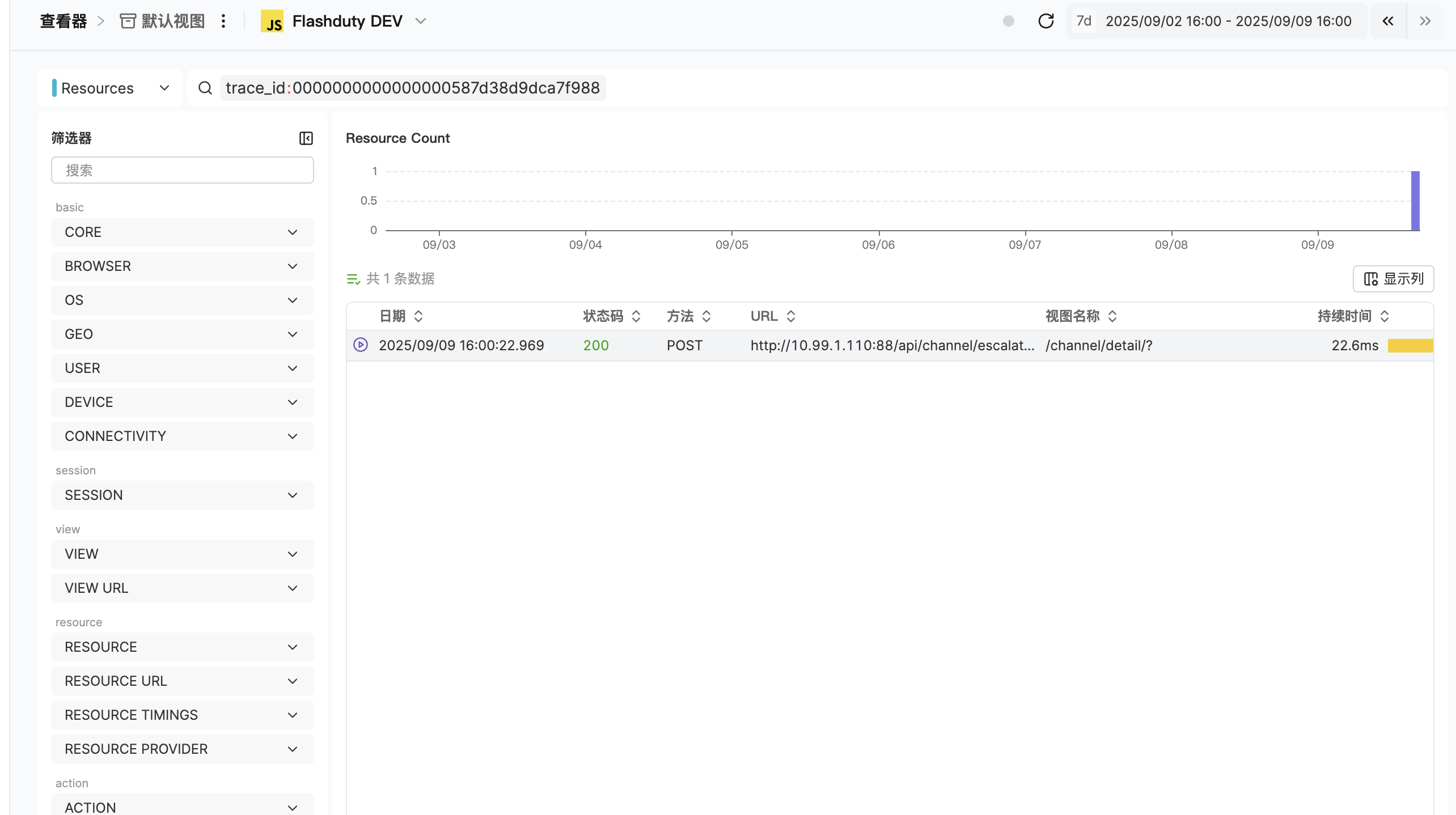
Find Resources by trace_id
You can also search for resources in the explorer usingtrace_id:
- Enter
trace_idin the explorer search bar - View corresponding resources and view loading status
- Analyze the relationship between resource loading performance and backend API calls
End-to-End Troubleshooting
When users report performance issues or errors:Best Practices
Configure Sampling Rate Appropriately
| Environment | Recommended Rate | Description |
|---|---|---|
| Development | 100% | Ensure all requests are traced |
| Testing | 50-80% | Balance monitoring coverage and performance |
| Production | 10-20% | Avoid significant performance impact |
Precisely Configure Tracing URLs
- Recommended Approach
- Avoid This
Precisely match API endpoints:
Cross-Origin Request Handling
Performance Monitoring
- Regularly check the impact of trace sampling rate on application performance
- Monitor storage and query performance of tracing data
- Adjust tracing strategy based on business needs
Frequently Asked Questions
Why don't some requests have trace information?
Why don't some requests have trace information?
Possible reasons include:
- Request URL is not within the
allowedTracingUrlsconfiguration range - Request was filtered by
traceSampleRatesampling rate - Request was initiated before SDK initialization
- Cross-origin request lacks necessary CORS configuration
How to verify trace configuration is correct?
How to verify trace configuration is correct?
You can verify through the following methods:
- Check network request headers in browser developer tools
- Confirm requests contain
traceparentandtracestateheaders - Check if trace information is displayed in the RUM Explorer