

For detailed grouping rules, please refer to Error Grouping.
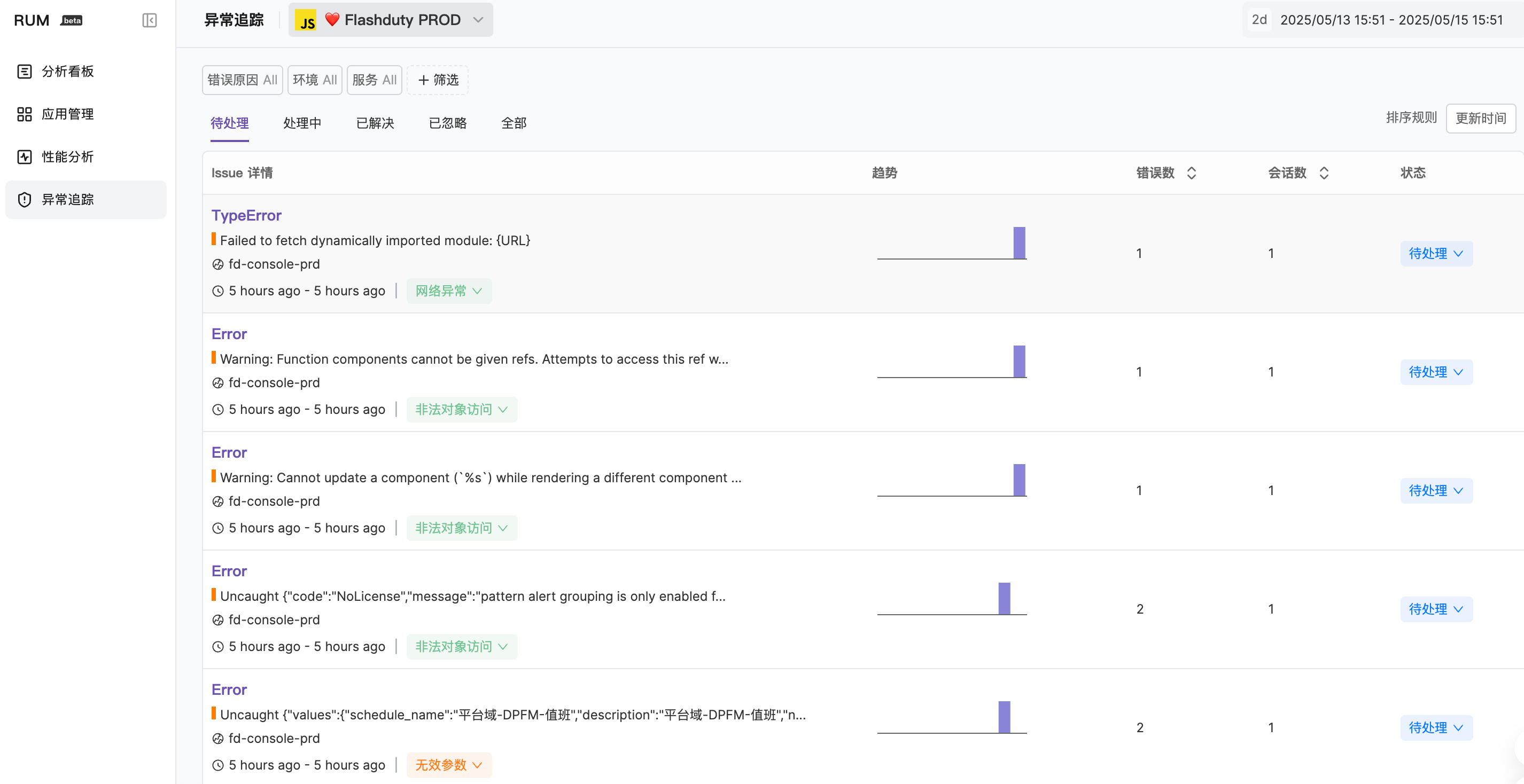
Issue Information Overview

| Item | Description |
|---|---|
| Error type and error message | Core identifying information of the Issue |
| File path where error occurred | Locate error source |
| Service name | Associated service |
| Error cause | System-inferred possible root cause |
| Whether issue has regressed | Indicates if a resolved issue has reappeared |
| First and last occurrence time | Issue lifecycle information |
| Occurrence count chart | Trend over time |
| Occurrence count in selected time period | Statistical data |
Issue Status
Issues have 4 statuses, with transitions as follows: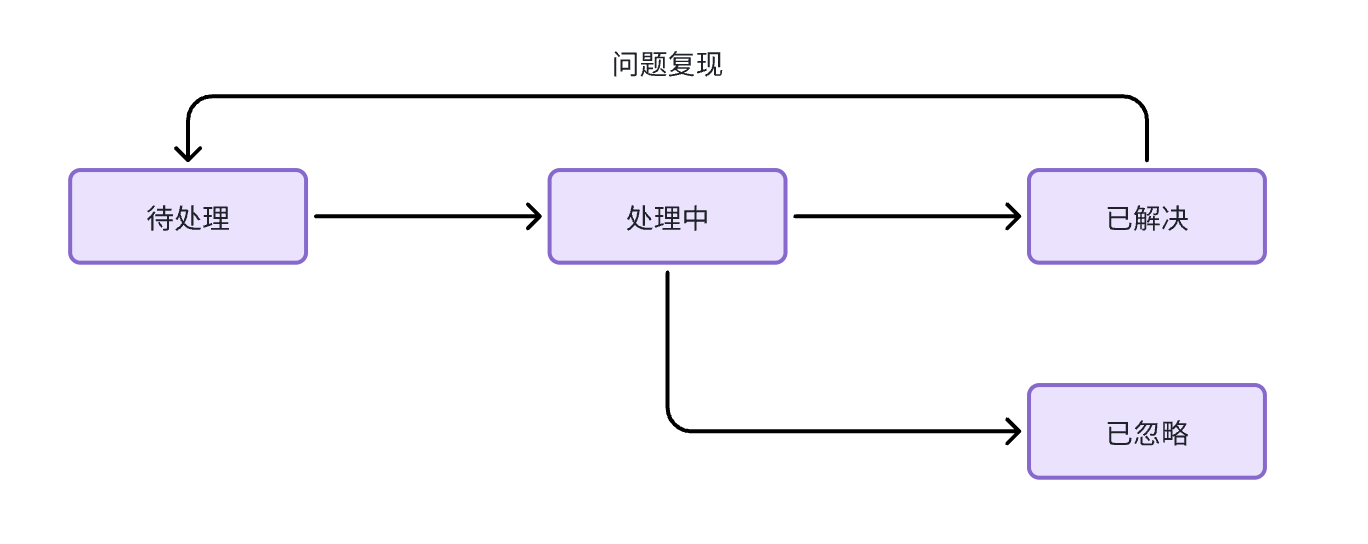
| Status | Description |
|---|---|
| For Review | Newly discovered issues that need attention |
| Reviewed | Confirmed issues being fixed |
| Resolved | Issues that have been fixed |
| Ignored | Issues that don’t need handling |
Filtering and Sorting
- Time Range
- Sort Options
- Filters
The timeline in the upper right corner of the browser allows you to display Issues that had errors during the selected time period. You can:
- Select a preset range from the dropdown menu
- Directly modify the time
- Enter natural language for filtering
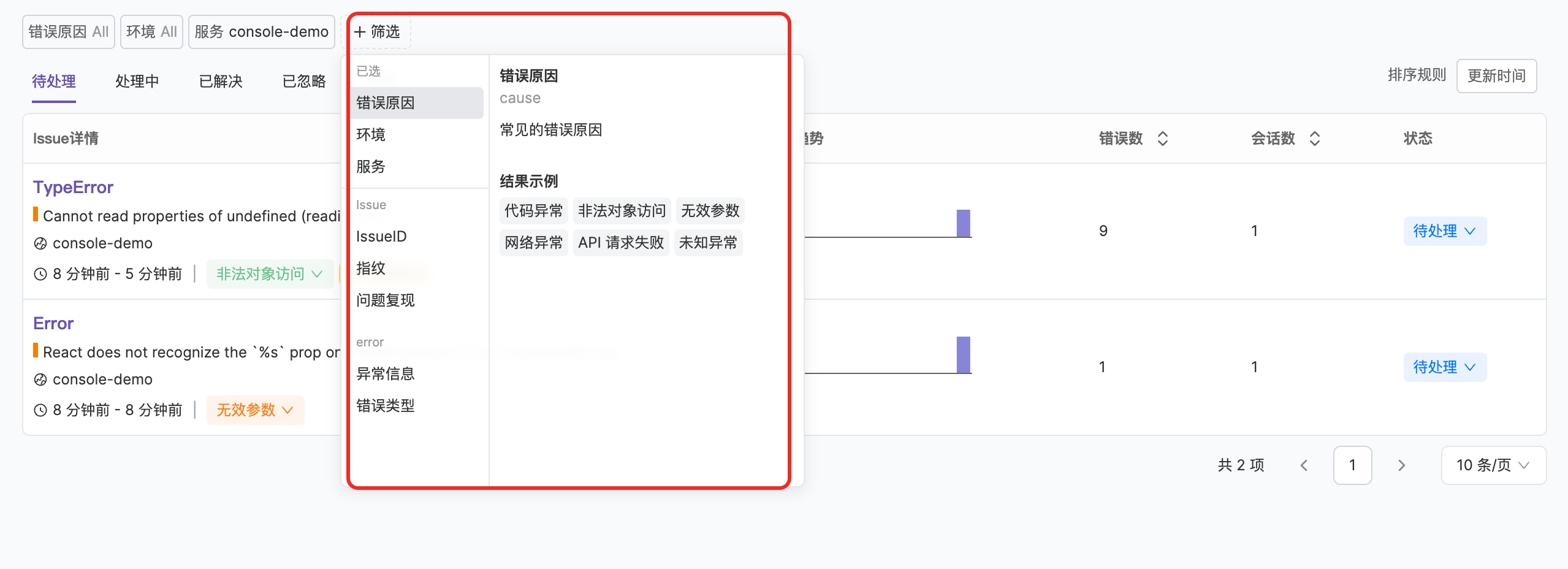
Error Cause Classification
Flashcat adds an error cause classification to each Issue when created, helping improve fault localization efficiency.| Error Cause | Description |
|---|---|
| Code Error | Errors caused by code defects |
| Illegal Object Access | Code accessed a null or undefined object |
| Invalid Parameter | Function called with invalid parameters |
| Network Error | Server response too slow or poor network speed |
| API Request Failed | API endpoint returned an error status code |
| Unknown Error | Unable to locate this error type |
Classification Mechanism
The system uses a two-layer analysis mechanism to classify errors: Layer 1: Pattern Matching The rule engine checks error types and messages in priority order; the first matching rule determines the classification:| Check Order | Match Condition | Classification |
|---|---|---|
| 1 | Error message contains “Unexpected token … is not valid JSON” | Invalid Parameter |
| 2 | Associated resource HTTP status code is 4xx or 5xx | API Request Failed |
| 3 | Error type contains “Network” or “AbortError” | Network Error |
| 4 | Error type contains “Syntax”, “Reference”, “Range”, “URI”, or “Eval” | Code Error |
| 5 | Error type is TypeError and message matches null access patterns (e.g., “Cannot read property of undefined”) | Illegal Object Access |
| 6 | Error message matches invalid argument patterns (e.g., “invalid argument”, “unexpected token”) | Invalid Parameter |
| 7 | Error message contains “API ERROR:” or license-related errors | API Request Failed |
| 8 | Error message contains network connection keywords (e.g., “timeout”, “connection”, “dns”) | Network Error |
| 9 | None of the above matched | Unknown Error |
- Error Message: The error description text
- Stack Trace: The complete call stack
- Platform Type: Browser/JavaScript, Android/Kotlin/Java, iOS/Swift/Objective-C, WeChat Mini Program, etc.
Regression
Regression refers to previously fixed bugs reappearing.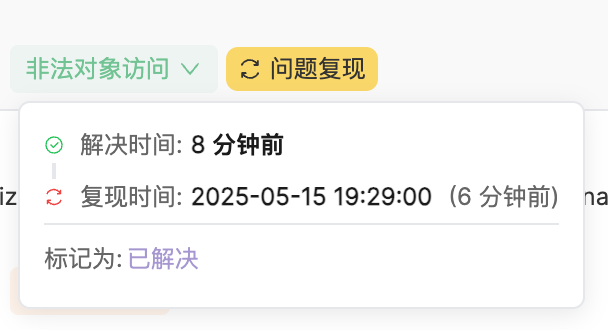
Issue Details
The Issue list supports two viewing modes: sidebar mode and fullscreen mode. By default, the details panel opens as a sidebar. You can click the expand button to switch to fullscreen mode for a more spacious view and more complete data display. Click any Issue to open the details panel and view more information.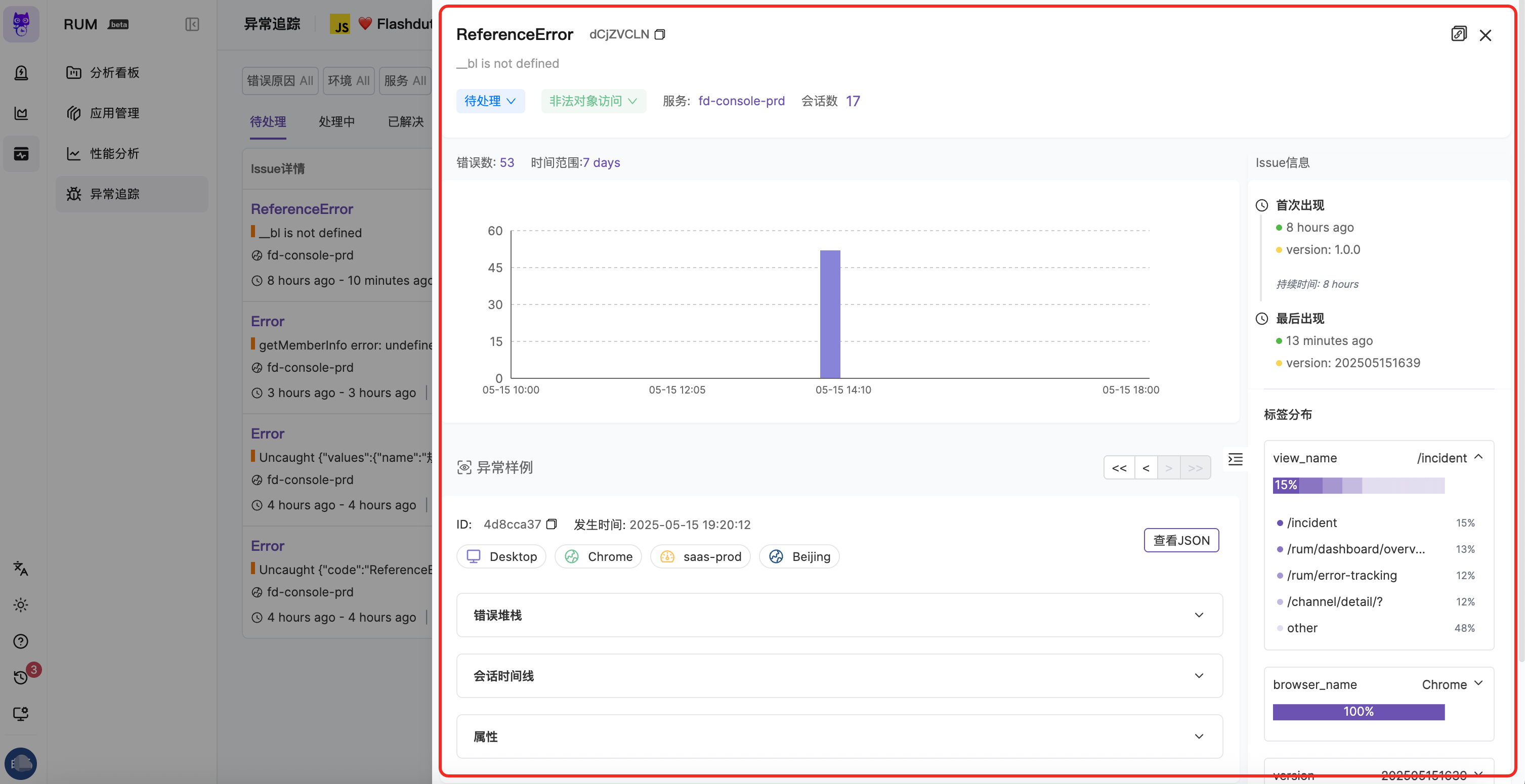
Basic Information
Basic Information
The top of the panel displays basic Issue information, such as status and error cause. You can also understand the Issue lifecycle: first and last occurrence dates, duration, and error occurrence count over time (aggregated by time granularity).
Label Distribution
Label Distribution
In the label distribution section, you can view the proportion of different labels under this Issue across various dimensions, quickly determining the impact scope and helping locate root causes.Currently supports labels like
view_name, browser_name, version, env, etc.Error Sample
Error Sample
By default, displays the most recent error information reported during the Issue’s occurrence as an error sample. You can also switch through the navigation bar.
Error Stack and Source Mapping
Error Stack and Source Mapping
View error context and stack information. If the corresponding SourceMap, Android mapping file, or iOS dSYM file has been uploaded, you can see mapped original source code locations and code snippets.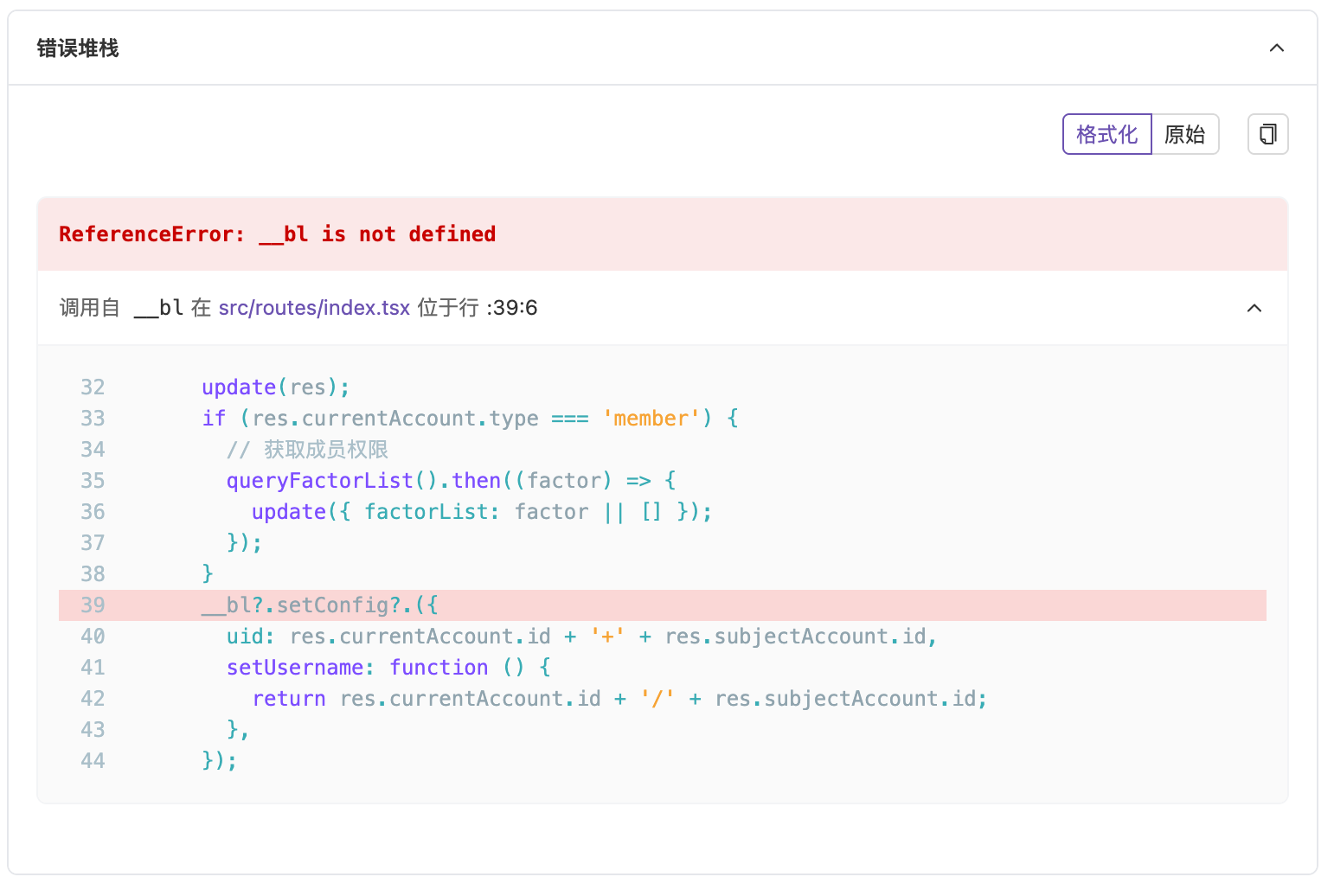 You can view uploaded source code information in “Application Management” - “Source Code Management”. See Source Mapping for details.
Error Stack (Native — Android/iOS)
Error Stack (Native — Android/iOS)
The error stack display for native platforms (Android/iOS) is specifically designed for mobile characteristics, providing the following capabilities:Pretty / Raw Mode Toggle
- Pretty Mode: Displays structured stack information, automatically distinguishing between app frames and third-party frames. Third-party frames are collapsed by default, highlighting your own code
- Raw Mode: Displays raw stack text for easy copying and analysis in external tools
- Viewing total thread count and currently displayed threads
- Expanding/collapsing all threads
- Independent separation of app frames and third-party frames within each thread, with third-party frames expandable on demand
- The crashing thread’s stack is displayed first
Session Timeline
Session Timeline
View the total number of Session events for the current error sample, as well as user resource access and operations before and after the error occurred.
Currently displays up to 20 context items including the current Error event. You can view more log information in the Session Viewer module later.
Attributes
Attributes
Error events carry a series of attributes when reported. You can view current Session, view, user, and other information in the attributes section to help troubleshoot issues.
Issue Alerts
Discover problems immediately when they occur, giving you the opportunity to proactively identify and fix them before they become severe.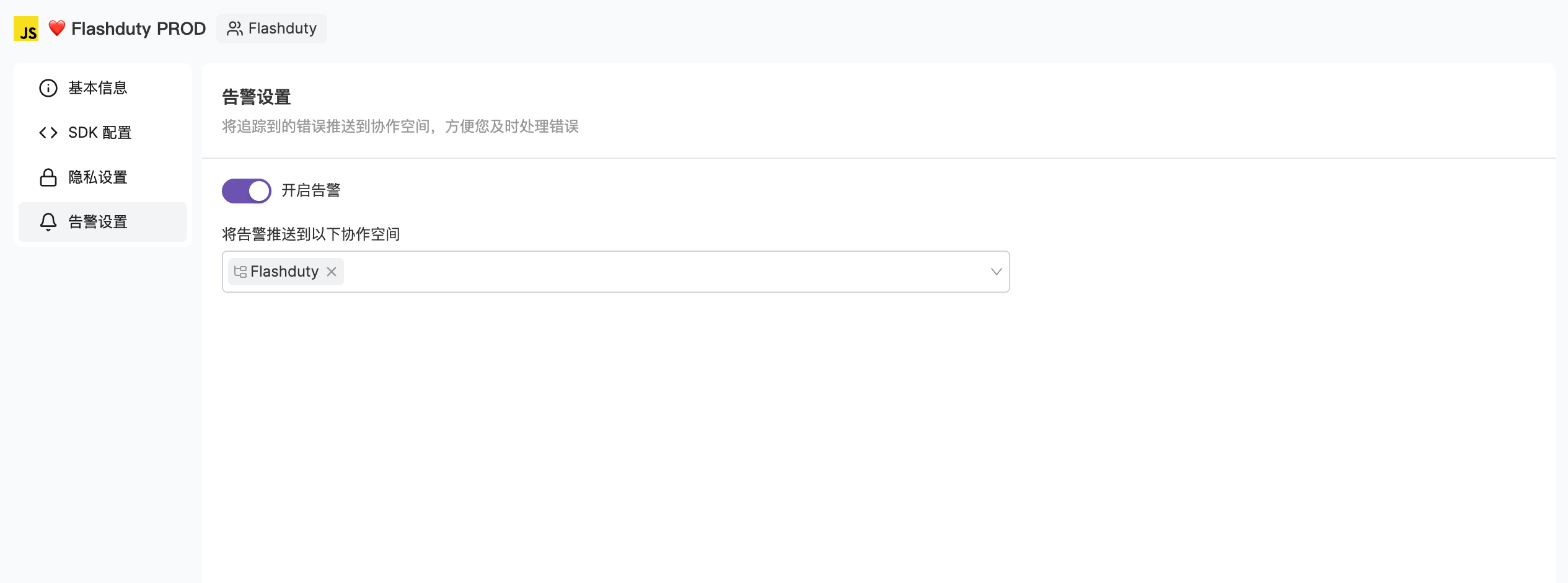
For detailed alert configuration instructions, please refer to Issue Alerts.
Best Practices
Configure Source Mapping
Facilitates problem localization in production environments
Add User Information
Configure user-related information to provide better error context
Set Alert Policies
Configure appropriate channels and escalation rules for errors
Regular Error Analysis
Regularly check error reports to discover potential issues
Team Collaboration
Use team ownership features to ensure issues are quickly assigned to relevant teams
Monitor Regressions
Closely monitor potential regressions of resolved issues
Next Steps
Source Mapping
Configure source mapping
Error Grouping
Learn about grouping mechanisms
Issue Status
Manage Issue status