

Status Types
| Status | Identifier | Description |
|---|---|---|
| For Review | for_review | New issues or regressions that need attention |
| Reviewed | reviewed | Categorized issues that need fixing, can be handled immediately or later |
| Ignored | ignored | Issues that don’t require further investigation or handling |
| Resolved | resolved | Issues that have been fixed and are no longer occurring |
All newly discovered Issues have an initial status of For Review (for_review). Flashduty automatically updates status based on specific conditions, and you can also manually adjust it.
Auto-resolve Issues
Flashduty automatically marks inactive or resolved Issues as Resolved (resolved):Version-based Auto-resolve
Version-based Auto-resolve
If the last reported version of an Issue is more than 14 days old and the error hasn’t reappeared in newer versions, the system will automatically resolve it.
Time-based Auto-resolve
Time-based Auto-resolve
If the
version tag is not set, when an Issue has no new error reports in the past 14 days, the system will automatically resolve it.Auto-reopen Issues
Flashduty has Issue detection capability. When a resolved Issue reappears, the system automatically reopens it and marks it as For Review (for_review) status, while recording the event as “Regression” in the activity timeline.What is Regression?
Regression refers to previously fixed problems unexpectedly reappearing after code updates. Flashduty’s regression detection automatically identifies these situations, reopening related Issues instead of creating duplicate Issues, thereby preserving the complete context and history of the problem.Regression Detection Mechanism
Once regression is detected, Flashduty will:Associated Version Configuration
Regression detection considers the service version information when the error occurred. Detection is only triggered in new versions after the Issue is marked as Resolved (resolved).If no version tag is set, when a resolved Issue has errors again, the system will still mark it as “Regression”, but cannot determine if it occurred in a new version.
Manually Update Status
You can manually update Issue status anywhere Issues are displayed, including the Issue list or details panel.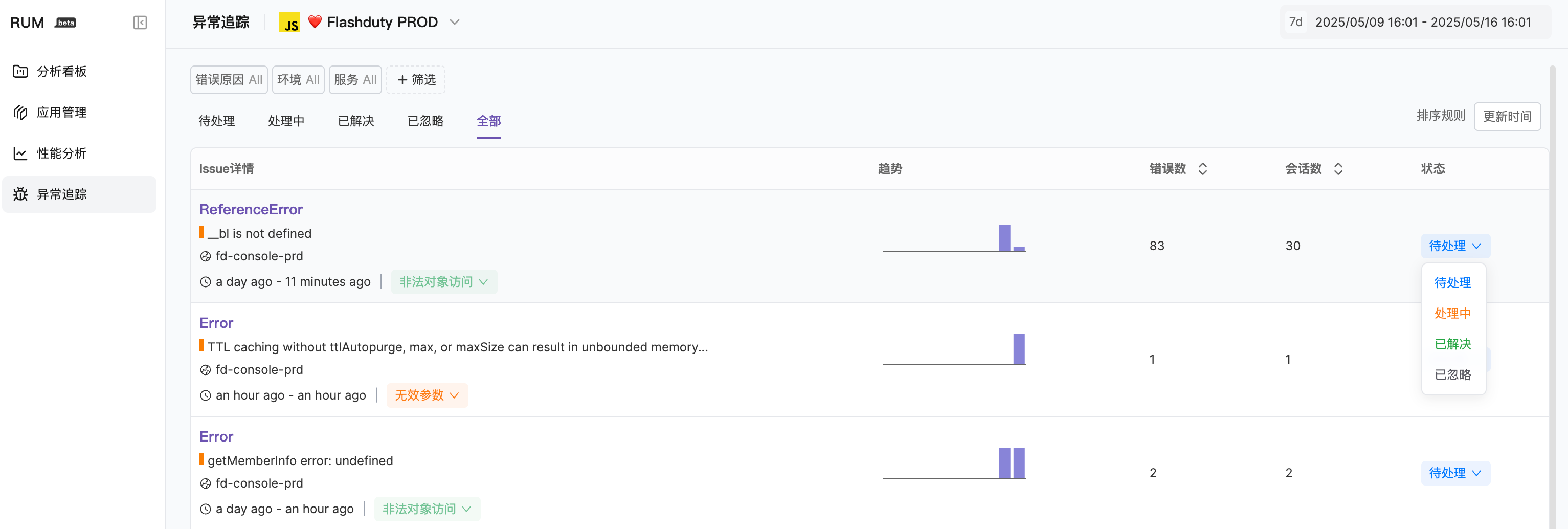
Best Practices
Continuous Monitoring
Regularly check Issues in For Review (for_review) status to ensure new issues and regressions are handled promptly
Version Management
Always configure the correct version tag for your application so the system can accurately identify resolved issues
Next Steps
View Errors
Learn how to view and analyze error details