Master Flashduty RUM’s session replay feature to quickly locate issues and optimize user experience by recreating user operation paths.
Flashduty RUM’s session replay feature helps developers quickly locate issues, analyze user behavior, and optimize product experience by intuitively recreating user operation paths. Integrated into the RUM SDK, it can be enabled with simple configuration, supporting flexible sampling strategies and privacy rule settings.
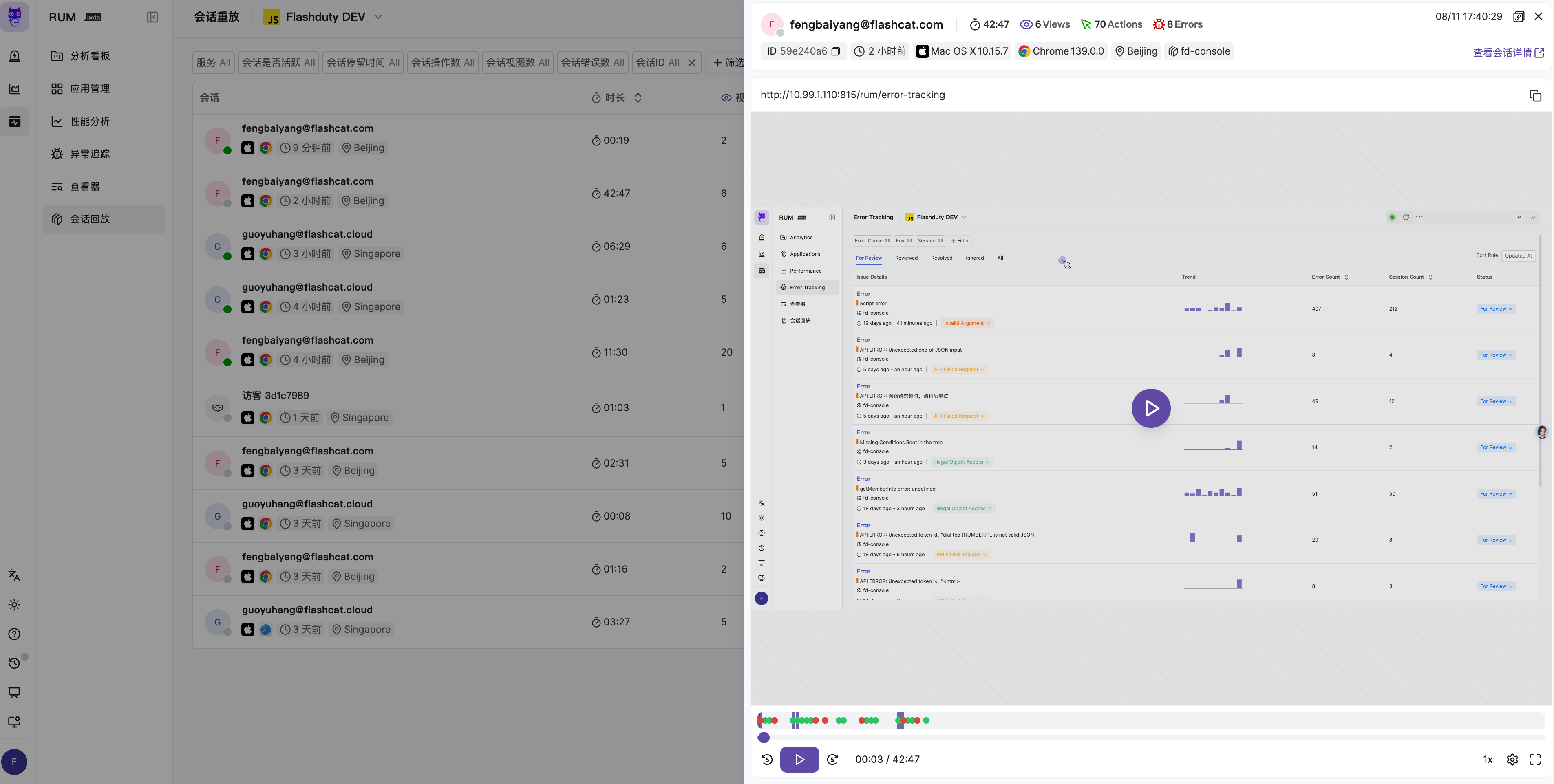
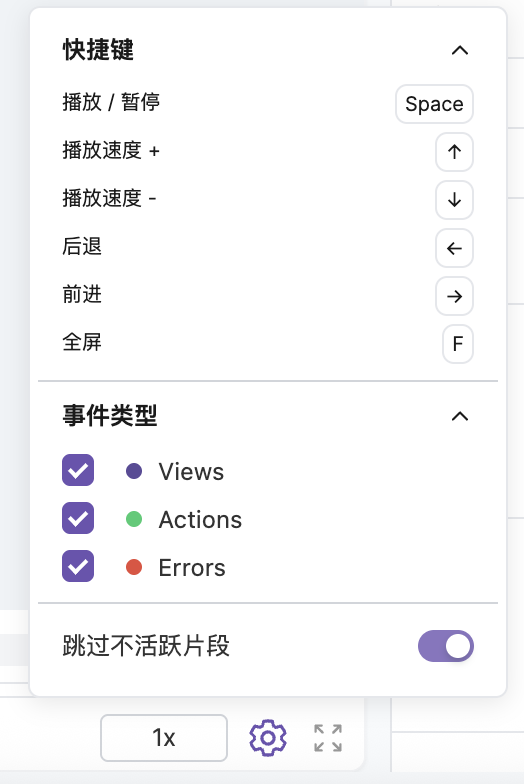
The player supports play, pause, fast forward, rewind, replay, speed control, fullscreen, and seek functions, with keyboard shortcut support to improve efficiency.
During playback, the timeline marks user actions (Action) and exceptions (Error) with different colored icons, allowing quick overview of key events in the session.
By default, the player automatically skips inactive segments to improve viewing efficiency. You can also disable this feature through configuration to play completely in actual time sequence.
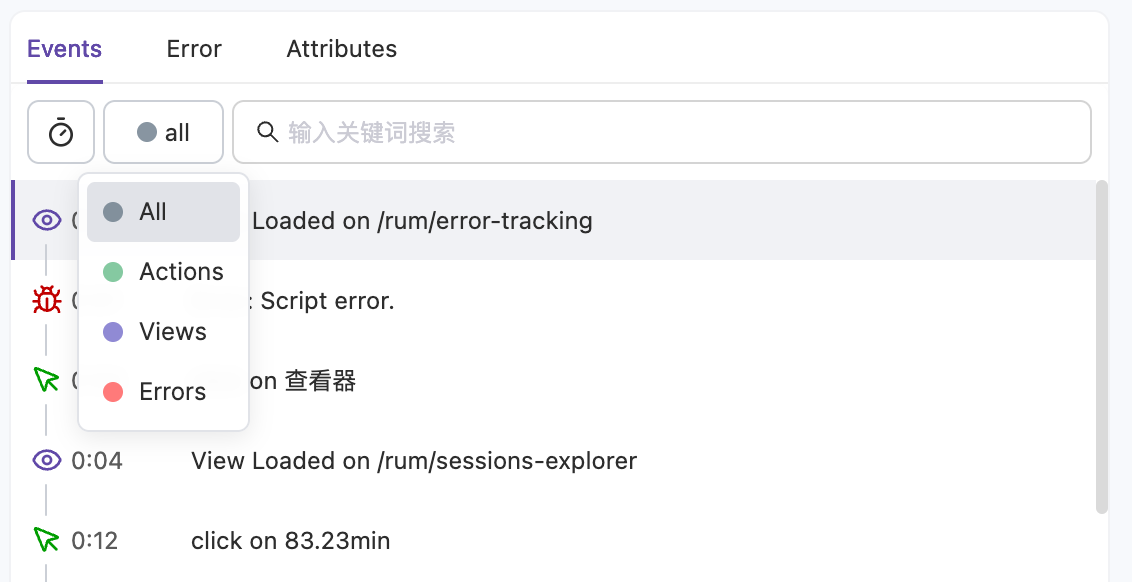
Through the “View All Events and Exceptions” feature, you can enter widescreen mode to view the session’s operation timeline and detailed analysis.
Events Tab
Error Tab
Network Tab
Attributes Tab
Shows all user operations in the session, supporting the following features:
Toggle between relative time and absolute time display
Filter by event type (such as clicks, page navigation, etc.)
Click on a specific event, and the player will automatically jump to the corresponding timestamp
Lists all exceptions and issues in the session, supporting click-through to detailed error information for quick identification and analysis.
Displays detailed information about all network requests during the session, helping you analyze resource loading and API call behavior.Supported Features:
Filter by resource type: XHR and Fetch requests are selected by default, but you can also view Image, JS, CSS, Font, Document, Media, and other static resource types
Toggle between relative time and absolute time display
Search request records by status code or URL. Status code search supports advanced syntax, for example 200 (match successful requests), -200 (exclude 200), >=400 (match error requests), and multi-condition combinations (such as -200 -202)
Click any request record to open the resource detail sidebar with complete timing information
Each request record displays the following fields:
Field
Description
Time
When the request occurred
Status Code
HTTP response status code
Type
Resource type (XHR, Fetch, Image, etc.)
Method
HTTP request method (GET, POST, etc.)
URL
Full request address
Size
Response body size
Shows session contextual information (such as device, browser, geographic location, etc.), helping developers gain deep understanding of the problem background for precise identification.