

Configuration Elements
An escalation rule contains six core elements. The system matches rules from top to bottom, stopping after the first successful match. You can enable or disable individual escalation rules. Disabled rules are skipped during matching and will not trigger notifications. You can also copy an escalation rule to the current channel or another channel to quickly reuse existing configurations.1. Trigger Conditions
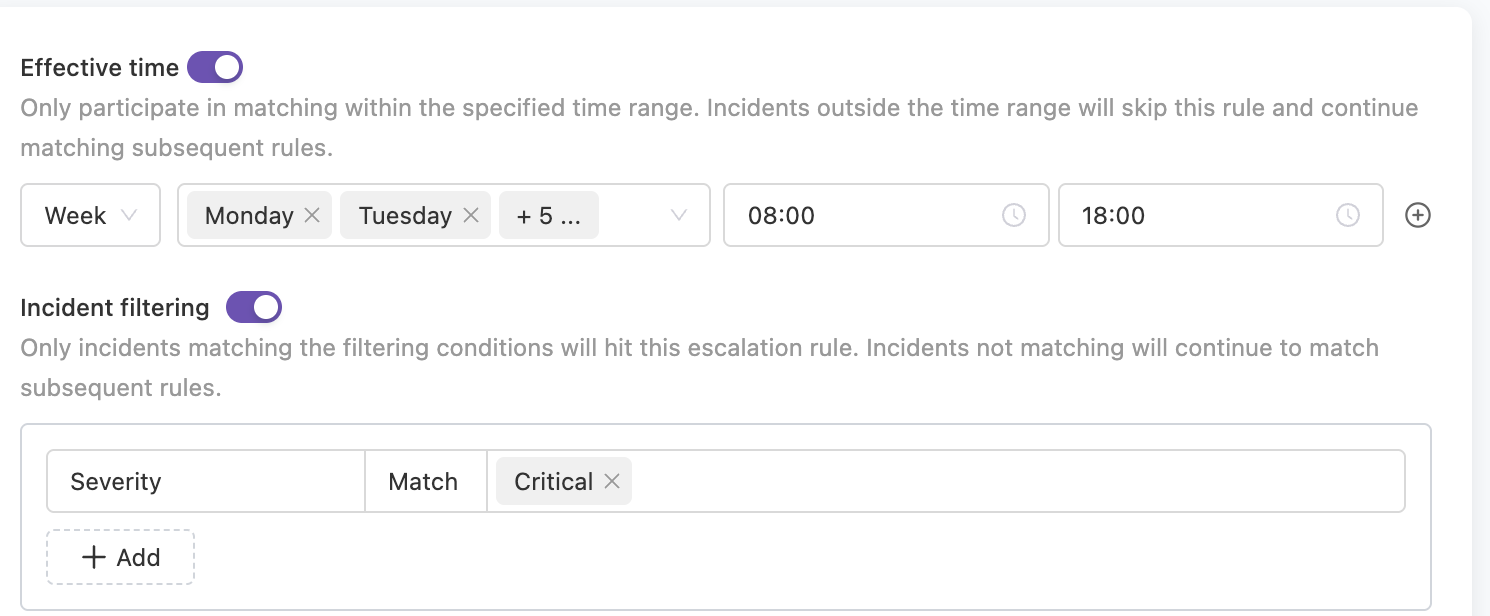
Determines which incidents trigger the current rule. Effective Time: Controls when the rule participates in matching.- Off (Default): Active 24/7
- On: Only participates in matching within specified time ranges; incidents outside this time will skip this rule. Two modes supported:
- Specific Time Period: e.g., only active on weekdays (Monday-Friday 9:00-18:00)
- Service Calendar: Reference a predefined Service Calendar, e.g., only active on “Trading Days”, automatically excluding holidays
- Off (Default): All incidents may match this rule
- On: Precisely filter by incident attributes, supports matching by title, severity (e.g., Critical only), labels (e.g.,
service=payment), etc.
2. Notification Recipients
Determines who receives notifications.| Recipient Type | Description |
|---|---|
| Schedule (Recommended) | Assign to currently on-call personnel |
| Team | Assign to all members of a team |
| Individual | Assign to specific personnel |
| Combination Mode | You can select multiple types simultaneously |
3. Notification Methods
Determines how users are reached.- Direct Message (Reach Individuals)
- Group Chat (Reach Groups)
Point-to-point messaging to specific assignees, supports phone calls, SMS, email, app push, IM direct messages (Feishu/Lark, Dingtalk, WeCom).
- Follow Personal Preferences (Recommended): Notification methods configured by members in Personal Settings
- Follow Unified Settings: Enforce notification methods (e.g., must send SMS), overriding member personal preferences
4. Delay Window
Reserve a waiting period before the first notification is sent, to filter out incidents caused by transient flapping.- Range: 0 – 3600 seconds, default
0(disabled, notify immediately) - During the delay window, if the incident is auto-closed or manually closed, the system does not send a notification
5. Notification Template
Every escalation rule must select a notification template, which determines the message format delivered to each channel.- Templates must be created and enabled in advance under Notification Templates
- You can pick different templates for different escalation rules to format messages for specific scenarios
6. Escalation Rules
This is the key mechanism for ensuring incident closure. When first-level responders don’t respond or complete handling, the system automatically escalates to the next level. Loop Notification: In each escalation level, you can enable the Loop Notification feature. When enabled, if the incident is not resolved at the current level, the system sends repeated notifications at the configured interval (minimum 0.5 minutes, in 0.5-minute increments) up to the specified maximum number of times. Escalation Conditions:- Not closed: Incident not closed within N minutes after trigger
- Not closed and not acknowledged: Incident neither closed nor acknowledged within N minutes after trigger
| Scenario | Escalation Path |
|---|---|
| Level 1 → Level 2 | Level 1 on-call (SRE) no response for 15 min → Escalate to Level 2 development experts |
| Primary/Backup Escalation | Primary on-call no response for 10 min → Escalate to backup on-call |
| Tiered Reporting | Technical staff unresolved for 30 min → Escalate to Tech Lead → Escalate to CTO |
- Default first level: when you create a rule, the first level is generated automatically, with a default 30-minute timeout before escalation, no repeated notifications, and notification methods that follow personal preferences
- Add or remove levels: you can add or remove levels freely; a rule must keep at least 1 level
- Reorder: you can move a level up or down, or insert a new level between any two existing levels
Best Practices
Fallback Policy
Fallback Policy
Recommend keeping a default policy without filter conditions at the bottom of the list, assigned to the SRE team or administrators, to prevent incidents from being missed due to filter rule misconfigurations.
Avoid Over-notification
Avoid Over-notification
- For low-priority
Info/Warninglevel alerts, recommend using only IM messages, not phone calls or SMS - Use the Loop Notification feature cautiously to avoid alert bombardment
Reasonable Channel Splitting
Reasonable Channel Splitting
Don’t try to manage all company alerts in one channel. Splitting channels by functional module or team, with each channel maintaining independent and simple escalation rules, is key to reducing maintenance costs.
FAQ
Alerts are generated but no notifications received?
Alerts are generated but no notifications received?
Go to Incident Details → Timeline to check if notification status is normal for each channel. If there are failure messages, use them for troubleshooting. Contact technical support for more issues.
Notification method doesn't match personal preference settings?
Notification method doesn't match personal preference settings?
Flashduty On-call direct messaging supports two modes: “Follow Personal Preferences” and “Follow Unified Settings”. Only in “Follow Personal Preferences” mode will the system send notifications according to your personal settings.Go to Channel Details → Escalation Rules to check current settings.
What's the difference between webhook integrations and group bot webhooks?
What's the difference between webhook integrations and group bot webhooks?
These are two different features — do not confuse them:
- Webhook integrations (Alert Webhook, Incident Webhook): When alerts or incidents change, Flashduty pushes event data to your configured URL for integration with external systems (e.g., ticketing systems, automation platforms)
- Group bot webhooks (this page, “Notification Methods → Group Chat”): Configure an IM group bot’s webhook URL in escalation rules so Flashduty sends incident notification messages to the group chat
Related Topics
Configure Schedules
Set rotation rules for automatic assignment
Configure Personal Preferences
Customize notification time periods and channels
Configure Notification Templates
Customize notification content format