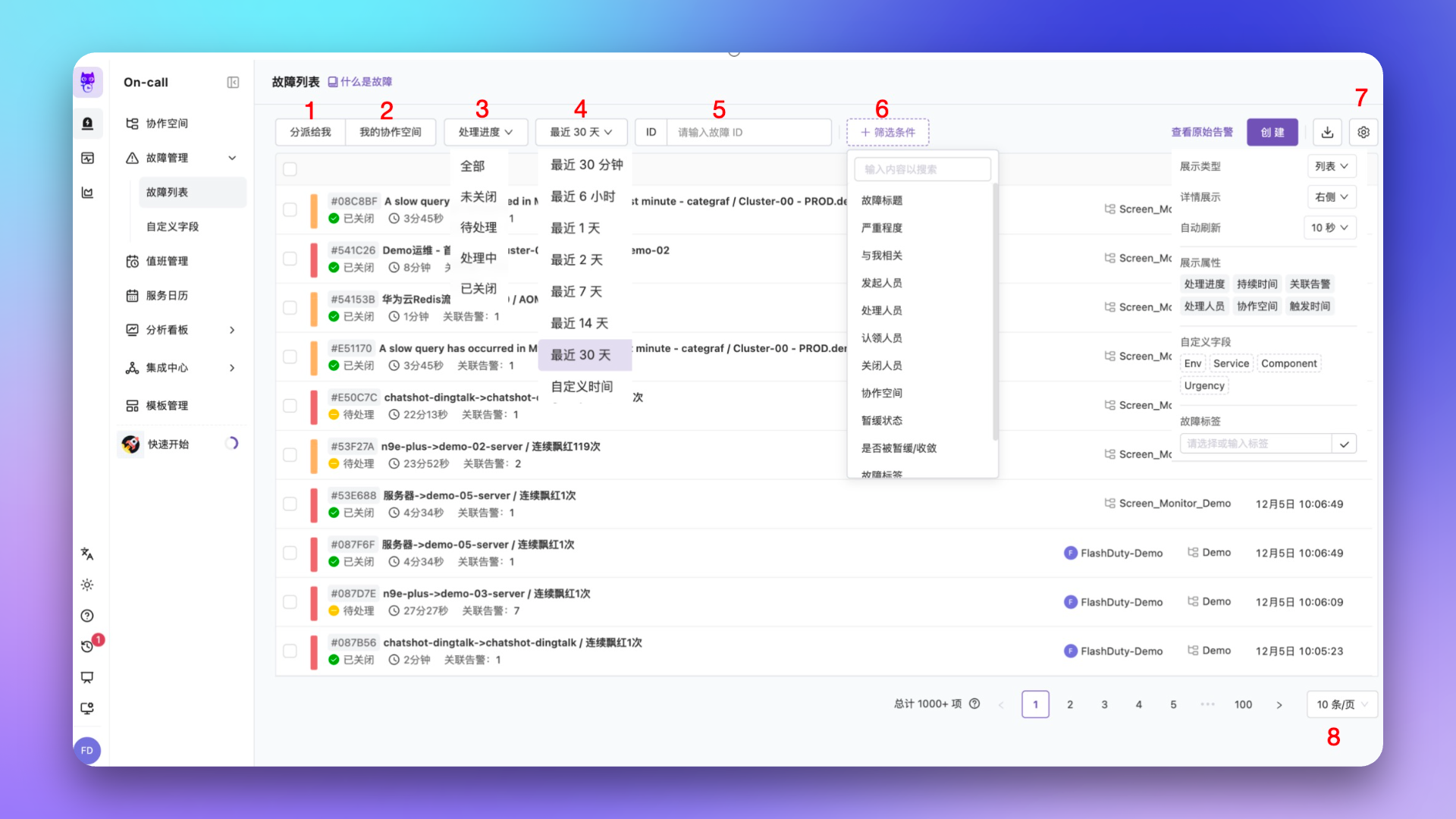
Flashduty On-call provides two entry points to view the incident list. One is within a channel, the other is under the Incident Management menu. The difference is that under Incident Management, you can see incidents from multiple channels, even all incidents across the entire account.
#
Feature
Description
1
Assignee
Defaults to incidents Assigned to Me, can switch to view all incidents in the account
2
My Channels
Defaults to all channels, can switch to view incidents in My Channels
3
Processing Progress
Filter incidents by progress, defaults to All
4
Time Filter
Supports relative time and custom range filtering
5
Search
Supports searching by incident ID; if assignee is set to “Assigned to Me”, also supports fuzzy matching on “Incident Title”
6
More Filters
Supports rich dimension filtering including severity, channels, teams, labels, or custom fields. The Teams filter is only visible under the global Incident Management entry and narrows incidents by the team that owns each channel
7
View Settings
Supports rich rendering options including custom display attributes and even aggregate views
8
Pagination
Pagination and items per page adjustment
For query performance, the query time range is limited based on your subscription tier:
Free: up to 30 days
Standard: up to 180 days
Professional: up to 366 days
To query older data, adjust the start and end times, or use the Incident Query API.
To improve performance, when search conditions match more than 1000 incidents, the system only displays 1000+, not the exact number. Therefore, you can only view 1000 incidents through pagination. To see more, please adjust your search time range or use the Incident Query API to get all data.
Aggregate view provides a different perspective for viewing incidents, where you can define different aggregation dimensions. The essence of aggregation dimensions is real-time Group By, such as viewing grouped by severity.
After switching to aggregate view, a Grouping Rule selector appears at the top of the list:
Pick an existing rule: Click the dropdown to switch between all saved grouping rules under the current account. Each rule defines a set of Group By attributes (for example, by Severity + Channel + labels.service)
Create a rule: At the bottom of the dropdown, click New to select attributes, labels, and custom fields in the popup card, name the rule, and save it for future reuse
Edit or delete a rule: Hover over an existing rule to edit or delete it via the inline icons
Share a rule in a session: The selected rule’s view_id is reflected in the list URL parameter, making it easy to share the same perspective with other members
To improve performance, in aggregate view, the system matches at most 100 records for aggregation. Therefore, the list you see may not contain all matching data. If this concerns you, please switch to list view.
Flashduty On-call provides filtering capabilities across various dimensions with ample flexibility. Typical scenarios include:
Search for incidents triggered by the “Host Down” alert policy based on check label
Search for incidents marked as “false positive” based on the false alarm field
Flexibility often means lower performance, and Flashduty On-call is no exception, despite our many performance optimizations. We always recommend narrowing your query time range and using conditions like Assigned to Me and Processing Progress to reduce query scope.
Beyond the title and progress, each incident row surfaces two key counters:
Associated alerts: total number of alerts grouped into this incident
Alert events: cumulative count of events merged into the incident. When a new event has been merged in the past 5 minutes, the merge icon turns orange to signal that the incident is still actively aggregating
Hovering over the counters opens a tooltip with the associated alert count, associated event count, and the relative time since the last merge.
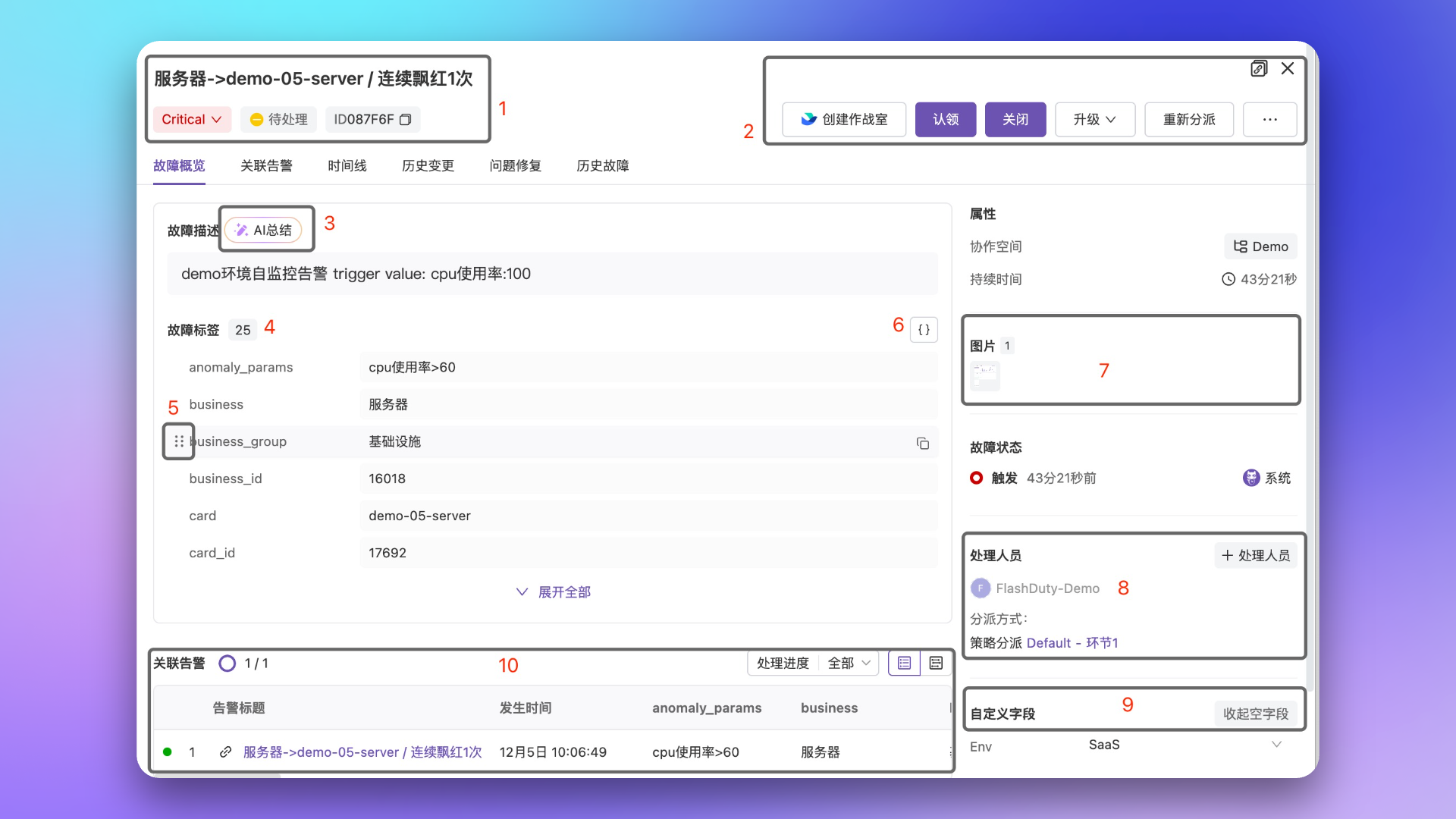
Incident details is the main entry point for investigating incidents, displaying all available information. Especially on the incident overview page, Flashduty On-call centrally displays the information you need most.
#
Area
Description
1
Key Information
Incident title, severity, processing progress, ID number
2
Action Area
Various high-frequency action buttons; more actions include custom actions and low-frequency buttons; War Room creation requires enabling War Room in IM integration. The snooze button supports customizable duration presets — you can access settings from the snooze dropdown to configure 3 preset durations (in hours or minutes), defaulting to 2 hours, 4 hours, and 12 hours
3
Details
Incident description, label info, and AI Summary (see below for details); labels support drag-to-sort and JSON view display
4
Tab Area
Use the tabs at the top to view richer content; see the Detail Tabs section below
5
Comprehensive Info
Centralizes supporting information such as incident attributes, key timestamps, responders, related links, images, custom fields, and external tickets (see the Comprehensive Info Panel section below)
The incident details page contains 7 tabs; some appear only under certain conditions:
Tab
Content
Visibility
Incident Overview
A panoramic view including the incident summary, key attributes, recent timeline, responders, and associated events. This is the default tab when the details page opens
Always visible
Associated Alerts
All grouped alerts associated with the incident, with filtering by progress and view switching
Visible only when alert_cnt > 0
Timeline
The complete lifecycle record of the incident — triggering, assignment, notifications, acknowledgments, snoozes, closure, comments, and more — with a Markdown comment box at the top
Always visible
Change History
Change events correlated with the current incident in time, helping you pinpoint the relationship between the incident and recent deployments or configuration changes
Always visible
Resolution
Structured fields recording the incident’s impact, root cause, and resolution
Visible only when the incident has any of impact / root_cause / resolution
Postmortem
A built-in postmortem editor that lets you create, edit, AI-generate, and publish a postmortem report without leaving the details page
Subject to subscription tier; always visible when enabled
Past Incidents
Shows historical incidents similar to the current one, so you can draw on prior handling experience
If a war room has been created for the incident (requires enabling War Room in IM integration), the More menu on the action bar reveals two additional war-room management actions:
Action
Description
Invite Followers to War Room
Pull additional members into the existing IM war room group for multi-party collaboration
Close War Room
End the current war room and close the IM group. If collaboration is needed again later, you can create a new war room
War-room management actions are only visible when a war room already exists for the current incident; the create action is still initiated by the Create War Room button on the action bar.
The incident details page has a built-in post-mortem editor, allowing you to complete the entire post-mortem workflow without leaving the page. The action area includes a shortcut button that navigates directly to the Post-Mortem tab.In the Post-Mortem tab, you can perform the following actions:
Action
Description
Create
Click the create button to start writing a post-mortem report
AI Generate
Use AI to auto-generate initial post-mortem content, which you can then refine
Edit Title
Modify the post-mortem report title to accurately reflect the incident
Edit Content
Write and modify post-mortem content using the rich text editor
Publish
Publish the post-mortem report to make it visible to the team
Re-edit
Published post-mortem reports can be re-opened for editing
Delete
Remove post-mortem reports that are no longer needed
Export Markdown
Export the post-mortem report as Markdown for sharing or archiving on other platforms
The Change History tab shows change events correlated with the current incident in time, helping you quickly determine whether the root cause is related to a recent deployment or configuration change.The change event list displays the following information:
Column
Description
Status
Current status of the change event, including Planned, Ready, Processing, Canceled, Done
Change Key
Unique identifier of the change event
Title
Brief description of the change event
Description
Detailed information about the change event
Start Time
When the change event started
End Time
When the change event ended
Duration
How long the change event lasted; in-progress events update in real time
Link
External link to the change event’s original source
You can adjust the query scope through the filter at the top, including time range and change source. Expand any row to view a timeline visualization of that change event, allowing comparison with the incident trigger time.
The incident details page supports one-click AI summary generation to help you quickly understand the full picture of an incident. Click the AI Summary button in the details area, and the system will automatically generate a structured summary based on the incident’s associated alerts (up to 20), including:
Summary: A one-sentence description of what happened
Impacts: Key affected resources such as services, systems, environments, and instances
Actions: Immediately actionable investigation and remediation steps (up to 3)
You can choose from different AI models (default is DeepSeek V3; DeepSeek R1 is also available for deep thinking and reasoning capabilities) and regenerate as needed. The generated summary supports real-time streaming output and can be saved as the incident description.
AI Summary is only available for incidents automatically triggered by alerts. Manually created incidents do not support this feature.
The comprehensive info panel on the right side of the incident details page consolidates auxiliary information around the incident. From top to bottom:
Section
Description
Attributes
Basic attributes such as channel, incident trigger time, and alert count
Images
Displayed when alerts associated with the incident include image information reported via API. Click a thumbnail to preview, and hover to view the Alt description and source link
Key Timestamps
A timeline view of key timestamps in the incident lifecycle, including trigger time, first acknowledgment time, close time, and reopen events, so you can quickly grasp incident progress
Responders
Lists all responders (individuals or on-call personnel) assigned to the incident along with their acknowledgment status
Related Links
Shortcut links preconfigured in the owning channel (such as dashboards, runbooks, knowledge bases). Parameters are dynamically rendered from the current incident’s labels or fields, enabling one-click navigation to related systems. Link templates are maintained in channel settings
Custom Fields
Displays and allows editing of the incident’s custom field values; unset fields are shown as -
External Tickets
If you have configured ticket integrations such as Jira, ServiceNow, or ServiceDesk Plus, external tickets created from this incident appear here and can be clicked to open in the external system
Console error: Due to the large volume of data, we are unable to respond...
This error often appears on incident/alert list queries, analytics dashboards, etc. It’s mainly because the system matched too much data and the query timed out.In this case, please narrow your query scope, such as time range, or use more precise query conditions. If issues persist, please contact us.