

Why Noise Reduction
| Scenario | Without Noise Reduction | With Noise Reduction |
|---|---|---|
| Server outage triggers 100 alerts | Receive 100 notifications, must handle each one | Receive 1 incident, handle uniformly |
| Network flapping causes repeated alert trigger/recovery | Notification bombardment, exhausting to respond | Marked as flapping, reduced interference |
| Batch alerts at midnight | Woken up multiple times by calls/SMS | Notified only once, sleep unaffected |
Core Concepts
Before understanding noise reduction, you need to understand the relationship between three core objects:| Object | Definition | Source |
|---|---|---|
| Event | Raw notification from monitoring system, each trigger or recovery is an event | Zabbix, Prometheus, etc. |
| Alert | Automatically triggered by events. Events sharing the same alert_key merge into one alert within the channel’s Event Aggregation window | Automatically created by Flashduty |
| Incident | Primary object processed by Flashduty, triggered by alerts or created manually | Auto-triggered or manually created |
Key understanding:
- One alert can contain multiple events (events with the same
alert_keythat arrive within the Event Aggregation window, plus the corresponding recovery events) - One incident can contain multiple alerts (similar alerts grouped together)
- Noise reduction happens at two stages: Event Aggregation controls “Event → Alert”; Alert Grouping controls “Alert → Incident”
Noise Reduction Process
When a monitoring system pushes alerts to Flashduty On-call, the system automatically executes the following workflow:Process New Alert
Determine whether to merge into an existing incident, otherwise create a new incident.

Event Aggregation
Go to Channel Details → Noise Reduction → Event Aggregation to configure. Event Aggregation controls the “Event → Alert” merge behavior: when the upstream monitoring system keeps pushing events that share the samealert_key, whether those events are merged into the same existing alert or each one creates its own independent alert.
New channels have Event Aggregation enabled by default, with a window of 24 hours (1440 minutes).
Configuration
| Configuration | Description | Default | Range |
|---|---|---|---|
| Enable Event Aggregation | When enabled, events with the same alert_key merge into the same alert within the aggregation window; when disabled, every event creates its own alert | Enabled | Enabled / Disabled |
| Aggregation Window | Starts counting from the alert’s creation time; events arriving after this duration create a new alert. Only configurable when Event Aggregation is enabled | 1440 minutes (24 hours) | 1–1440 minutes |
Versus Alert Grouping
| Stage | Setting | Behavior it controls |
|---|---|---|
| Event → Alert | Event Aggregation | Whether events sharing the same alert_key merge into a single alert |
| Alert → Incident | Alert Grouping | Whether similar alerts merge into a single incident |
Alert Grouping
Go to Channel Details → Noise Reduction to configure. Alert grouping merges multiple similar alerts into a single incident for unified assignment and notification. When an alert storm hits, you only need to handle one incident instead of hundreds of repeated notifications.New channels have alert grouping disabled by default. When disabled, each alert creates an independent incident.
Grouping Modes
Flashduty On-call provides two grouping modes:| Mode | Use Case | Characteristics |
|---|---|---|
| Intelligent Grouping | Quick start, lower precision requirements | Based on machine learning semantic similarity analysis, no manual rule configuration needed |
| Rule-based Grouping | Need precise control over grouping logic | Exact matching by specified dimensions (attributes, labels) |
Common Configuration
| Configuration | Description |
|---|---|
| Aggregation Window | Optional toggle. When disabled, new alerts continue merging into the incident until the incident is closed. When enabled, alerts within the window are merged; alerts arriving after the window expires are grouped into a new incident |
| Window Timing Start | Only configurable when the aggregation window is enabled. Incident trigger (default): Fixed timer starts from incident creation, stops grouping when the window duration is reached. Alert merges into incident: Timer resets each time a new alert merges in, the window recalculates from the last merge |
| Window Duration | Only configurable when the aggregation window is enabled. Set the duration of the aggregation window, minimum 1 minute. Rule-based grouping and intelligent grouping share the same cap: 24 hours by default, extendable to 30 days on request (contact the Flashduty team to enable) |
| Alert Storm Warning | When merged alert count reaches a configured threshold, the system records an alert storm event in the incident timeline and triggers a warning notification, prompting urgent handling. You can configure up to 5 thresholds, each ranging from 2 to 10,000 |
| Strict Grouping | When enabled, empty label values are treated as different; when disabled, empty values are treated as the same (not supported for intelligent grouping) |
- Intelligent Grouping
- Rule-based Grouping
When new alerts are highly similar to active incidents, automatically merge into the incident. The system uses machine learning to calculate semantic similarity between alerts, requiring no manual rule definition.
The system calculates alert similarity based on the selected fields’ content. When similarity reaches the threshold, new alerts automatically merge into existing incidents.


Configuration Limits
To protect grouping performance and stability, the following fields have hard backend caps:| Grouping mode | Limit | Cap | Description |
|---|---|---|---|
| Rule-based grouping | Grouping dimensions (equals) | ≤ 5 per group | Number of dimensions per rule in both unified control and fine-grained control |
| Rule-based grouping | Fine-grained branches (cases) | ≤ 100 | Total condition branches you can configure under fine-grained control |
| Intelligent grouping | Fields used for similarity calculation (i_keys) | ≤ 10 | Default 4: title, description, labels.service, labels.resource |
Grouping Effect
After setting grouping by Alert Check Item, 5 alert notifications are grouped into 1 incident:- Click alert title to view alert timeline and associated events
- Click event point to view specific event content

Flapping Detection
When the same incident triggers and recovers frequently, the system marks it as “flapping” status to avoid notification bombardment. Go to Channel Details → Noise Reduction → Flapping Detection:| Option | Behavior |
|---|---|
| Off | Don’t detect flapping status |
| Alert Only | Mark flapping status, continue notifications per policy |
| Alert Then Silence | Mark flapping status, no more notifications after first alert |
Flapping detection is enabled by default for new channels (Alert Only mode).
Configurable Parameters
| Parameter | Description | Default | Range |
|---|---|---|---|
| State changes (max_changes) | Number of alert state changes within the observation window to trigger flapping detection | 4 | 2–100 |
| Observation window (in_mins) | Time window for counting state changes | 60 minutes | 1–1440 minutes |
| Mute duration (mute_mins) | Duration to mute notifications after flapping is detected (only applies in “Alert Then Silence” mode) | 120 minutes | 30–1440 minutes |
Silence Rules
During maintenance windows or known issue periods, silence rules can suppress alert notifications for specific conditions. Go to Channel Details → Noise Reduction → Silence Rules.Silence Time
| Type | Description |
|---|---|
| One-time Silence | Active during specified time period, rule retained but inactive after expiration |
| Recurring Silence - Weekly Mode | Active at fixed weekly time periods, e.g., every Saturday 00:00-06:00 |
| Recurring Silence - Calendar Mode | Active on workdays/rest days per Service Calendar |
1d) plus an absolute time-range picker on the right. The two controls stay in sync:
- Duration accepts shorthand such as
30m,1h,12h,1d,1w,2w. Changing the duration recomputes the end time from the current moment. - You can also pick the start and end directly on the right; the duration input updates accordingly.
- Start time must be earlier than end time, and neither field may be empty.
is_auto_delete): one-time silence rules can opt into this switch. When enabled, the rule is automatically removed by the system 24 hours after its end time, matching the cleanup behavior of Quick Silence. When disabled (the default), the rule stays in the list after expiration but is no longer active — you can keep it for reuse or delete it manually.
Silence Conditions
Define which alerts should be silenced, supports multiple condition combinations.| Match Item | Description | Example |
|---|---|---|
| Severity | Match by alert level | Only silence Info level |
| Title | Match by alert title keywords | Title contains “Planned Maintenance” |
| Description | Match by alert description content | Description contains “restart” |
| Integration | Match by alert integration source | Only silence alerts from a specific integration |
| Labels | Match by label key-value pairs | host=db-master-01 |
- AND: All conditions must be met to silence
- OR: Any condition met triggers silence
Silence Behavior
| Behavior | Description |
|---|---|
| Drop Directly | Alert doesn’t appear in any list, no record |
| Retain and Mark | Alert appears in Raw Alerts List marked as “Silenced”, can be filtered and viewed |
The next time you create a silence rule, your most recently chosen behavior is used as the default.
Quick Silence
Quickly create temporary silence rules based on existing incidents. Operation Path: Incident Details → More Actions → Quick Silence- Rule name defaults to “Quick Silence - #short-ID”, with the incident title included in the description
- Effective scope is the incident’s channel (cannot be changed)
- Default effective duration is 1 day. You can type a custom duration in the left input box (formats such as
30m,1h,12h,1d,1w,2ware supported) or pick an absolute time range on the right. The rule is automatically deleted after expiration - Conditions default to severity and filtered label matching (automatically excluding numeric, overly long, and special labels)
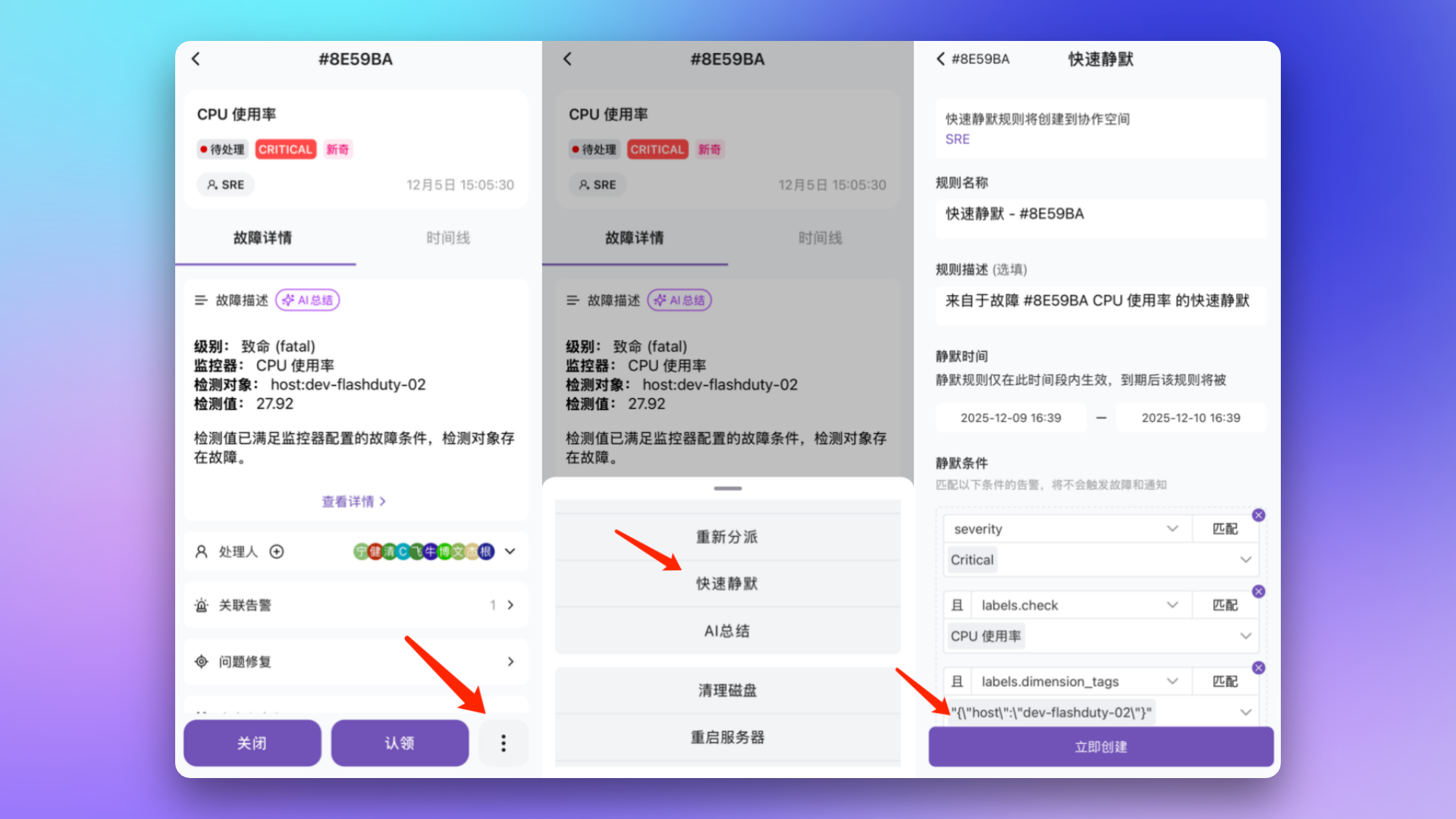
When repeatedly using quick silence on the same incident, it edits the original rule rather than creating a new one.
Inhibit Rules
When a root cause alert exists, automatically inhibit related secondary alerts. For example: When a Critical level incident exists, inhibit Warning/Info level incidents for the same check item.Configuration Path
| Location | Path | Characteristics |
|---|---|---|
| Channel | Channel Details → Noise Reduction → Inhibit Rules | Only effective for alerts in current channel |
| Alert Integration | Alert Integration Details → Alert Processing → Alert Inhibition | Effective for alerts from this integration |
Inhibit Conditions
When a new alert meets the conditions and there is a matching active alert (not acknowledged and not recovered) within the last 10 minutes, and both share equal items, the new alert is inhibited.| Configuration | Description |
|---|---|
| New Alert Conditions | Conditions the inhibited alert must meet, e.g., severity is Warning/Info |
| Active Alert Conditions | Conditions the inhibiting source alert must meet, e.g., severity is Critical |
| Equal Items | Attributes or labels that must be identical between both, e.g., check item, hostname |
Inhibit Behavior
| Behavior | Description |
|---|---|
| Drop Directly | Alert doesn’t appear in any list, no record |
| Retain and Mark | Alert appears in Alert List marked as “Inhibited”, can be filtered and viewed |
Configuration Example
Scenario: When Critical level alerts exist, inhibit Warning/Info level alerts for the same check item.
FAQ
Will the incident title change when new alerts merge in?
Will the incident title change when new alerts merge in?
No. The incident title matches the first alert that triggered it and can be manually modified at any time; it won’t change with new alerts.
Will incident labels change when new alerts merge in?
Will incident labels change when new alerts merge in?
- Manually created incidents: No, labels list always remains empty
- Auto-triggered incidents: Possibly, incident labels stay consistent with the first alert; if that alert’s labels change, incident labels update accordingly
Will alert labels change when new events merge in?
Will alert labels change when new events merge in?
Yes. Alert labels always stay consistent with the latest merged event. However, if the new event is a recovery event, the alert keeps existing labels and only adds labels that didn’t exist before.
What's the maximum number of alerts a single incident can group?
What's the maximum number of alerts a single incident can group?
Up to 5000, mainly to ensure console rendering performance. Due to backend concurrent processing, actual count may slightly exceed this limit.
What's the maximum number of events a single alert can be associated with?
What's the maximum number of events a single alert can be associated with?
Whether an event can merge into an existing alert is controlled by the channel’s Event Aggregation setting (which governs the “Event → Alert” stage — enabled by default with a 24-hour window, configurable from 1 to 1440 minutes, or can be turned off entirely):
- Event Aggregation enabled: events with the same
alert_keymerge into the same alert within the window; events arriving after the window expires create a new alert - Event Aggregation disabled: every event creates an independent alert, with no merging
Related Topics
Configure Escalation Rules
Define alert notification and escalation rules
Configure Filter Conditions
Learn about condition matching syntax