

Accessing Personal Center
Hover over the user icon in the lower left corner, select Basic Information or click Platform Management.
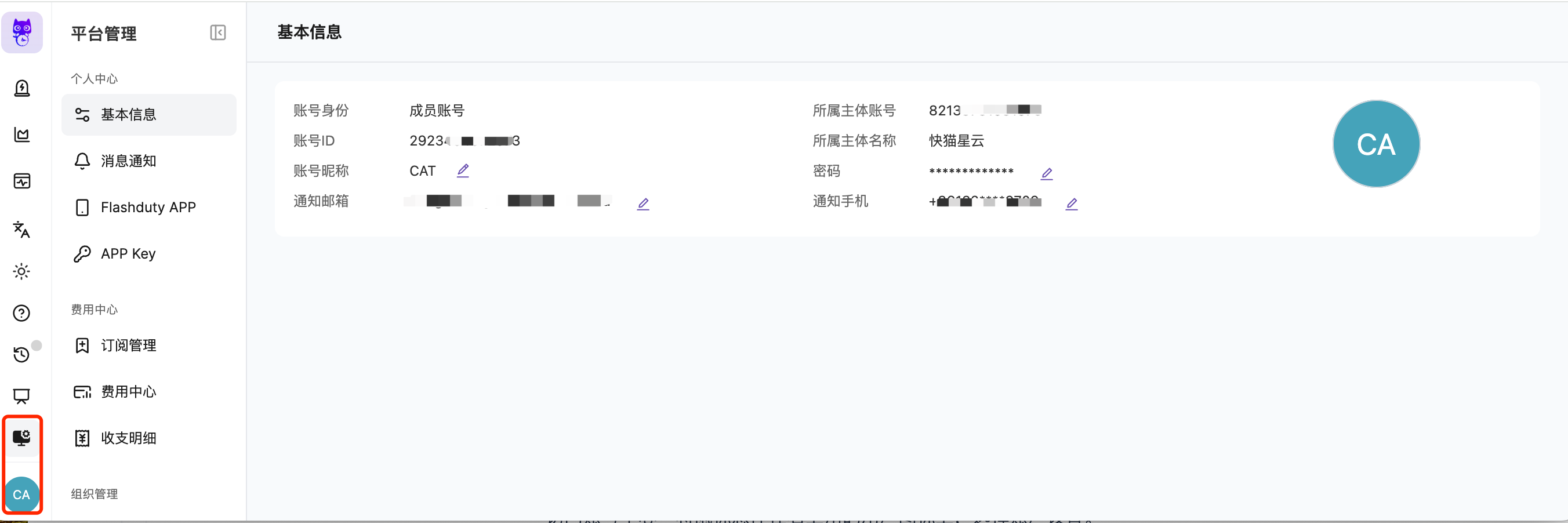
Basic Information
| Configuration | Description |
|---|---|
| Account Type | Primary account or member account |
| Nickname | Supports Chinese and English, used for display |
| Email/Phone Number | Verification code required when modifying |
Notification Preferences
Configure different notification methods by alert severity. The system supports setting notification channels separately for Critical, Warning, and Info severity levels. You can select the following notification channels for each level:
| Channel Type | Description |
|---|---|
| Voice | Notify via phone call |
| SMS | Notify via text message |
| Send notifications via email | |
| Flashduty APP | Push notifications through the Flashduty mobile app |
| IM Apps | Send notifications through integrated DingTalk, Feishu/Lark, WeCom, Slack, or Microsoft Teams apps. For each IM type, you can further pick a specific integration instance (for example, if your tenant has multiple Feishu apps, you can choose which one to use) |
In some private deployment environments, the operator may have disabled voice, SMS, and APP push notifications (product config
disablePhone). In that case, only Email and IM Apps remain in the personal notification channel dropdown — this is expected behavior.APP Key
APP Keys are used for API request authentication.
| Limit | Description |
|---|---|
| Maximum Count | Up to 5 per account |
| Permission Scope | Has all API operation permissions |
| Security Note | Only displayed at creation, please save securely |
Flashduty APP
Download the app
| Platform | Download Method |
|---|---|
| iOS | Search “Flashduty” in App Store |
| Android | Available on major app stores including Xiaomi, Huawei, Honor, OPPO, and vivo — search “Flashduty” to download (Harmony OS not currently supported) |
Device binding
After installing the app, you need to bind your mobile device to your Flashduty account to receive push notifications.
Once bound, the page displays a list of linked devices, including device name, OS version, and device identifier. To unbind a device, hover over the device card and click the Unbind button.
- Binding a device does not automatically enable notifications — the actual notification method depends on your escalation rule settings
- After unbinding a device, it will no longer receive push notifications
- The QR code has an expiration time; the page automatically refreshes to generate a new QR code when it expires
Push notifications
The Flashduty APP supports free push notifications for alerts, ensuring critical alerts reach you instantly. You can acknowledge, resolve, and escalate alerts anytime, anywhere from your mobile device. We recommend enabling system notification permissions and allowing urgent incident notifications in Do Not Disturb mode to avoid missing important alerts.FAQ
I set personal notification preferences, why didn't notifications trigger?
I set personal notification preferences, why didn't notifications trigger?
- Check if the channel has escalation rules configured. Without escalation rules, incidents won’t trigger notifications
- Check the direct message channel settings in escalation rules. Only “Follow Personal Preferences” mode uses your personalized configuration; “Follow Unified Settings” mode ignores personal preferences
Related Topics
Escalation Rules
Set notification channel to “Follow Personal Preferences”
Feishu/Lark Integration
Link Feishu/Lark app to receive notifications