

Overview
Supported Channel Matrix
Flashduty On-call provides a comprehensive notification matrix covering mobile App, traditional communication, and mainstream instant messaging (IM) tools.| Channel Type | Notification Form | Interactive | Rating | Description |
|---|---|---|---|---|
| Flashduty App | Direct Message | ✅ Native | ⭐⭐⭐⭐⭐ | Top choice for mobile work, supports incident handling, full-featured |
| Voice Call | Direct Message | ✅ Keypad | ⭐⭐⭐⭐ | High availability, used for major incident escalation, forced delivery |
| SMS | Direct Message | ❌ Text only | ⭐⭐ | High availability, covers no network signal scenarios |
| Direct Message | ❌ Text only | ⭐⭐ | Fallback notification channel, suitable for detailed incident reports | |
| IM App Integration | Direct/Group Chat | ✅ Card interaction | ⭐⭐⭐⭐⭐ | Top choice for team collaboration, supports handling incidents directly in groups |
| IM Bot | Direct/Group Chat | ❌ Link redirect | ⭐⭐ | Quick integration alternative, simple configuration, no admin permissions needed |
Core Notification Channel Configuration
Flashduty App
The Flashduty App is the most efficient mobile work tool for On-call engineers. Wherever you are, you can fully control the incident handling process just like at your computer.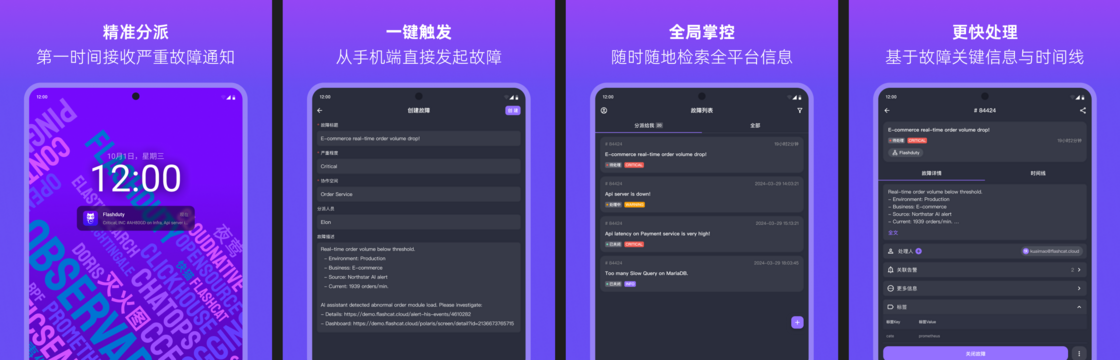
Core Features
Core Features
Critical Notifications, Must Reach Users: iOS critical alerts are based on Apple’s official Critical Alerts protocol, penetrating silent and Do Not Disturb modes; Android supports system-level push channels from mainstream manufacturers, ensuring App receives notifications even in background.Efficient Mobile Handling: Complete all core operations on your phone including searching, viewing details, acknowledging, closing, and escalating incidents.Smart Voice Notification Recognition: App can automatically sync Flashduty On-call voice notification numbers to phone contacts, avoiding misinterception.
How to Enable and Use
How to Enable and Use
Download and Install
Search “Flashduty” in App Store or major Android markets, or scan QR code in console personal center
Login and Link Device
Open App and login with your Flashduty account, or scan to login from console. After login, current device automatically links to your account
FAQ
FAQ
Why am I not receiving App push notifications?
- Check if notification permissions are enabled for Flashduty App in phone system settings
- Confirm App push is set as one of the notification channels in your escalation rules
- If “Follow Personal Preferences” is set, check if Flashduty App is selected in personal notification settings
Voice, SMS, Email
- Use Cases
- How to Enable
- Voice Numbers
- Incident Escalation: Use voice calls for forced delivery in the final stage of escalation rules
- IM Fallback: When IM app message delivery fails, system automatically sends supplementary reminders via SMS or email
- Offline Coverage: Cover team members in poor network environments or without smartphones
Why can't I receive voice notifications?
Why can't I receive voice notifications?
- Check phone blocking settings: Check phone’s blacklist or spam interception records. Flashduty On-call uses fixed numbers for voice push; you can download Flashduty App to sync number whitelist
- Check carrier services: Some users may have carrier-level high-frequency spam call blocking enabled; check and configure through your carrier’s official account
- Ported number users: Check blocking status across multiple carriers
Why are emails going to spam?
Why are emails going to spam?
- Check “Spam” or “Junk” folders, mark Flashduty On-call emails as “Not Spam”
- Add Flashduty On-call’s sending domain or address to your email whitelist
- Contact company email administrator to set Flashduty email whitelist at domain level (
no-reply@notice.flashcat.cloud)
Instant Messaging (IM) Integration
Integrating Flashduty On-call with your team’s daily IM tools (like Feishu/Lark, Dingtalk) allows receiving and handling incidents in familiar collaboration environments, greatly improving On-call efficiency.
App Integration (Recommended)
App integration provides the most complete interactive experience. We strongly recommend teams with the capability to use this method.Interactive Cards
Acknowledge, close, escalate directly on IM message cards without redirecting
Passwordless Operations
After linking member accounts with IM accounts, no need to re-login to Flashduty when operating
Full-featured
Supports getting complete incident details, viewing timeline, adding comments, etc.
Simple Maintenance
One-time configuration, long-term effectiveness
Configuration Guide
Feishu/Lark Integration
Feishu/Lark app integration
Dingtalk Integration
DingTalk app integration
WeCom Integration
WeCom app integration
Slack Integration
Slack app integration
Teams Integration
Microsoft Teams integration
Bot Integration
If your team cannot do app integration temporarily, using bots is a simple, quick, and effective alternative. Use Cases:- Cannot obtain IM platform admin permissions to install apps
- Only need basic incident notification push functionality, no complex online interaction needed
- Need to quickly establish notifications in temporary project groups or cross-department groups
- Feishu/Lark Bot
- Dingtalk Bot
- WeCom Bot
- Telegram
- Slack
- Generic Webhook Bot
- Zoom
Create Custom Bot
Enter Feishu/Lark group chat → Group Settings → Group Bots → Add Bot → Select Custom Bot
Configure Bot Parameters
Set bot name and description, configure custom keyword:
#, click Add to generate Webhook URLAdvanced settings
All bot types support the following advanced options, accessible by expanding Advanced Settings during configuration:| Setting | Supported Bot Types | Description |
|---|---|---|
| Alias | All | Set an alias for the bot to help remember and distinguish different notification channels |
| Severity filter | All | Select which alert severity levels trigger notifications. Incidents with unselected severity levels will not be pushed |
| Notification event types | Feishu/Lark, Dingtalk, WeCom, Slack, Zoom | Select which event types trigger notification pushes (e.g., triggered, acknowledged, closed). All selected by default |
| @ Mentions | Feishu/Lark, Dingtalk, WeCom, Slack, Zoom | When enabled, @ mentions corresponding responders. Feishu/Lark and Zoom require a user mapping table; WeCom optionally supports one; Dingtalk matches by phone number by default. Dingtalk also supports @ all |
FAQ
Telegram message push fails with a network error?
Telegram message push fails with a network error?
Check whether the Webhook URL is accessible in your current network environment. Telegram services may be restricted in some regions. Consider using a reliable proxy service address.
How do I get a Telegram group chat's Chat ID?
How do I get a Telegram group chat's Chat ID?
After adding the Bot to the target group, you can call the Telegram Bot API
getUpdates method to obtain the group Chat ID. You can also use tools like @userinfobot.Zoom notification fails with 'Failed to send bot message'?
Zoom notification fails with 'Failed to send bot message'?
This error means Zoom cannot send messages through the Webhook. Possible causes include: the Webhook connection has been invalidated, the creator’s account was deactivated or removed, or the Webhook was manually deleted.Troubleshooting steps:
- Create a new Incoming Webhook connection in Zoom
- Test the new Webhook URL in your Flashduty escalation rule
- If the new Webhook works, the original connection has been invalidated (commonly caused by the creator leaving the organization) — replace it with the new Webhook
- If the new Webhook also fails, check the message content format or contact Zoom support
Where do I find the Zoom Verify Token?
Where do I find the Zoom Verify Token?
After adding the Incoming Webhook app in Zoom, use the
/inc connect flashduty command. The returned connection information includes the Verification Token.Bot @ mentions are not working?
Bot @ mentions are not working?
Verify the following:
- The @ mentions toggle is enabled
- Feishu/Lark, Zoom: a user mapping table is correctly selected with complete mappings
- WeCom: if using a mapping table, verify the mappings are correct
- Dingtalk: verify member phone numbers are correct
- Slack: verify member account associations are correct
General Configuration
How to customize notification content?
How to customize notification content?
Flashduty On-call allows you to customize personalized notification messages for different channels.Configuration Path: Console → Template ManagementHere you can select different notification types (like incident trigger, acknowledgment, closure, etc.) and edit message formats for each channel. Templates support variable references to dynamically display incident information.For more details, see Notification Template Configuration.
How to configure different notification strategies for different severity incidents?
How to configure different notification strategies for different severity incidents?
You can design refined notification workflows based on any dimension like alert severity, source, labels. This is mainly achieved through routing rules and escalation rules.
- Routing Rules: Integration Center → Specific Integration → Routing Rules. Determines which alerts should be routed to which channel
- Escalation Rules: Channel → Escalation Rules. Determines who incidents should notify, through which channels, and how to escalate when no one responds
Related Topics
Escalation Rules
Configure alert notification rules and escalation paths
Notification Templates
Customize notification content format for each channel