

1. Third-Party App Integration
-
Visit WeCom Admin Console, go to App Management → Apps page, click Add Third-Party App.
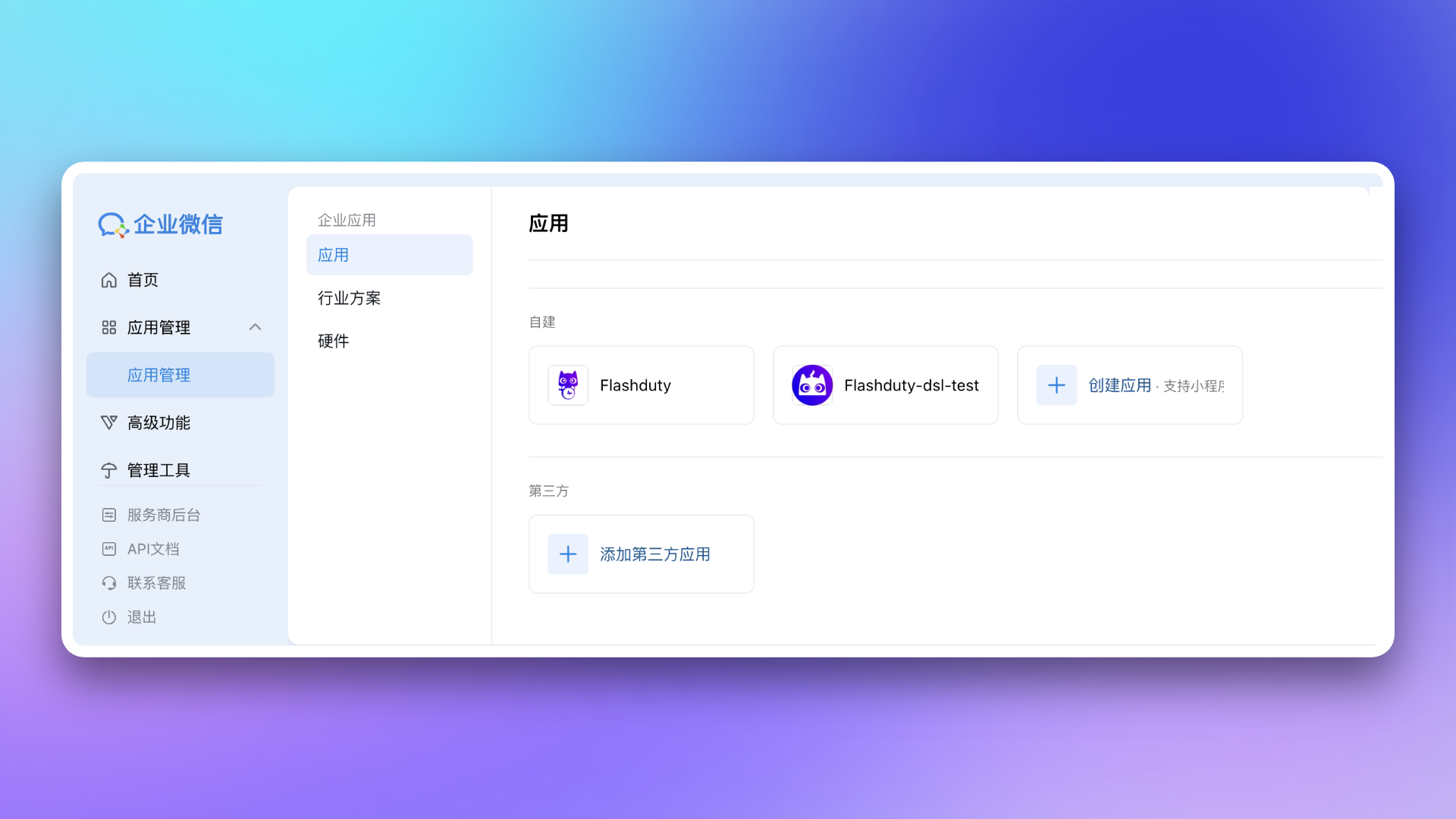
-
Enter
Flashdutyin the search bar, after finding the app, click Add.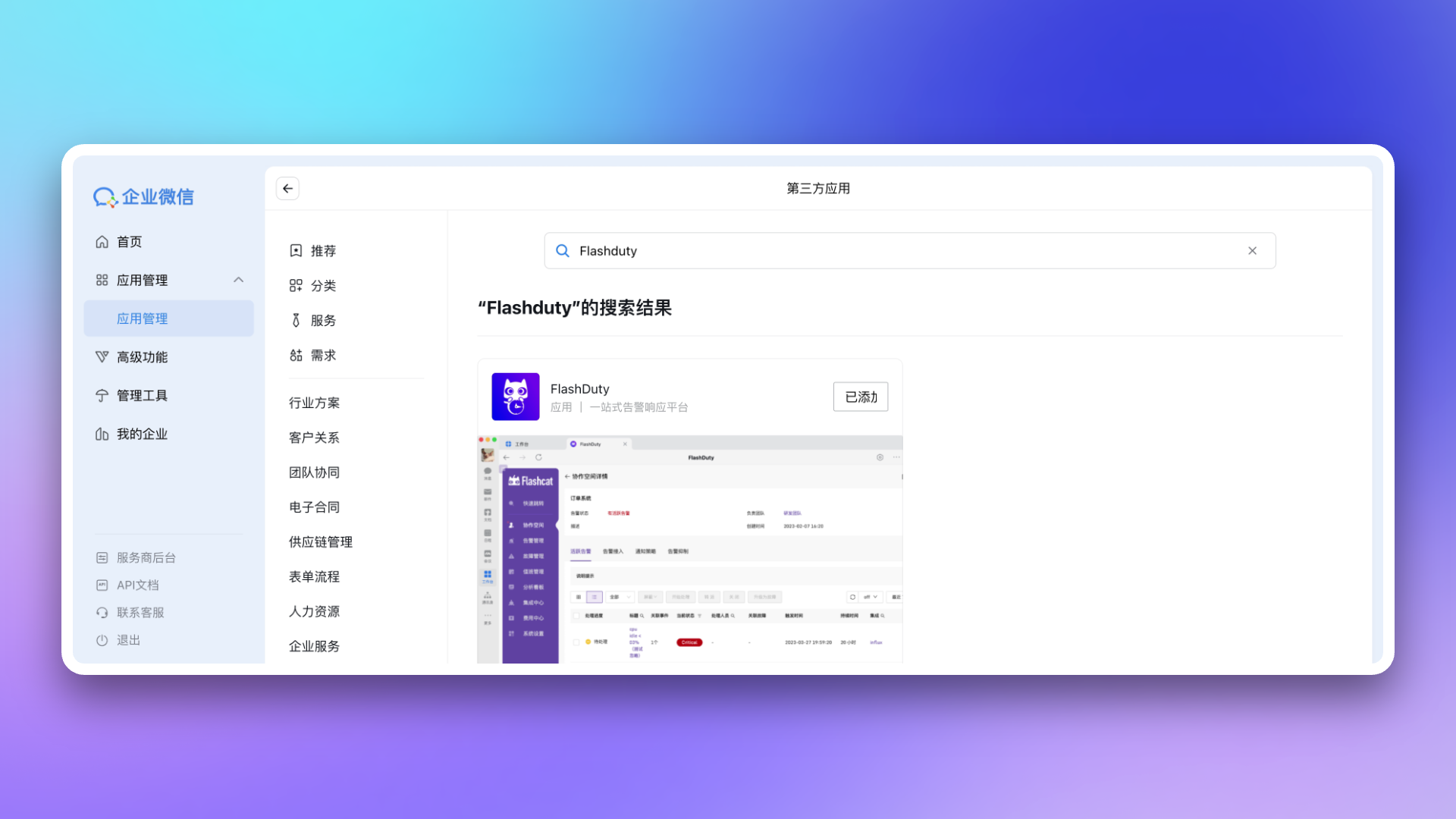
-
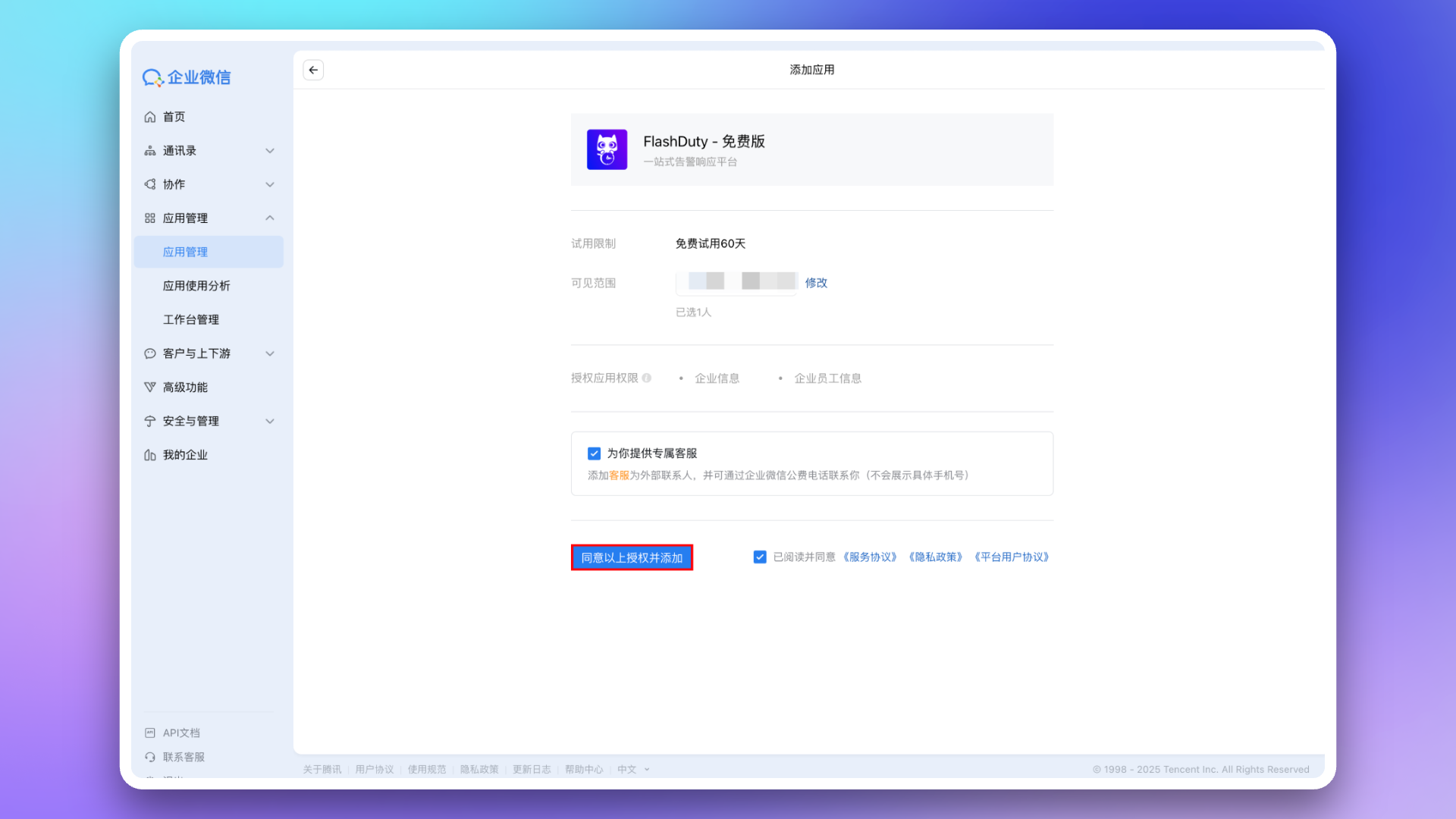
Modify app Visibility, recommend selecting all employees or specific department nodes to avoid modifying when new enterprise members join. Then click Agree to the above authorization and add to complete installation.
-
Visit WeCom Admin Console, go to My Enterprise page, get
Corp ID.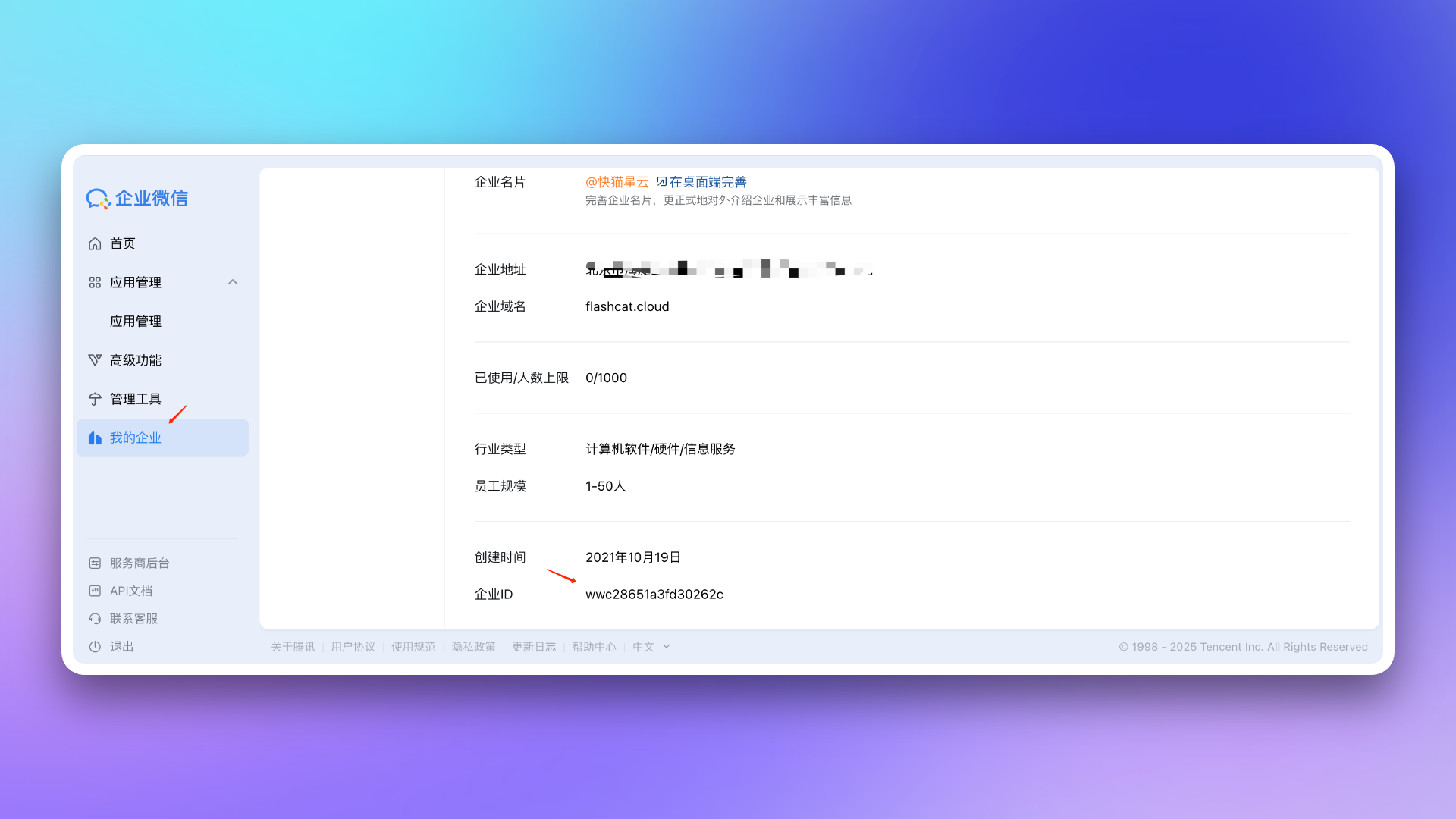
-
Return to Flashduty On-call integration configuration page, fill in the
Corp IDobtained in the previous step, click Save to complete integration.
2. Custom App Integration
-
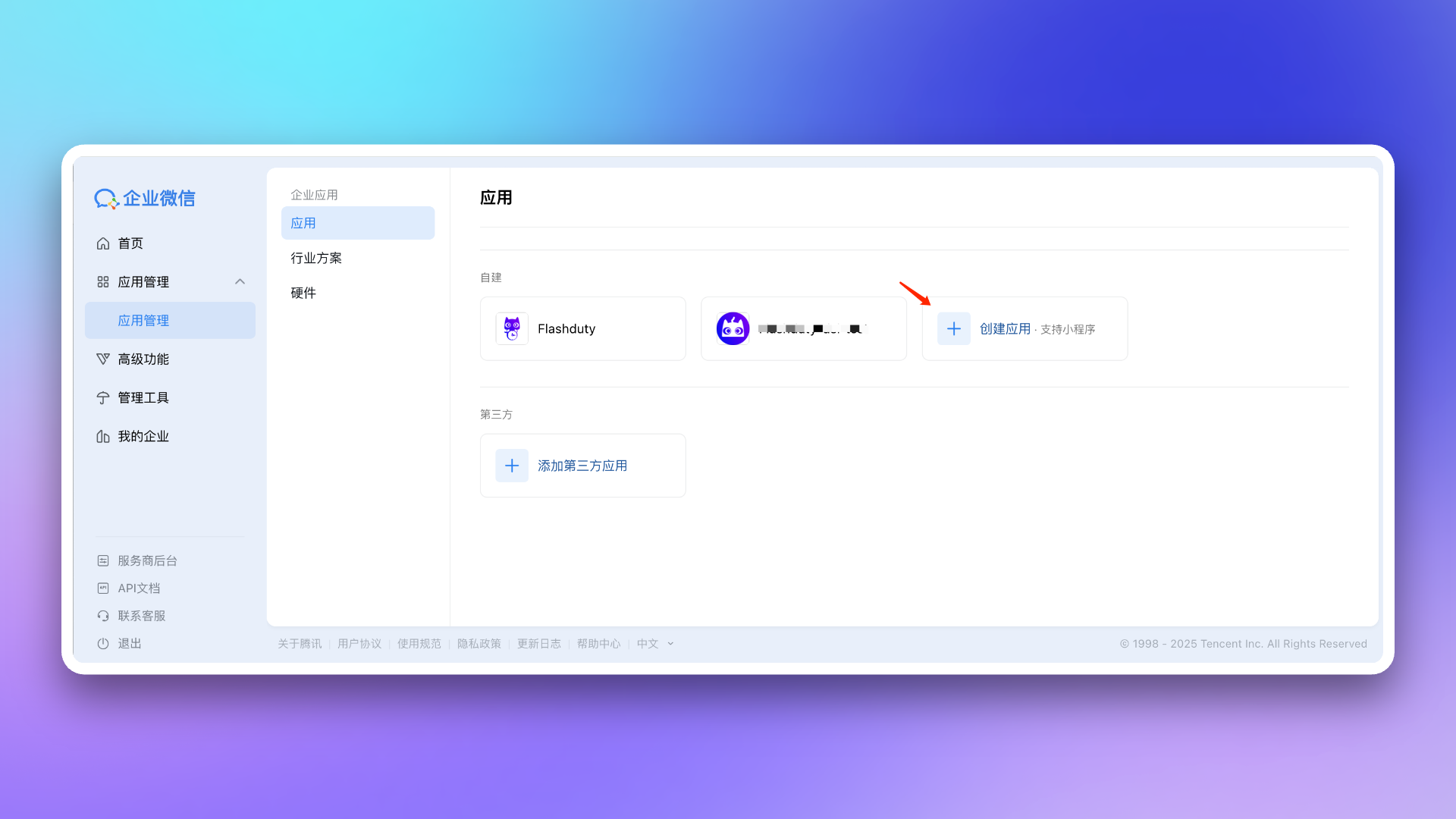
Visit WeCom Admin Console, go to App Management → Apps page, click Create App.
-
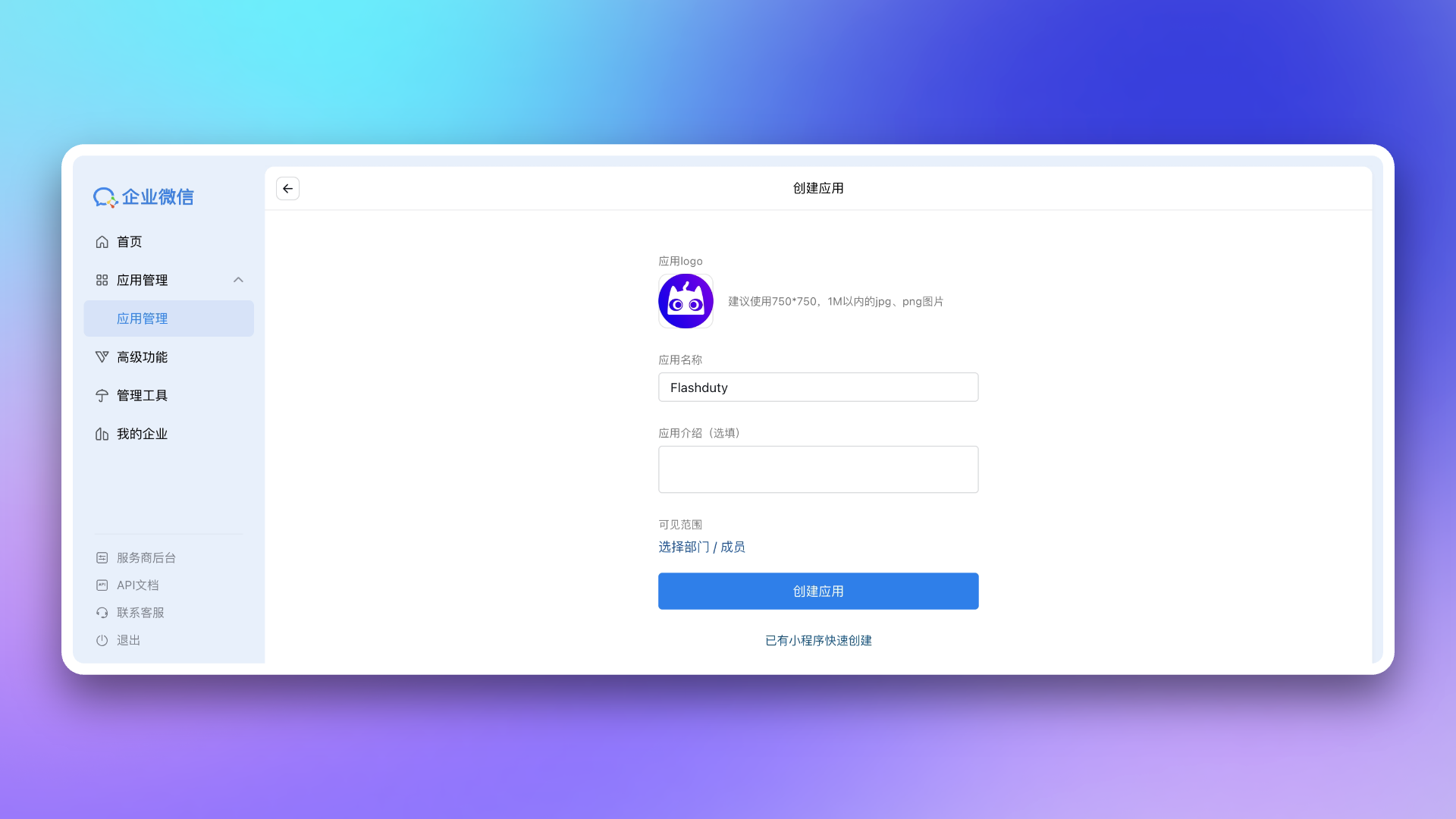
Configure App Logo, App Name, and App Visibility.
-
Return to Flashduty On-call integration configuration page, select whether your WeCom is
Non-private deployment versionbased on your actual situation. If your WeCom is a private deployment version, you need to fill inEndpointin the configuration page. This address needs to be accessible by Flashduty services—you may consider setting up whitelist authorization for it. -
Visit WeCom Admin Console, go to My Enterprise page, get
Corp ID, and fill it in the Flashduty On-call integration configuration page. -
Return to WeCom Admin Console, go to App Management page, click the app you created to enter details page. Get
AgentIdfrom the page and fill it in the Flashduty On-call integration configuration page. -
On the app details page, get
Secretand fill it in the Flashduty On-call integration configuration page. - On the app details page, go to Web Authorization & JS-SDK page, click Set Trusted Domain, and configure as required.
{api_host} (achievable via CNAME or proxy forwarding). For trusted domain requirements, see WeCom official documentation Enterprise Internal Development Domain Configuration Guide.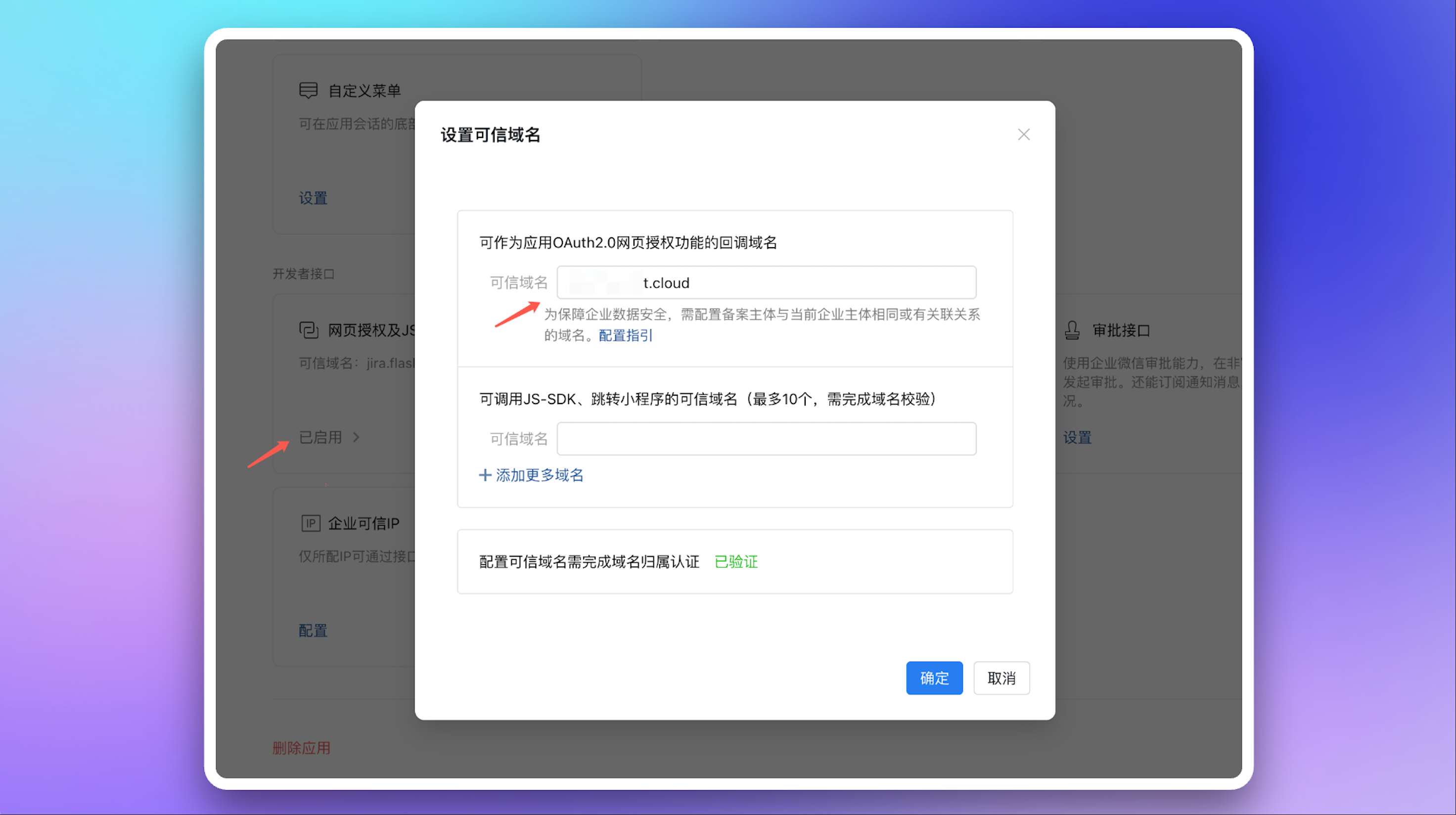 Return to Flashduty On-call integration configuration page, fill in this domain and complete verification.
-
On the app details page, go to Receive Messages page, and Set API Receive. Click Random Generate for
TokenandEncodingAESKeyrespectively, then copy and save the generated values.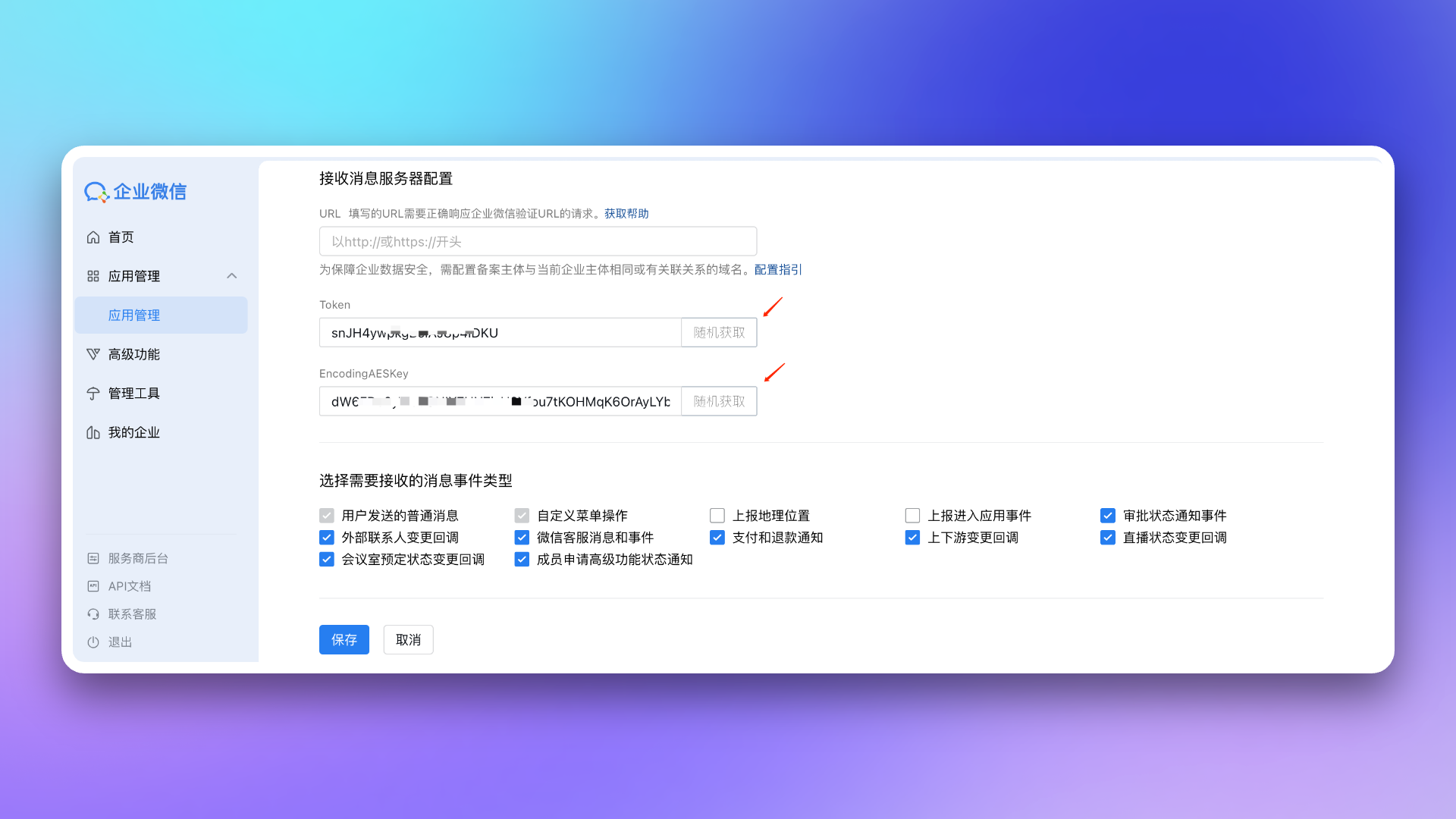 Return to Flashduty On-call integration configuration page, fill in the saved
 TokenandEncodingAESKey, click Save to complete integration. -
Copy the
Callback URLfrom Flashduty On-call integration details page, return to WeCom’s Receive Messages page. In API Receive settings, fill in thisCallback URLand theTokenandEncodingAESKeysaved in the previous step, then click Save.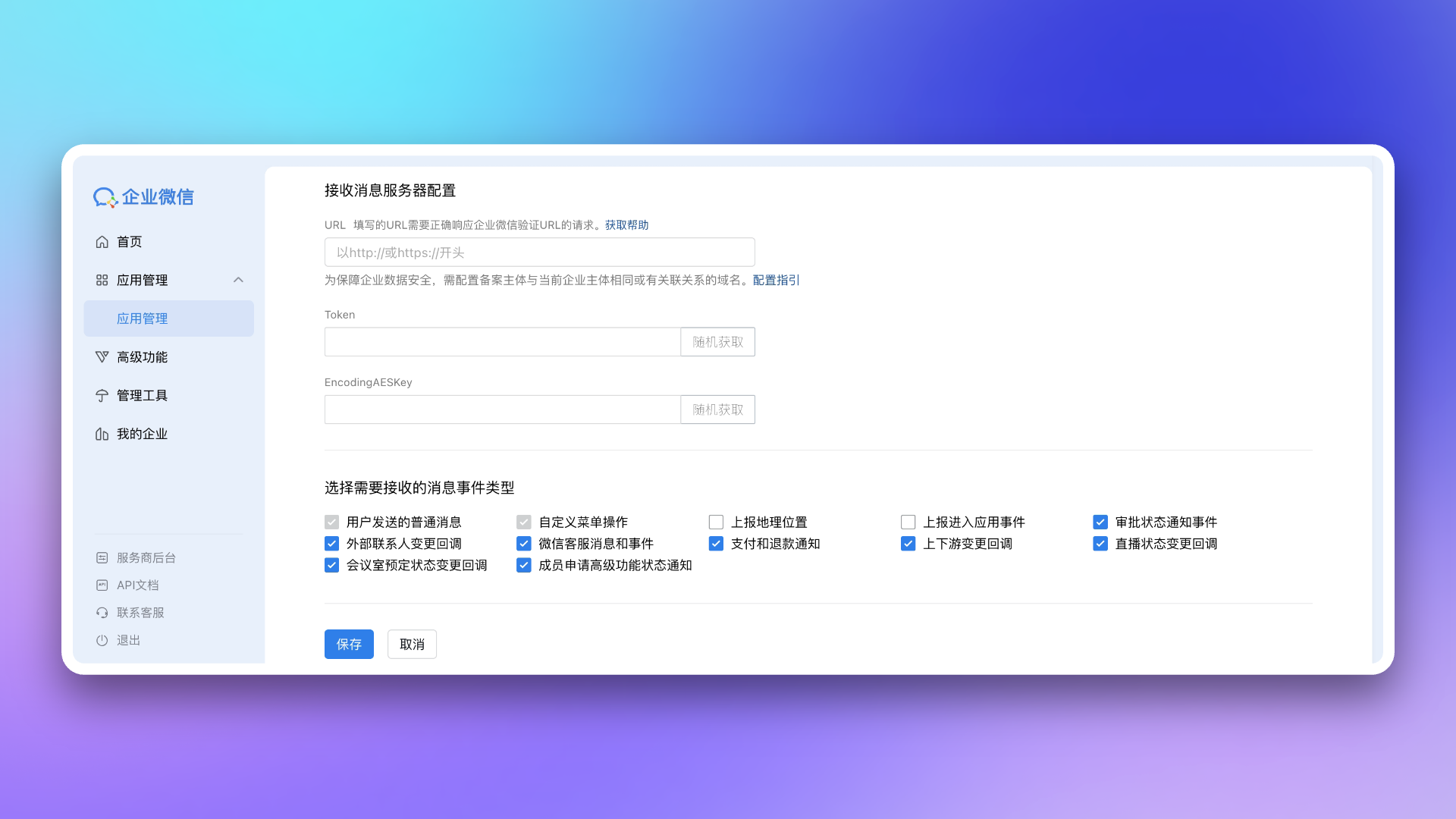
- Configure Frontend Trusted Domain
console.flashcat.cloud (achievable via CNAME or proxy forwarding). For trusted domain requirements, see WeCom official documentation Enterprise Internal Development Domain Configuration Guide.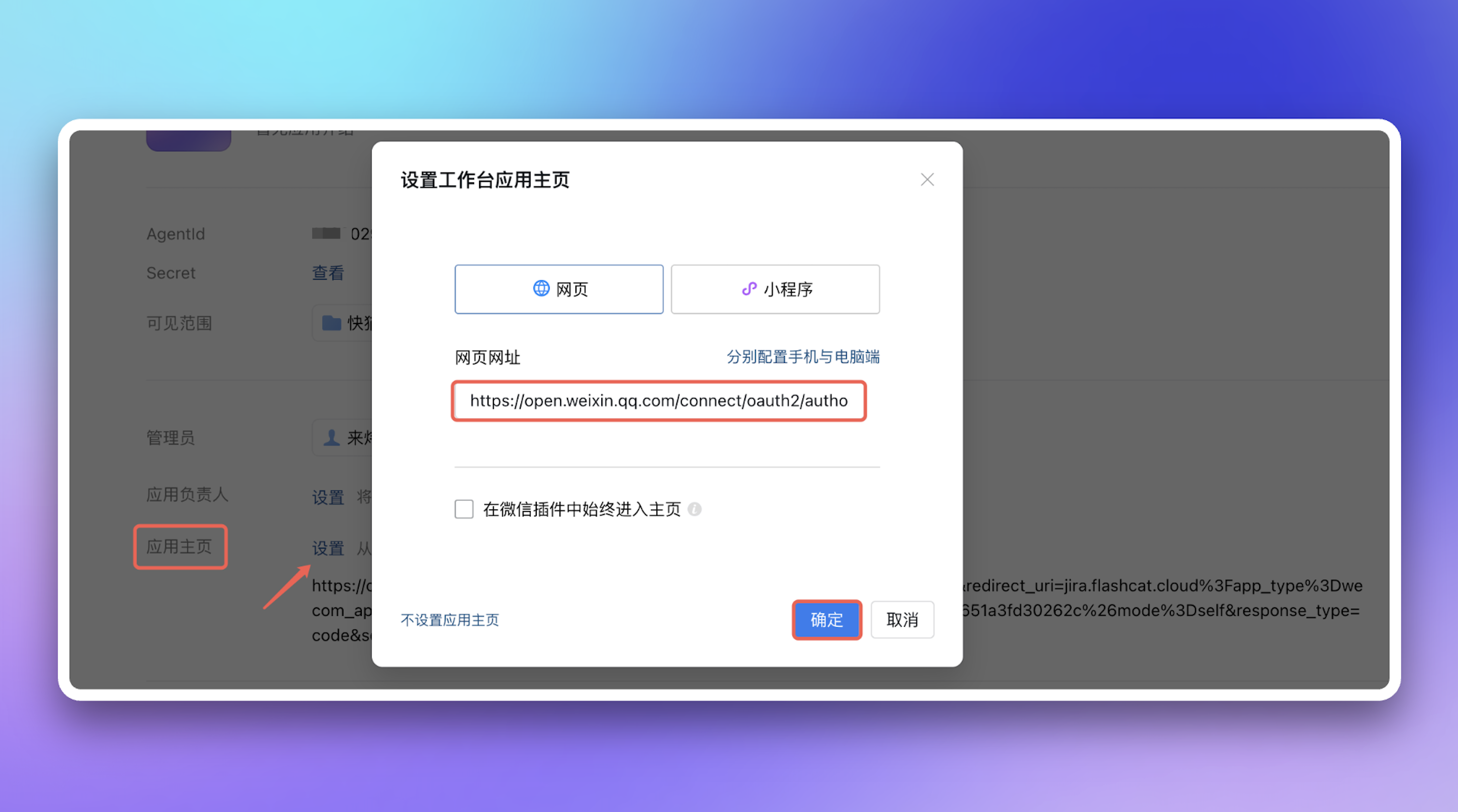
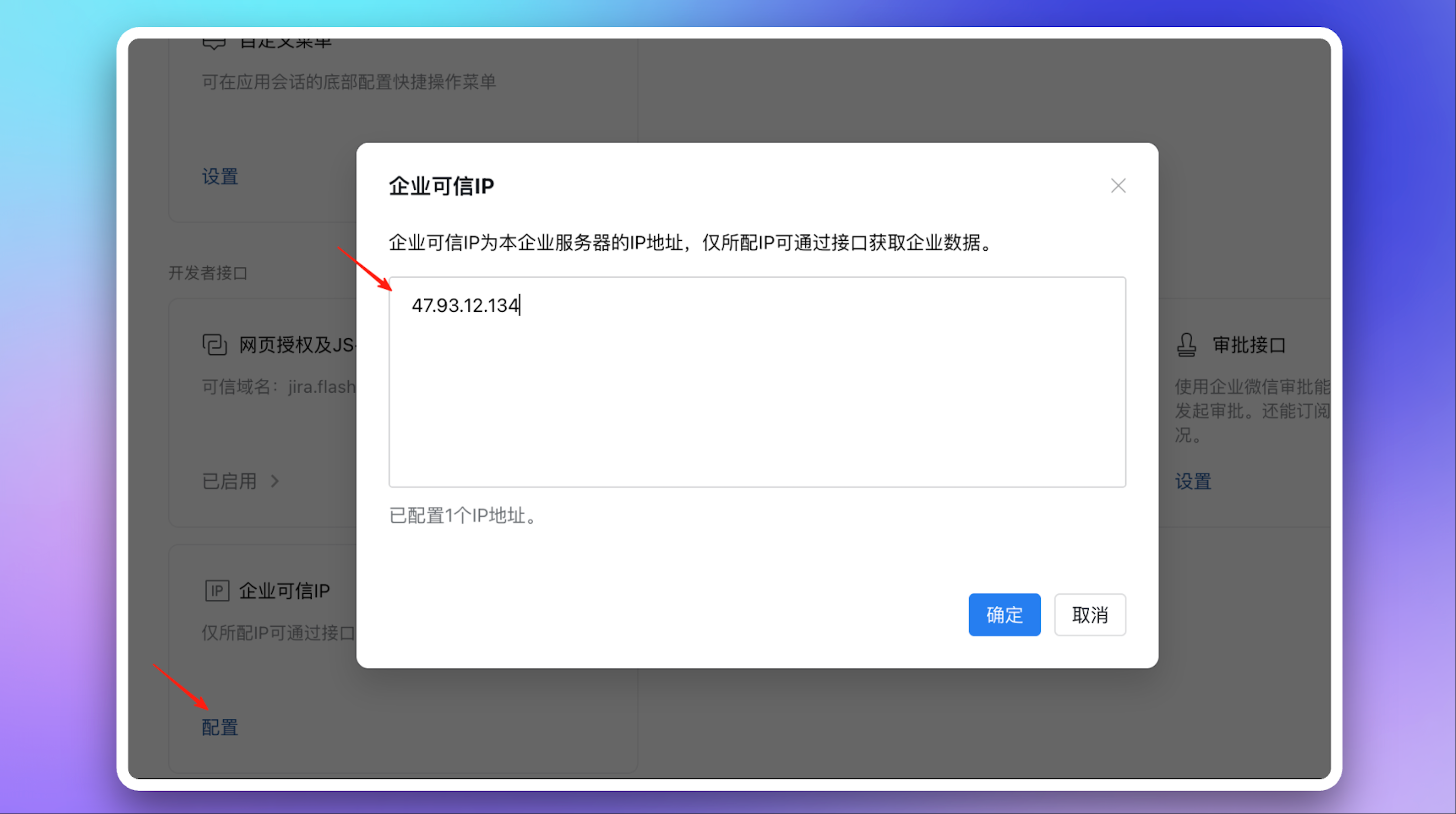
- Configure Trusted IP Address:
47.93.12.134
3. Configure War Room
After completing previous steps, in the Flashduty On-call integration configuration page’s Enhanced Features section, check Enable War Room to activate this feature—no additional configuration needed.4. Configure AISRE
To use AISRE with WeCom, enable War Room for the Flashduty WeCom integration first. Then create an additional Smart Robot in WeCom and connect it to Flashduty in API mode.- In the WeCom app, open Workspace from the left sidebar, then go to Smart Robot management.
- Create a new Smart Robot. Select Manual creation, then select Create in API mode.
- On the Smart Robot’s API configuration page, set the connection method to Use URL callback, and enter the
URLprovided on the Flashduty WeCom integration configuration page. - Generate the
TokenandEncoding-AESKeyon the WeCom API configuration page, then enter the same values in the Flashduty WeCom integration configuration page. Make sure theTokenandEncoding-AESKeyare exactly the same in both WeCom and Flashduty, then save both configurations.
5. Linked Users
In the Linked Users tab of the integration detail page, you can view the linking status between team members and WeCom accounts, and quickly complete batch linking.View Linking Status
The linked users list shows all team members and their linking status. You can filter by:| Filter | Description |
|---|---|
| All | View all team members |
| Linked | View only members who have linked their WeCom accounts |
| Unlinked | View only members who have not yet linked their WeCom accounts |
One-Click Linking
When unlinked members exist, click the One-Click Link button. The system will attempt to obtain WeCom account IDs via phone numbers or emails and automatically link them, equivalent to members logging into Flashduty using the same information on WeCom.6. WeCom Bot (AI SRE) Integration
The WeCom AI Bot (智能体) is WeCom’s native AI conversation robot feature. By connecting Flashduty AI SRE to a WeCom Bot, your team can start AI incident investigation sessions directly from any WeCom single-chat or group-chat by @mentioning the bot—without leaving WeCom.Setup Steps
Create an AI Bot in the WeCom Admin Console
Generate the Bot Token and EncodingAESKey
Token and EncodingAESKey, then copy and save both values.These credentials belong exclusively to this bot and are completely different from the Token / EncodingAESKey configured in your WeCom custom app integration.Enter bot credentials in Flashduty
Bot Token and Bot EncodingAESKey obtained above into the corresponding fields, and click Save.After saving, the page displays the integration_key for this integration.Set the bot callback URL in WeCom
How to Use
Once configured, @mention your bot in a WeCom single-chat or group-chat, type a question or incident description, and an AI SRE session starts. The bot supports these message types:| Type | Description |
|---|---|
| Text | Ask a question or describe a problem directly |
| Image | Send a screenshot; AI will analyze the image content |
| File | Send a log or config file; AI will read and help investigate |
| Quoted reply | Quote a previous message to follow up; AI uses conversation history for context |
msgtype=stream requests to the callback URL to fetch the latest content until the AI response is complete. This is a platform-level mechanism; no extra configuration is needed on your end.Troubleshooting
Bot receives messages but returns no response
Bot receives messages but returns no response
- Confirm that AI SRE is enabled for your account.
- Confirm the
integration_keyin the callback URL exactly matches the value shown on the Flashduty integration details page. - Confirm that the
Bot TokenandBot EncodingAESKeysaved in Flashduty match the values on the bot’s Receive Messages page in WeCom Admin Console—not the values from your WeCom custom app. - Check the callback logs in the WeCom Admin Console to see whether requests are reaching the endpoint and whether any error codes are returned.
'URL verification failed' when saving the callback URL
'URL verification failed' when saving the callback URL
- Confirm that the Flashduty server is publicly reachable by WeCom servers.
- Confirm that the
TokenandEncodingAESKeyyou entered in WeCom exactly match what is saved in the Flashduty integration configuration. - Confirm that the
integration_keyparameter in the callback URL is correct and that the corresponding integration is enabled.
Signature verification failure (invalid signature)
Signature verification failure (invalid signature)
7. FAQ
After clicking integration save button, system shows 'authorize app first' error?
After clicking integration save button, system shows 'authorize app first' error?
How to complete account linking or message delivery shows 'App not linked'?
How to complete account linking or message delivery shows 'App not linked'?
- Login to WeCom client (desktop or mobile), go to Workspace, find and open the Flashduty app
- First entry requires login. Select your member account, after successful login via password or SSO, Flashduty account and WeCom account will be linked
- Subsequent app access will be automatically passwordless
How to send incident notifications?
How to send incident notifications?
- Before sending notifications, account linking must be completed as described in the previous question
- Go to the specified channel, navigate to
Escalation Rules→ Personal Channel, selectWeComas notification method - Flashduty On-call supports customizing WeCom notification content. Go to Template Management page to set custom templates
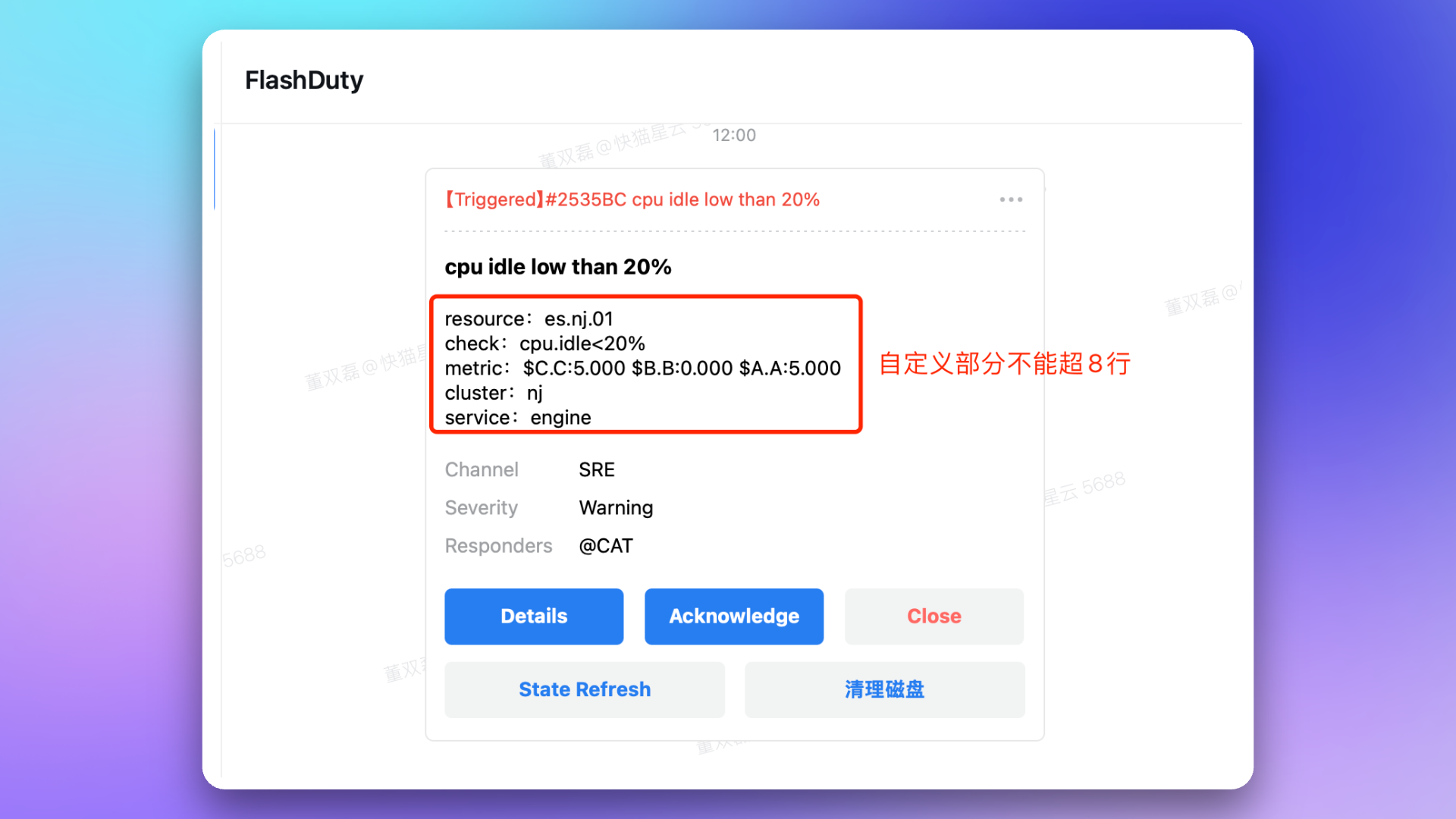
How to handle alerts within WeCom?
How to handle alerts within WeCom?
- Click card message to go directly to alert details page
- Click Start Processing to directly set alert to
Processingstatus - Click Close Directly to directly set alert to
Closedstatus - Click Snooze 2 hours to snooze the alert for 2 hours. For longer snooze times, click
...in the card’s top-right corner for more snooze options
Why does the card message have a 'Refresh Status' button?
Why does the card message have a 'Refresh Status' button?
How to set Mac desktop to open with system default browser?
How to set Mac desktop to open with system default browser?
ctrl + command + shift + d to enable debug mode, then select Debug → Browser, WebView Related → Open Webpage with System Browser to change link opening method. Use the same shortcut to disable debug mode; settings will be preserved.Incident notification failed with 'WeCom license not enabled' prompt?
Incident notification failed with 'WeCom license not enabled' prompt?
Why isn't War Room working as expected?
Why isn't War Room working as expected?
Why does opening the app in WeCom Workspace show 'redirect_uri needs to use app trusted domain'?
Why does opening the app in WeCom Workspace show 'redirect_uri needs to use app trusted domain'?
redirect_uri parameter of the App Homepage URL has completed WeCom’s required domain ownership verification. See WeCom official documentation Enterprise Internal Development Domain Configuration Guide.