

1. Install and Update App
Download App
Download FlashdutyBot-v1.0.3.zip to your local machine.
Install App
Go to Microsoft Teams, navigate to +Apps → Manage your apps → Upload an app → Upload an app to your org’s app catalog, then upload the app package 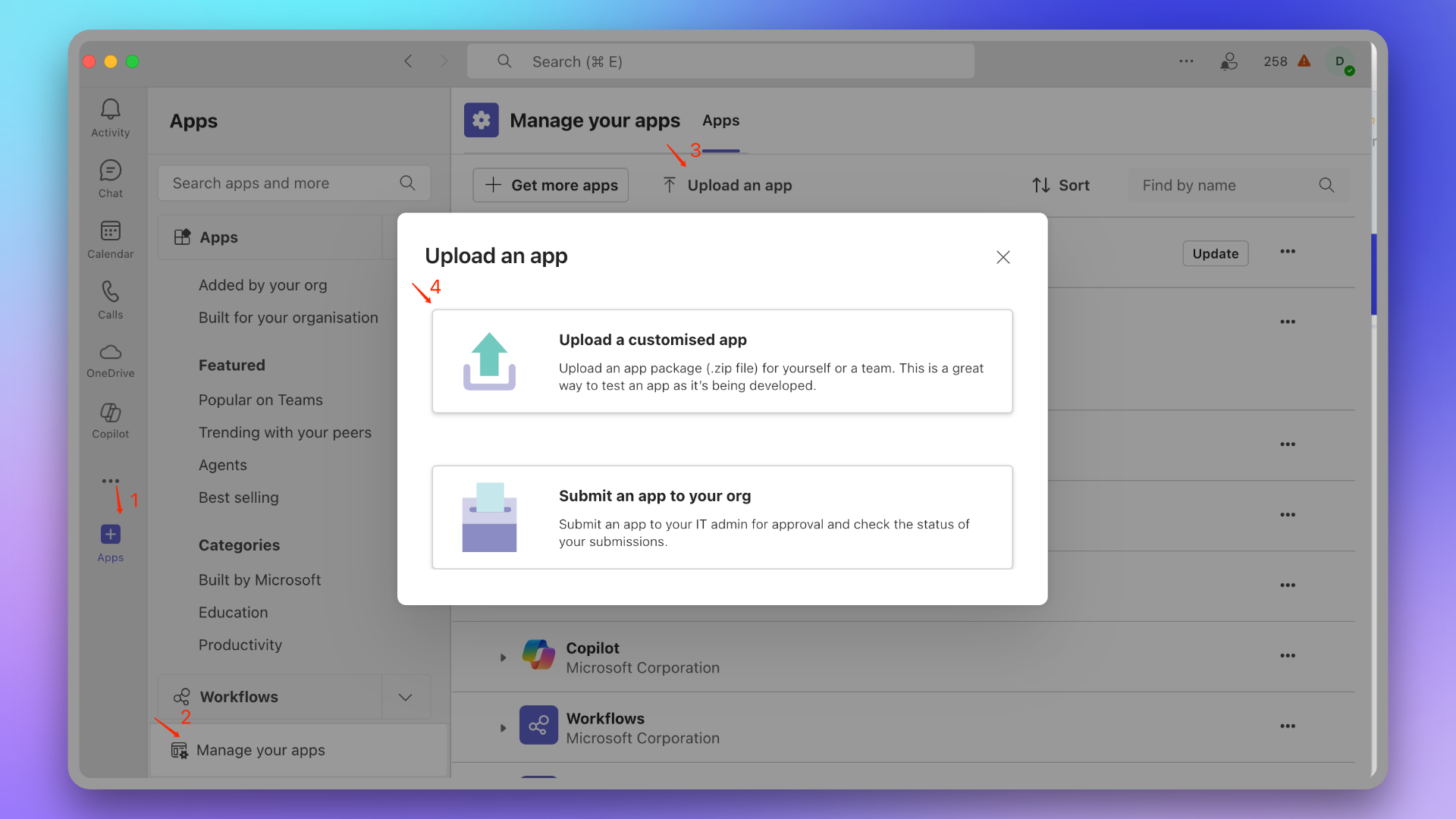
FlashdutyBot.zip.Configure App Visibility
Go to Microsoft Teams Admin Center, find the Flashduty On-call app, adjust app visibility to everyone or your specified scope.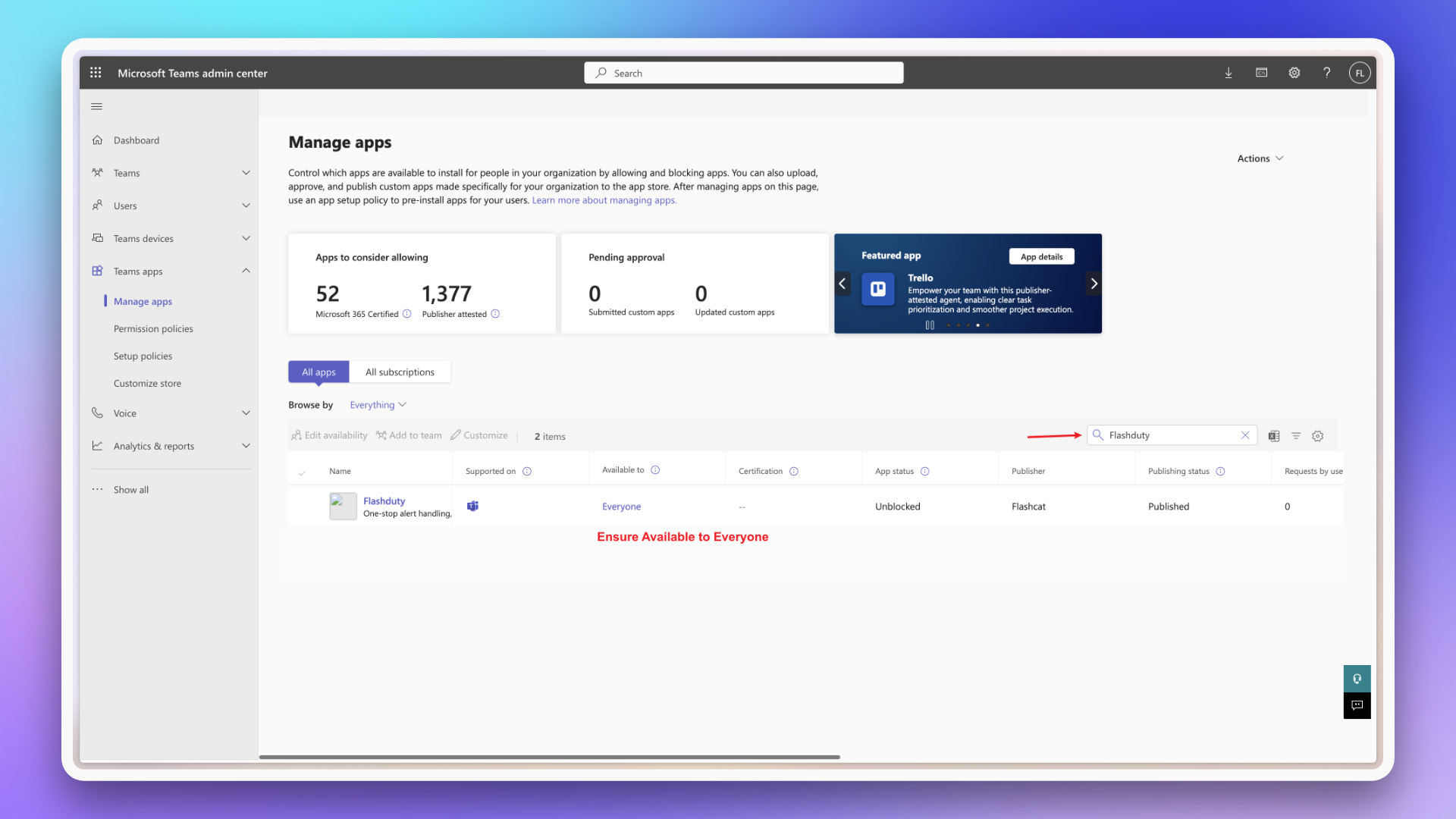
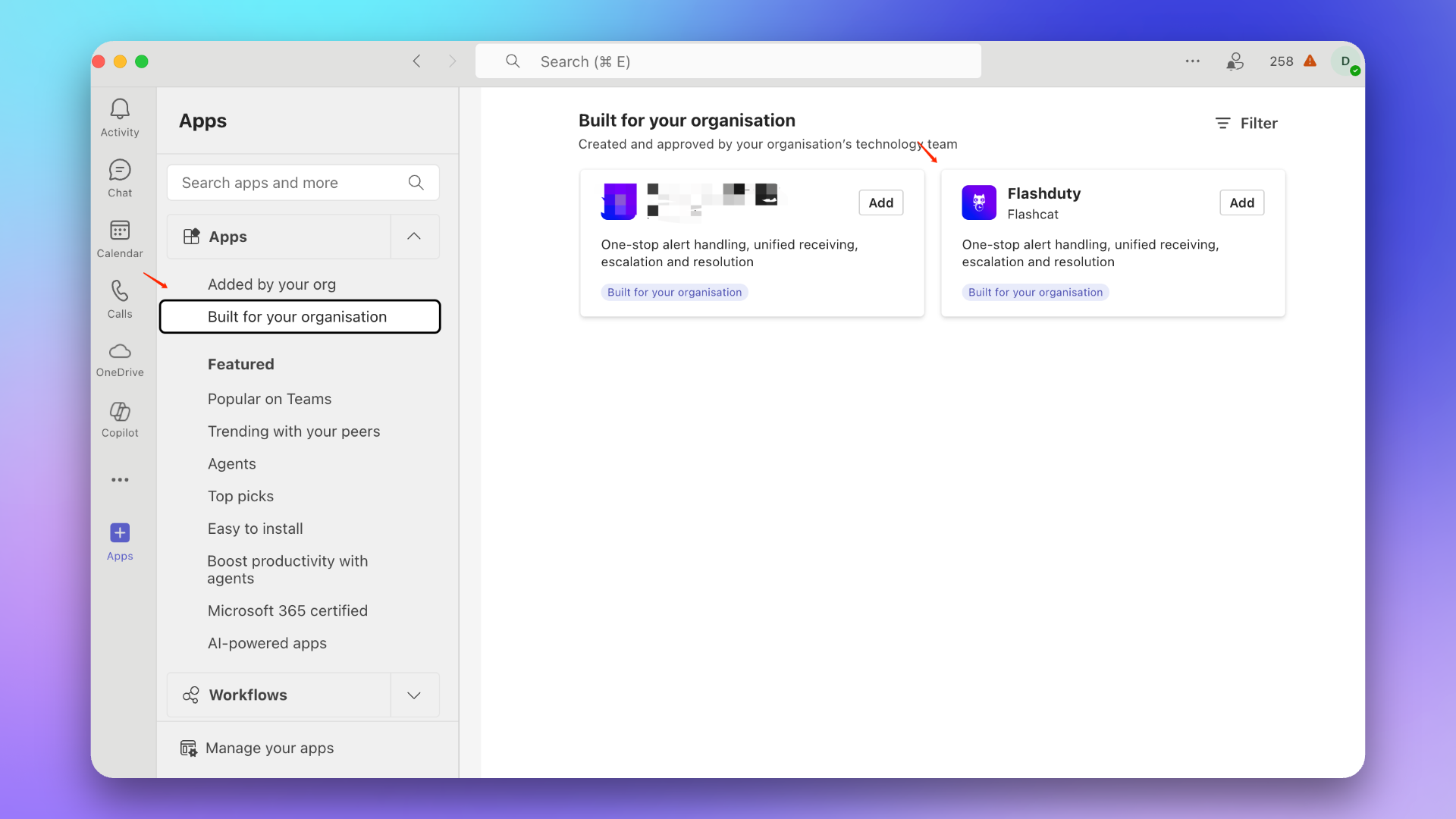
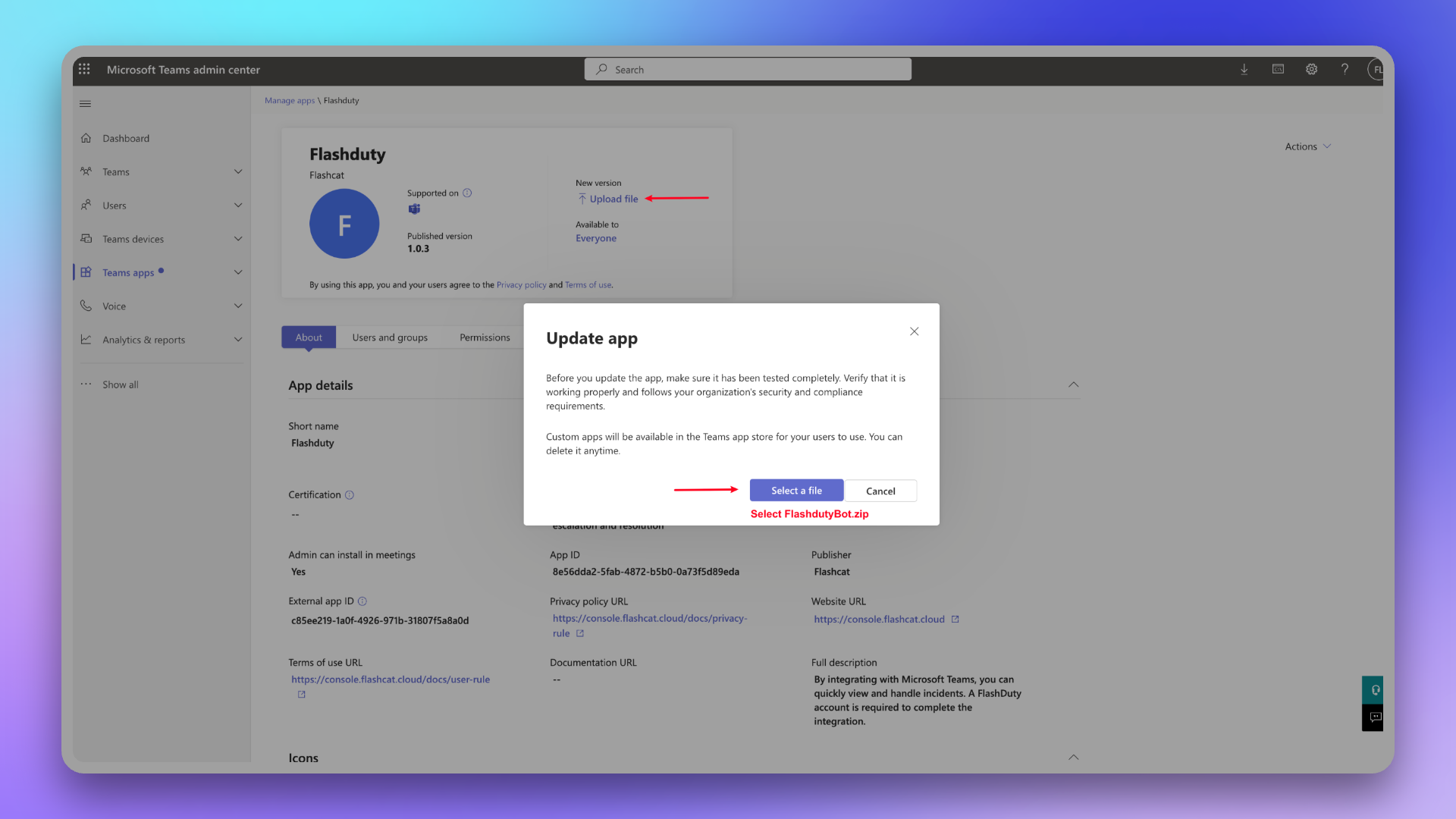
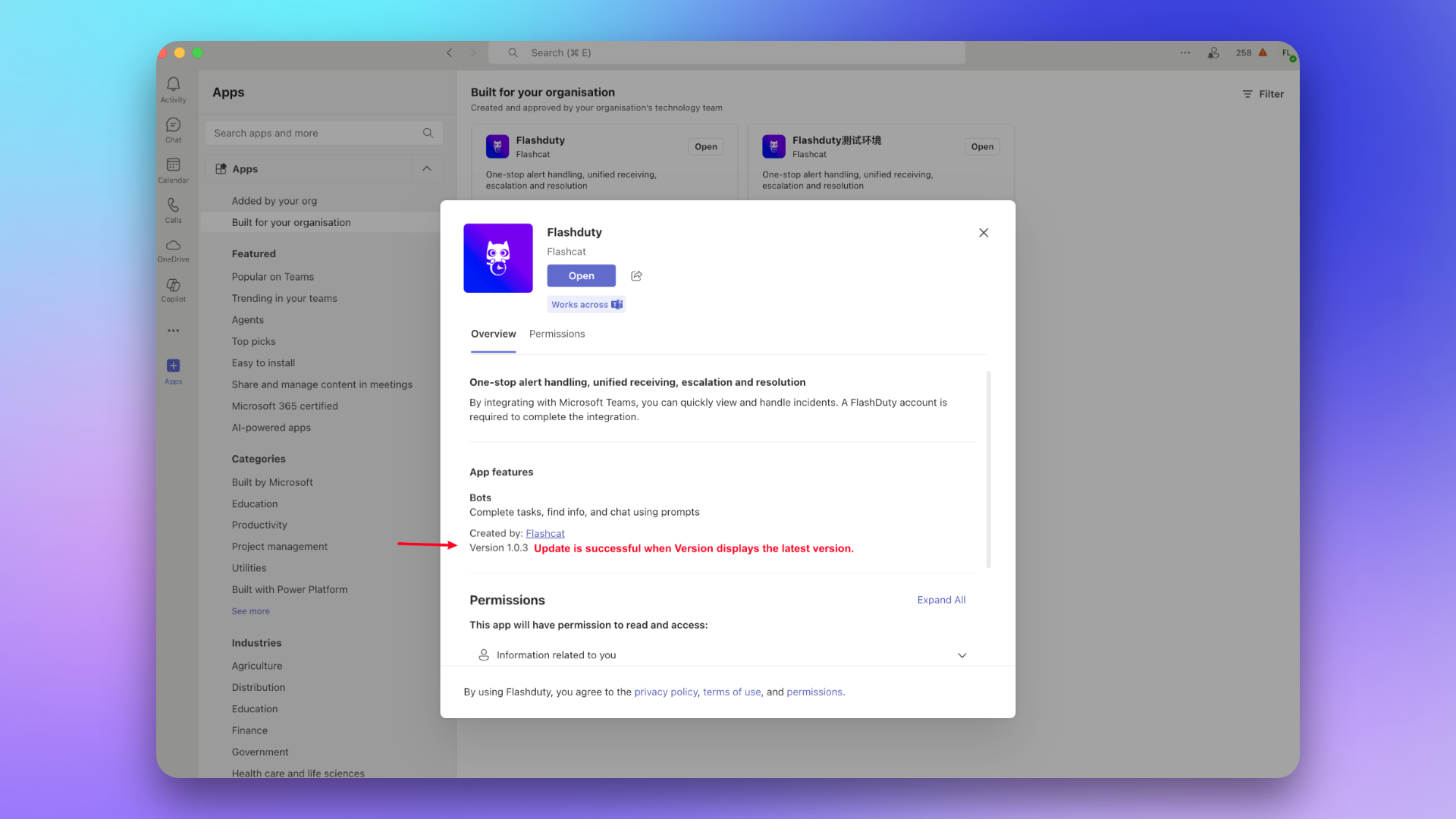
Update App
Enter Admin Center
Go to Microsoft Teams Admin Center, find and enter the Flashduty app details page.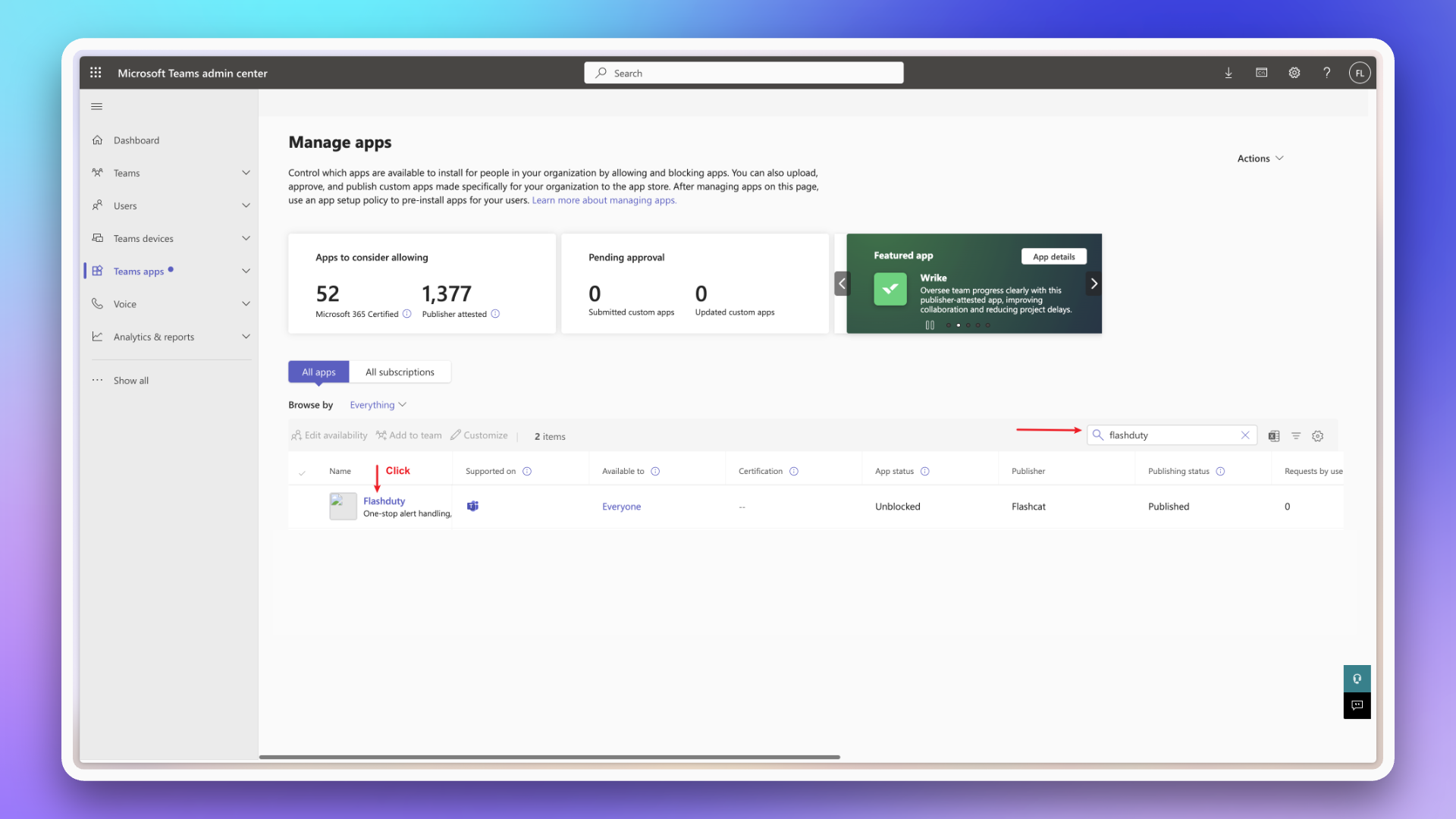
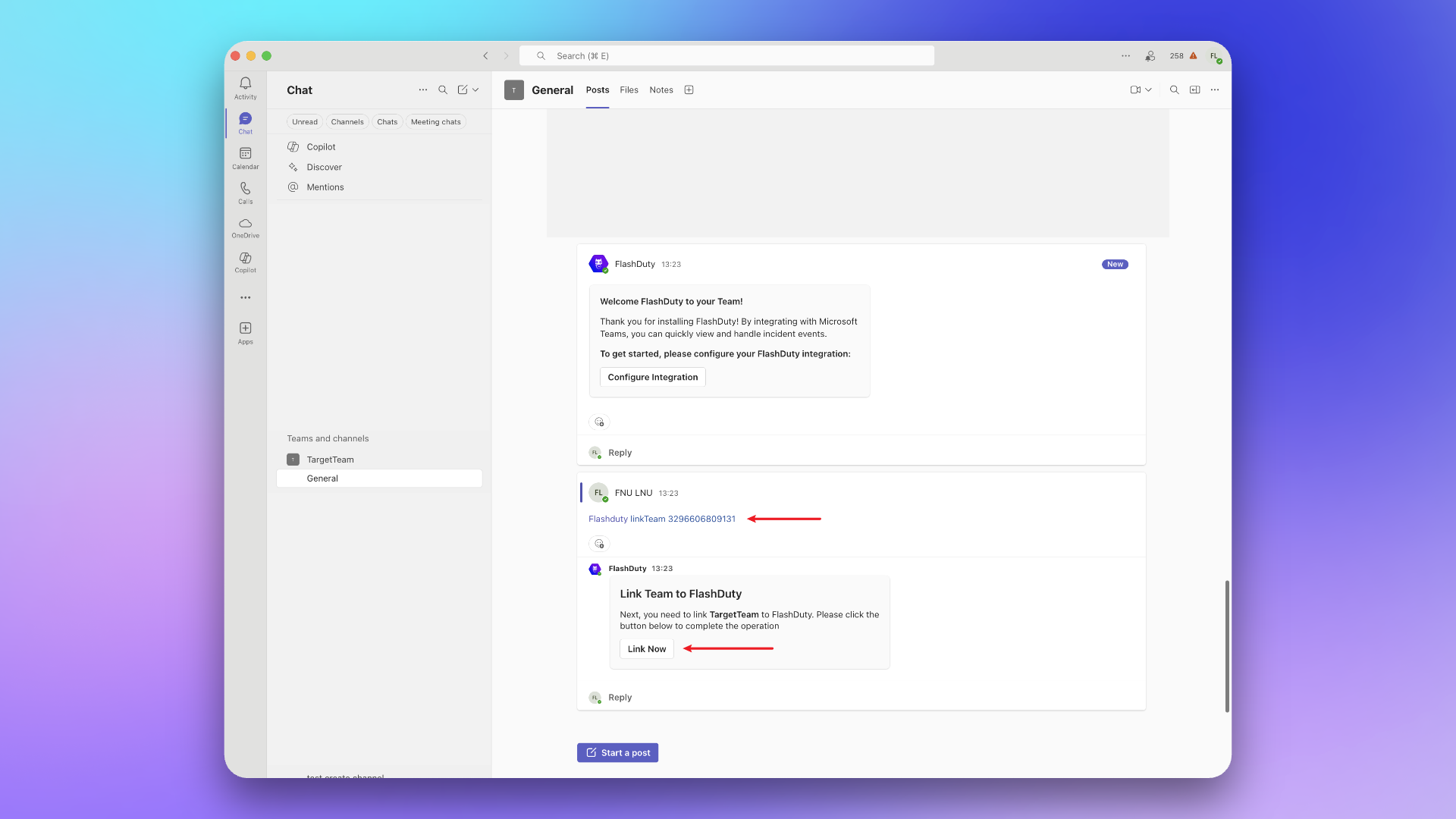
2. Link Team
Find App
Find the Flashduty On-call app in the app marketplace.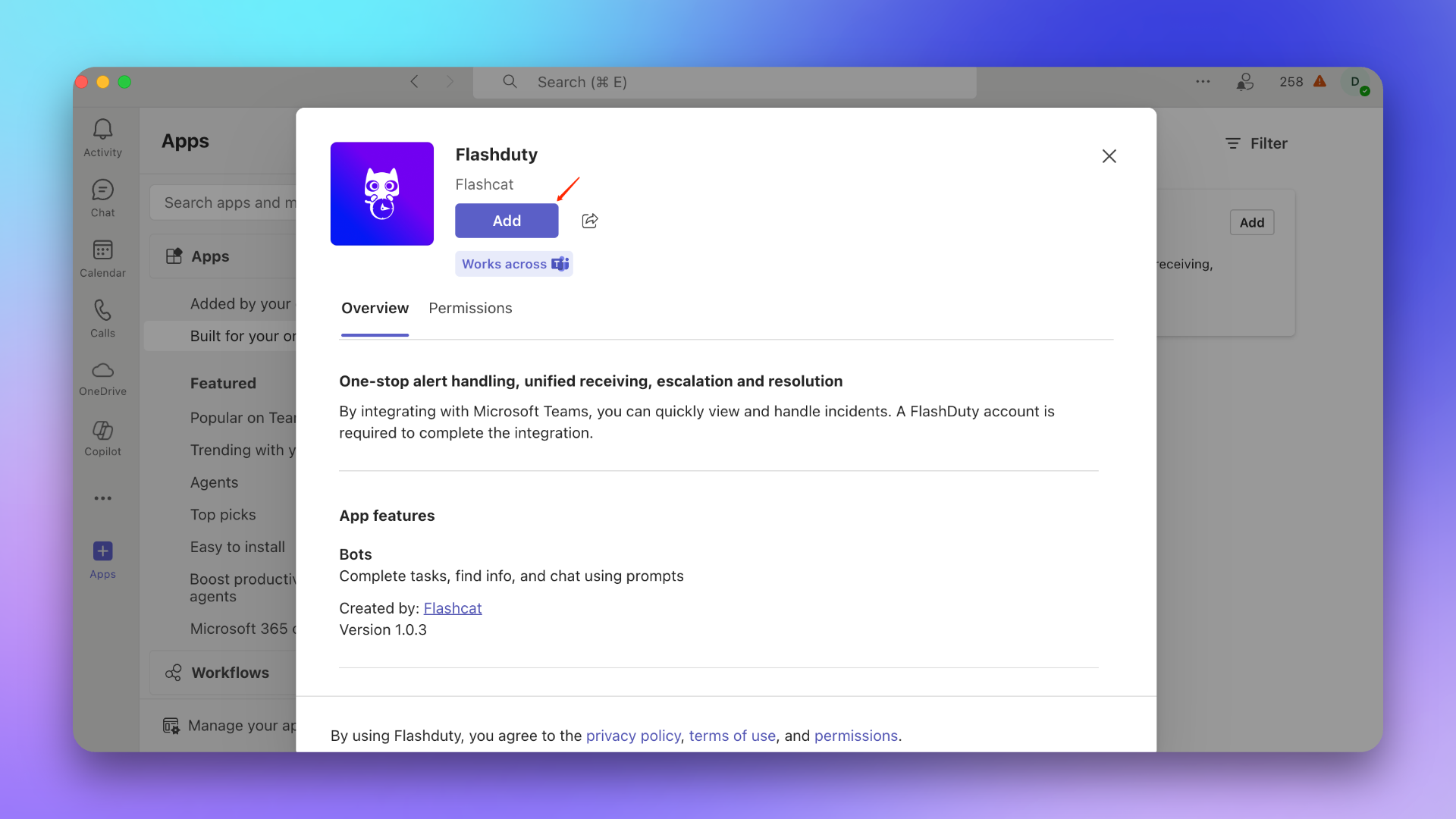
If app not found, please contact your Microsoft Teams organization administrator.
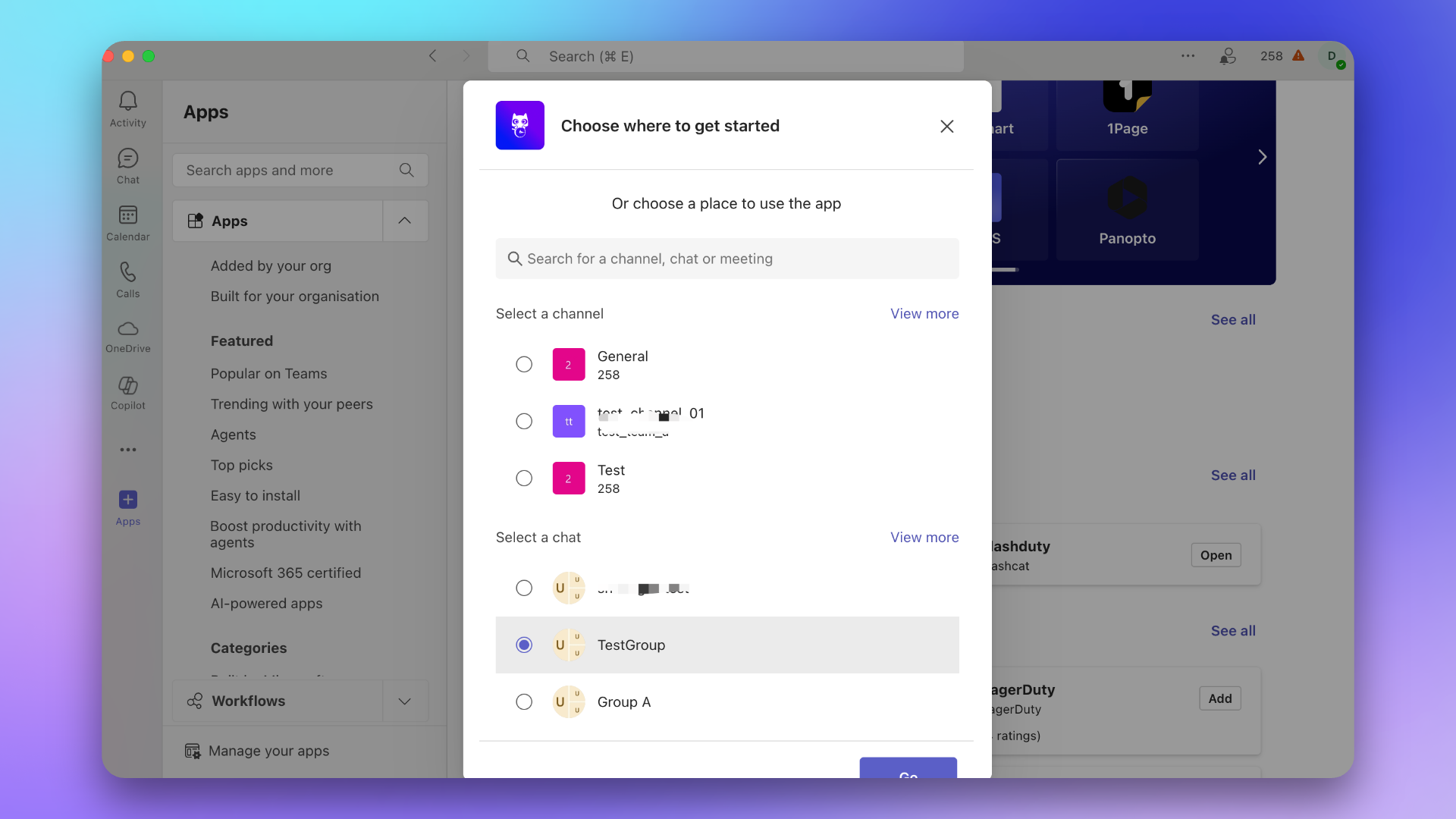
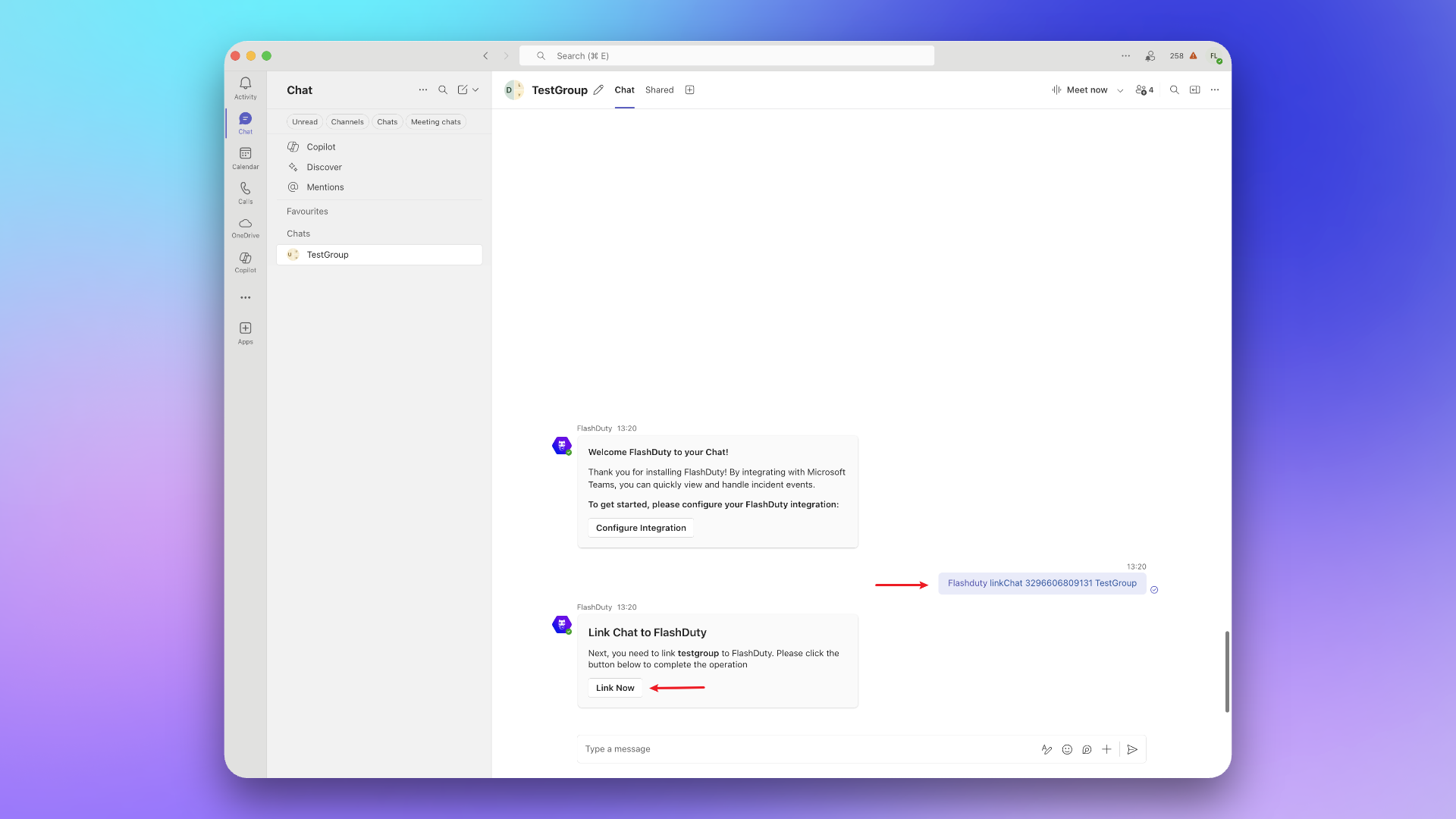
3. Link Chat
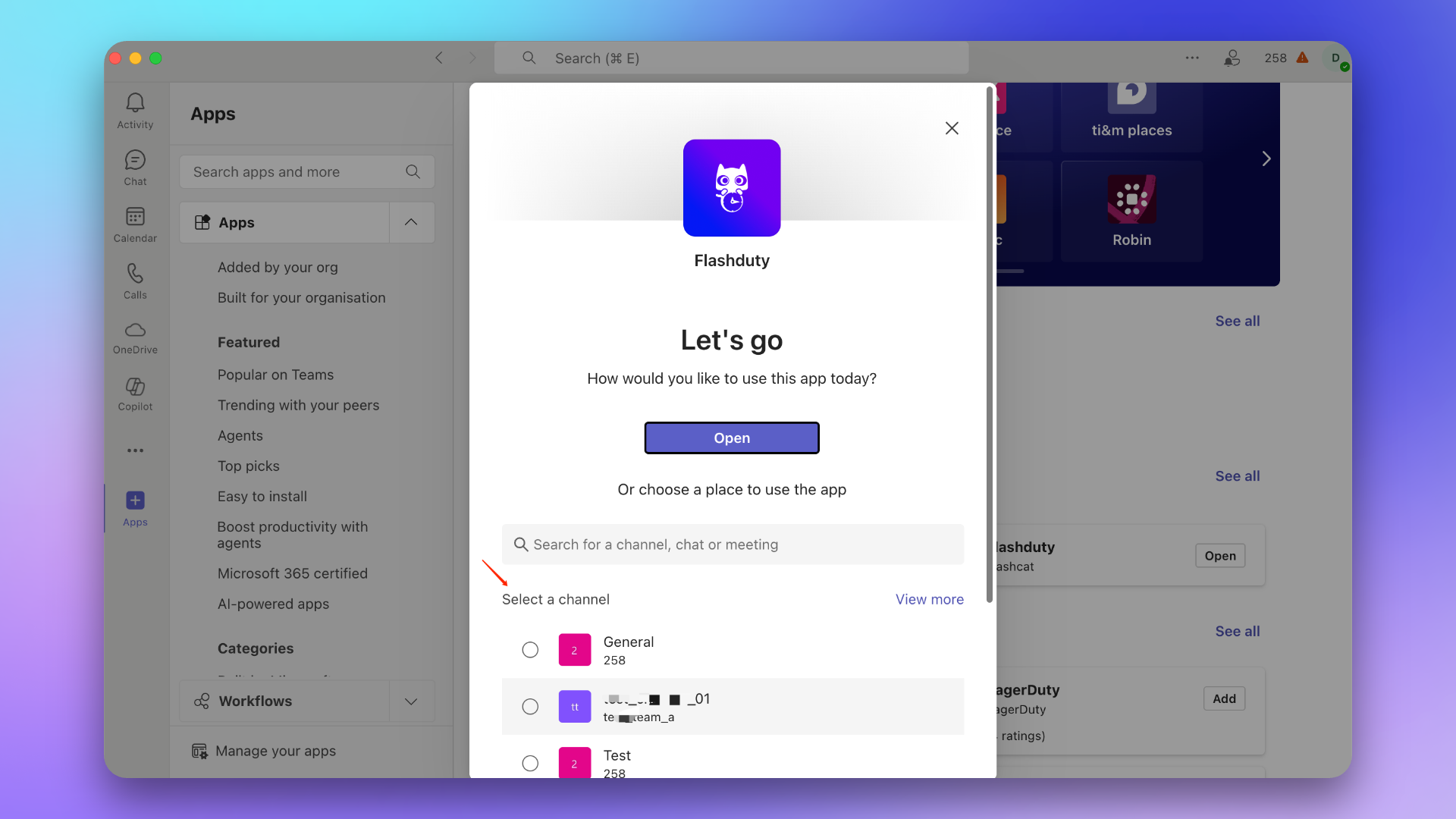
Find App
Find the Flashduty On-call app in the app marketplace.
If app not found, please contact your Microsoft Teams organization administrator.
4. Notification Card Actions
When incident notifications are pushed to Microsoft Teams, the notification cards support the following interactive actions, allowing you to respond to incidents directly in Teams without switching to the Flashduty console:- Acknowledge: Mark that you have started handling the incident
- Resolve: Mark the incident as resolved and close it
- Snooze: Temporarily suspend the incident and receive a reminder after a specified time
- Custom Actions: Trigger your pre-configured custom actions (such as restarting services, rolling back changes, etc.)
War room functionality is not currently supported for Microsoft Teams. If you need to use the war room feature, consider using Slack, Feishu/Lark, Dingtalk, or WeCom integration instead.
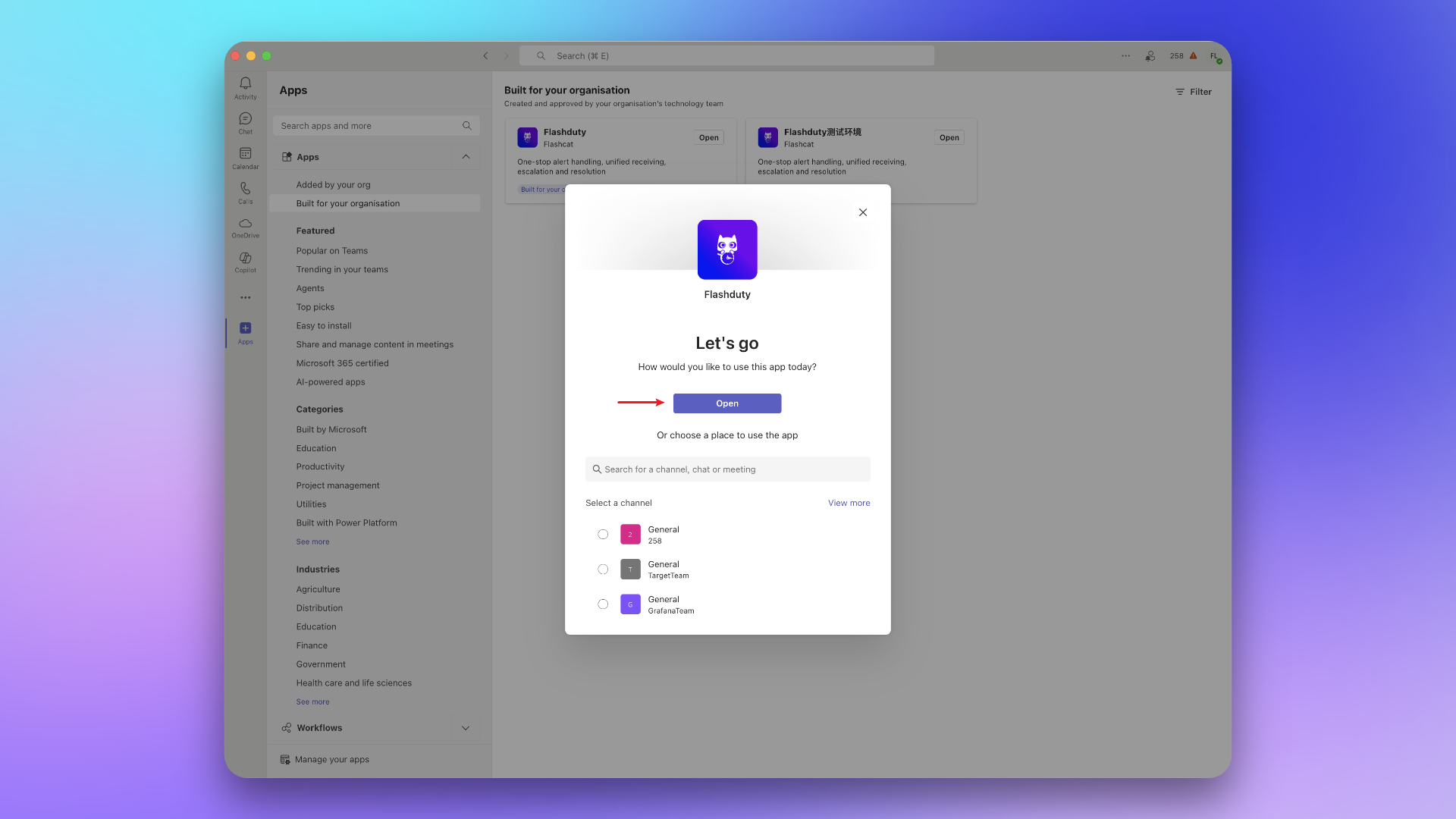
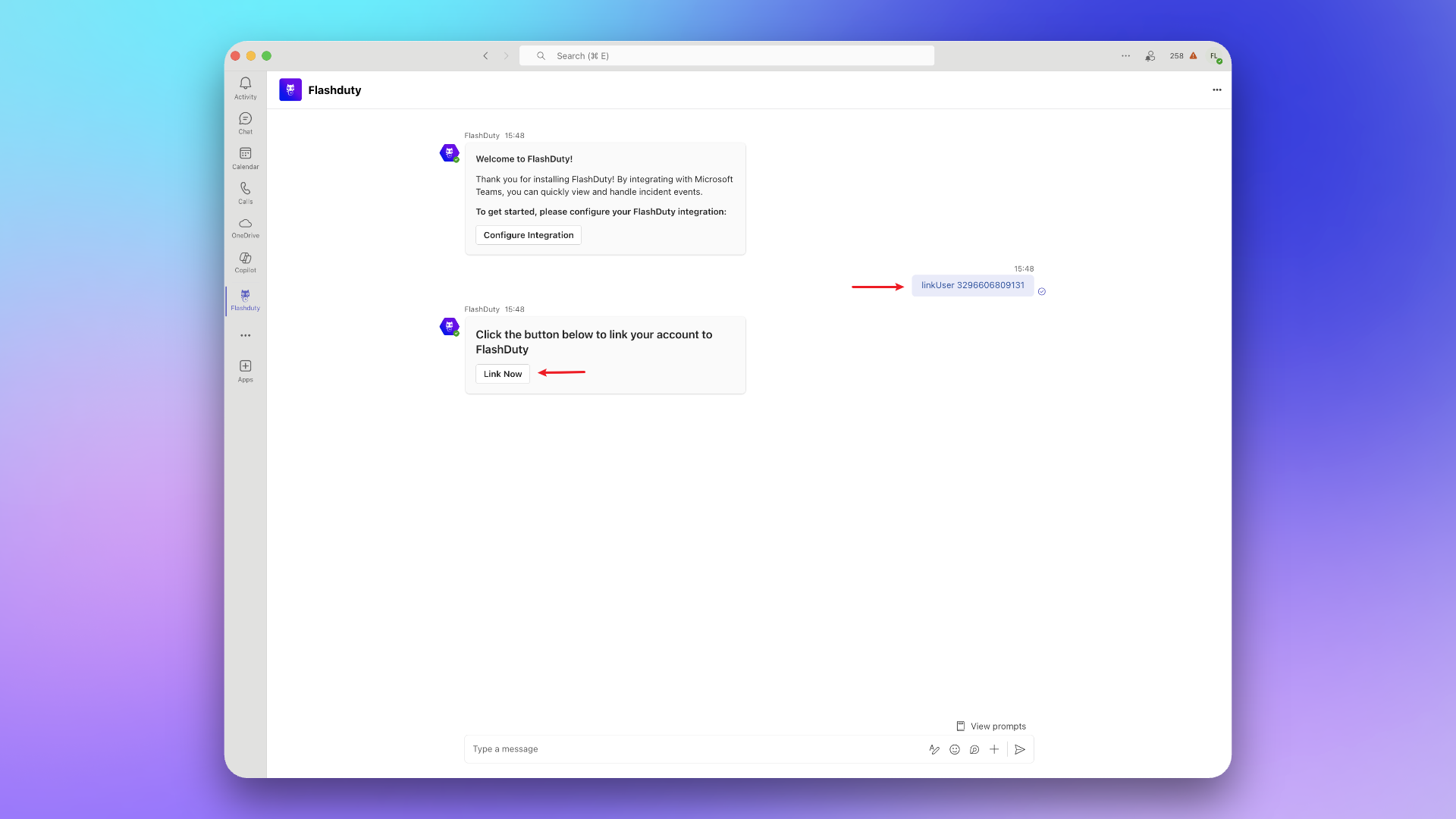
5. Link User
Find App
Find the Flashduty On-call app in the app marketplace.
If app not found, please contact your Microsoft Teams organization administrator.
6. FAQ
Team or individual not receiving messages?
Team or individual not receiving messages?
Go to Integration Center → Instant Messaging → Microsoft Teams, check if teams and users have been successfully linked.
How to view linked teams and users?
How to view linked teams and users?
Go to Integration Center → Instant Messaging → Microsoft Teams, view in Linked Teams and Linked Users.
How to unlink teams and users?
How to unlink teams and users?
This feature is not currently supported.