

AI SRE Required Permissions
The following list includes all permissions required when the Slack IM integration uses AI SRE, including basic notifications, War Room, AI SRE conversations, AI-generated post-mortem reports, and incident notification dispatch. In the Slack app OAuth & Permissions page, confirm that each official scope name below is granted. For existing Slack integrations, re-authorize the app if any scope is missing.Bot Token Scopes
| Official scope name | Purpose |
|---|---|
app_mentions:read | Receive messages that mention the app in channels for the AI SRE conversation entry point |
im:history | Read direct message history for AI SRE context |
chat:write | Send basic notifications, War Room messages, and AI SRE replies |
chat:write.public | Send notifications and War Room messages to public channels the app has not joined |
channels:read | Read public channel information and channel lists |
channels:history | Read public channel message history; required for AI SRE context and AI-generated post-mortem reports |
groups:read | Read private channel information and channel lists |
groups:history | Read private channel message history; required for AI SRE context and AI-generated post-mortem reports |
groups:write | Create and manage private-channel War Rooms |
groups:write.invites | Invite members to private-channel War Rooms |
users:read | Read basic user information for user linking, display, and invitations |
users:read.email | Read user email addresses for user linking |
reactions:write | Add or remove message reactions for AI SRE processing status confirmation |
files:read | Read files in messages for AI SRE context and attachment handling |
User Token Scopes
| Official scope name | Purpose |
|---|---|
channels:read | Read public channels visible to the authorizing user for channel lists and escalation rule configuration |
If you use Slack Incoming Webhook-based Slack bot notifications instead of the Slack App integration on this page, enable Incoming Webhooks in the corresponding Slack app and include the
incoming-webhook scope in the OAuth flow.1. Install App
Authorize App
On the redirected Slack page, select Workspace in the top right corner, then click Allow.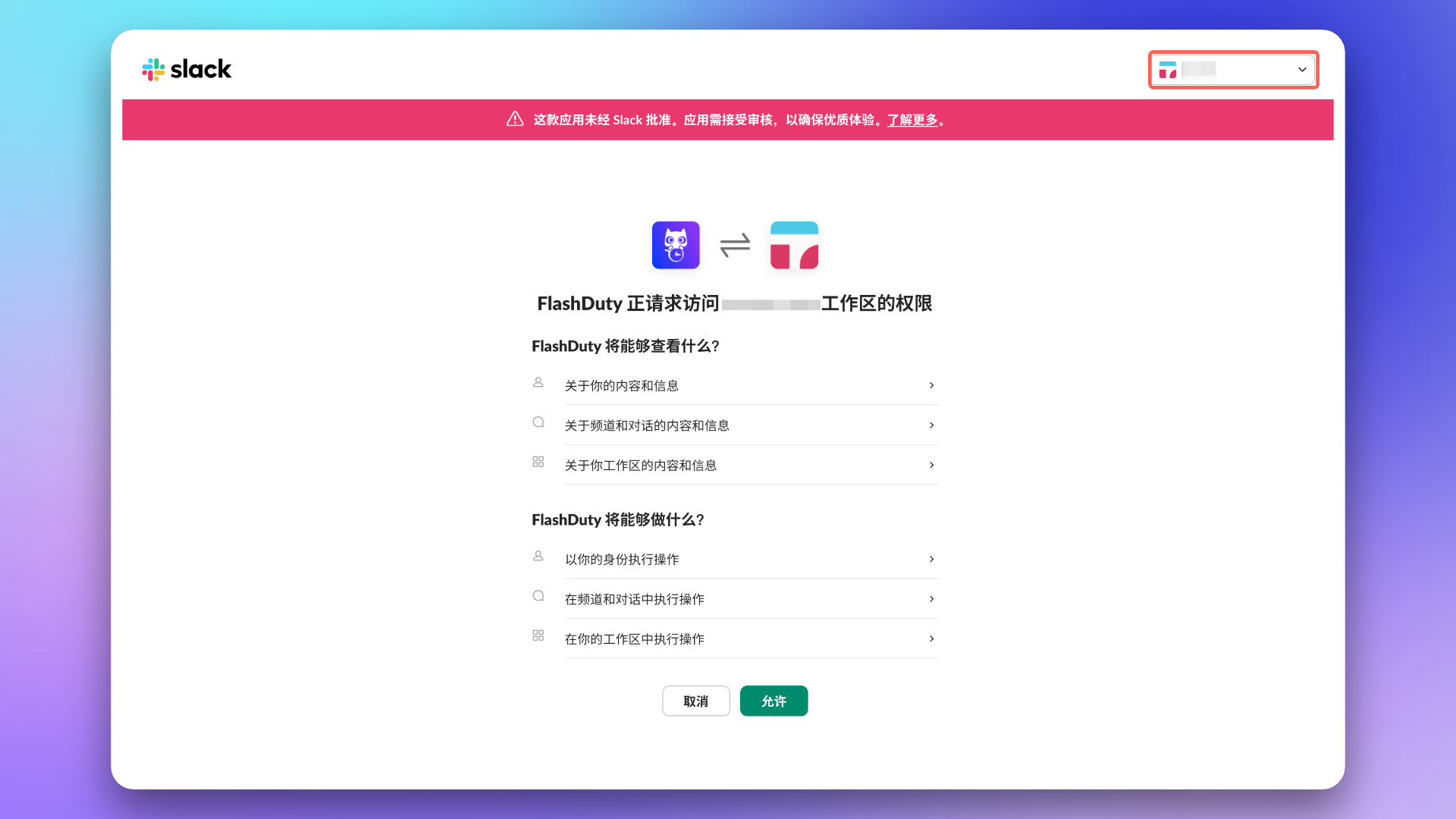
2. Configure War Room
Ensure the app has been granted the AI SRE required permissions listed at the beginning of this page.After completing the previous steps, in the Flashduty On-call integration configuration page’s Enhanced Features section, check Enable War Room to activate this feature—no additional configuration needed.
3. Linked Users
In the Linked Users tab of the integration detail page, you can view the linking status between team members and Slack accounts, and quickly complete batch linking.View Linking Status
The linked users list shows all team members and their linking status. You can filter by:| Filter | Description |
|---|---|
| All | View all team members |
| Linked | View only members who have linked their Slack accounts |
| Unlinked | View only members who have not yet linked their Slack accounts |
One-Click Linking
When unlinked members exist, click the One-Click Link button. The system will attempt to obtain Slack account IDs via phone numbers or emails and automatically link them, equivalent to members logging into Flashduty using the same information on Slack.4. FAQ
War Room considerations?
War Room considerations?
- Only one IM integration can have War Room enabled at a time. If you have already enabled War Room in another IM integration (such as Dingtalk, Feishu/Lark, or WeCom), you need to disable it there first before enabling it in the current Slack integration
- When enabling War Room, the system automatically verifies whether the current Slack app has all required permissions. If missing permissions are detected, a warning message appears on the page with a Re-authorize link
- Click the Re-authorize link to be redirected to the Slack authorization page, which requests the AI SRE required permissions listed at the beginning of this page. After completing authorization, the page automatically returns to Flashduty
- If your Slack integration was authorized before the War Room feature was released, you will typically need to re-authorize on first use to add the new permissions. Re-authorization does not affect your existing integration configuration or user associations
Escalation rule group chat list doesn't have the desired private channel?
Escalation rule group chat list doesn't have the desired private channel?
- Ensure the Install App step completed successfully without errors
- Go to the relevant Slack channel, execute
/invite @Flashdutycommand - When you see
joinedoradded by xxx to xxxprompt, it means successfully added
Escalation rule group chat list doesn't have the desired public channel?
Escalation rule group chat list doesn't have the desired public channel?
- Add the app authorizer to the public channel
- Follow the method from the previous question to add the app to the channel
Error when clicking 'Allow' button during authorization?
Error when clicking 'Allow' button during authorization?
Error when clicking 'Save' button?
Error when clicking 'Save' button?
Slack App shows not_authed error?
Slack App shows not_authed error?
Please try again, this may be a temporary Slack service issue. If the error persists after retry, please contact customer service.
Slack App shows Operation timed out error?
Slack App shows Operation timed out error?
Please try again. This may be server-Slack communication timeout. If the error persists after retry, please contact customer service.
Slack App shows Status Code 500 error?
Slack App shows Status Code 500 error?
Please try again. This may be a Flashduty On-call server error (e.g., data source was disabled). If the error persists after retry, please contact customer service.
Slack App shows other unknown errors?
Slack App shows other unknown errors?
Please try again. If the error persists after retry, please contact customer service to log and resolve new issues.
Why isn't War Room working as expected?
Why isn't War Room working as expected?
- Check again that the app has been granted the AI SRE required permissions listed at the beginning of this page
- For previously authorized Slack IM integrations, you need to manually re-authorize Slack in the Flashduty On-call integration configuration page for the app to obtain the permissions required for AI SRE
- See the FAQ section in War Room documentation