Plan requirement: This feature requires an On-call Pro or higher subscription.
Learn more In ServiceNow
Create User
Create a user to connect to the ServiceNow instance for Incident synchronization and updates. Skip this step if you already have an available user.
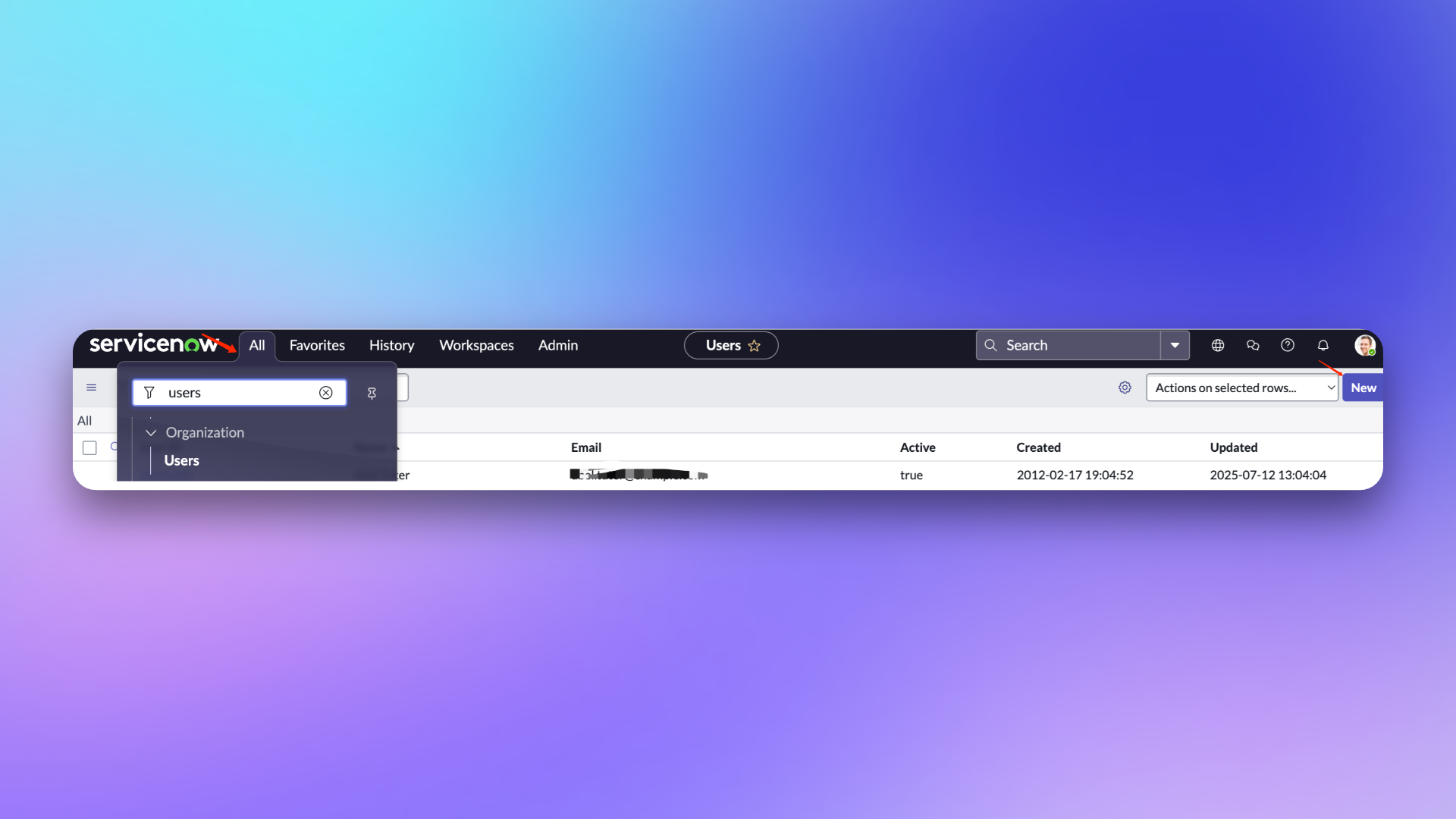
- Login to ServiceNow instance console, select
ALL, enter USERS and select Organization-Users.
- Click
New to create a new user.
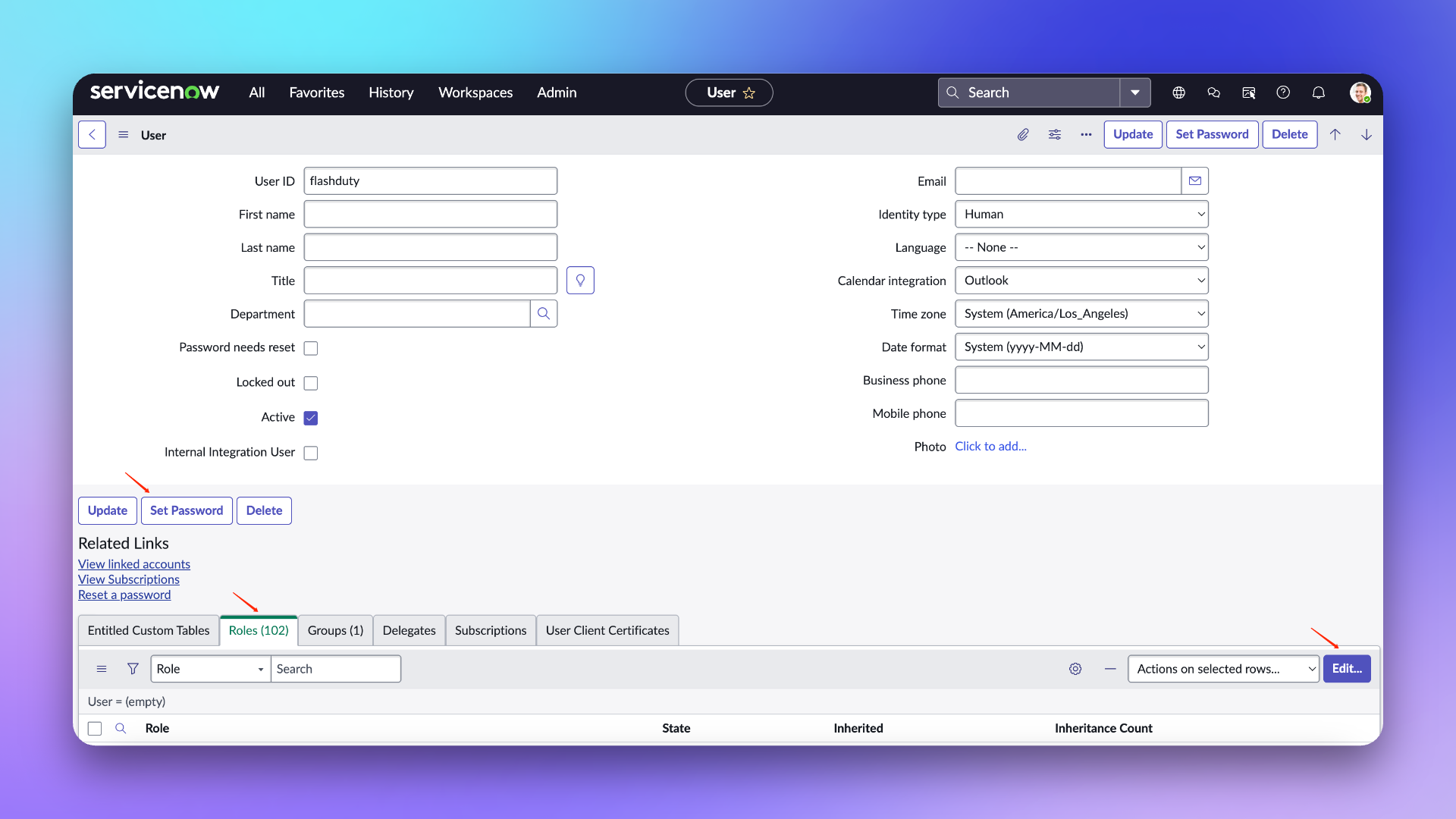
- On the edit page, enter: flashduty for
User ID.
- Keep
Password needs reset, Web service access only, and Internal Integration User unchecked.
- Submit to save.
User Role Description
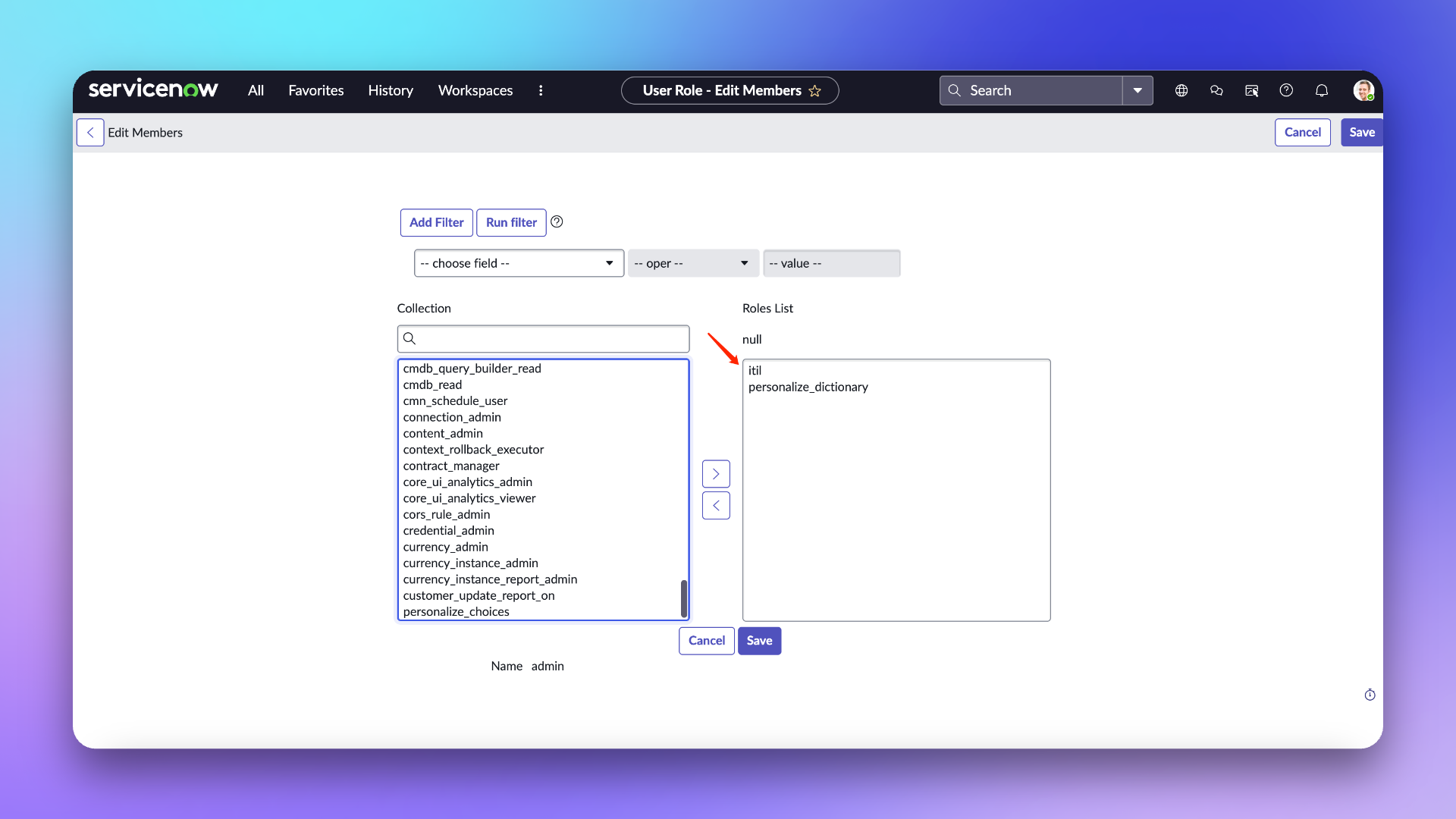
itil: This role’s primary use in Flashduty is limited to getting, creating, and updating ServiceNow Incidents when syncing—no other operations are involved.
personalize_dictionary: This role’s primary use in Flashduty is limited to getting fields from the ServiceNow Incident Table—no other operations are involved.
For more information about these two roles’ permission scope, refer to ServiceNow official documentation
- On the user list page, find the newly created
flashduty user and enter the configuration page.
- On the edit page, click
Set Password to set a password.
- Click
Roles to add personalize_dictionary and itil roles (personalize_dictionary permission is not needed if you don’t need to configure custom field mapping).
- Click
Update to save configuration.
In Flashduty On-call
Enter the username/password and instance name configured above into the integration information on the left and click Next to configure.
-
Integration Name: Define a name for the current integration.
-
Management Team: When a management team is selected, only team members and tenant administrators can edit this integration.
-
Channel: Select channels where this integration takes effect.
-
Sync Direction:
- To_ServiceNow: Sync Flashduty incidents to ServiceNow.
- From_ServiceNow: Sync ServiceNow Incidents to Flashduty.
- Two-way: Flashduty and ServiceNow sync mutually.
-
Trigger Mode:
- Auto Trigger: Configure conditions; Flashduty On-call will automatically sync incidents matching the conditions to ServiceNow.
- Manual Trigger: Manually trigger ServiceNow sync from More Actions in incident details (the integration configuration name is the trigger name).
-
Severity Mapping:
- ServiceNow’s Priority is jointly determined by Impact and Urgency values, so refer to ServiceNow’s
Priority Lookup Rules for configuration.
- Flashduty incident severity only updates when ServiceNow Incident’s Urgency changes.
- Due to Flashduty following minimum permissions, it cannot get ServiceNow’s Impact and Urgency lists, so only default values are provided. Contact technical support for custom mapping.
-
Custom Field Mapping: Map labels or custom fields from incidents to corresponding text fields in ServiceNow tickets for automatic information filling. This feature supports syncing common context information (like service name, instance address, metric name) to ServiceNow for subsequent investigation and tracking.
- Only supports target fields of single-line or multi-line text type.
- Supports extracting values from incident labels (like service, instance) or custom properties.
- If source field is empty, target field remains empty and won’t overwrite existing content.
- Mapping configuration is managed uniformly in integration settings—no need to fill in manually each time.
In ServiceNow
When sync direction is From_ServiceNow or Two-way, additional configuration is needed in ServiceNow to sync ServiceNow Incidents to Flashduty. There are two methods for syncing to Flashduty—choose based on actual needs.
Manual Sync
This method relies on ServiceNow’s UI Action and Script Include configuration. After completing the following steps: when creating or updating an Incident, you’ll see a button in the function area to send sync requests. Clicking this button syncs the current Incident content to Flashduty. Note: if the request fails, retry (retry interval must be greater than 10 seconds).
-
Login to ServiceNow instance console, select
ALL, enter UI Actions and select System Definition-UI Actions.
-
Click
New to create a new Action.
-
Enter: Send To Flashduty for
Name, select Incident for Table.
-
Keep
Form button, Active, Show insert, Show update, Client, List v2/3 Compatible checked.
-
Enter: onClick(); for
Onclick.
-
Enter for
Script:
function onClick() {
  g_form.save();

  var ga = new GlideAjax("IncidentWebhookHelperAjax");
  ga.addParam("sysparm_name", "sendWebhook");
  ga.addParam("sysparm_sys_id", g_form.getUniqueValue());

  ga.getXMLAnswer(function (response) {
    alert("Webhook Triggered: " + response);
  });
}
-
Submit to save.
- Login to ServiceNow instance console, select
ALL, enter Script Includes and select System Definition-Script Includes.
- Click
New to create a new Script Include.
- Enter: IncidentWebhookHelper for
Name, select All application scopes for Accessible from.
- Keep
Client callable and Active checked.
- Enter the following for
Script, replacing request.setEndpoint with the integration’s push URL:
Note: The body contains default receiving fields. If you have custom fields to sync to Flashduty, manually add content to body. For example, to add a field named test_001 (get field name when adding custom fields in integration configuration—don’t use the field name shown in ServiceNow Incident form), add to body: test_001: current.getDisplayValue(“test_001”).
var IncidentWebhookHelper = Class.create();
IncidentWebhookHelper.prototype = {
  initialize: function() {},

  sendIncidentWebhook: function(current) {
      function getLastComment(sysId) {
          var journalGR = new GlideRecord('sys_journal_field');
          journalGR.addQuery('element_id', sysId);
          journalGR.addQuery('element', 'comments');
          journalGR.orderByDesc('sys_created_on');
          journalGR.setLimit(1);
          journalGR.query();
          if (journalGR.next()) {
              return journalGR.getValue('value');
          }
          return '';
      }

      var body = {
          action_type: current.isNewRecord() ? 'insert' : 'update',
          number: current.getValue("number"),
          sys_id: current.getUniqueValue(),
          short_description: current.getValue("short_description"),
          description: current.getValue("description"),
          impact: current.getDisplayValue("impact"),
          urgency: current.getDisplayValue("urgency"),
          comments: getLastComment(current.getUniqueValue()),
<label name='field_mapping' tab='10'>{original.key}: current.getDisplayValue("{original.key}")</label>
      };

      try {
          var request = new sn_ws.RESTMessageV2();
          request.setHttpMethod("POST");
          request.setEndpoint("PUSH URL");
          request.setRequestHeader("Content-Type", "application/json");
          request.setRequestBody(JSON.stringify(body));
          request.executeAsync();
          } catch (ex) {
          gs.error("Webhook Call failed: " + ex.message);
      }
  },
  type: 'IncidentWebhookHelper'
};
-
Submit to save.
-
Return to Script Includes list and continue creating.
-
Click
New to create a new Script Include.
-
Enter: IncidentWebhookHelperAjax for
Name, select All application scopes for Accessible from.
-
Keep
Client callable and Active checked.
-
Enter the following for
Script:
var IncidentWebhookHelperAjax = Class.create();
IncidentWebhookHelperAjax.prototype = Object.extendsObject(
  global.AbstractAjaxProcessor,
  {
    sendWebhook: function () {
      var sysId = this.getParameter("sysparm_sys_id");
      var gr = new GlideRecord("incident");
      if (gr.get(sysId)) {
        var helper = new IncidentWebhookHelper();
        helper.sendIncidentWebhook(gr);
        return "Success";
      }
      return "Request failed";
    },
  }
);
-
Submit to save.
Auto Sync
This method relies on ServiceNow’s Business Rules configuration. Using this method enables automatic Incident sync to Flashduty when new or update events occur.
- Login to ServiceNow instance console, select
ALL, enter Business Rules and select System Definition-Business Rules.
- Click
New to create a new Business Rule.
- Enter: Send To Flashduty for
Name, select Incident for Table.
- Keep
Advanced and Active checked.
- In the
When to run area, select async for When, keep Insert and Upsert checked, configure others as needed.
- In the
Advanced area, enter the following for Script, replacing endpoint with the integration’s push URL
Note: The body contains default receiving fields. If you have custom fields to sync to Flashduty, manually add content to body. For example, to add a field named test_001 (get field name when adding custom fields in integration configuration—don’t use the field name shown in ServiceNow Incident form), add to body: test_001: current.getDisplayValue(“test_001”).
(function executeRule(current, previous) {
  function getLastComment(recordSysId) {
    var journalGR = new GlideRecord("sys_journal_field");
    journalGR.addQuery("element_id", recordSysId);
    journalGR.addQuery("element", "comments");
    journalGR.orderByDesc("sys_created_on");
    journalGR.setLimit(1);
    journalGR.query();
    if (journalGR.next()) {
      var comment = journalGR.getValue("value");
      return comment;
    }
    return "";
  }

  var operation = current.operation() || "unknown";
  var isPreviousNull = previous === null;
  var createdOn = current.getValue("sys_created_on");
  var updatedOn = current.getValue("sys_updated_on");
  var isNewRecord = createdOn === updatedOn;

  var action = "update";
  if (isPreviousNull && isNewRecord) {
    action = "insert";
  }

  var body = {
    action_type: action,
    number: current.getValue("number"),
    sys_id: current.getUniqueValue(),
    short_description: current.getValue("short_description"),
    description: current.getValue("description"),
    state: current.getDisplayValue("state"),
    impact: current.getDisplayValue("impact"),
    urgency: current.getDisplayValue("urgency"),
    comments: getLastComment(current.getUniqueValue()),
<label name='field_mapping' tab='4'>{original.key}: current.getDisplayValue("{original.key}")</label>

  };

  try {
    var endpoint = "";
    var request = new sn_ws.RESTMessageV2();
    request.setHttpMethod("POST");
    request.setEndpoint(endpoint);
    request.setRequestHeader("Content-Type", "application/json");
    request.setRequestBody(JSON.stringify(body));
    request.executeAsync();
  } catch (ex) {
    gs.error("Error sending webhook: " + ex.message);
  }
})(current, previous);
- Submit to save.
| ServiceNow | Flashduty | Notes |
|---|
| Short_description | Title | Title |
| Description | Description | Description |
| Additional comments | Comments | Comments |
| State | Progress | Status |
| Urgency | Severity | Severity |
| Others | Custom Fields | Custom fields |
Status Mapping
| ServiceNow | Flashduty | Notes |
|---|
| New | Triggered | Triggered |
| In Progress | Processing | Processing |
| On Hold | Snoozed | Default snooze 2 hours |
| Resolved | Closed | Closed |
| Closed | Closed | Closed |
| Canceled | Closed | Closed |
Priority Mapping
Flashduty Severity only changes when ServiceNow Urgency value changes
| ServiceNow | Flashduty | Notes |
|---|
| Low | Info | Info |
| Medium | Warning | Warning |
| High | Critical | Critical |
FAQ

