

In Flashduty
You can obtain an integration push URL through either of these two methods:
Using Private Integration
Choose this method when you don’t need to route alert events to different channels. It’s simpler.Using Shared Integration
Choose this method when you need to route alerts to different channels based on the alert event’s payload information.In AWS CloudWatch
- Log in to your AWS Console, search for
Simple Notification Serviceproduct and enter its console - Go to the
Topicspage, click theCreate topicbutton to start creating a topic - Select
StandardforType, enterFlashdutyas the name - Click the
Create Topicbutton to complete topic creation - Go to the
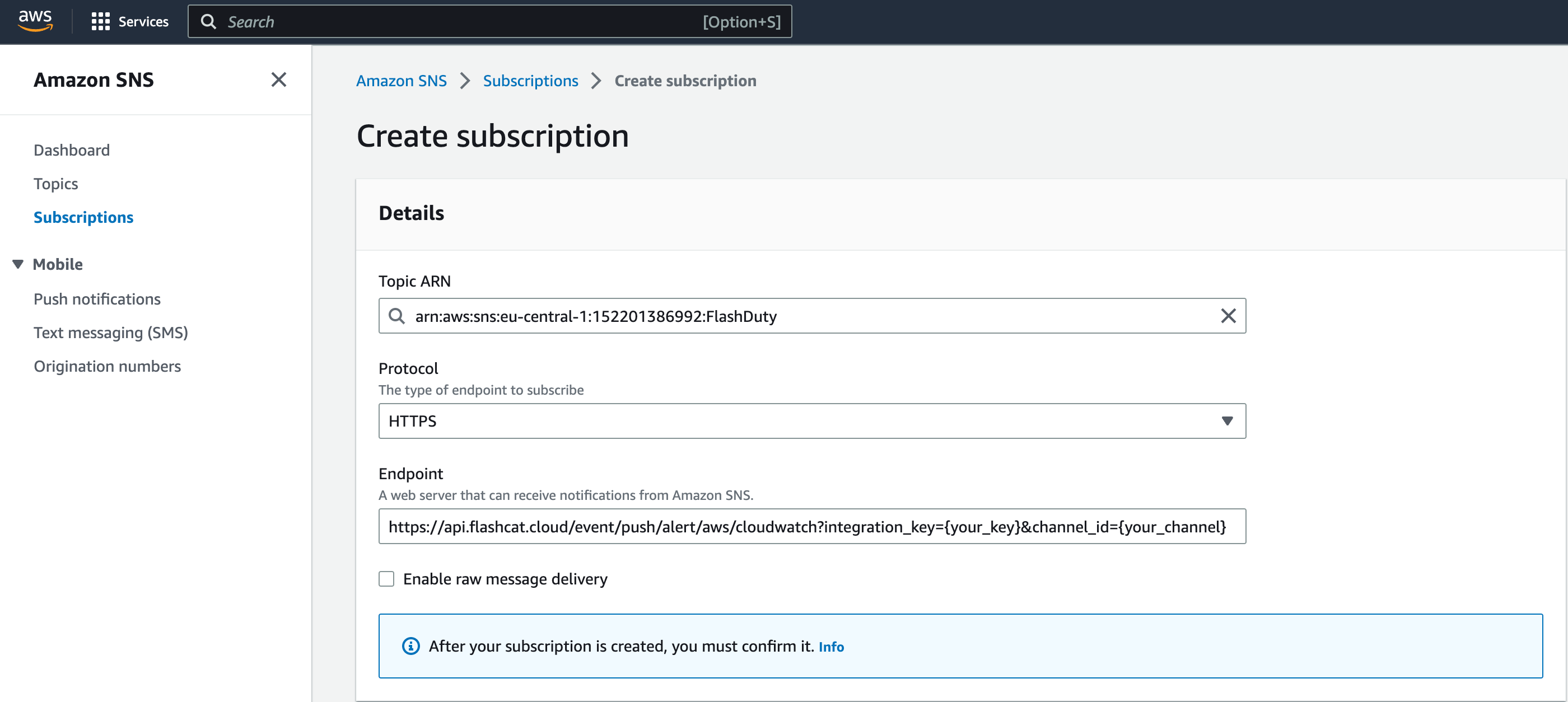
Subscriptionspage, click theCreate subscriptionbutton to create a subscription for the topic - Select
FlashdutyforTopic ARN, chooseHTTPSforProtocol, enter the integration push URL forEndpoint(enter the integration name on the current page, the URL will be generated after saving) - Click the
Create subscriptionbutton to complete subscription creation
- Return to the
Subscriptionspage. When the subscription status showsConfirmed, the subscription URL verification is successful; otherwise, please contact Flashduty - Search for the
CloudWatchproduct and enter its console - Go to the
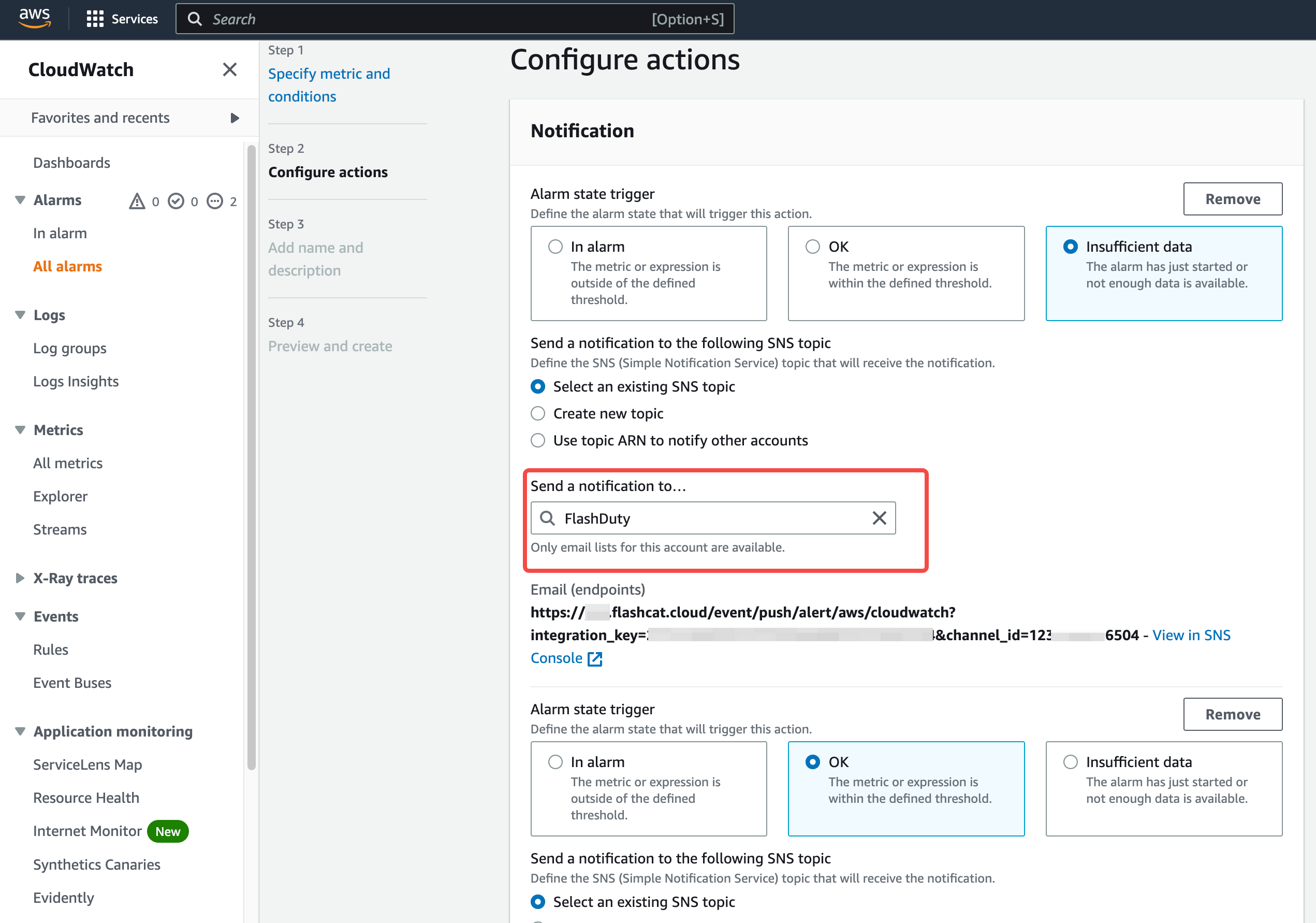
All alarmspage, choose to create or edit existing alarm policies - For the
Notificationstep, selectFlashdutyas theSNS topicfor all three states:In alarm,OK, andInsufficient data, as shown below:
- Return to the integration list. If the latest event time is displayed, the configuration is successful and events are being received
- Complete
Status Mapping
All CloudWatch metric alarms correspond to Flashduty “warning” severity level alerts.