

In Flashduty
You can obtain an integration push URL through either of these two methods:
Using Private Integration
Choose this simpler option when you don’t need to route alert events to different channels.Using Shared Integration
Choose this option when you need to route alerts to different channels based on the alert event’s payload information.In Dynatrace
I. Dynatrace Alert Push Configuration
- Log in to your Dynatrace console
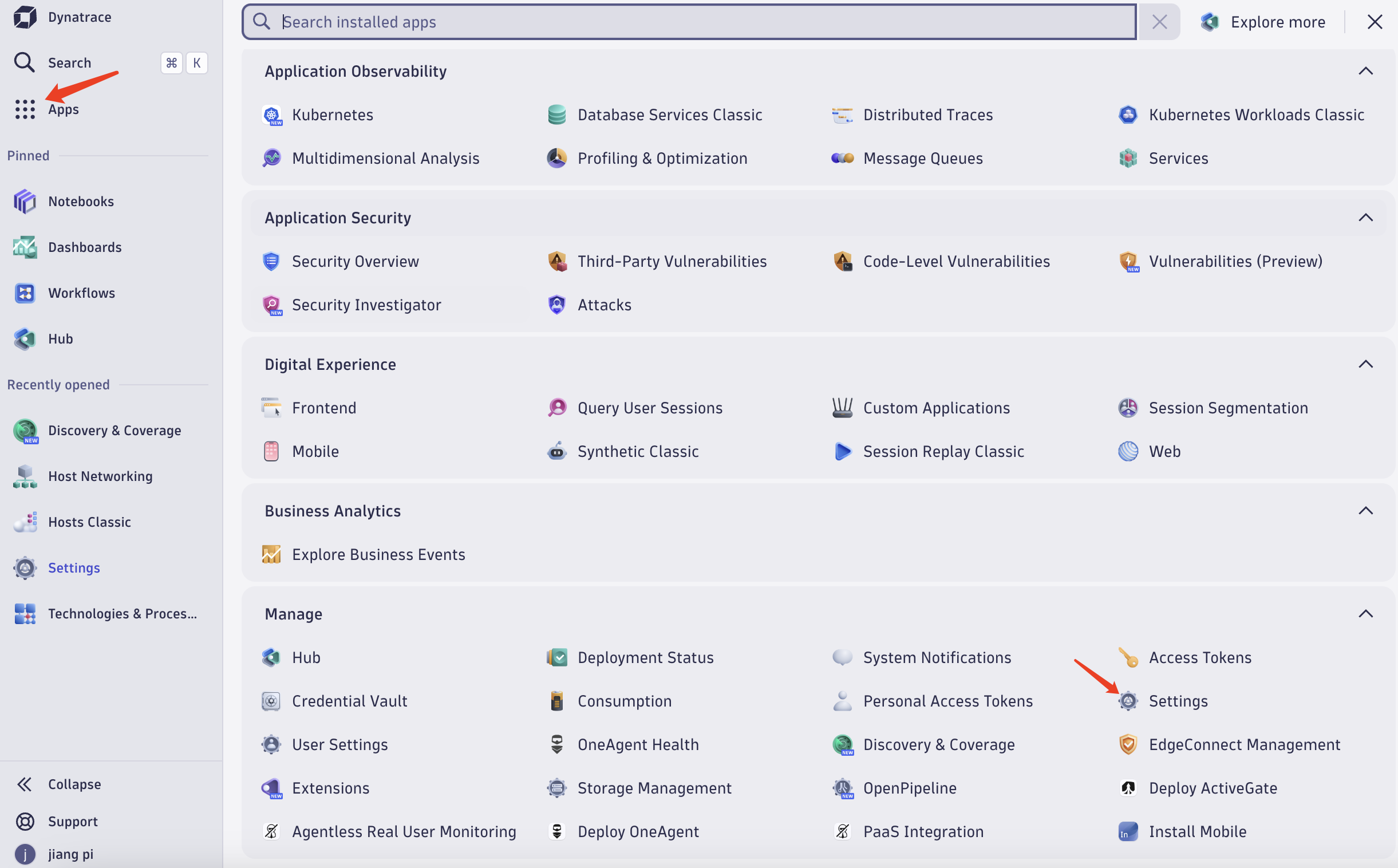
- Select
Appsin the left navigation bar and findSettingsin theManagearea
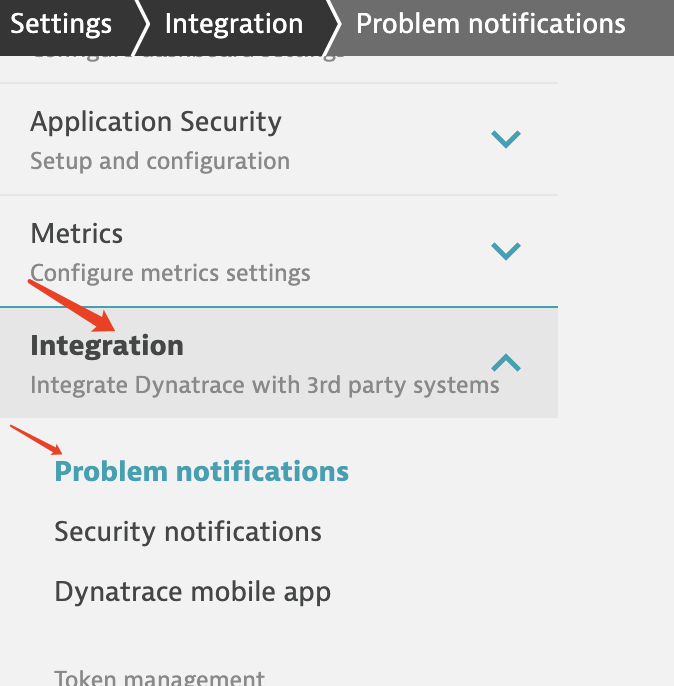
- Find
Integrationand selectProblem notifications
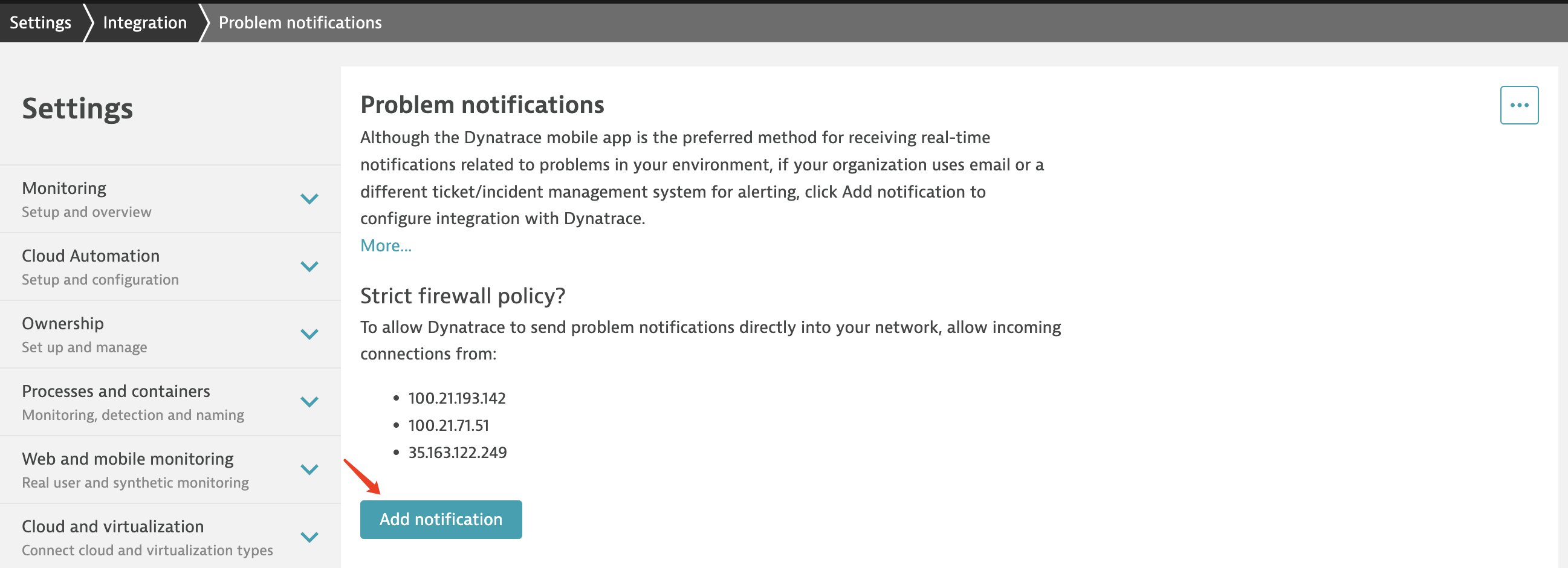
- Click
Add notification
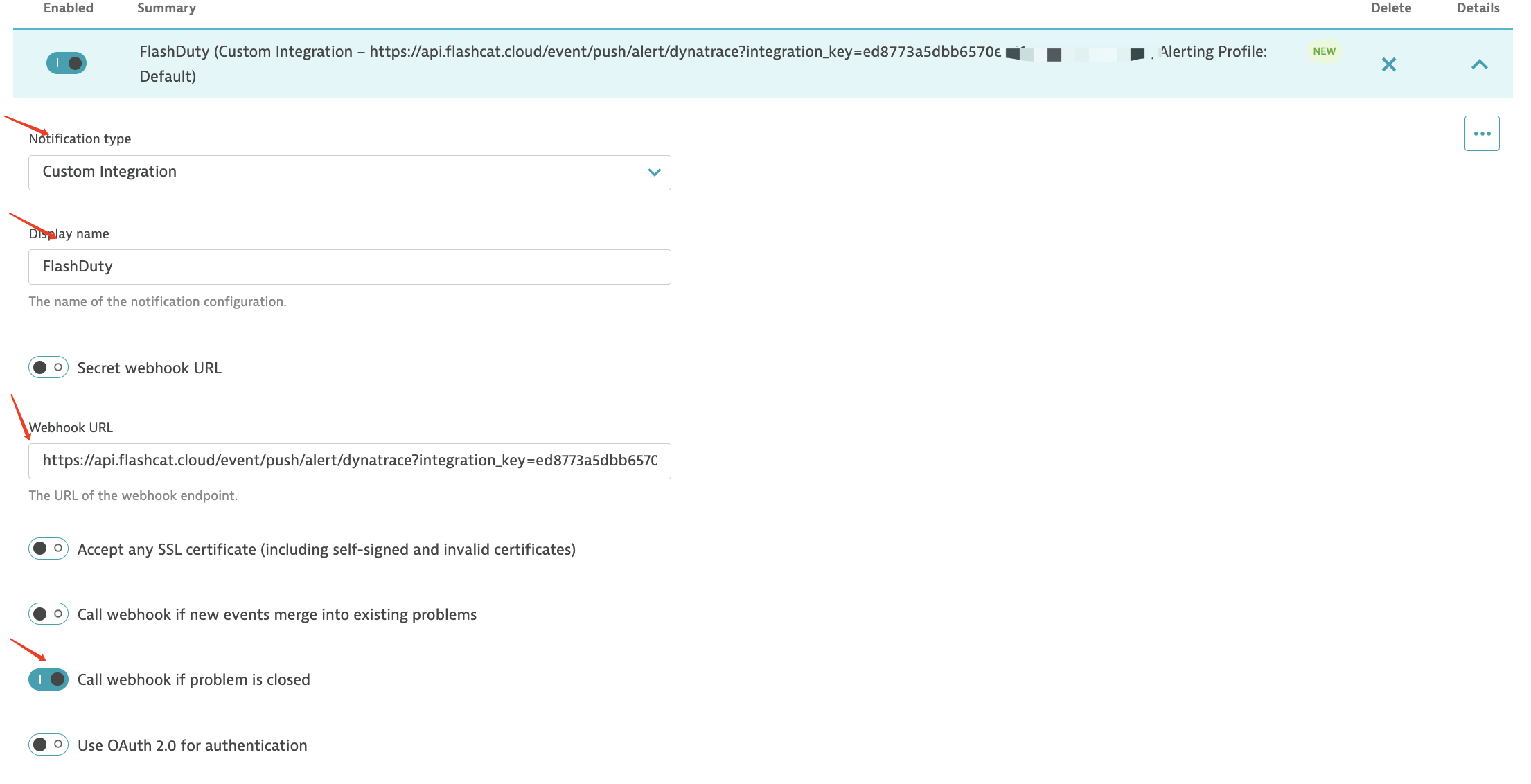
- Under
Notification type, selectCustom Integration - Fill in
Display namewithFlashduty - In
Webhook URL, enter the integration push URL (generated after saving the integration name on the current page) - Keep
Call webhook if problem is closedenabled
- Under
Custom payload, enter the following content:
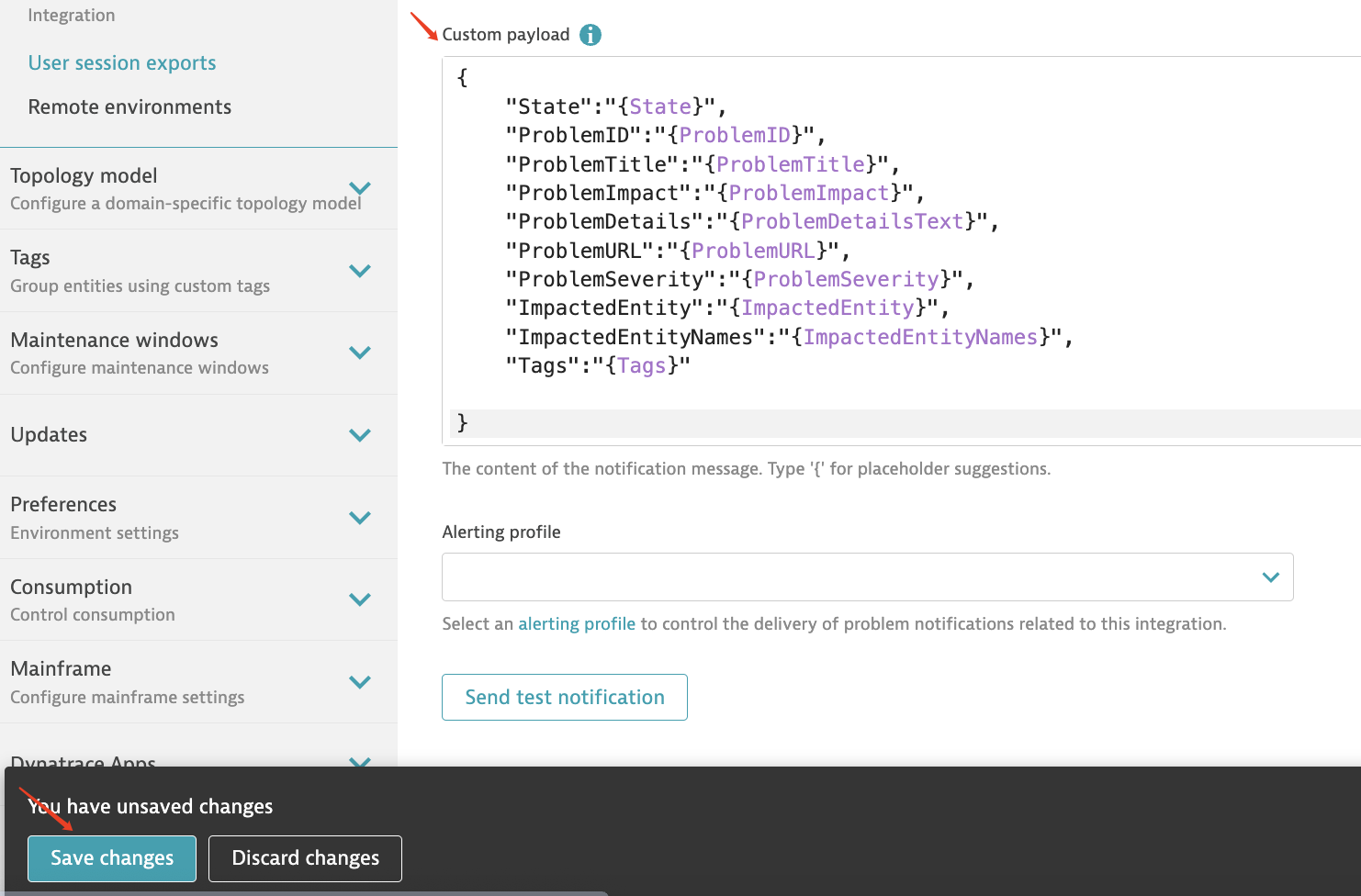
- Click
Save changesto complete the setup
II. Status Mapping
| Dynatrace | Flashduty | Status |
|---|---|---|
| AVAILABILITY | Critical | critical |
| ERROR | Warning | warning |
| PERFORMANCE | Info | info |
| RESOURCE_CONTENTION | Info | info |
| CUSTOM_ALERT | Info | info |