Sync OceanBase alert events to Flashduty via webhook for automated alert noise reduction

In Flashduty


You can obtain an integration push URL through either of these two methods:

Using Private Integration

Choose this method when you don’t need to route alert events to different channels. It’s simpler and recommended.

Using Shared Integration

Choose this method when you need to route alerts to different channels based on the alert event’s payload information.

In OceanBase


I. OceanBase Alert Push Configuration

Step 1: Configure Alert Channel

  1. Log in to your OceanBase console and select Alert Center
  2. Go to Alert Channels, click New Channel to start creating
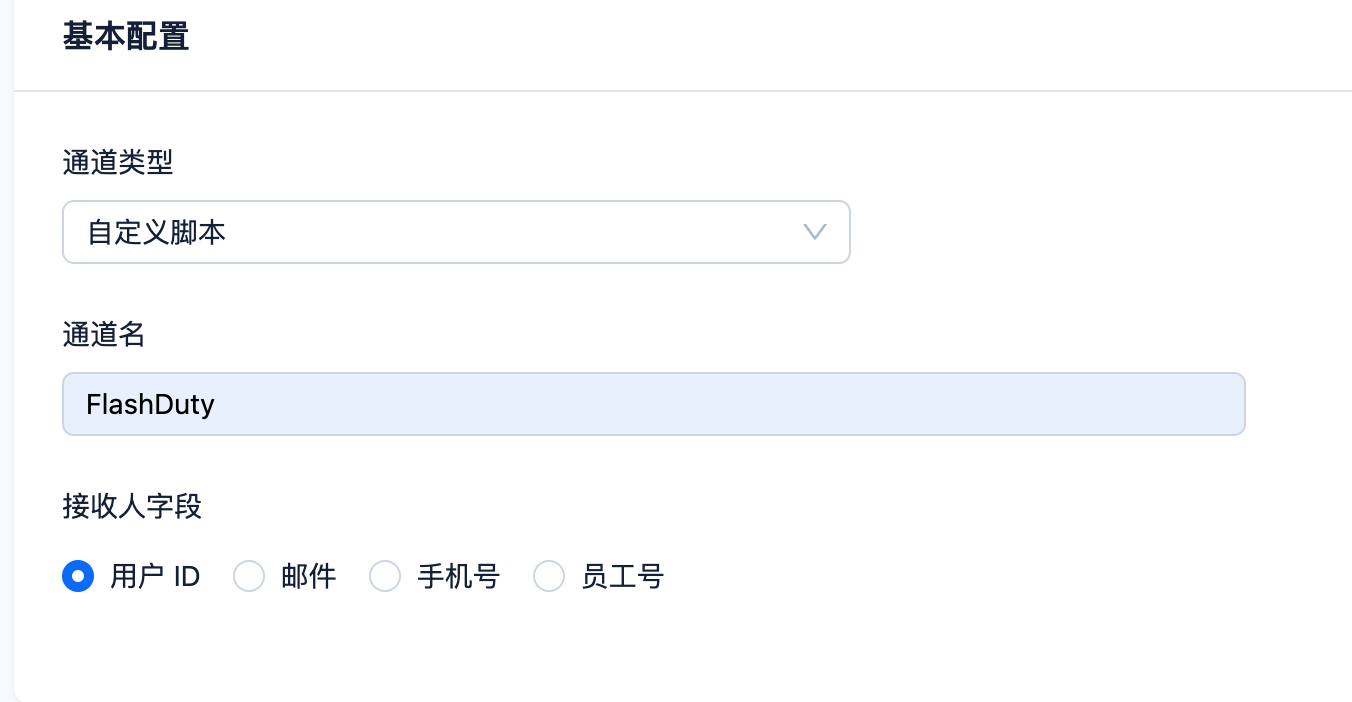
  3. Select Custom Script as the channel type
  4. Configure the basic settings as shown below:
drawing
  1. Copy the following script content into the channel configuration, and please add the integration_key value from your Flashduty push URL to the integration_key parameter in the script
#!/usr/bin/env bash

function sendToFlashduty() {
    URL="${address}/event/push/alert/standard?integration_key=${integration_key}"
    curl -s -X POST ${URL} -H 'Content-Type: application/json' -d '{
        "event_status": "'${alert_level}'",
        "alert_key": "'${alarm_id}'",
        "description": "'"${alarm_description//\"/\\\"}"'",
        "title_rule": "$app_types::$name::$alarm_targets",
        "event_time":'${timestamp}',
        "labels": {
            "app_types":"'${app_type}'",
            "id":"'${alarm_id}'",
            "name":"'${alarm_name}'",
            "alarm_level":"'${alarm_level}'",
            "alarm_status":"'${alarm_status}'",
            "alarm_active_at":"'${alarm_active_at}'",
            "alarm_threshold":"'${alarm_threshold}'",
            "alarm_type":"'${alarm_type}'",
            "alarm_targets":"'${alarm_target}'",
            "ob_cluster_group":"'${ob_cluster_group}'",
            "ob_cluster":"'${ob_cluster}'",
            "hostIP":"'${host_ip}'",
            "app_cluster":"'${app_cluster}'",
            "alarm_description":"'"${alarm_description//\"/\\\"}"'",
            "alarm_url":"'${alarm_url}'"
        }
    }'

    return $?
}

alarm_name=$(echo ${alarm_name} | sed  "s/ /_/g")
alarm_target=$(echo ${alarm_target} | sed  "s/ /_/g")

timestamp=$(TZ=UTC date -d "${alarm_updated_at}" +%s)

levelMd5=$(echo ${alarm_level} | md5sum | awk '{print$1}')
statusMd5=$(echo ${alarm_status} | md5sum | awk '{print$1}')

active="048d106318302b41372b4292b5696ad4"
Inactive="bf7da164d431439fe9668fbc964110c4"

down="2e1558b0a152fae2dd15884561b1508d"
critical="59b9b38574ca2ee4f5e264b56f49a83f"
alert="723931b03a5d1cec59eac40cf0703580"   
caution="abf4d55ba8926eff32cb44065e634ed3"
info="6aae3f4254789d72aa0cc8ed55b8f11f"

address="https://api.flashcat.cloud"
integration_key=""

if [[ ${statusMd5} == ${Inactive} ]];then
    alert_level="Ok"
    timestamp=$(TZ=UTC date -d "${alarm_resolved_at}" +%s)
elif [[ ${statusMd5} == "${active}" ]];then
    if [[ ${levelMd5} == ${down} || ${levelMd5} == ${critical} ]];then
        alert_level="Critical"
    elif [[ ${levelMd5} == ${alert} ]];then
        alert_level="Warning"
    elif [[ ${levelMd5} == ${caution}  ||  ${levelMd5} == ${info} ]];then
        alert_level="Info"
    fi
fi

if [[ ${statusMd5} == ${active} || ${statusMd5} == ${Inactive} ]];then
    sendToFlashduty
fi
  1. Fill in for Response validation
  2. Select Markdown for the alert message format in Message Configuration
  3. Select English for the alert message template, fill in the following content, and submit:
OCP Alert Notification - Single Alert
- Alert ID: ${alarm_id}
- Name: ${alarm_name}
- Severity: ${alarm_level}
- Alert Target: ${alarm_target}
- Service: ${service}
- Summary: ${alarm_summary}
- Triggered at: ${alarm_active_at}
- Updated at: ${alarm_updated_at}
- Resolved at: ${alarm_resolved_at}
- Details: ${alarm_description}
- Status: ${alarm_status}
- Alert Type: ${alarm_type}
- Alert Threshold: ${alarm_threshold}
- Cluster Group: ${ob_cluster_group}
- Cluster: ${ob_cluster}
- Host: ${host_ip}
- App Cluster: ${app_cluster}
- OCP Link: ${alarm_url}

Step 2: Configure Alert Push

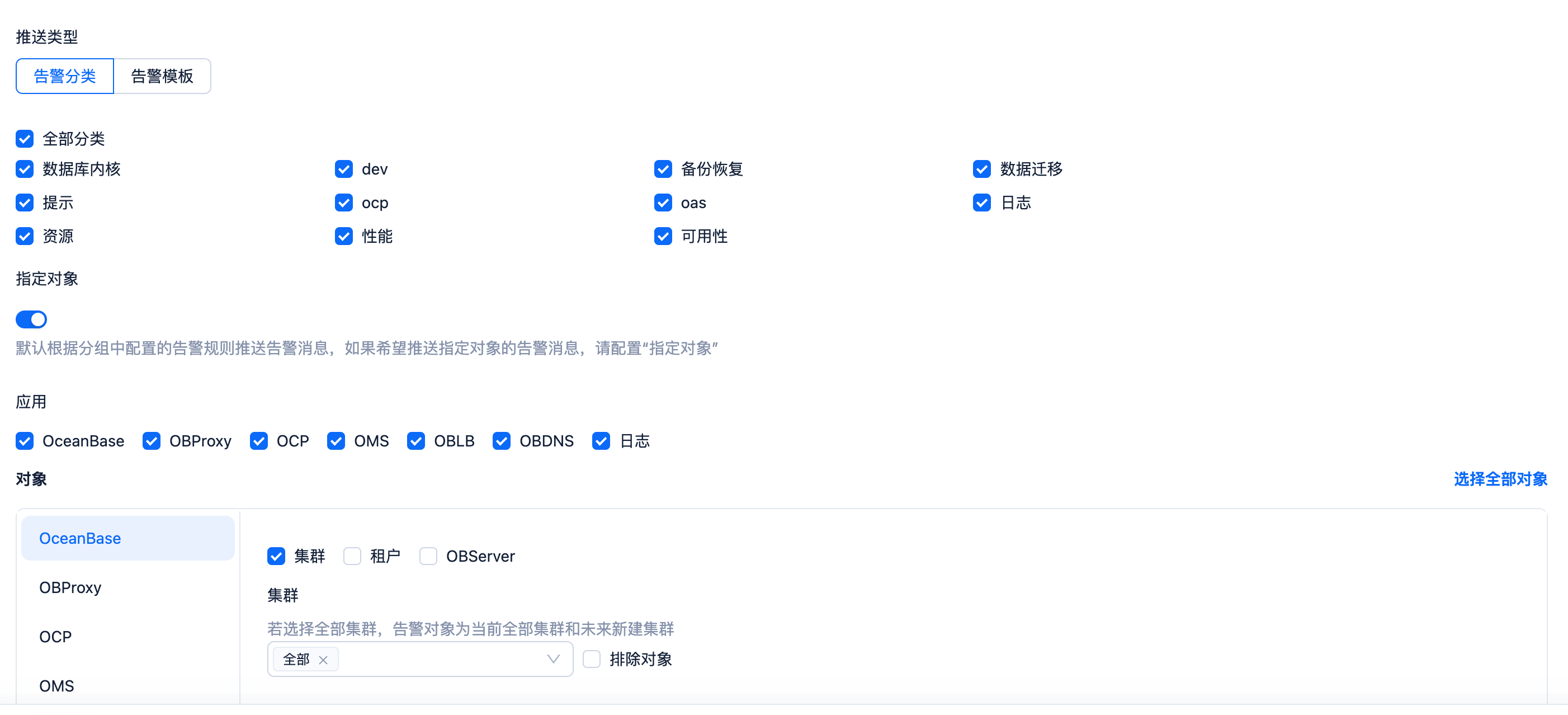
  1. Create a new push configuration at: Alert Center=>Alert Push=>New Push Configuration
  2. Configure push type and specified objects as needed
drawing
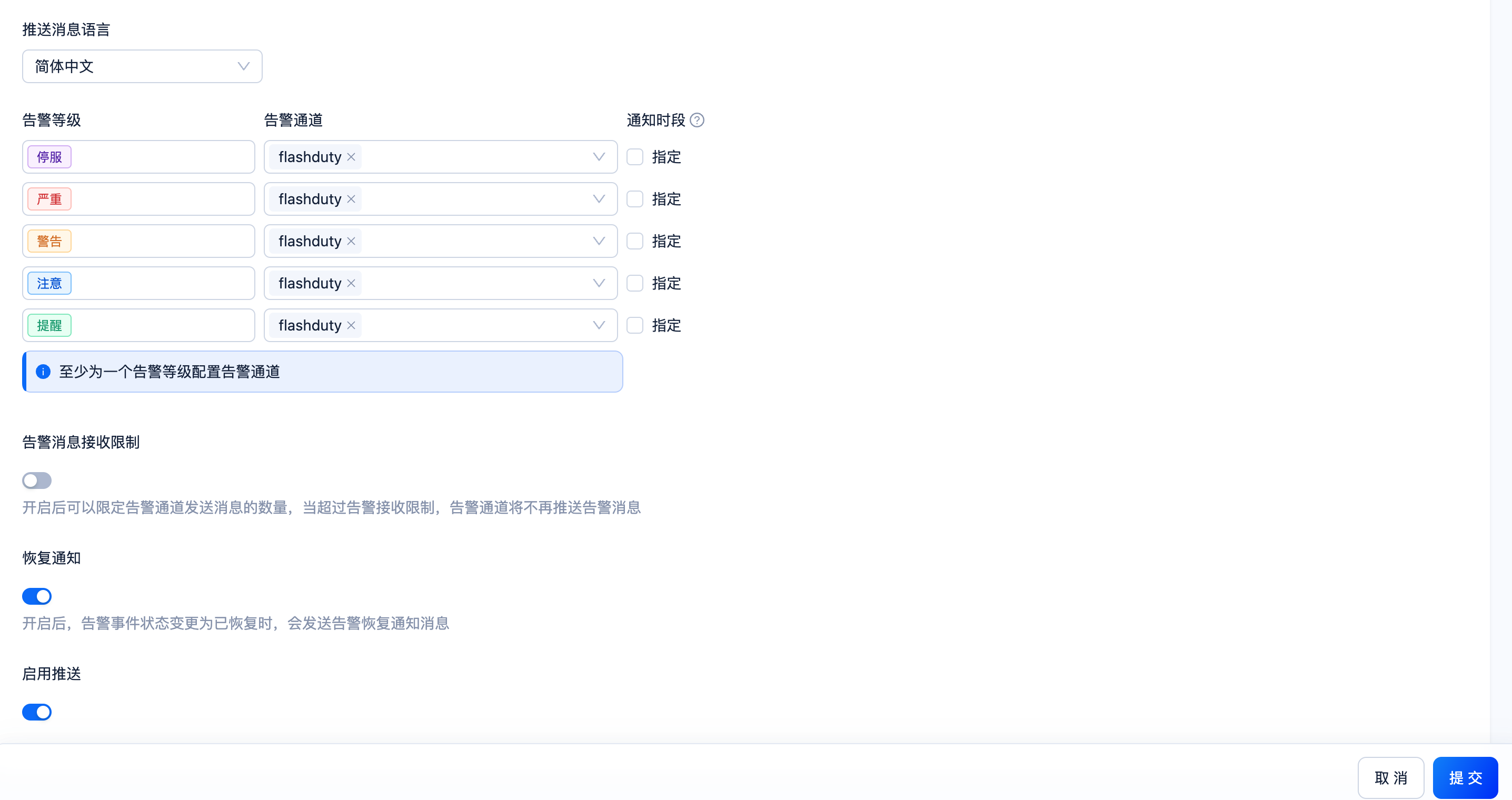
  1. Select English for push language
  2. Select Flashduty for alert channel
  3. Enable Recovery Notification
  4. Submit
drawing

II. Status Mapping

OceanBaseFlashdutyStatus
DownCriticalCritical
CriticalWarningCritical
WarningWarningWarning
CautionInfoInfo
NoticeInfoInfo