

In Flashduty
You can obtain an integration push URL through either of these two methods:
Using Private Integration
Choose this simpler option when you don’t need to route alert events to different channels.Using Shared Integration
Choose this option when you need to route alerts to different channels based on the alert event’s payload information.In Graylog
I. Graylog Alert Push Configuration
Step 1: Configure Alert Channel
- Log in to the Graylog console
- Find Alerts in the menu and select Notifications
- Create Notification
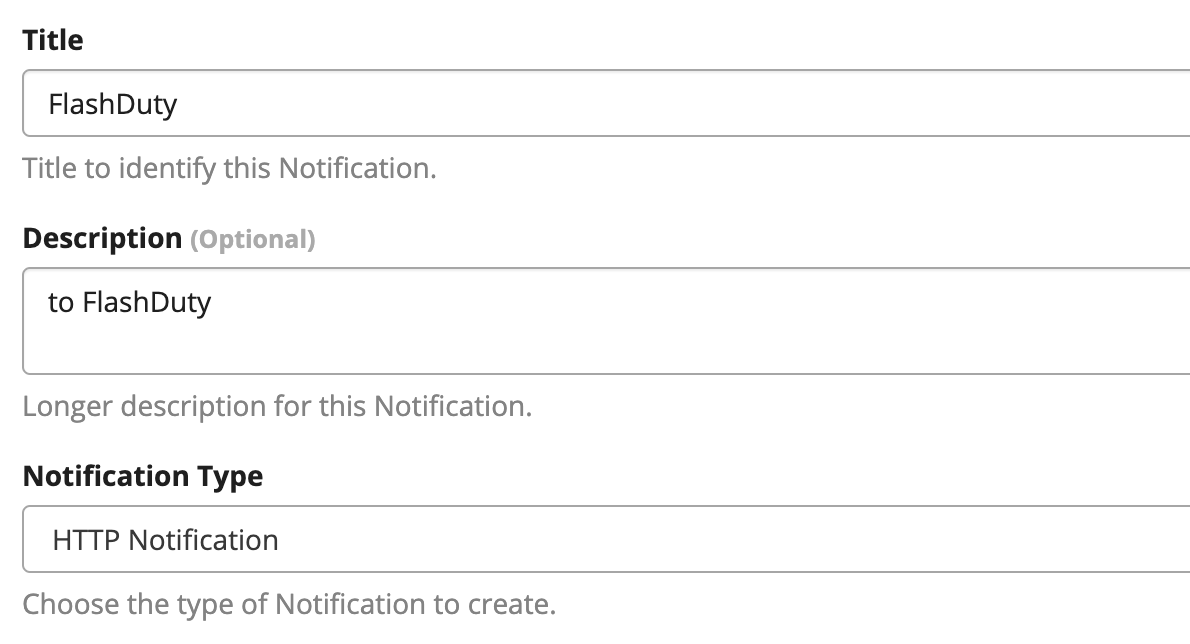
- Enter Title and Description
- Select HTTP Notification as Notification Type, as shown below
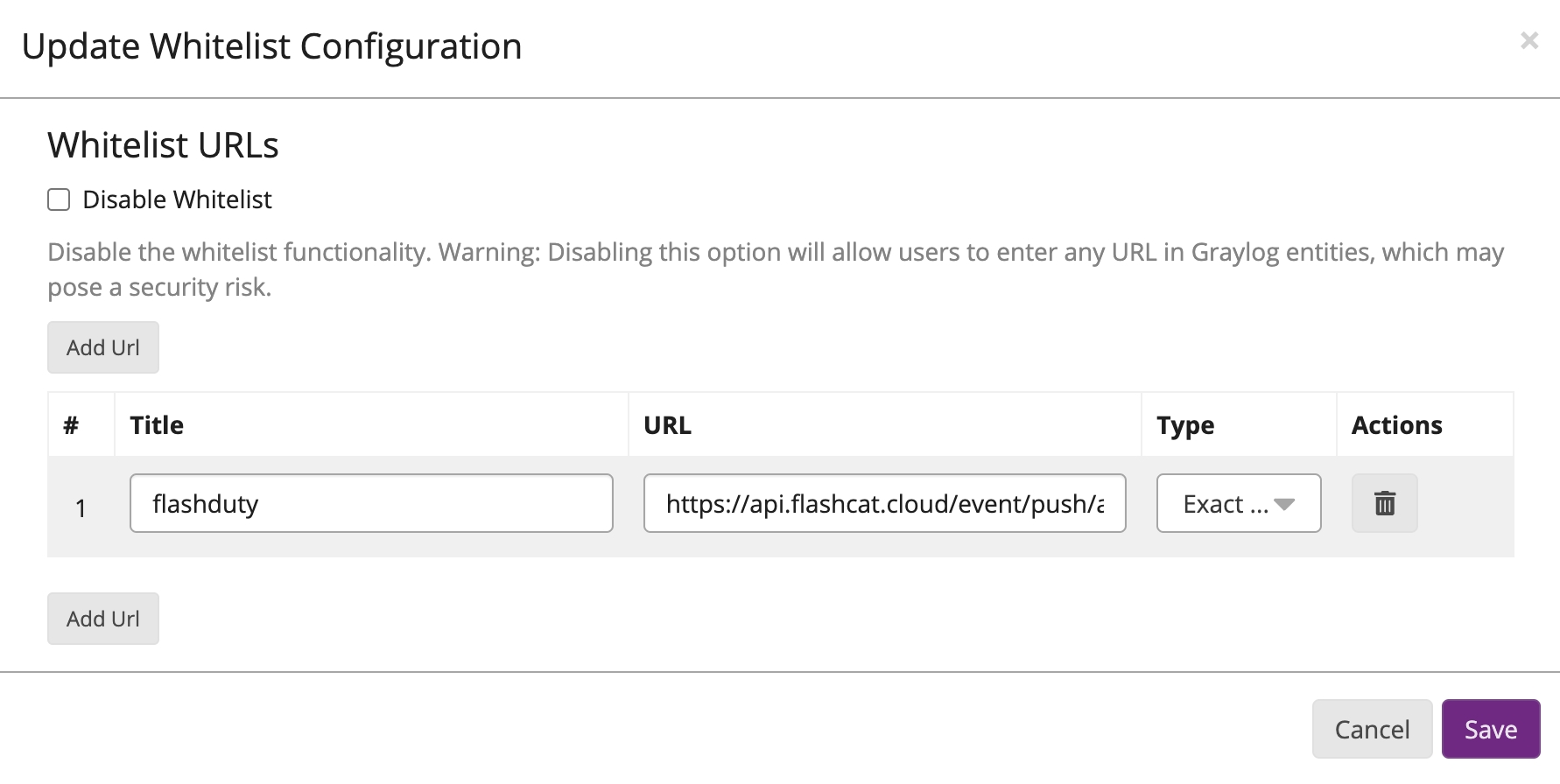
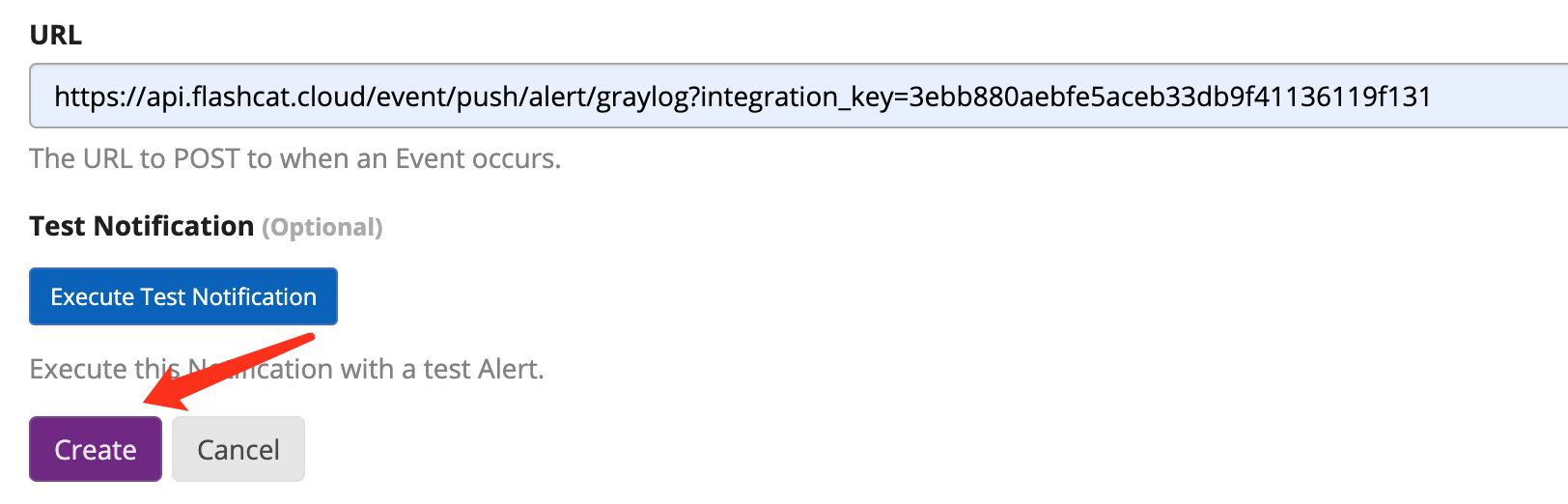
- Enter the Flashduty URL you obtained (URL whitelist required for first-time use)

- Click Save to whitelist the URL
- After saving, submit Create
Step 2: Use Flashduty Alert Channel in Alert Events
- Create or edit existing Event Definition
- Skip other alert configurations here (configure alert conditions according to business requirements)
- Configure channel in Notifications
- Add Notification and select Flashduty channel
- Click Done
- Complete the next step to finish

II. Status Mapping
| Graylog | Flashduty | Status |
|---|---|---|
| 3 | Critical | Critical |
| 2 | Warning | Warning |
| 1 | Info | Info |